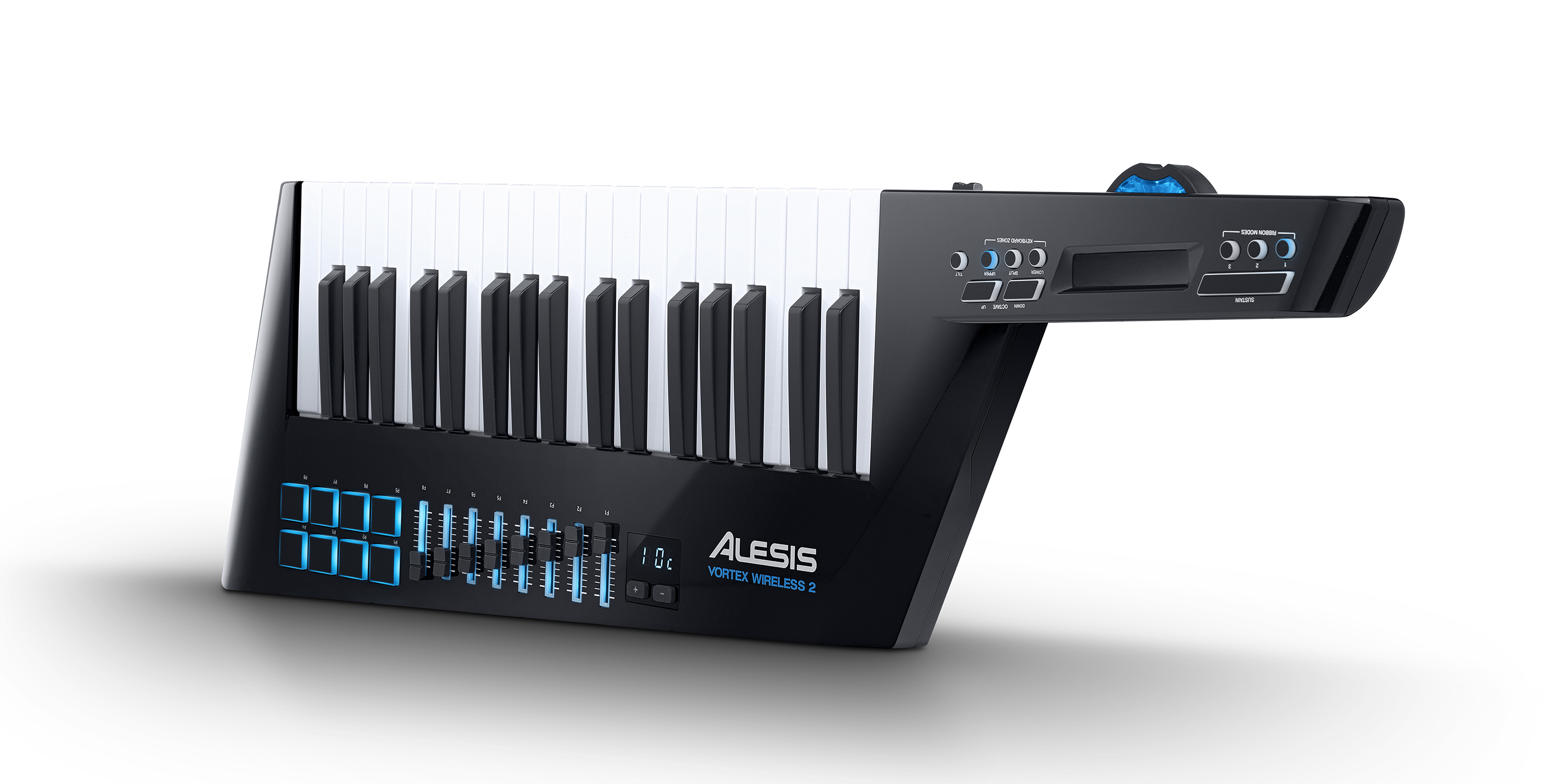
Vortex Wireless 2 offers comprehensive MIDI controller functionality in a stylish and stage-ready keytar design, connecting wirelessly to your computer using the included USB dongle OR using a wired USB connection.
This article serves as a guide on getting started and introducing the included software.
TABLE OF CONTENTS
- Registration
- Redeeming and installing the included Alesis Vortex Wireless 2 software
- Connecting to a computer
- Editor
Registration
Registering your Vortex Wireless 2 with an inMusic Profile will provide access to the included software content.
To register, visit the inMusic Profile page here. You can log in if you have an account, or create one if needed. Then, select 'register new product' as seen below:

From here, you will be prompted to enter the product serial, which can be found on the underside of the device. The (21) is already entered for you. Hit 'Check Serial' to proceed.
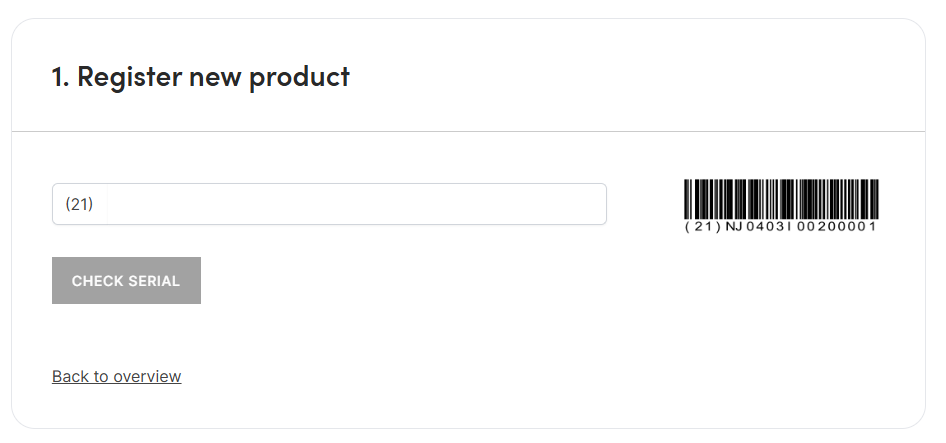
Follow the rest of the steps, such as entering your purchase date and location (for your reference), to complete the registration. The device will now appear in your registered products list, where you can access all the included content.
Redeeming and installing the included Alesis Vortex Wireless 2 software
The software licenses included with your Alesis Vortex Wireless 2 are redeemed via the inMusic Software Center once your Alesis Vortex Wireless 2 has been registered via the steps above.
For a complete step-by-step guide on registering your redeeming and installing your included software, be sure to follow the guide linked below:
inMusic Software Center | How To Redeem Software Included With inMusic Hardware
Connecting to a computer
There are two options for connecting your Vortex Wireless 2 to your computer.
1. Connect the wireless USB receiver to an available USB port on your computer. The receiver is always paired with the Vortex, so the connection will be automatic.
If you have received a new USB receiver (sometimes referred to as the wireless dongle), please see the following support article for pairing instructions.
2. Use the included USB cable to connect the Vortex to your computer, using the rear USB port on the device and an available USB port on your computer.
In both cases, the Vortex Wireless 2 will now be visible as a connected USB device and as a MIDI input/output option within your DAW.
Within your DAW, ensure that the Vortex Wireless 2 is enabled within the MIDI preferences/settings. Included with the Vortex Wireless 2 is MPC Beats, a DAW program. We have a tutorial below, showing you how to connect a MIDI device with the software, for playback with virtual instruments:
Editor
There is a preset editor available for the Vortex Wireless 2. This software allows you to customize the behaviour of the Vortex controls, such as the pads, faders, and pitch wheel. This includes MIDI channel, type of MIDI message, and note value, among others.
You can then save these configurations in custom presets, which can be transferred to the device for use.
Firstly, to save the preset:
- Go to File > Save Preset.
- Select the desired location, enter a file name, and click Save. The preset will be saved as a .vw2 file.
To send a preset to your connected Vortex Wireless 2:
1. Go to File > Send Preset.
2. In the window that appears, click the Preset Slot drop-down menu to select the desired preset number.
3. Click Send to confirm or Cancel to cancel the operation (sending the preset will overwrite that preset number on your Vortex Wireless 2).
For a full guide on using the Vortex Wireless 2 Editor, please see the user guide.
Was this article helpful?
That’s Great!
Thank you for your feedback
Sorry! We couldn't be helpful
Thank you for your feedback
Feedback sent
We appreciate your effort and will try to fix the article