
Some users may encounter incorrect articulation triggering when using the Roland TD-20 map in BFD3. The contents of this support article will help you troubleshoot and solve this problem by using an alternative mapping file.
Table of Contents
- Download the Alternative TD-20 Map
- Import the Alternative TD-20 Map into BFD3
- Disable Automatic Key Map Loading
Download the Alternative TD-20 Map
Download the alternative Roland TD-20 Mapping file attached to this article - Scroll down to the bottom of this page, and download it from either a Windows or Mac computer.
Import the Alternative TD-20 Map into BFD3
Launch BFD3.
Click the (☰) Icon, then File in the top menu
Select Load Key Map.
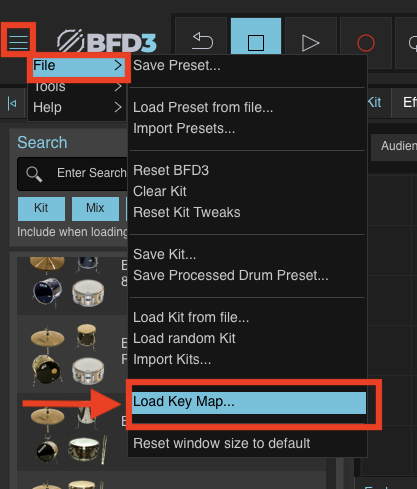
Click Load Key Map from file...
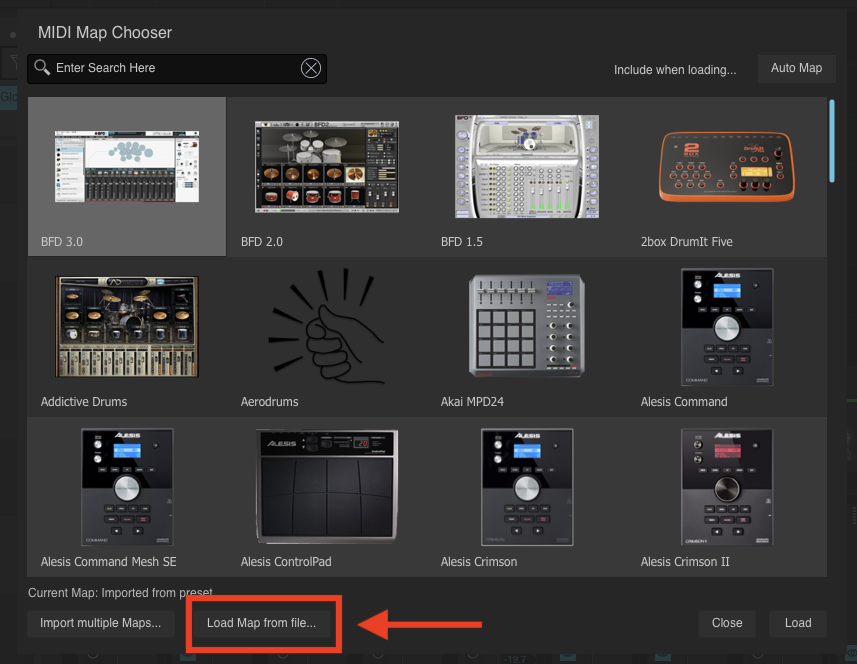
Navigate to the downloaded TD-20.bfd3map file.

Select the file and click Open.
The TD-20 mapping will now be applied.
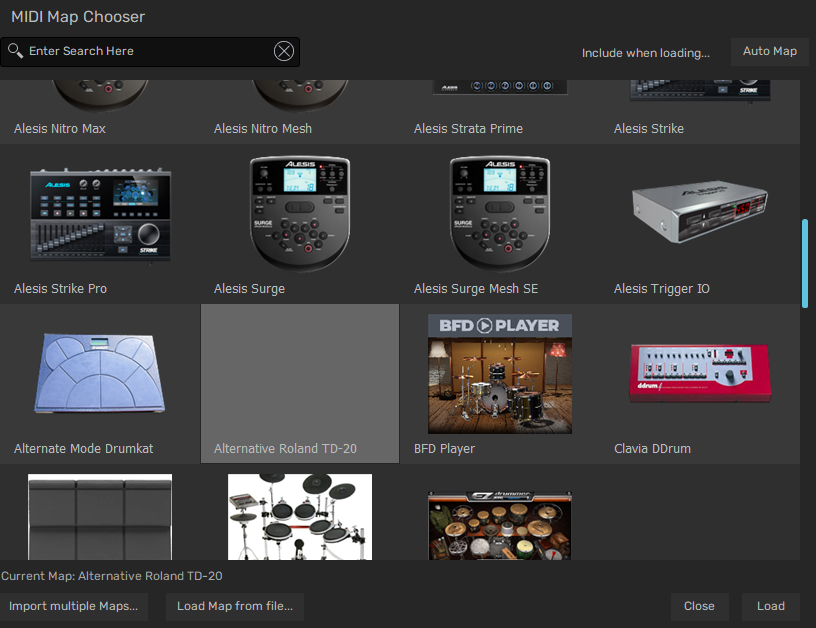
Disable Automatic Key Map Loading
Some presets in BFD3 automatically load their own key maps, which may override the imported mapping.
To prevent this:
Locate the Key Map section
- Disable automatic key map loading - Note, the 'Key' button will appear greyed out when disabled. If illuminated 'Blue', loading a preset will automatically load the BFD3 map by default.
Load your desired Preset
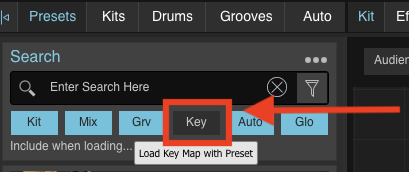
Disabling the 'Key' button allows BFD3 to retain the TD-20 map whenever loading a new preset.
Was this article helpful?
That’s Great!
Thank you for your feedback
Sorry! We couldn't be helpful
Thank you for your feedback
Feedback sent
We appreciate your effort and will try to fix the article