I Hear No Sound When Playing the Keys of my Komplete Kontrol S-Series Keyboard
TABLE OF CONTENTS
Symptom
You cannot hear any sound when playing the keys of your Komplete Kontrol S-Series keyboard and it is not available as a MIDI device in the Komplete Kontrol Preferences.
Cause
This issue can be caused by the following:
- The services NIHardwareAgent and/or NIHostIntegrationAgent are not running.
- The MIDI input ports of the keyboard are turned off.
- The keyboard is not correctly connected.
- Mac only: A plug-in in the HAL folder prevents the keyboard from being recognized.
- Windows only: The keyboard driver is not correctly installed.
Solution
Follow these steps to solve the issue:
1. Make sure that the services NIHardwareAgent and NIHostIntegrationAgent are running on your computer. Follow these steps for Mac or Windows:
Mac
- Open your Mac's System Preferences and choose Users & Groups > Login Items.
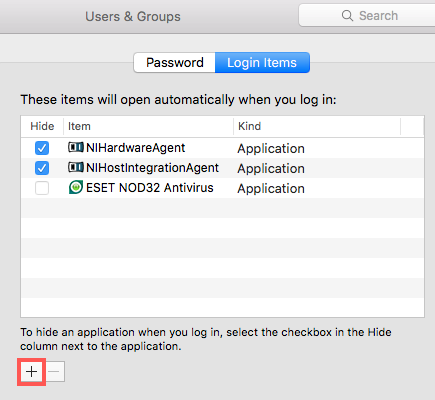
- If the files NIHardwareAgent and/or NIHostIntegrationAgent are missing from the list, add them by clicking the '+' icon and navigating to the following location:
Mac HD > Library > Application Support > Native Instruments > Hardware - Select the missing service and click Add:
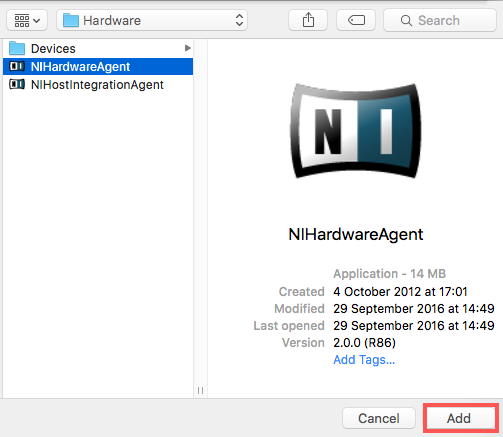
Note: You can choose both entries by holding the SHIFT key on your computer keyboard and clicking both entries.
Windows
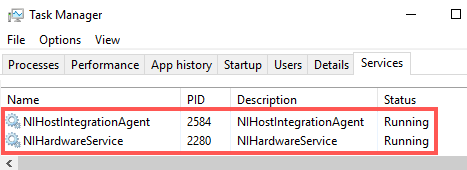
- Open the Windows Task Manager and choose the Services tab.
Note: If the Services tab is not directly available, expand the view by clicking 'More details' in the lower left corner of the window.
- Search the list and check if the Status of the services NIHostIntegrationAgent and NIHardwareService is Running:
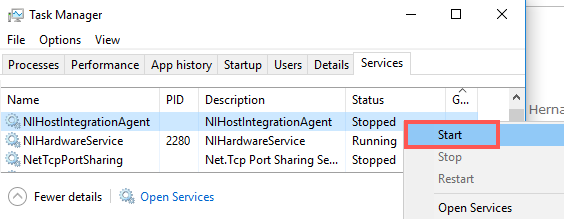
- If not, right click the respective entry and choose Start from the context menu:
2. Activate the MIDI input ports of the keyboard:
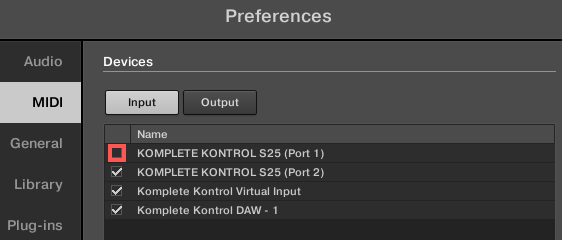
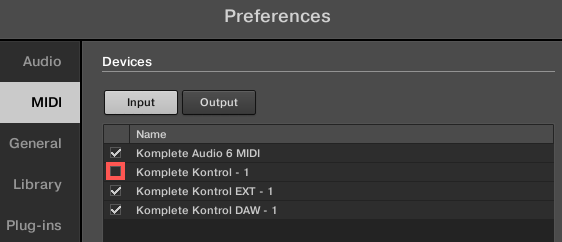
- Open the Komplete Kontrol Preferences and choose Input in the MIDI tab.
- Mac: Make sure the inputs are activated. If the inputs are not checked, click the square next to the respective entry to activate the input:
- Windows: Make sure the inputs are activated. If the inputs are not checked, click the square next to the respective entry to activate the input:
3. If still available, make sure to use the original USB cable that came with the keyboard. Connect the cable directly to the computer. If you have to use a USB hub, make sure to choose a powered hub.
4. Mac only: To find out if a plug-in in the HAL folder prevents the keyboard from being recognized, follow the instructions in this article.
5. Windows only: To make sure that the keyboard driver is correctly installed, follow the instructions in chapter 2 and 3 in this article.
Was this article helpful?
That’s Great!
Thank you for your feedback
Sorry! We couldn't be helpful
Thank you for your feedback
Feedback sent
We appreciate your effort and will try to fix the article