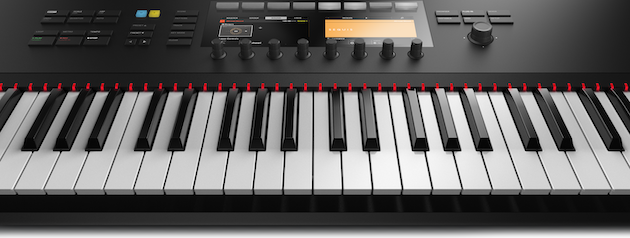
If Komplete Kontrol crashes at startup or during use, it is typically related to plugin compatibility, system configuration, or outdated software.
TABLE OF CONTENTS
Click on the operating system you are using to reveal the appropriate solutions listed below.
macOS
Enable Full Disk Access to Komplete Kontrol
On macOS, Native Instruments products and the audio software they are used with require Full Disk Access to function correctly.
Please grant Full Disk Access to all NI apps, NTKDaemon, and other audio software (incl. your DAW):
- Open your Mac's System Preferences and select Security & Privacy.
- In the Privacy tab, choose Full Disk Access.
- Click the lock icon in the bottom left of the window and enter your macOS password.
- Ensure that your desired app appears in the list.
If it does not appear in this list, click the + icon and add the location of the app from here:
- Native Access and other audio software: Macintosh HD > Applications
- Other NI apps: Macintosh HD > Applications > Native instruments - Once completed, click the lock icon again.
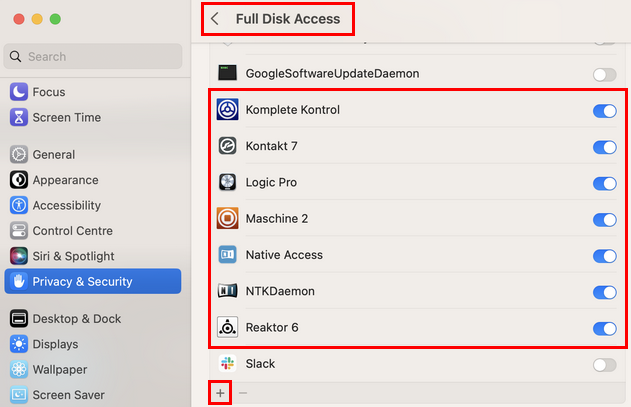
Note: the look of the Full Disk settings can vary depending on your macOS version. - Restart your computer.
- Reopen the Komplete Kontrol software to check that the issue has been resolved.
If the issue persists, please proceed to the next steps below.
Delete the User Preference (PLIST) File
- Go to the following location on your computer:
Macintosh HD > Users > *Your User Name* > Library > PreferencesNote: The User Library is a hidden folder on macOS.
- Search through the Preferences folder at this location, to find the .plist file for Komplete Kontrol:
com.native-instruments.Komplete Kontrol.plist - Delete the .plist file.
Note: Deleting other .plist files could result in unexpected behavior with other applications.
- Reopen the Komplete Kontrol software to check that the issue has been resolved.
If the issue persists, please proceed to the next steps below.
Reinitialize the Komplete Kontrol Database
- Go to the following location on your computer:
Macintosh HD > Users > *Your User Name* > Library > Application Support > Native Instruments - Search through the Native Instruments folder at this location to find the Komplete Kontrol folder.
- Delete only the Komplete Kontrol folder found here.
Note: Deleting other NI product folders could result in unexpected behavior with other applications.
- Reboot your computer and reopen the Komplete Kontrol software to check that the issue has been resolved.
If the issue persists, please proceed to the next steps below.
Remove and Reinstall Komplete Kontrol
If the solutions listed above do not solve the problem, please try to completely remove and reinstall the Komplete Kontrol software by following these steps:
Note: This will not affect your DAW projects or saved NI documents. Reinstalling on the same computer does not affect your allowed number of authorizations.
- Manually remove the Komplete Kontrol software.
Note: To fix common issues, it's usually not necessary to uninstall Expansions or sample libraries. You can safely keep your sample library folders in place.
- Once the Komplete Kontrol software has been removed, it can be re-downloaded in the Available section of Native Access.
- Reopen the Komplete Kontrol software to check that the issue has been resolved.
Windows
To resolve these crashes on Windows, follow these steps:
Delete the USER Registry Entry
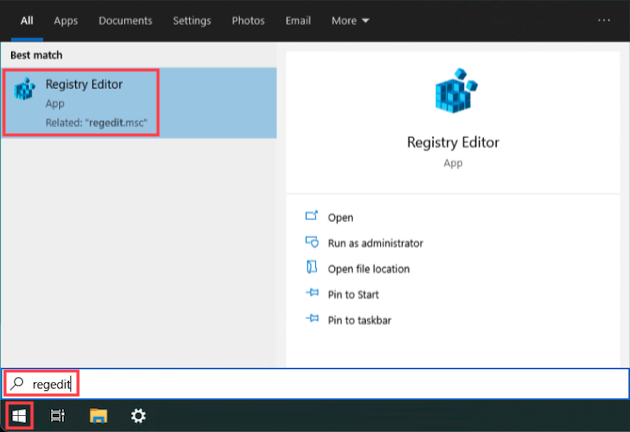
- Click the Windows Start button at the bottom left side of your screen.
- Type "regedit" into the search field, then press Enter to open the Windows Registry Editor.
- In the Registry Editor, navigate the folder structure to this location:
HKEY_CURRENT_USER > Software > Native Instruments > Komplete Kontrol (Folder) - Delete only the Komplete Kontrol folder found here.
Note: Deleting the incorrect folder could result in unexpected behavior with other applications, and possibly your operating system.
- Close the Registry Editor and reopen the Komplete Kontrol software to check that the issue has been resolved. If the issue persists, please proceed to the next steps below.
Reinitialize the Komplete Kontrol Database
- In the Windows File Explorer, go to the following location on your computer:
C: > Users > *Your Username* > AppData > Local > Native InstrumentsNote: The "AppData" folder is hidden.
- Search through the Native Instruments folder at this location to find the Komplete Kontrol folder.
- Delete only the Komplete Kontrol folder found here.
Note: Deleting other NI product folders could result in unexpected behavior with other applications.
- Reopen the Komplete Kontrol software to check that the issue has been resolved. If the issue persists, please proceed to the next steps below.
Update Windows
- Click the Windows Start button at the bottom left side of your screen.
- Type 'windows updates' into the search field, then press Enter.
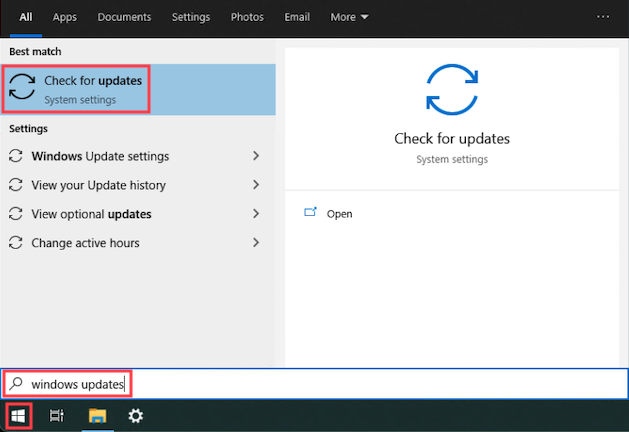
- Install all available updates presented in the Windows Update menu.
- Once all Windows updates have been installed, restart the computer.
- Reopen the Komplete Kontrol software to check that the issue has been resolved. If the issue persists, please proceed to the next step below.
Was this article helpful?
That’s Great!
Thank you for your feedback
Sorry! We couldn't be helpful
Thank you for your feedback
Feedback sent
We appreciate your effort and will try to fix the article