I Cannot Activate the MIDI Input in the Audio and MIDI Settings (Windows)
Symptom
When trying to activate the MIDI Input for your Native Instruments hardware device, the check box cannot be ticked.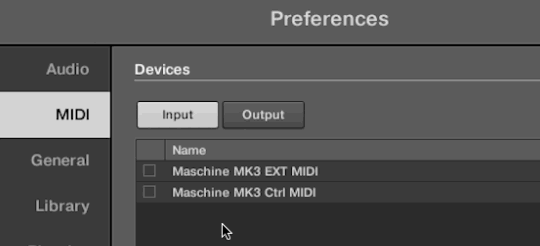
Cause
This can happen if the device's MIDI port is being used by another audio application.
Solution
Please follow these steps to solve the problem.
Note: This solution requires the use of a separate application from Microsoft.
1. Find Your NI Device ID
- Connect your Native Instruments hardware device to the computer.
- Click the Windows start button, type "device manager" and press enter.
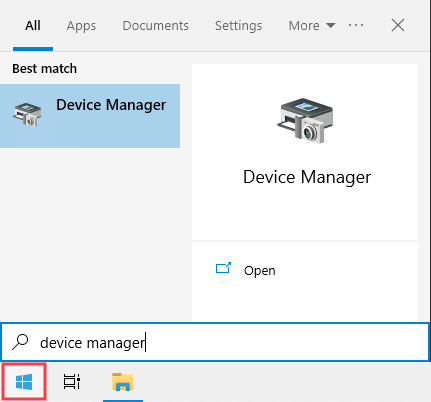
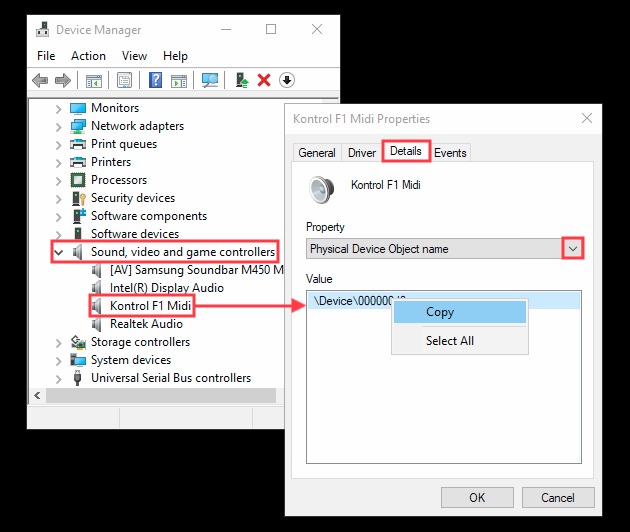
- Expand the tab Sound, video and game controllers.
- Double-click the NI hardware device to open its Properties window.
- Click the Details tab in Properties and use the drop-down menu to select Physical Device Object name.
- Right-click the device info below Value and select copy.
2. Use Microsoft Process Explorer
- Download the Windows Process Explorer from here.
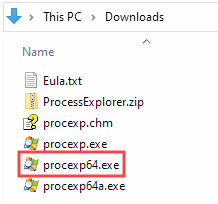
- Unzip the downloaded zip file, then launch the procexp64.exe app.
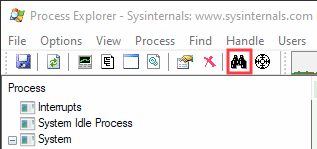
- Click the binoculars icon in the menu bar of the Process Explorer window.
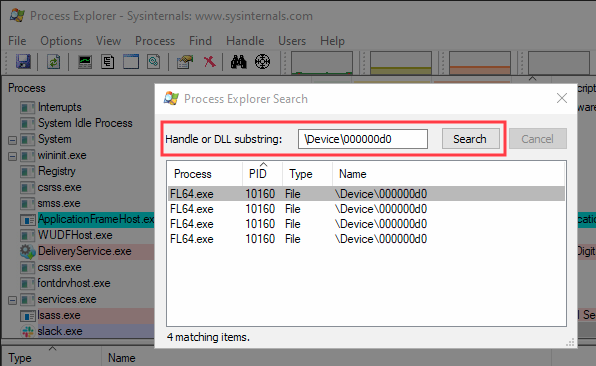
- Paste the Physical Device Object name you copied (see step 6 above) into the search field next to Handle or DLL substring and click Search.
- A list of processes will be displayed. Click on each process to see which app is using your MIDI controller in the main Process Explorer window.
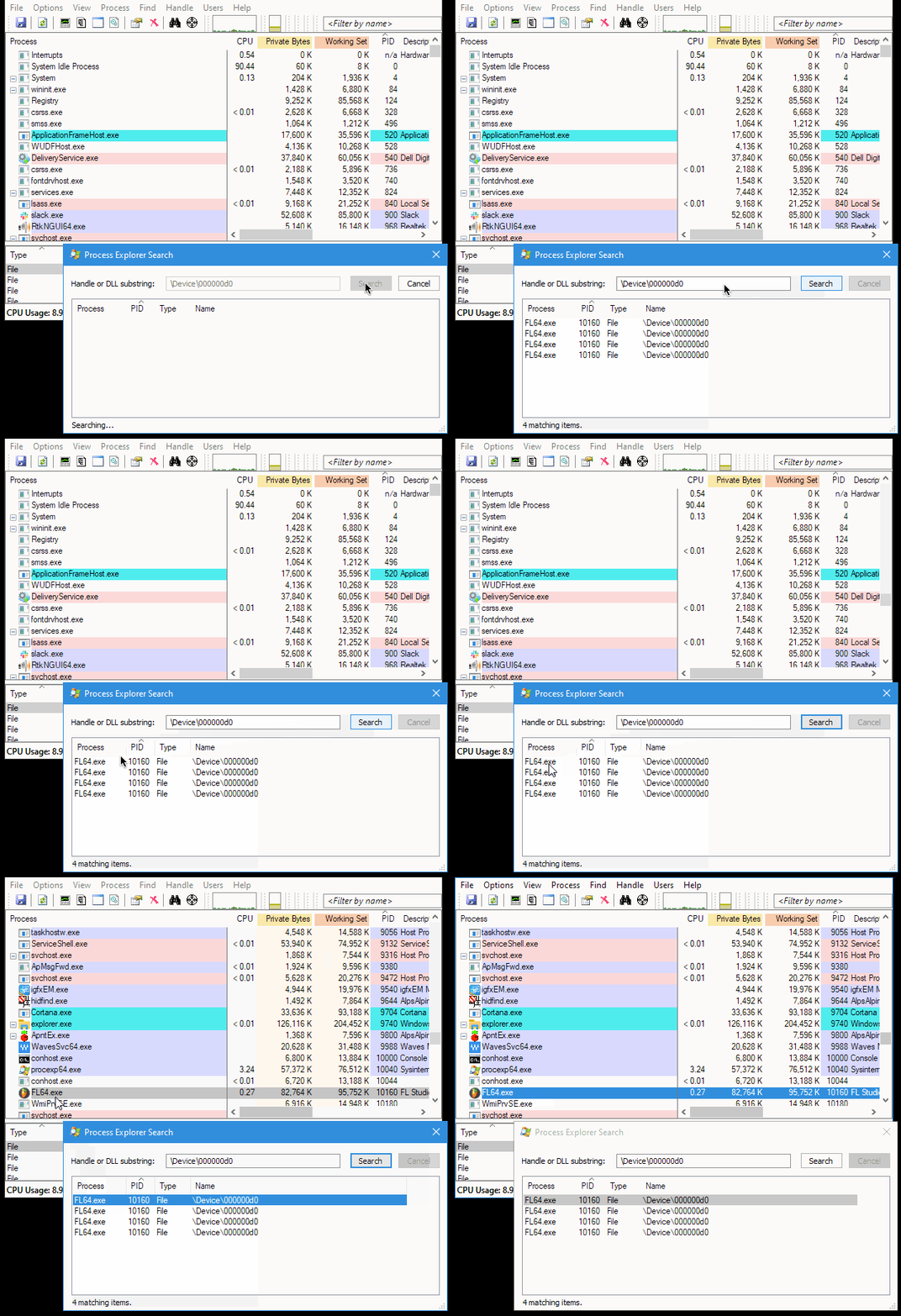
- Launch the app that was found in the search and deactivate your NI hardware device within its MIDI settings.
Was this article helpful?
That’s Great!
Thank you for your feedback
Sorry! We couldn't be helpful
Thank you for your feedback
Feedback sent
We appreciate your effort and will try to fix the article