Akai Pro MPC Series | Mapping Plugin Instruments & FX Parameters via MIDI Learn
This article cover the steps on how to use MIDI Learn to map a MIDI controller to plugin instruments/FX on MPC Standalone and MPC desktop software (MPC 3, MPC 2 and MPC Beats)
TABLE OF CONTENTS
Overview
You can use the MIDI Learn function to assign external MIDI controllers to various parameters in your specific MPC project:
- Mixer parameters such as volume, pan, mute, and solo* for tracks, returns, submixes, and main outputs.
- Pad parameters (for drum tracks only) such as tuning, filter and amp envelopes, layer settings, LFO settings, and velocity.
- Track parameters, which depend on the track type.
- Insert effects parameters, which depend on the effect type.
These assignments will be saved with your MPC project.
*Solo on Standalone is currently only available on MPC 2.15.1 and lower
MPC Standalone - Plugins/FX
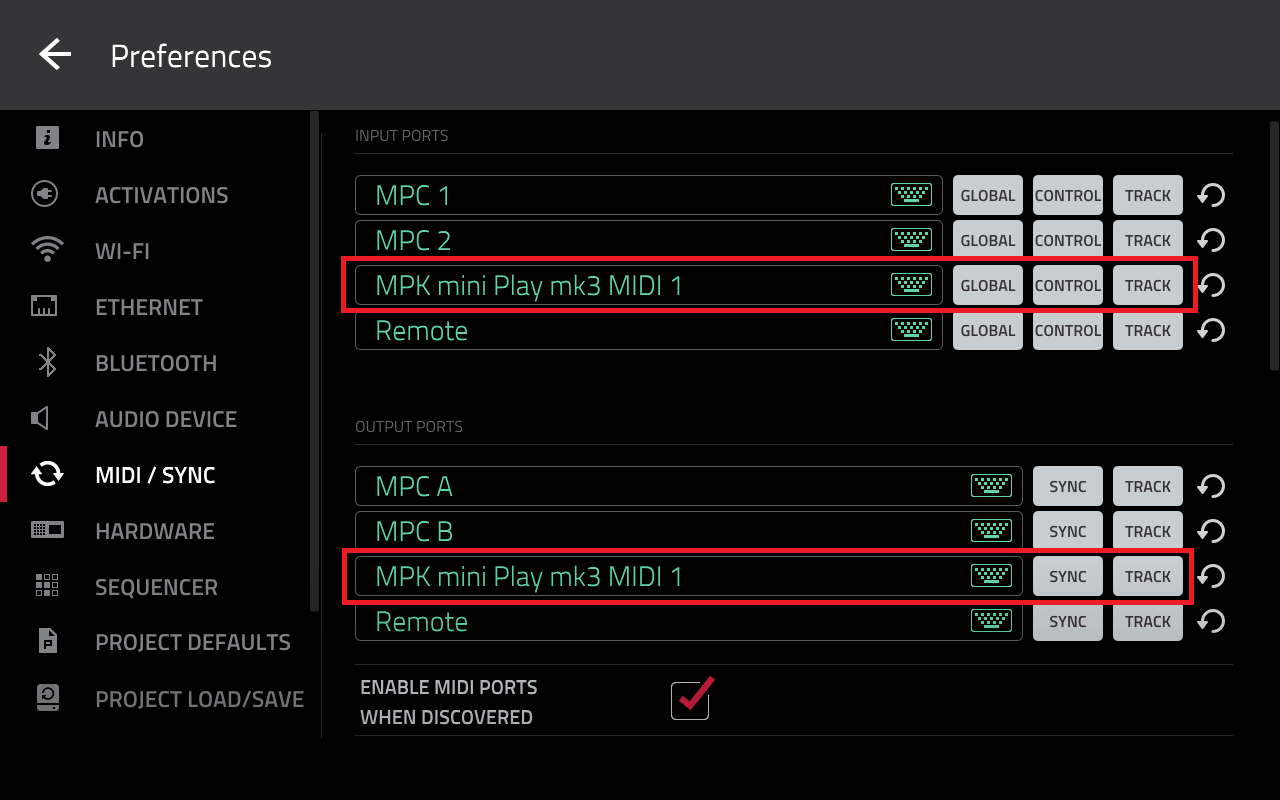
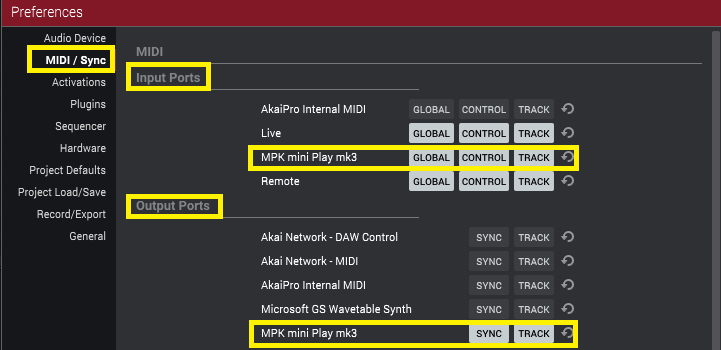
Important: When 'Control' is enabled, MIDI data from this port will be sent to MIDI Learn.
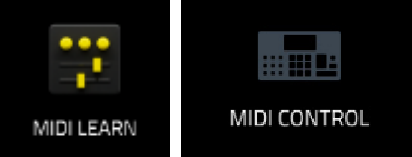
4. Tap LEARN (MPC 3) or LEARN + ENABLE MAPPING (MPC 2)
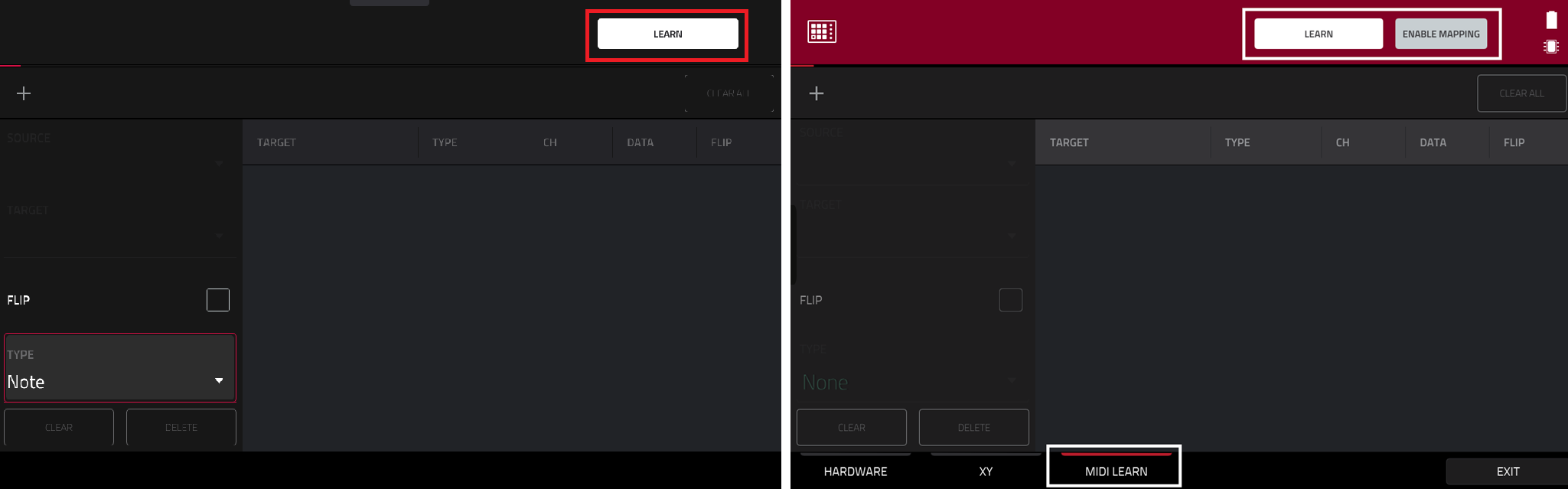
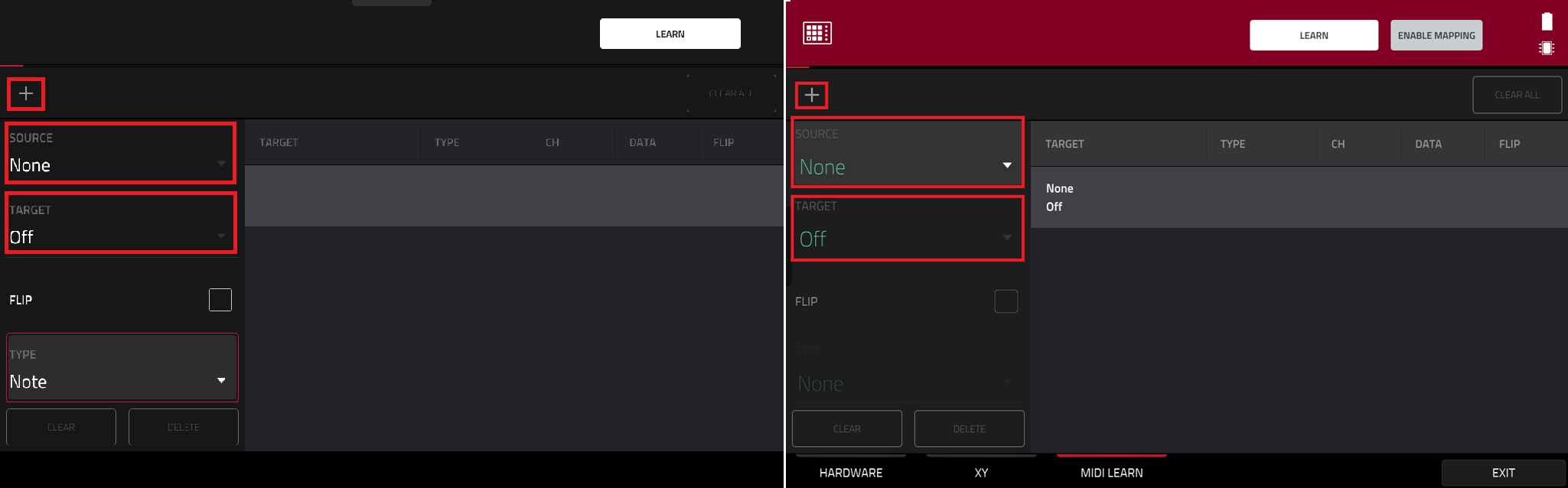
Important: If you receive Learned (CC) to Macro after mapping, this indicates that the MIDI device you are using is not set up correctly for MIDI Learn control. Ensure it has been set for Control in the MIDI/Sync page
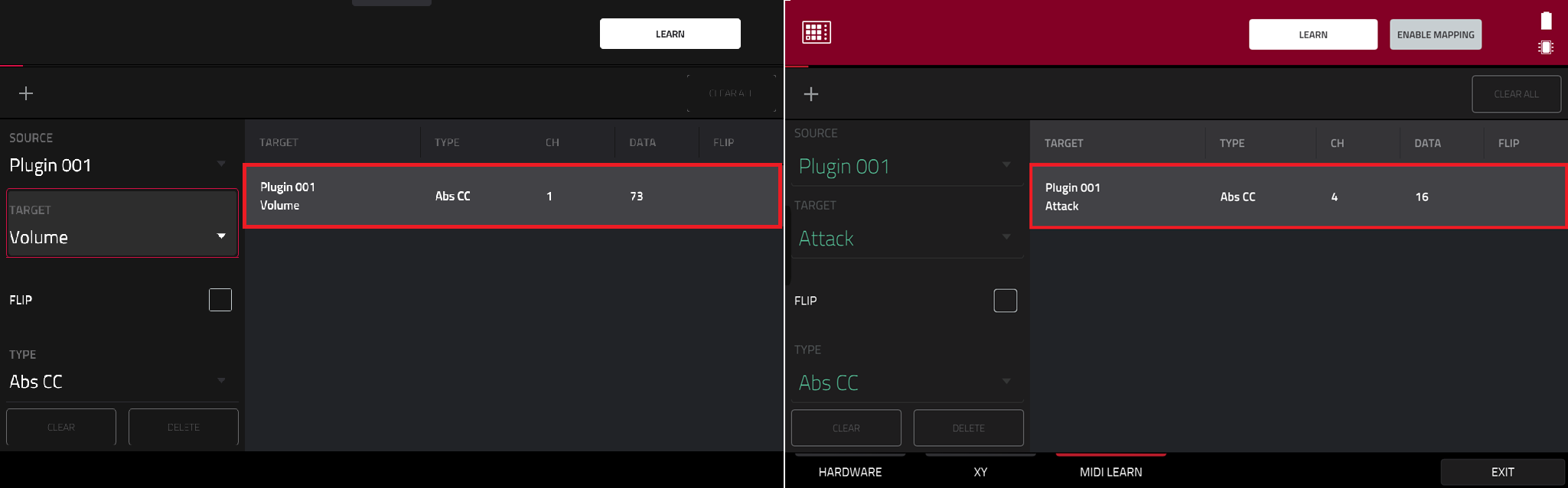
That's it, your controller is now mapped!
MPC Standalone - Transport Control
Please note that the MPC's transport controls cannot be mapped to an external MIDI device in MIDI Learn. For transport control, you will require a MIDI controller that supports MMC (MIDI Machine Control).
Please refer to this article for more information: Akai Pro MPC Series | Connecting the MPC to External Gear
MPC Software
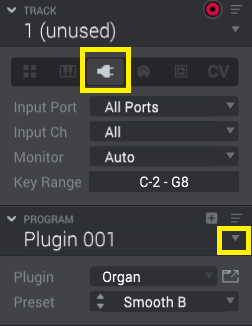



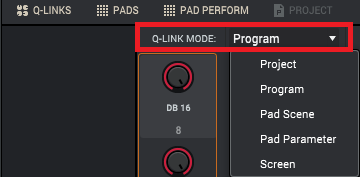
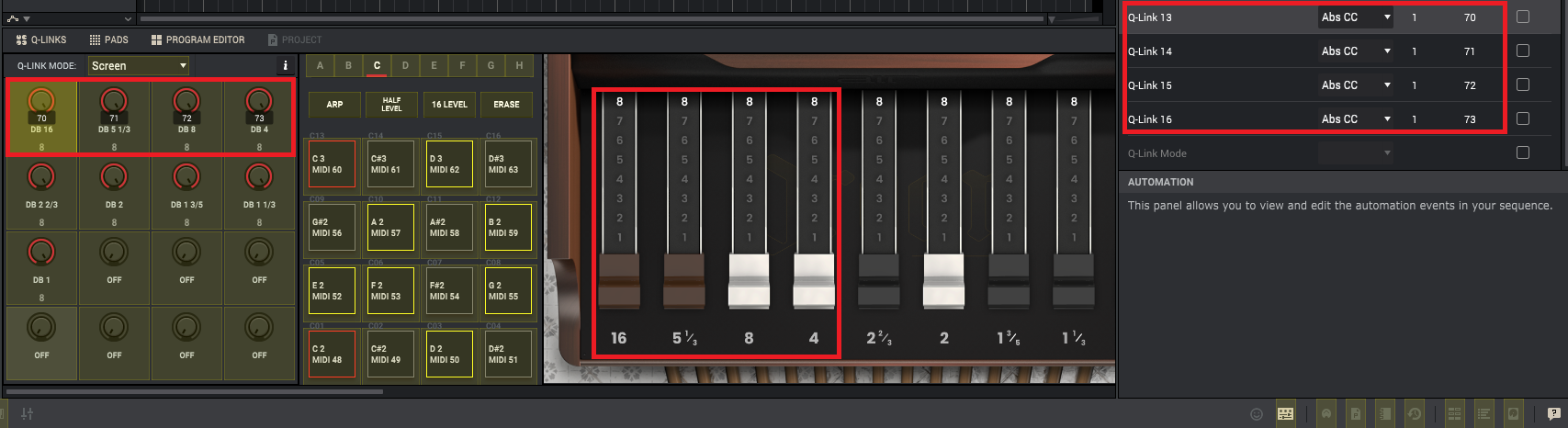

That's it, your controller is now mapped!
Was this article helpful?
That’s Great!
Thank you for your feedback
Sorry! We couldn't be helpful
Thank you for your feedback
Feedback sent
We appreciate your effort and will try to fix the article