Akai Pro MPC Series | Wireless Remote MIDI Control in a DAW
In this guide we will cover the steps to configure your MPC Standalone Hardware* for wireless remote MIDI control in your DAW.
*MPC standalone hardware includes the MPC XL, MPC Live III, MPC X, X SE, MPC Live, Live II, MPC One, One +, MPC Key 61 and Key 37.
TABLE OF CONTENTS
- Overview
- Akai Network MIDI Driver Installation
- MPC MIDI / Sync Configuration
- 'Waiting For Communication' Troubleshooting
Overview
The Akai Network MIDI Driver was originally designed for Ableton Live Control with the MPC X and Live series, however you can also use the Akai Network MIDI Driver for wireless MIDI control in other DAWs.
For more details on setting up your MPC exclusively for Ableton Live Control, please refer to THIS guide.
Note: Live Control Mode is not available on the MPC Key 37 and MPC Key 61
Akai Network MIDI Driver Installation
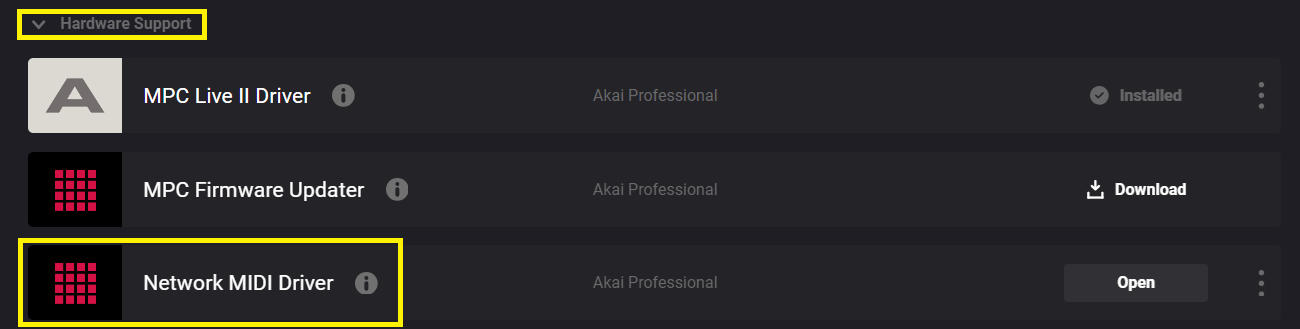
- Install the Akai Network MIDI Driver for your MPC via inMusic Software Center. This will be located under the My Hardware tab:

- Once the installation has completed, restart your computer.
- Power on your MPC.
- Press Menu and tap the gear icon to open the Preferences menu.
- Tap Wi-Fi to open the Wi-Fi settings. Make sure Wi-Fi is set to On, and then connect to your local wireless network. Alternatively, you can connect MPC to your network using a USB-to-Ethernet adapter. In this case, select Ethernet from the Preferences menu and make sure the Enabled option is checked.
- Open the Akai Network Driver application.
- In the Configured Remote Device field, locate the IP address and Serial Number of your MPC and select it. If you need to verify you are selecting the correct unit, you can view network information on your MPC in the Wi-Fi menu by holding Shift and tapping Info.
- If you still do not see your unit's Serial Number and IP, click the Add a Device button to manually enter your unit's IP address.
- Once your unit has been successfully configured, you can rename it by pressing the Rename a Selected Device button. When you are finished, you can close the Akai Network Driver application and open Ableton Live.
Waiting For Communication: If your MPC is unable to connect, click HERE for troubleshooting
MPC MIDI / Sync Configuration
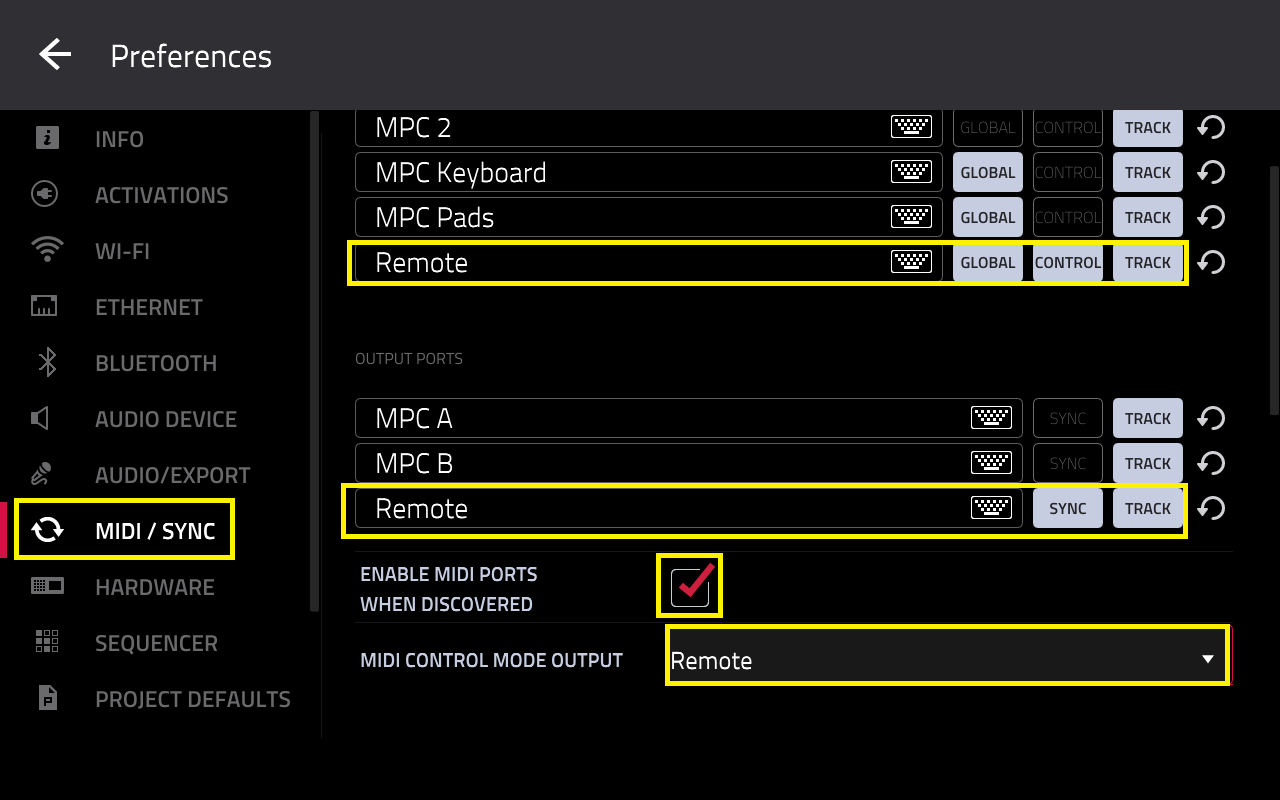
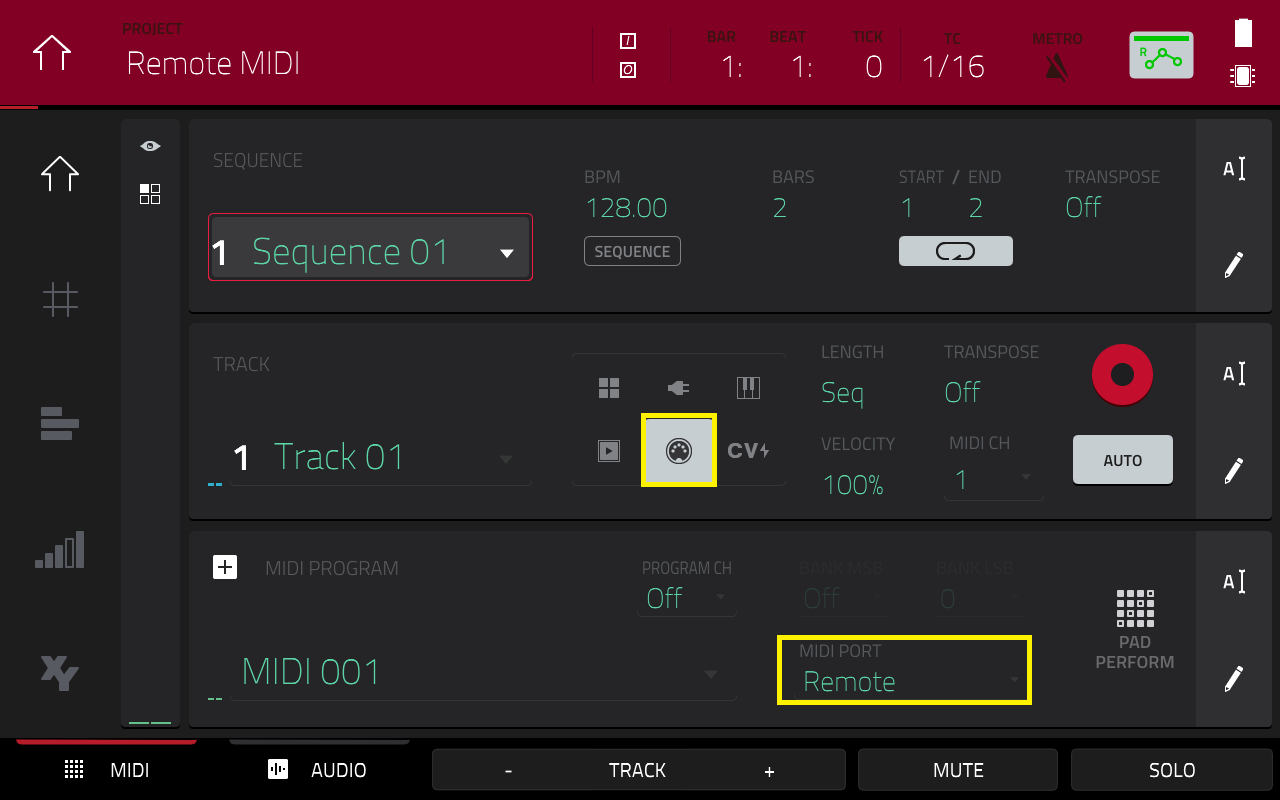
- On your MPC, go to Menu > Preferences > MIDI / Sync and configure your settings exactly like this:
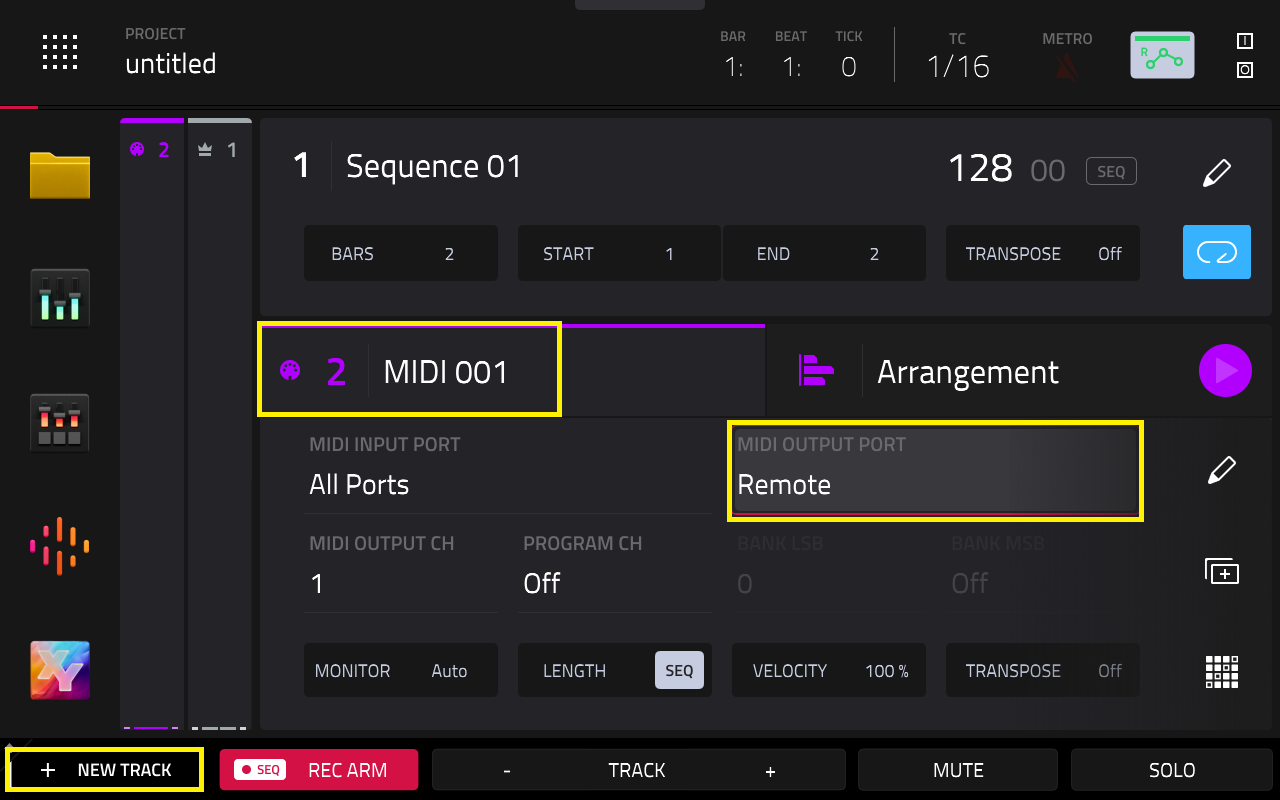
- Go to Main Mode, and create a new MIDI Program track:
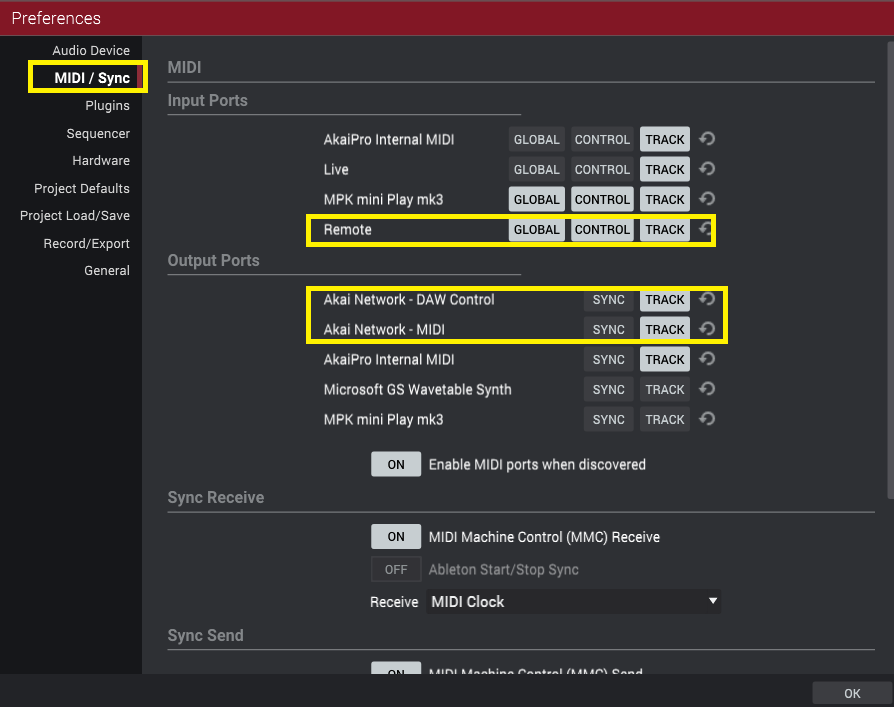
- In this example we will be using MPC 2 desktop software. Go to Menu > Edit > Preference > MIDI / Sync. Configure your settings exactly like this:
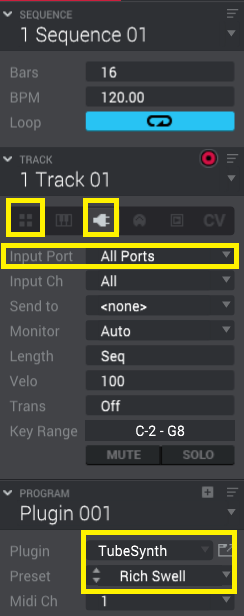
- Create a new Drum or Plugin program, the MPC will now trigger MIDI remotely:
MIDI Configuration in other DAW's
The available ports may show up differently in your DAW, however please see the ports that should be enabled in your DAW's MIDI settings:
- MIDI Device/Control Surface: Akai Force MPC
- MIDI Input/Output Device: Akai Network – MIDI
- MIDI Ports: Remote for Akai_Force_MPC Input and Akai_Force_MPC Output
- Load a MIDI Plugin Track, and ensure the track is set to receive MIDI from All Ports
'Waiting For Communication' Troubleshooting
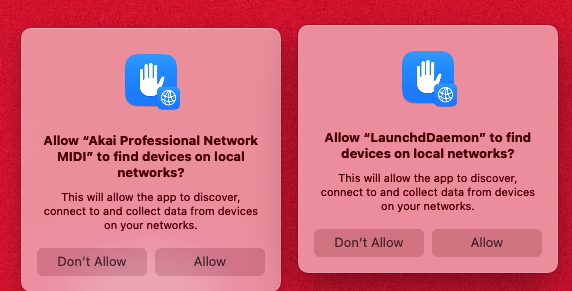
If you have installed the AKAI Network MIDI app on macOS and are still unable to connect your MPC with Ableton Live Control, please follow the below steps:
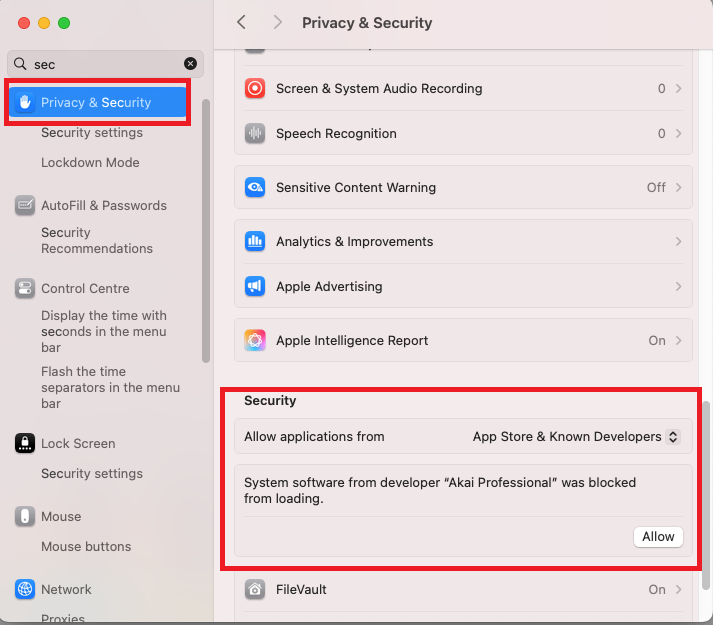
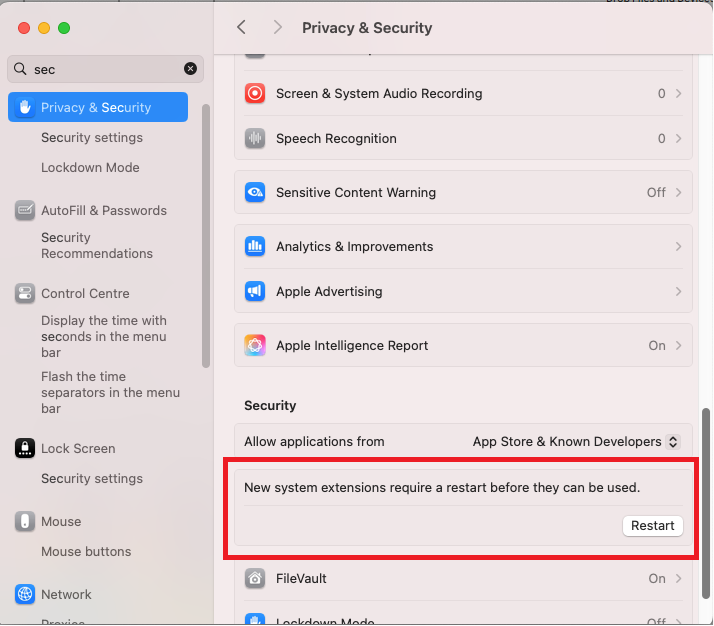
1. Go to Settings > Privacy & Security. If the App is blocked, so select 'Allow'.
You should then be prompted to enter your Mac password and restart.
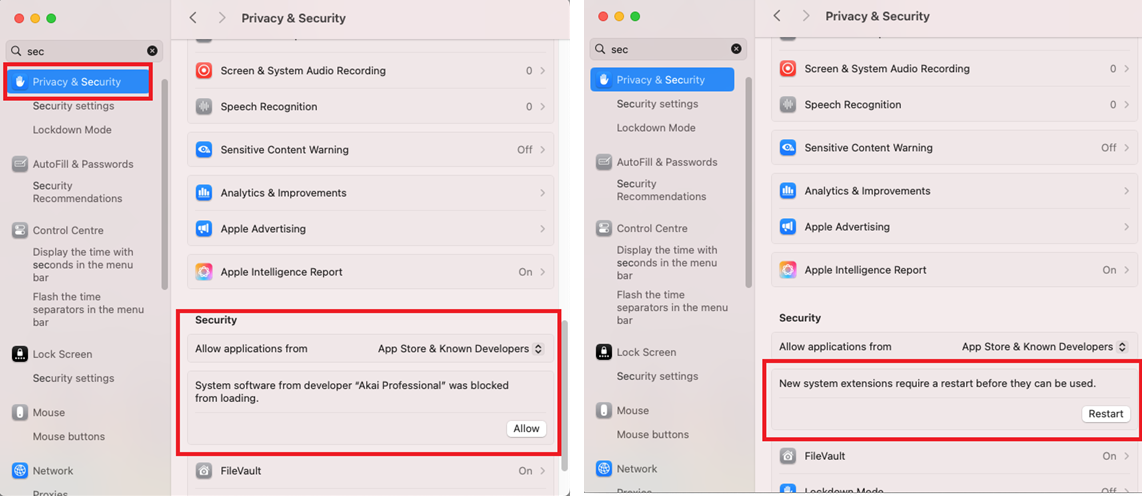
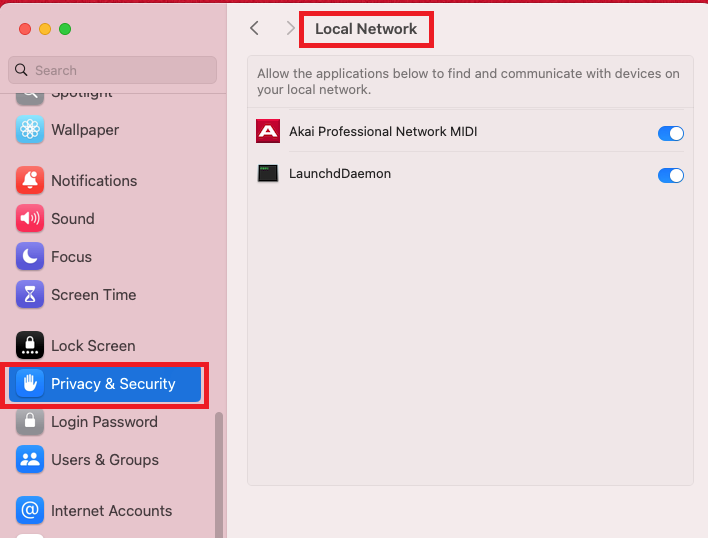
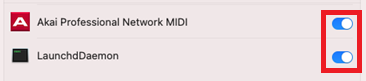
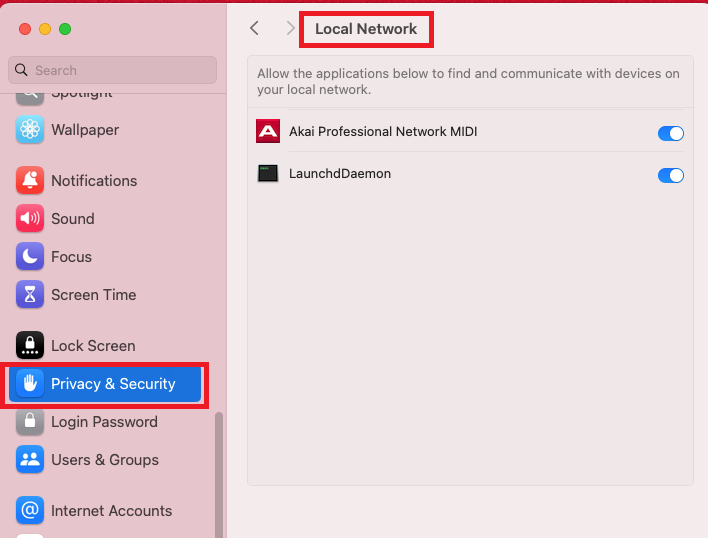
2. Go to Settings > Privacy & Security > Local Network. Ensure 'Akai Professional Network MID'I and 'LaunchdDaemon' are enabled/toggled on
If nothing changes, try toggling the switch off and on
If none of these steps help - uninstall, then re-install the Akai Network MIDI app:
Was this article helpful?
That’s Great!
Thank you for your feedback
Sorry! We couldn't be helpful
Thank you for your feedback
Feedback sent
We appreciate your effort and will try to fix the article