Using Multichannel Outputs is an incredibly powerful tool that allows you to separate individual elements of the kit, enabling you to process the kit and overall mix with your favourite plug-ins within Pro Tools.
TABLE OF CONTENTS
- Launch Pro Tools
- Create a New Instrument Track with BFD3
- Create Aux tracks within Pro Tools
- Route your BFD Kit's Outputs
- Assign the Aux Inputs with BFD3's Outputs
- Enjoy Mixing in Pro Tools!
- Routing Example
Launch Pro Tools
Create a New Instrument Track with BFD3
- Within Pro Tools press Ctrl + Shift + N, to open the New Track window
- Select Instrument Track

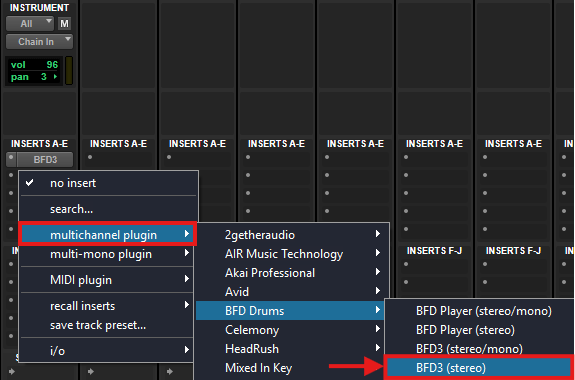
- Add BFD3 as a multichannel plugin
Create Aux tracks within Pro Tools
- Press Ctrl + Shift + N, to open the New Track window
- Select Aux Input
Please note - Depending on the Output you choose in BFD3, you will want to set the Aux to Stereo or Mono In this example, we will want to create 7 Aux Tracks to have a channel each of BFD3's 8 Stereo Outputs.
 - Once your Aux Input tracks are created, it's best to name them to make it easier when mixing
For example, Aux 1 -> BFD Stereo 2 or the Kit Piece/s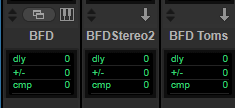
Route your BFD Kit's Outputs
- Open BFD within your Pro Tools session
- While in Kit view - Select the Faders tab to display the mixer
- Locate the Output Assignment controls at the bottom of each channel
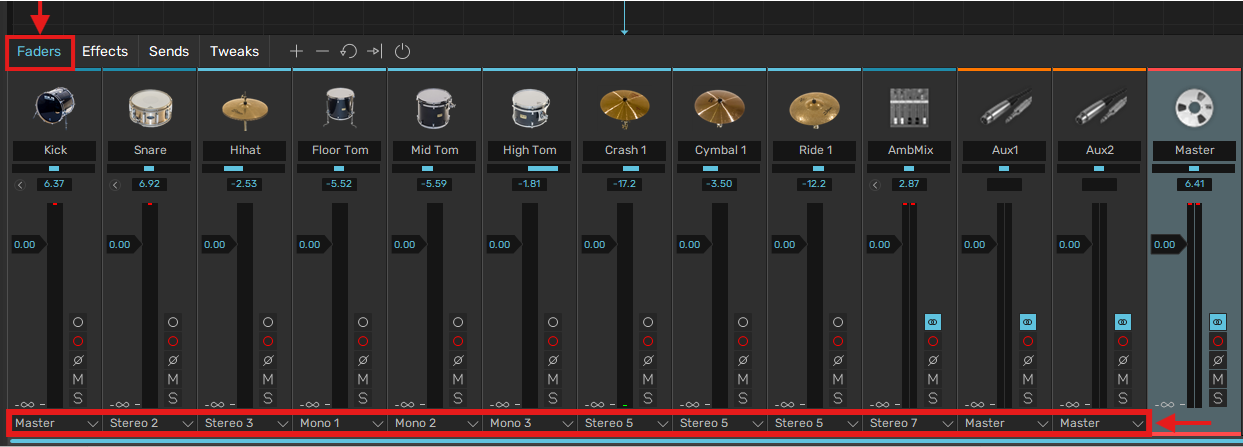
- Select the Output you'd like to route each channel to
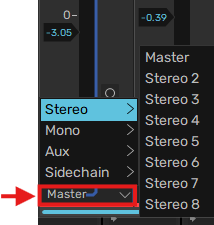
Assign the Aux Inputs with BFD3's Outputs
To assign the Aux Channel's inputs with our BFD3 configuration, we can adjust this via the Mix Window, or the Edit Window.- Go to the I/O section of the Mix Window
- Select Plugin -> BFD3 - (track_name)- Insert a -> Stereo X
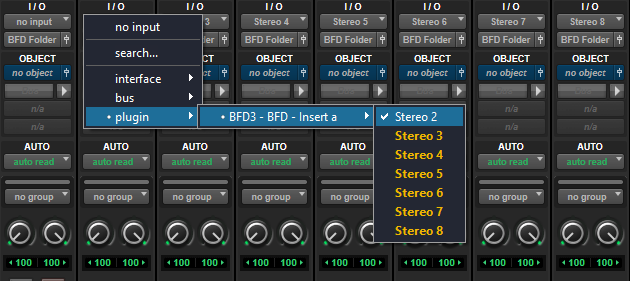
- Route each Aux to the corresponding Output selected within BFD3
Please see our Routing Example for inspiration!
Important Note - The Instrument track where BFD is present and loaded will always be set to the Master Output.
To adjust the I/O via the Edit Window: Please ensure I/O is enabled in the Header section, by clicking on the channel header icon and enabling I/O.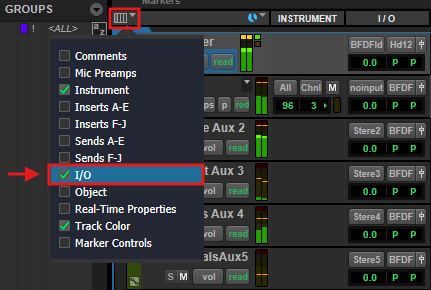
- To get the most out of Pro Tools routing power, we recommend routing the main instrument tracks and Aux tracks into a Routing Folder. To do this:
- In the Edit Window, highlight all the BFD tracks
- Right-click a highlighted track
- Select Move to... -> New Folder
- Select the following settings:
Format: Stereo | Type: Routing Folder | Name: BFD | EnableRoute Tracks to New Folder
Enjoy Mixing in Pro Tools!
With Multi-Out Routing, this means you can process parts of your kit without impacting the other elements of the kit, and add deeper control of your mixes!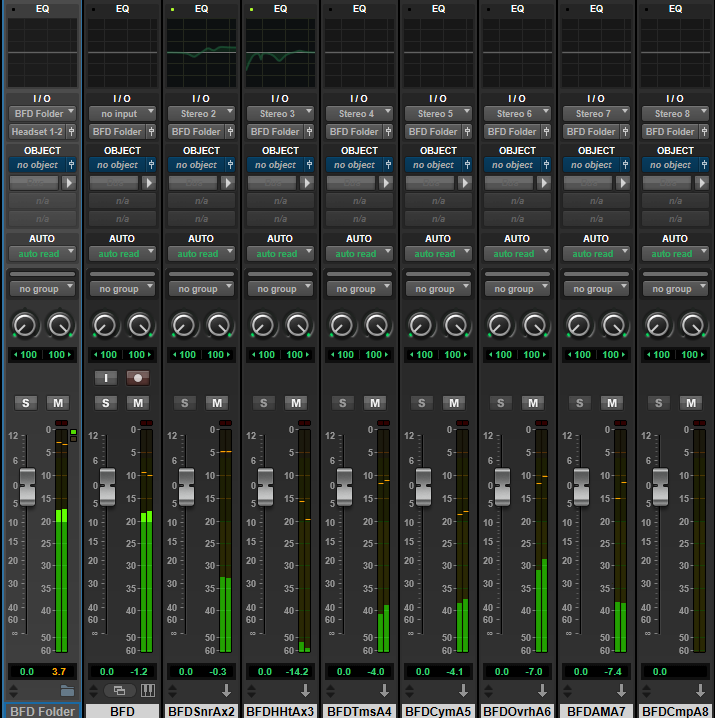
Routing Example
In this example, I'll be wanting to create individual outputs for the following kit pieces:
- Kick
- Snare
- Hi-Hat
- Floor Tom
- Mid Tom
- High Tom
- All Cymbals - 2x Crashes and a Ride
- Overhead Mics
- Ambimix (Ambient Mics)
Following Step 4 above - Route the Channels listed below to the following Outputs
- Kick -> Master
- Snare -> Stereo 2
- Hi-Hat - Stereo 3
- Floor Tom -> Mono 1
- Mid Tom -> Mono 2
- High Tom -> Mono 3
- All Cymbals -> Stereo 4
- Overhead Mics -> Stereo 5
You'll typically find the OH Channel within the Ambimix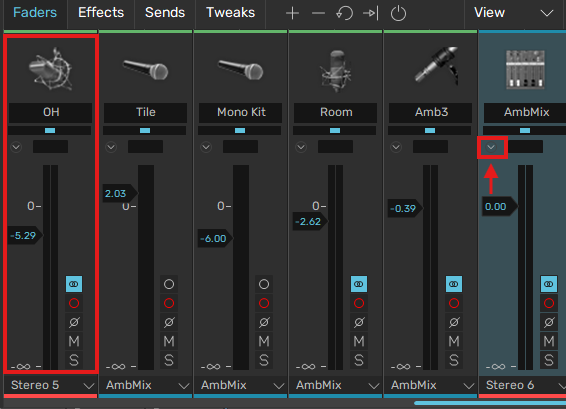
- Ambimix (Ambient Mics) -> Stereo 6
Was this article helpful?
That’s Great!
Thank you for your feedback
Sorry! We couldn't be helpful
Thank you for your feedback
Feedback sent
We appreciate your effort and will try to fix the article