This guide is designed to help users configure multichannel output routing from BFD3 into Studio One. This setup allows you to route each drum element (Kick, Snare, OH, Room, etc.) to its own channel in Studio One’s mixer, giving you full control over mixing and effect processing.
TABLE OF CONTENTS
- 1. Create a New Song in Studio One
- 2. Load a Kit Preset in BFD3
- 3. Display the Mixer in BFD3
- 4. Assign BFD3 Channels to Individual Outputs
- 5. Enable Outputs in Studio One
- 6. Test the Routing
1. Create a New Song in Studio One
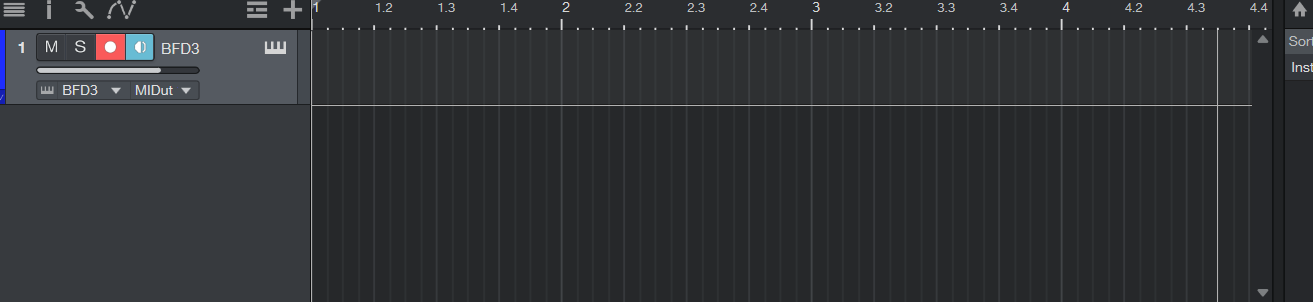
Open Studio One and create a new Song.
Drag BFD3 from the Instruments tab in the Browser into the Song timeline.
2. Load a Kit Preset in BFD3
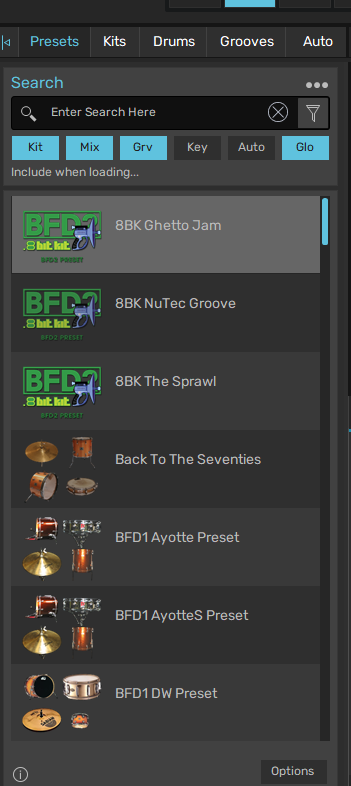
In BFD3, load your preferred drum kit or preset from the Presets tab.
3. Display the Mixer in BFD3
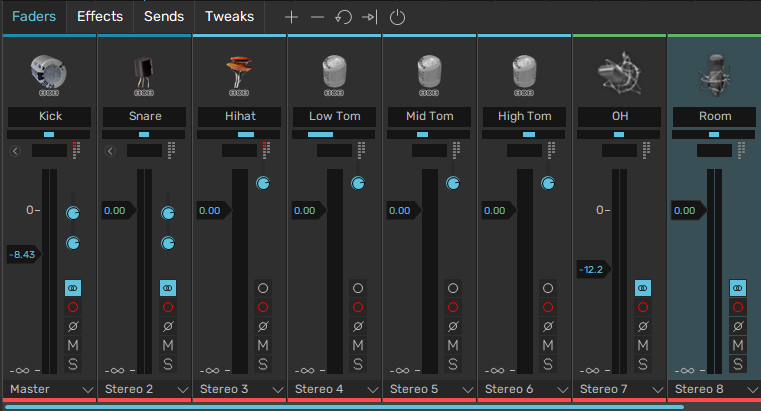
Click the ‘Kit’ view tab.
Then click ‘Faders’ to access BFD3’s mixer.

4. Assign BFD3 Channels to Individual Outputs
At the bottom of each mixer channel, click the Output selector (defaults to ‘Master’).
Assign each kit piece to a different stereo or mono output:
Example Mapping:
Kick → Master
Snare → Stereo 2
Hi-Hat → Stereo 3
Tom 1 → Stereo 4
Tom 2 → Stereo 5
Tom 3 → Stereo 6
OH → Stereo 7
Room / AmbMix → Stereo 8
5. Enable Outputs in Studio One
Click the small arrow next to BFD3’s instrument channel in Studio One.
Click the “+” icon to enable sub-out channels until all needed outputs are active.
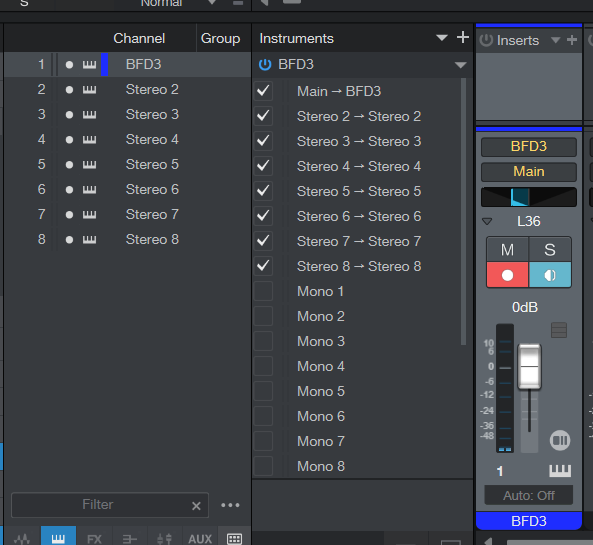
6. Test the Routing
Press play on a groove inside BFD3 or trigger drums via MIDI.
Confirm each drum sound is now routed to the correct mixer channel in Studio One.
That’s It!
You now have multichannel drum routing set up between BFD3 and Studio One. You can now apply Studio One effects, EQ, and automation independently to each channel.
Was this article helpful?
That’s Great!
Thank you for your feedback
Sorry! We couldn't be helpful
Thank you for your feedback
Feedback sent
We appreciate your effort and will try to fix the article