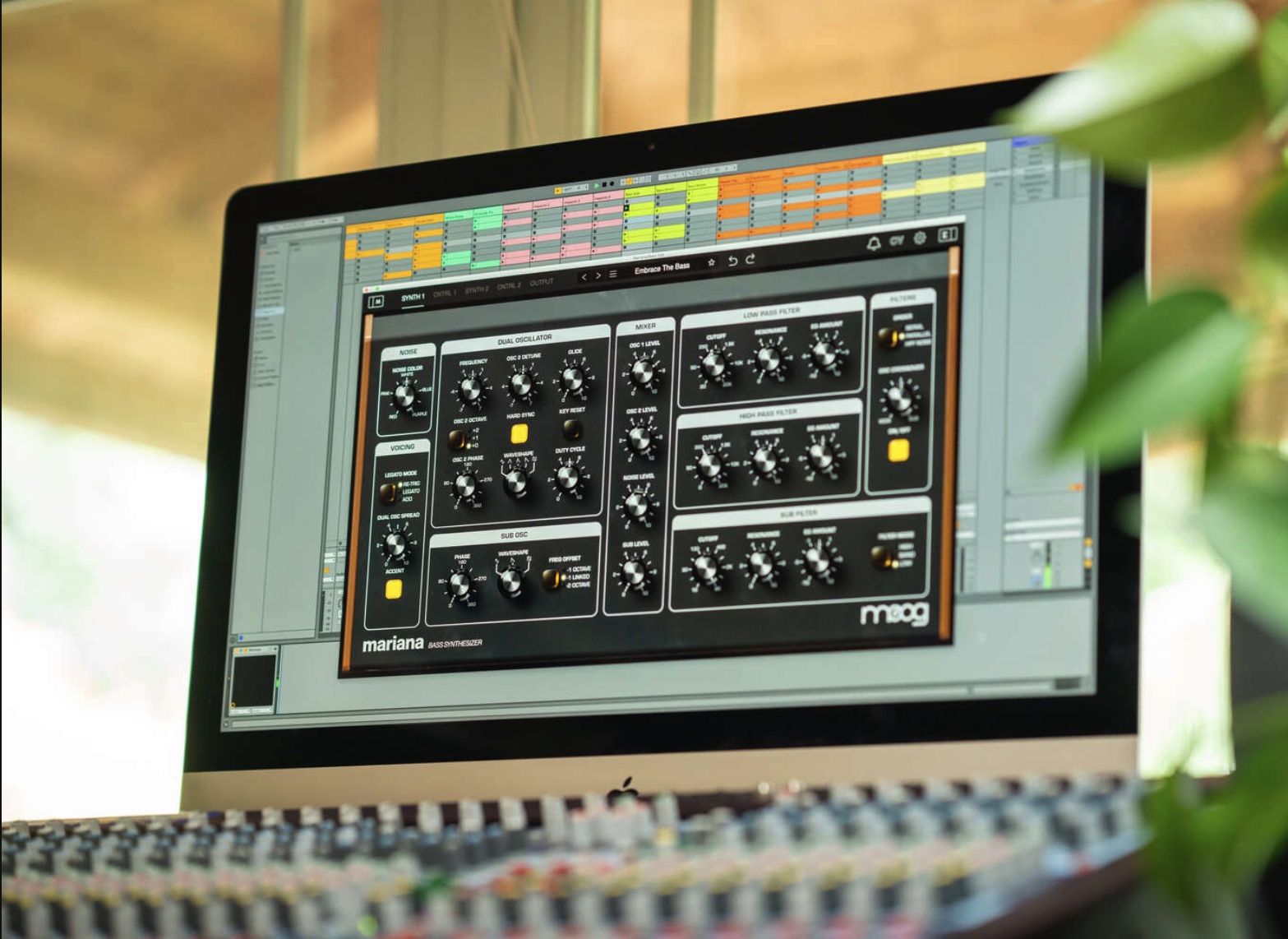
Moog Mariana expansions let you expand your sound library with new presets and creative options right inside the plugin. Whether you’re looking to purchase new content or restore previous purchases, everything can be managed directly from the preset browser. This guide walks you through how to browse, buy, restore, and load expansions so you can get started quickly.
TABLE OF CONTENTS
Purchasing an Expansion
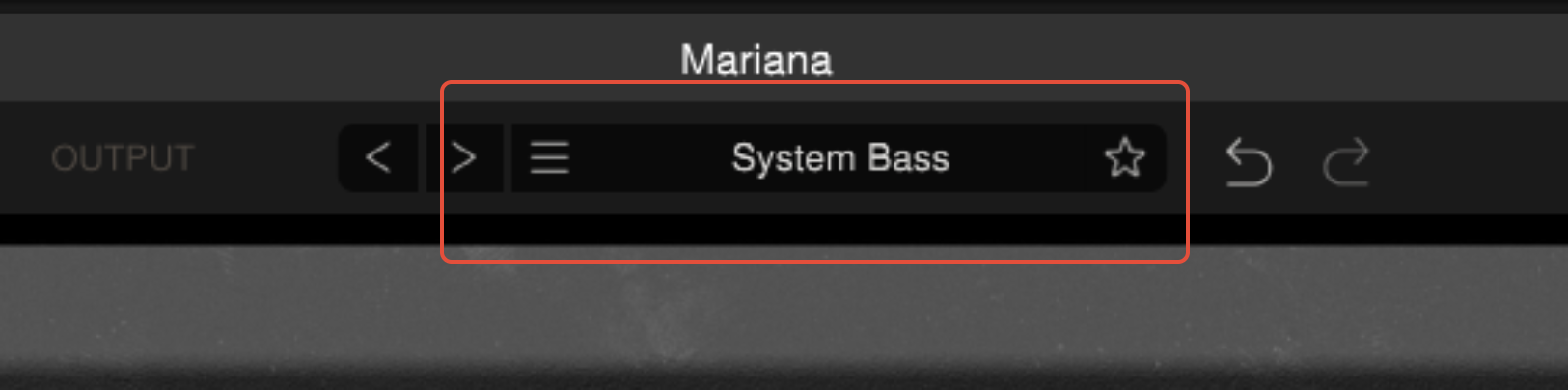
Step 1: Open the Preset Browser
- Launch Moog Mariana
- Select the Preset window
Step 2: Access the Store
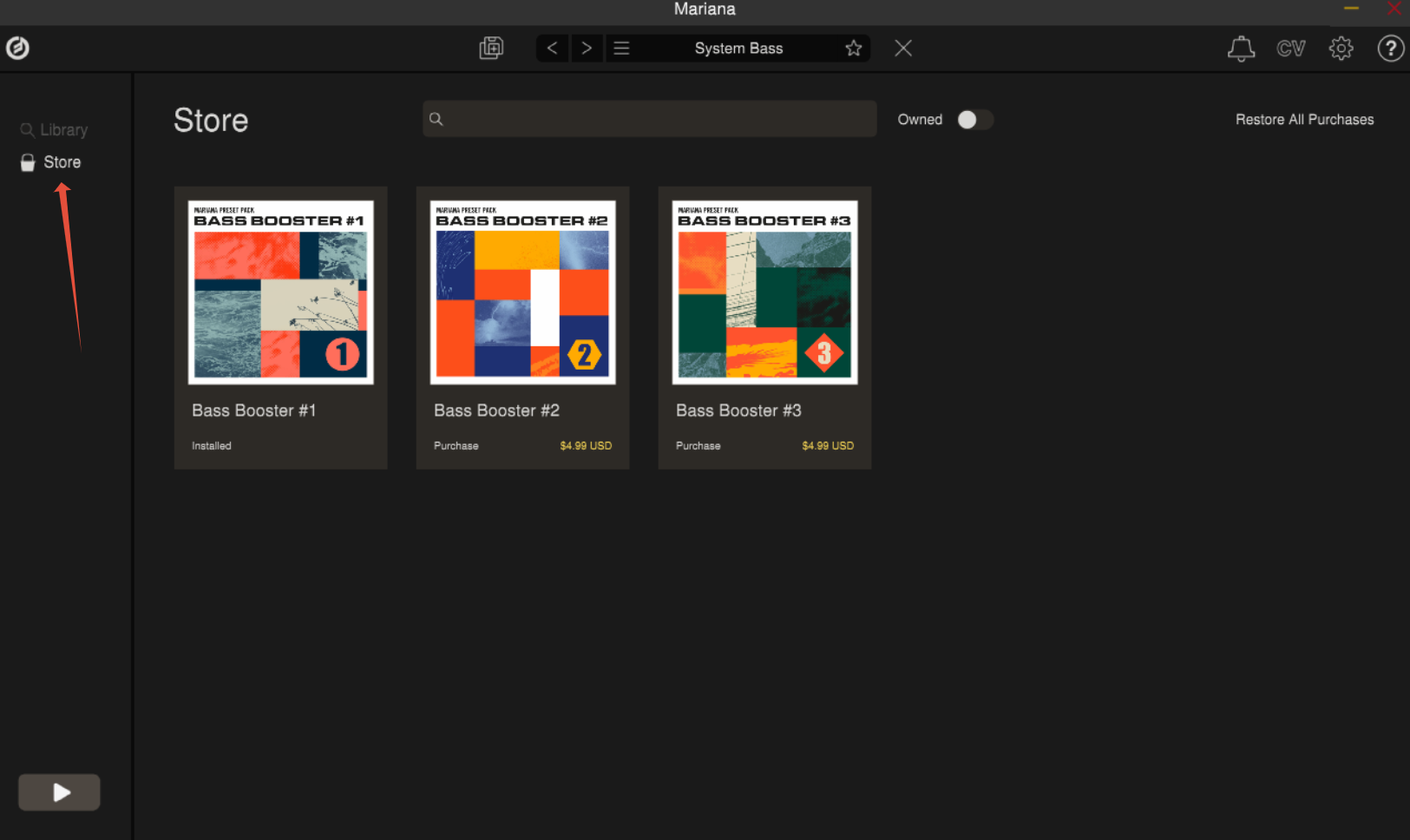
- In the Preset window, locate the Store section on the right-hand side
- Select Store to view available expansions
Step 3: Purchase an Expansion
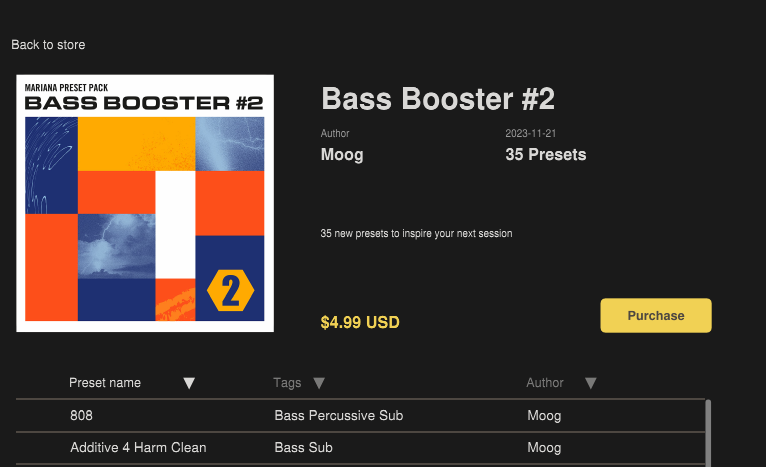
- Select an expansion you’d like to purchase
- Select Purchase
On Desktop (Windows/Mac):
- Your web browser will open to the Moog store
- Sign in to your account and complete the purchase
On iPad:
- You will be redirected to the App Store
- Complete the purchase using your Apple ID
Restoring your Purchase
- Return to Moog Mariana
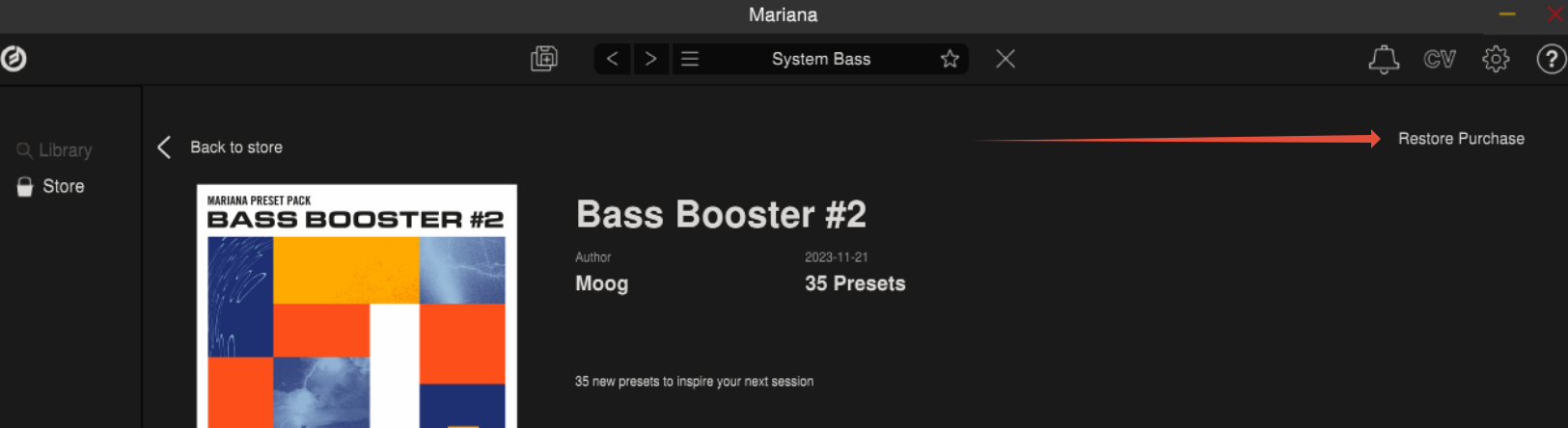
- Navigate back to the Store section
- Select Restore Purchase
Loading the Expansion
- Open the Preset browser again
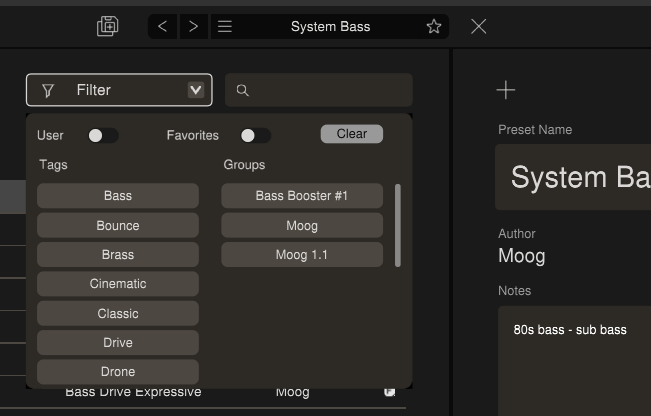
- Make sure you are in Library
- Press Filter
- Locate the newly purchased expansion under Groups
- Select a preset to load it into your session
Was this article helpful?
That’s Great!
Thank you for your feedback
Sorry! We couldn't be helpful
Thank you for your feedback
Feedback sent
We appreciate your effort and will try to fix the article