2getheraudio | How to Adjust GUI Size (Scaling) in Cheeze Machine Pro
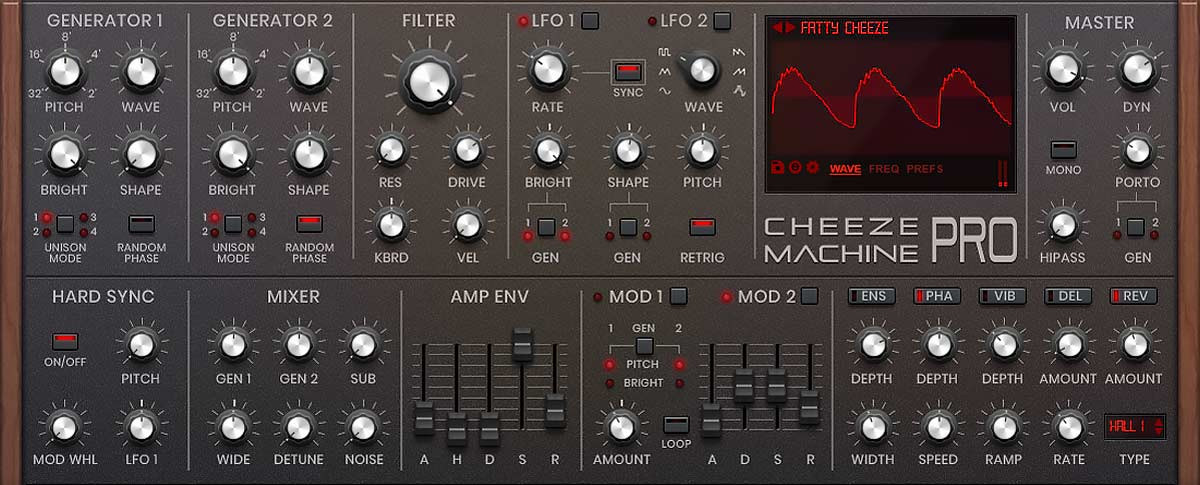
If you’re finding that Cheeze Machine Pro’s interface size appears fixed or doesn’t include visible scaling controls, the plugin does include size options that can be accessed through a contextual menu. This guide will show you how to locate and adjust the GUI size.
How to Adjust the GUI Size
- Load Cheeze Machine Pro in your DAW
- Open the Prefs tab inside the plugin
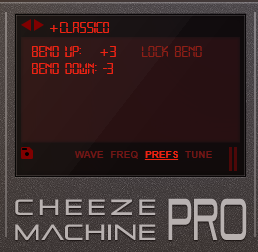
- Locate the “Bend Down” section
- Right-click (or click in the area just below the label)
- A menu will appear with available size options:
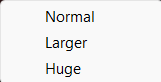
- Select your preferred size
The GUI size options are accessed through this contextual menu and may not be displayed as visible controls within the interface.
Was this article helpful?
That’s Great!
Thank you for your feedback
Sorry! We couldn't be helpful
Thank you for your feedback
Feedback sent
We appreciate your effort and will try to fix the article