Massive X | Preventing The Animator From Filling The DAW Undo History
When using Massive X (version 1.6.0) in your DAW, you may encounter the following issues:
- Your DAW’s Undo History fills up with hundreds of entries (e.g., "Undo Morpher X") every few seconds.
- You cannot "Undo" your last action because the "last action" is always a new Animator update from Massive X.
- This makes it impossible to undo previous meaningful actions like moving a MIDI note or adjusting a parameter.
This issue is caused by the Animator modulator in Massive X. The Animator's internal X/Y movements are reported to the host DAW as discrete parameter changes. Your DAW interprets these as manual user actions and records them into the undo history at a high frequency.
Please follow the steps below to resolve this:
Update Massive X to Version 1.6.1 (or higher)
Native Instruments has released a fix for this issue in the Massive X 1.6.1 update. To resolve the problem, please install the latest Massive X update:
1. Close your DAW.
2. Start Native Access.
3. Open the Updates tab.
4. Install the updates for Massive X, the Massive X Facory Library and all Massive X Expansions.
5. Once the installation is complete, close Native Access and restart your DAW.
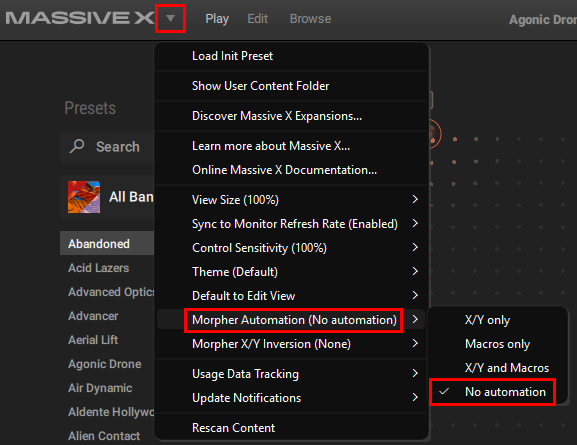
6. Now you can switch between several Morpher Automation settings, including "No automation", which prevents automation events being sent to your host DAW, while you are performing arrangement tasks or heavy editing. You can turn the desired automation setting back on when you are ready to record your mix.
You can find the setting here:
Disable the Animator when Editing
If you are on an older version or the issue persists with specific presets:
- Switch off the Animator (the power button icon in the Animator tab) while you are performing arrangement tasks or heavy editing in your DAW.
- Turn it back on only when you are ready to record or mix.
Render / Freeze the Track
If you have finished the sound design for that track, you can also render it into an audio track:
- Freeze/Flatten (Ableton): Right-click the track and select "Freeze Track."
- Render in Place (Cubase/Studio One): Use the "Render in Place" function to turn the MIDI into audio.
- Bounce to Disk (Logic/Pro Tools): Create an audio version of the track.
Why this works: Once the track is audio, the plugin is effectively "off," stopping it from sending any more data to the Undo history.
Warning: This is a destructive action. You may wish to duplicate the track before flattening to keep a backup of your MIDI and synth settings!
Was this article helpful?
That’s Great!
Thank you for your feedback
Sorry! We couldn't be helpful
Thank you for your feedback
Feedback sent
We appreciate your effort and will try to fix the article