This guide explains how to load expansion kits and individual samples in Battery 4 using the Browser. It also covers how to access expansion content after installation.
TABLE OF CONTENTS
Before You Begin
After installing an Expansion, open Battery 4 in standalone mode at least once before using it in your DAW. This allows the software to detect newly installed content.
Loading Expansion Kits in Battery 4
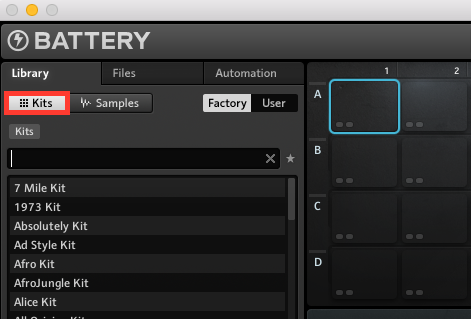
- In Battery 4, switch to Kits in the Library tab of the Browser.
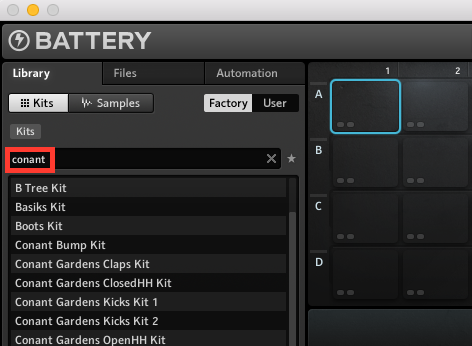
- Type the name of the Expansion in the search bar. Battery shows only the Kits belonging to the corresponding Expansion (CONANT GARDENS in the below example) in the Library list. Double-click on a Kit name or drag it to the Cell Area to open it.
Loading Individual Samples in Battery 4
Battery Kits are comprised of individual Samples. To load individual audio samples onto each Battery 4 Cell in order to customize your own Kit, proceed as explained below:
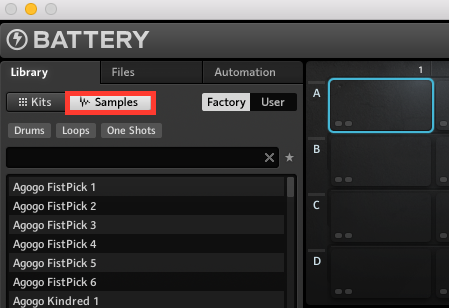
- In Battery 4, switch to Samples in the Library tab of the Browser.
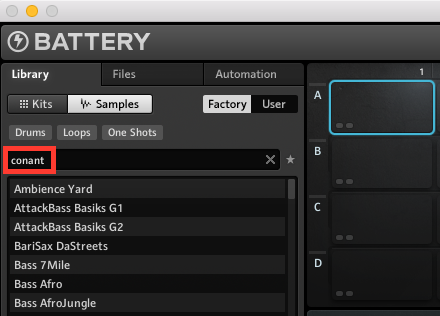
- Type the name of the Expansion in the search bar. Battery shows only the samples belonging to the corresponding Expansion (CONANT GARDENS in the below example) in the Library list. Drag a sample name to a Battery Cell to add it to your Kit.
Was this article helpful?
That’s Great!
Thank you for your feedback
Sorry! We couldn't be helpful
Thank you for your feedback
Feedback sent
We appreciate your effort and will try to fix the article