Battery 4 | Factory Library Missing Or Not Loading Troubleshooting Guide
You may find that the Battery 4 Factory Library content is missing or is not loading correctly. To resolve this, please try all of the solutions provided below.
Enable the Battery 4 Browser Section
The Battery 4 Factory Library can be accessed via the Battery 4 Browser, which is located on the left-hand side of the software interface.
If you can not see the browser, click the Magnifier symbol within the Battery 4 menu to make it visible:

If this has not solved the issue, please proceed to the next solution below.
Check / Repair the Library Installation Path
If the Battery 4 Factory Library is not available in the Browser, make sure the directory path is set correctly by following the steps below:
1. Open the Battery 4 Preferences from the File menu and go to the Library tab. By default, the Battery 4 Factory Library path is listed under LIBRARY > FACTORY > LOCATION.
Note: The default Mac OS and Windows installation paths are:
• Mac OS: Macintosh HD > Users > Shared
• Windows: C: > Users > Public > Public Documents
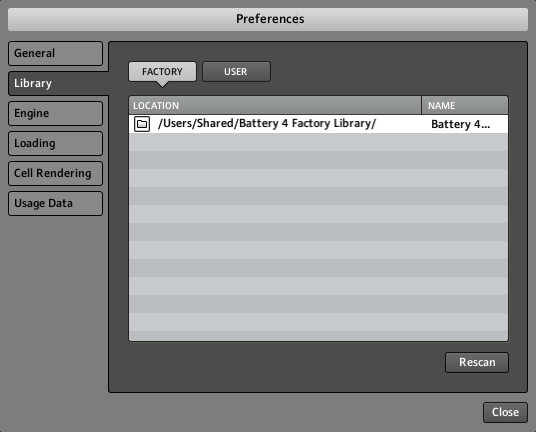
2. If the Battery 4 Factory Library path is not set to the correct location in Preferences, quit Battery 4 and start Native Access.
3. In Native Access, go to Library > Installed and scroll to the Battery 4 Factory Library listing.
4. If the Battery 4 Factory Library has an exclamation tab, use the Native Access Repair function.
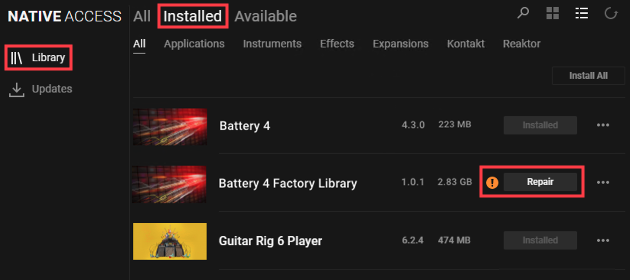
Note: If the Library does not appear in the Installed section of Native Access, check the Available section to download the Battery 4 Factory Library.
5. Once the repair is complete, re-launch the standalone version of the Battery 4 software. Battery 4 will now scan the Battery 4 Factory Library folder. This may take several minutes.

If this has not solved the issue, please proceed to the next solution below.
Reinitialize the Battery 4 Database
If the issue persists, try re-setting the Battery 4 database.
1. Quit the Battery 4 software and navigate to the following location of your computer:
• Mac OS: Macintosh HD > Users > *Your User Name* > Library > Application Support > Native Instruments
• Windows: C: > Users > *Your User Name* > AppData > Local > Native Instruments
The User Library is a hidden folder on macOS. To show all hidden files, press Shift + Command + . (period)
AppData is a hidden folder on Windows. To show hidden files, click View > Show > Hidden items.
2. Delete the folder named Battery 4 that you find in this directory location.
3. Relaunch the standalone version of the Battery 4 software. Battery 4 will now scan the Battery 4 Factory Library folder.
This may take several minutes.

If this has not solved the issue, please proceed to the next solution below.
Reinstall the Battery 4 Factory Library
1. Quit the Battery 4 software, and launch Native Access.
2. In Native Access, go to Library > Installed and scroll to the Battery 4 Factory Library listing.
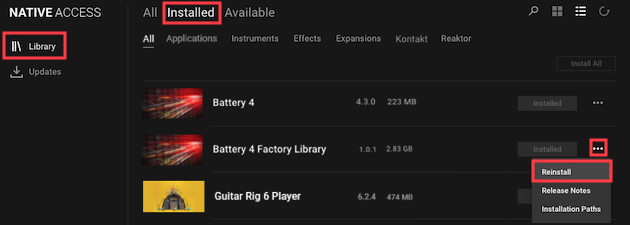
4. Once the reinstallation is complete, re-launch the standalone version of the Battery 4 software. Battery 4 will now scan the Battery 4 Factory Library folder. This may take several minutes.

Once complete, the Battery 4 Factory Library will be available in the Battery 4 Browser.
Was this article helpful?
That’s Great!
Thank you for your feedback
Sorry! We couldn't be helpful
Thank you for your feedback
Feedback sent
We appreciate your effort and will try to fix the article