Setup Instructions
Updating your MPC Hardware
The NI Expansion Pack MPC Editions require the MPC3 firmware. MPC3 is a free update for MPC OS hardware: Akai Pro MPC - Firmware Update Walkthrough
Redemption / Download
- Create an inMusic profile account.
- Download and install the inMusic Software Center.
- After the download completes, it will open up the inMusic Software Center:

- Click on Let's Go! Your default browser window will open prompting to sign into your inMusic Profile. Enter both your email address and password and click on SIGN IN:
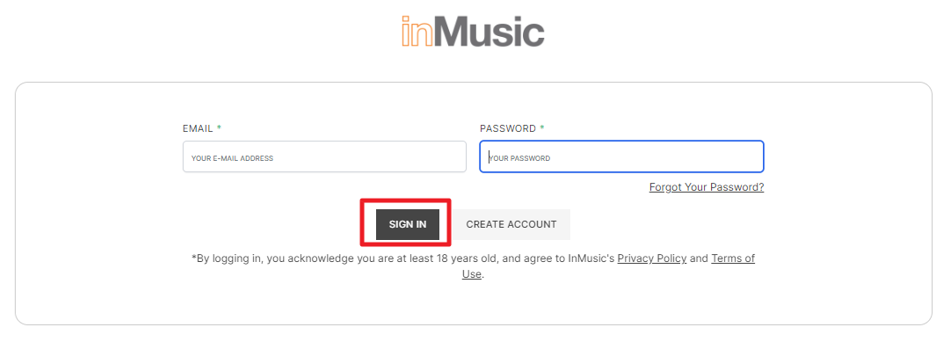
- You have successfully logged in to the inMusic Software Center.
- Launch the inMusic Software Center from your Computer.
- For new users, click START HERE:
 For existing users, click Add Product:
- Click Software and paste the 30-Digit code from your Native Instrument confirmation email:
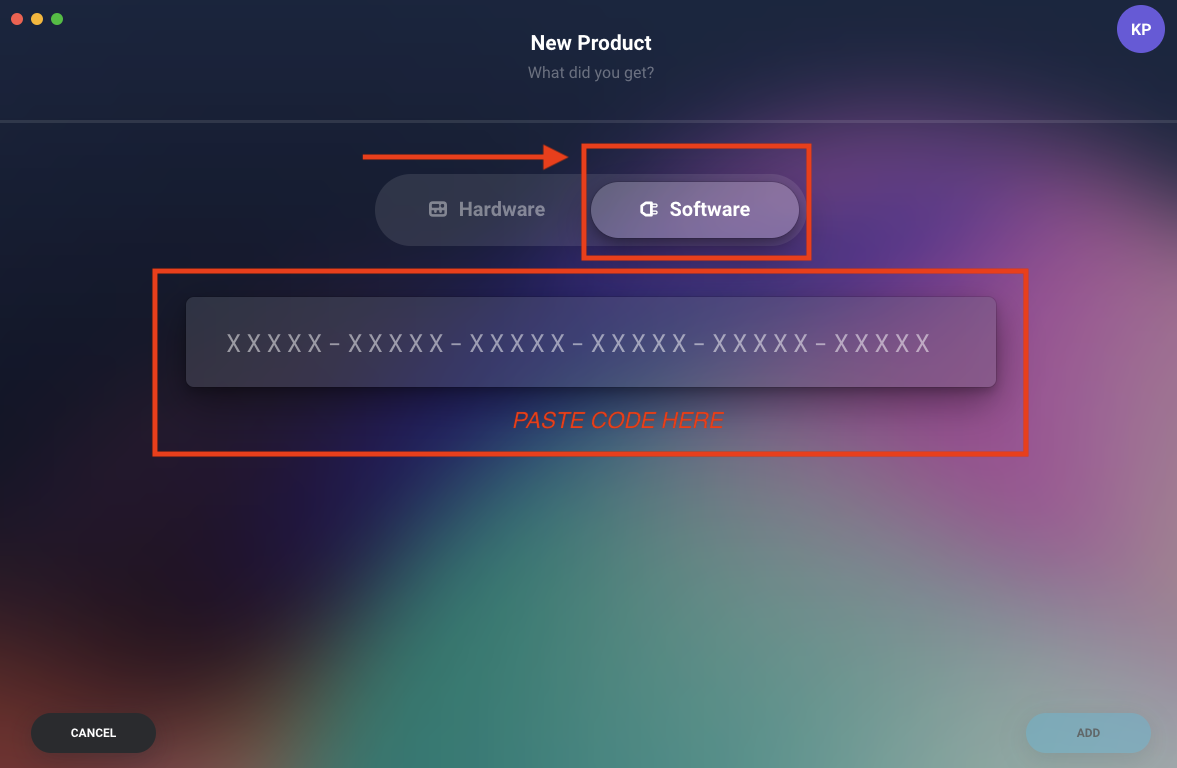
- Click Add from the bottom right of your Window. Your Expansion will register successfully:
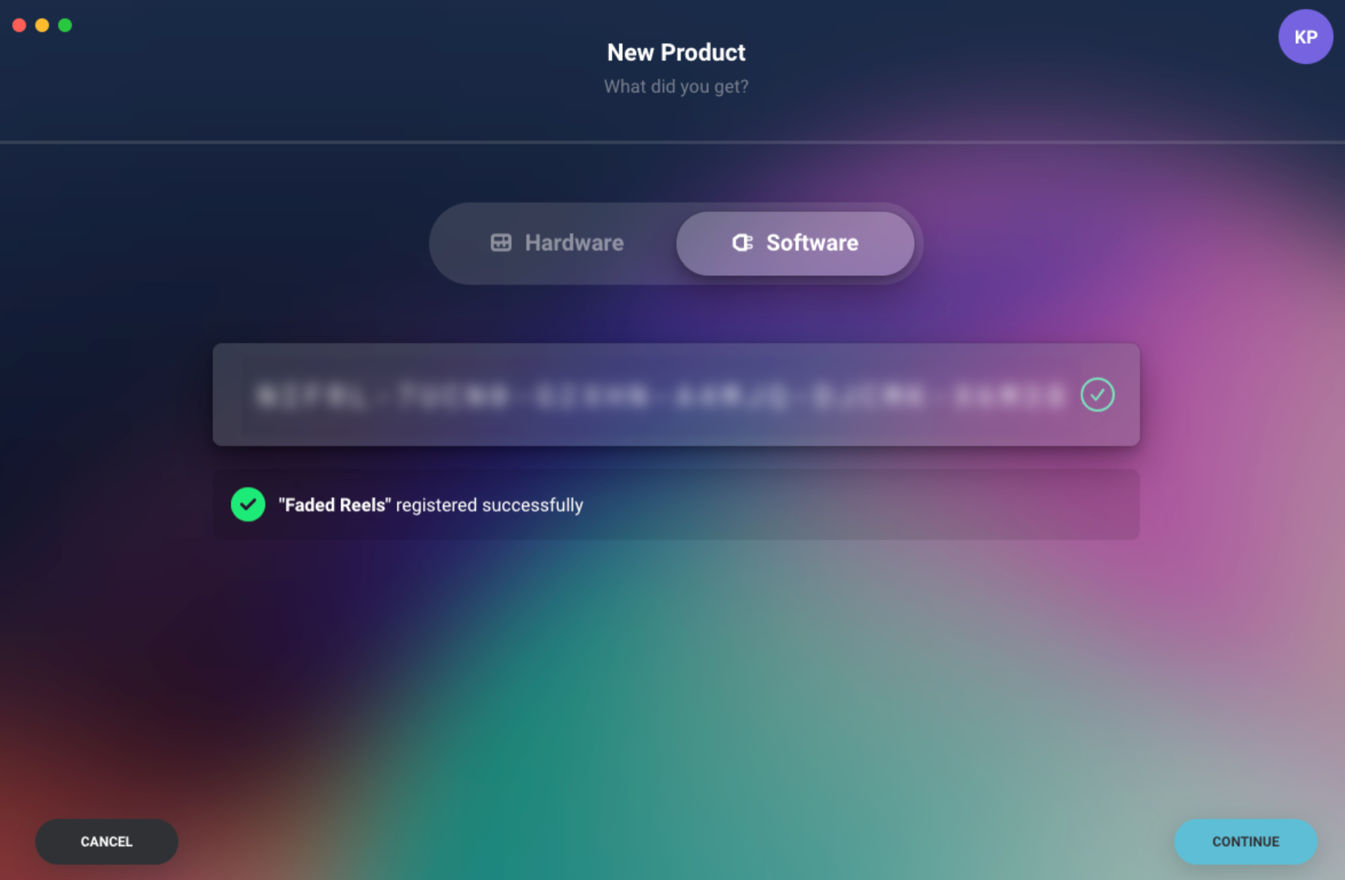
- Click Continue.
- Open the My Expansions tab:
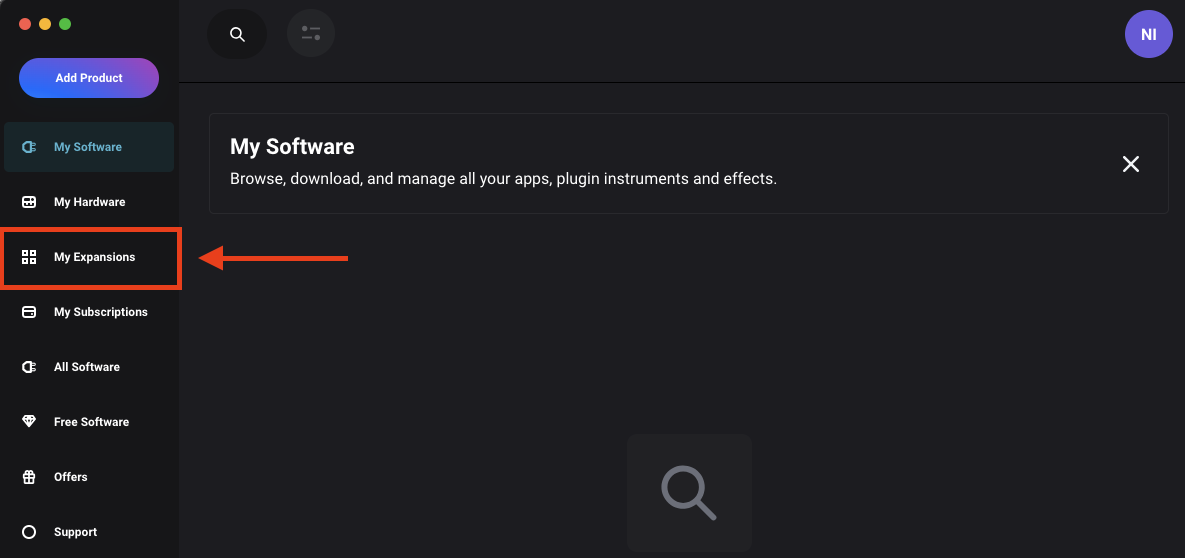
- Click Download for your new Expansion(s):

- Once the download has been completed, click Show in Folder:

- File Explorer (Windows) or Finder (Mac) will launch to display the contents of your Expansion.
- Follow the installation instructions in this folder. See below for more information on this process.
Installation
- Select the drive where you want to install the content. Make sure that the drive has enough free space to hold the entire pack. We recommend that you choose an internal SATA drive for ease of use.
- Connect the selected drive to your computer. Note: internal MPC SATA drives can connect to your computer by putting your MPC into 'Controller mode'.
- Create a folder in the root directory of the drive (not in any folder) called Expansions, if it does not already exist.
- Place the content folder inside the Expansions directory you created. Make sure you copy the folder itself, not the content within it.
- Wait for the files to copy, and then safely eject the drive to ensure all data is written.
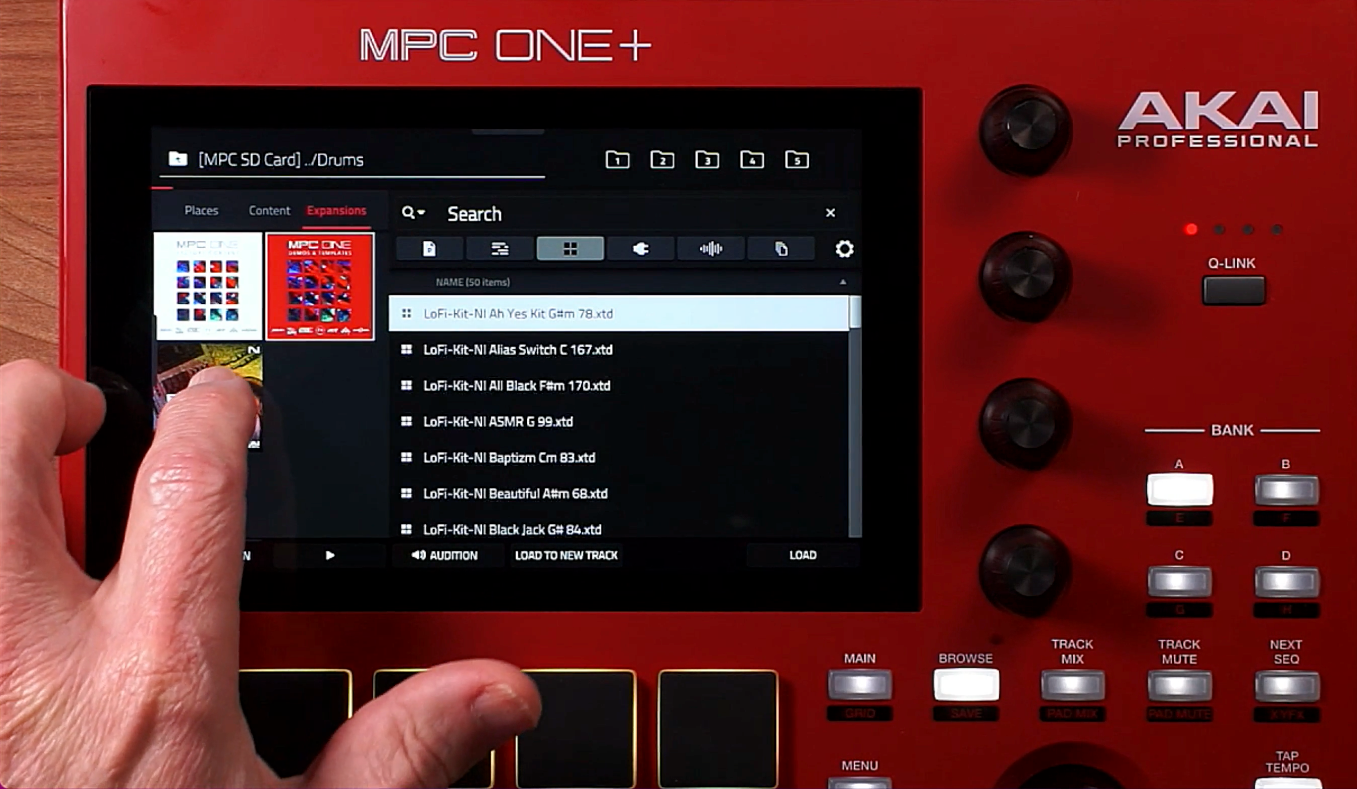
- Insert the drive into your MPC. Your expansion will appear in the browser, under the Expansions tab as seen in the screenshot below:
Was this article helpful?
That’s Great!
Thank you for your feedback
Sorry! We couldn't be helpful
Thank you for your feedback
Feedback sent
We appreciate your effort and will try to fix the article