Absynth, FM8, Massive | Transferring user-sounds to another computer

This article shows how to transfer user-created sound presets for Absynth, FM8, and Massive from an older or existing computer so that they will appear in the software browser on the new computer.
Note: Absynth, FM8, and Massive (original) each employ the same type of preset browsing and file systems. This article applies equally to all 3 instruments in the same context.
1. Transferring the Application
Firstly, install and activate the product on your new computer. There is no need to move the actual product software from the old computer. Only your unique user-sound files are needed.
2. Transferring User-Presets from the Old Computer
In order to transfer the user content (i.e. your presets), follow the steps below.
- Copy the Sounds folder which contains all the sound preset files you have created.
By default, the Sounds folder is located here:- OS X: Macintosh HD > Users > *User Name* > Documents > Native Instruments > *Product name* > Sounds
- Windows: C: > Users > *User Name* > Documents > Native Instruments > *Product name* > Sounds
- Using a USB Flash Drive, External Hard Drive (or other portable storage media), transfer the Sounds folder into the same exact directory location at the new computer.
3. Accessing User Presets on the New Computer
Once you have transferred the user-preset files to the same location on the new computer, be sure to launch the Absynth, FM8, or Massive (original) standalone application.
This must be done first (before using the plug-in version) in order for the application to find and catalogue all Factory and User-Created sounds.
- Open the standalone Version of Absynth (for example) from this location of your computer:
- OS X: Macintosh HD > Applications > Native Instruments > Absynth 5
- Windows: C: > Program Files > Native Instruments > Absynth 5
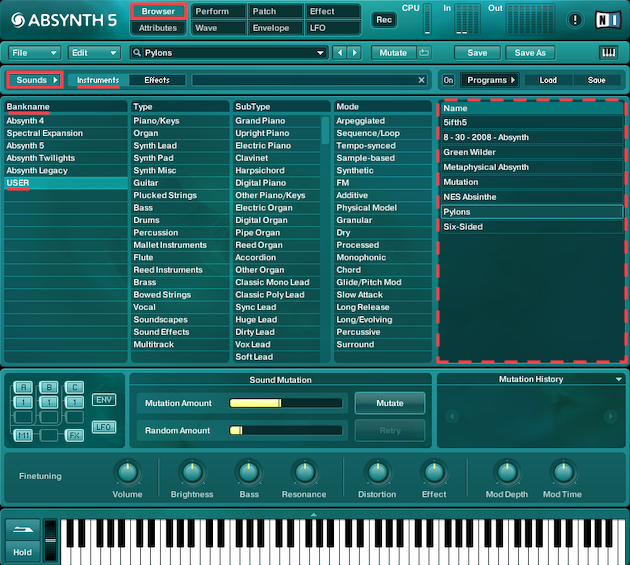
- Check the Sounds Browser for your user-created presets. Any user sounds which have already been saved with a bank name attribute can be filtered out via the Bankname column. The sound presets are then listed in the Name column.
Troubleshooting
If you do not find your user presets in the Name column of the Sounds Browser, you can re-scan the user folder location.
- In the software, navigate to: File > Options > Browser
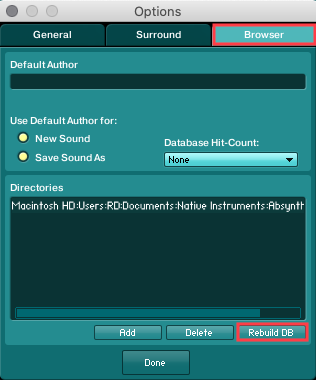
- Click the tab labelled Rebuild DB, then allow some time for the sounds to appear.
Was this article helpful?
That’s Great!
Thank you for your feedback
Sorry! We couldn't be helpful
Thank you for your feedback
Feedback sent
We appreciate your effort and will try to fix the article