Alesis Strata & Zildjian | How to Update, Purchase, Download and Frequently Asked Questions

Alesis and Zildjian are bringing the most iconic cymbal sounds in drumming straight to your kit. This partnership combines Zildjian’s legacy in sound with Alesis’s innovation, delivering authentic cymbal sounds that feel real the moment you start playing.
TABLE OF CONTENTS
- Firmware Update Instructions
- Purchase and Installation Instructions
- Frequently Asked Questions
- If I buy a Zildjian Expansion for my Strata Series Drum Kit, do I also get a license for BFD3 and BFD Player?
- What are the storage drive requirements?
- My Strata Prime or Core Module is not displaying the QR Code to log into my inMusic Account
- I have run out of space while downloading the expansion pack. What should I do?
- I have just purchased a new Expansion, but I do not see it in my Module's Expansion Packs Menu
Firmware Update Instructions
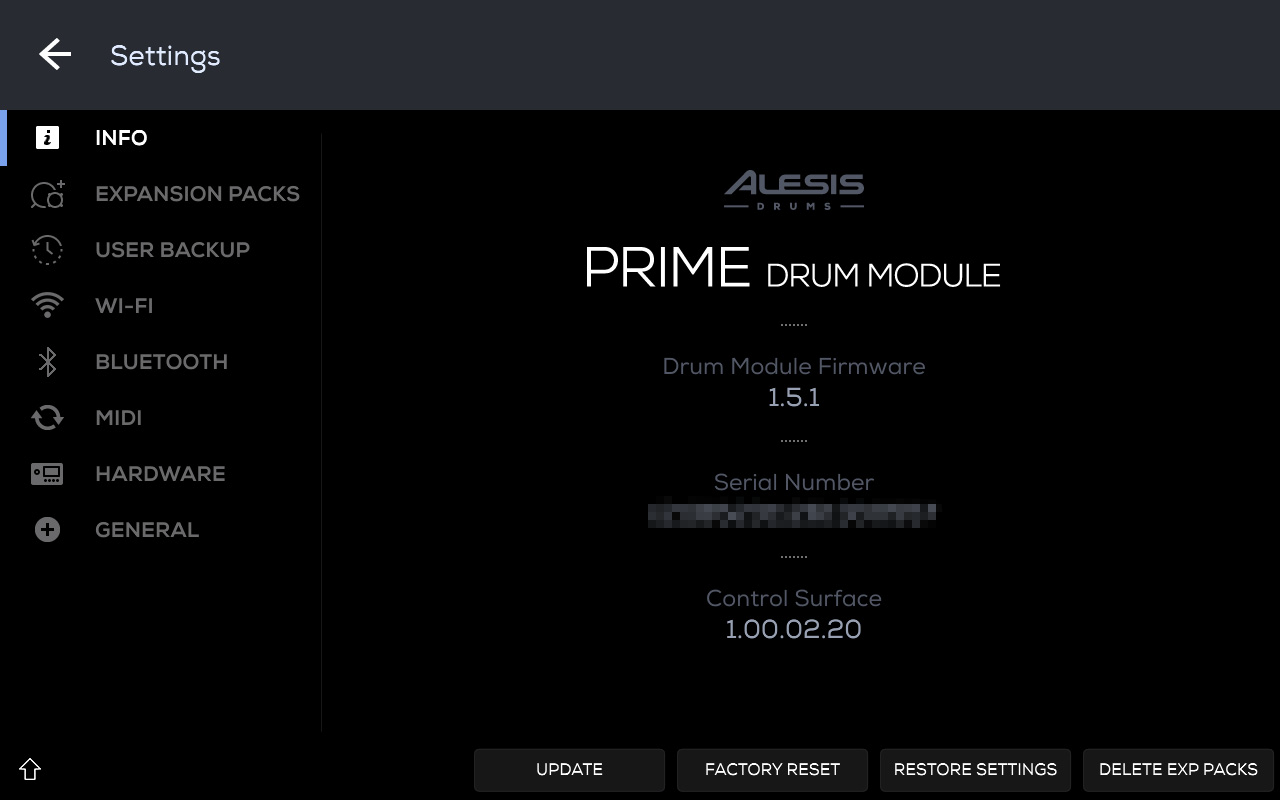
In order to download and use Expansion Packs on your Prime or Core module, you will need to first ensure you are on Firmware 1.5.1 or greater. Please find Firmware Update instructions below:
Important: Do not power off the module or disconnect power during any firmware update.
Quick Instructions for Updating via Wi-Fi
- Power on the module.
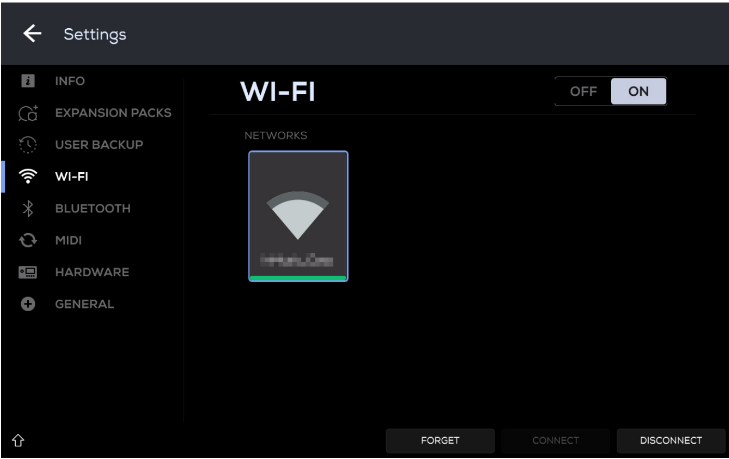
- Go to ⚙️ Settings > WI-FI.
- Enable Wi-Fi and connect to your network.
- If an update is available, follow the on-screen prompt.
- If no prompt appears:
- Go to ⚙️ Settings > ℹ️ INFO > UPDATE > Online Update
- Select Update Now, then Shut Down to begin the update.
- The module will reboot when complete.
- Verify the new firmware version under ⚙️ Settings > ℹ️ INFO.
Purchase and Installation Instructions
How to Purchase
If you have not purchased a content expansion pack, you can browse and purchase packs here: alesisdrums.com/strata-sound-packs
Be sure to use the email address associated with your existing inMusic account when purchasing an expansion pack to ensure that it is deposited into the correct account.
After you have completed your purchase, an inMusic Brands Profile will be automatically created when checking out if you do not already have one. You can also sign into or create an inMusic Brands profile at profile.inmusicbrands.com.
With an active WiFi connection, you can then sign into your inMusic Brands profile on your PRIME or CORE drum module and download your expansion pack. ⚙️ Settings > Expansion Packs
These can be downloaded directly to the PRIME module’s internal storage (Strata Prime only), an external USB drive, or an
SD card, or to a connected external USB drive for use with the CORE module.
Before you begin, make sure to set aside some uninterrupted time to add this new content. The process can take some time to download and install.
How to Install
- Make sure you are running the latest module firmware (v1.5.1 or higher) in the ⚙️ Settings > Info menu.
Make sure you are connected to a Wi-Fi network from the ⚙️ Settings > WiFi menu.
In the ⚙️ Settings > Expansion Packs menu, follow the on-screen instructions and use your
computer or smartphone to enter your unique device code at https://device.alesis.com/.
Note: If connection lags or does not display the QR code, select the current network and tap Forget. Then reconnect to the network.
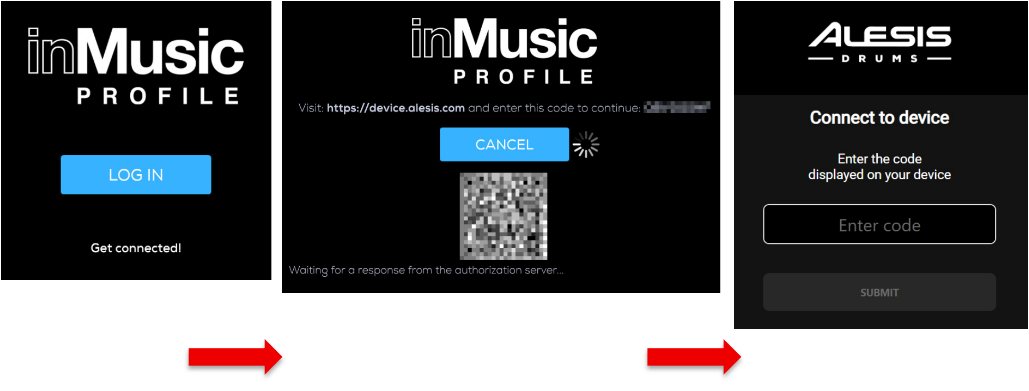
Sign in to your inMusic Profile. Once you are signed in, the device linking will be complete.
On the module, you will see your list of owned expansion packs. Tap Activate to activate the Expansion Pack license to your module.
Before downloading, you must select a drive. Change the Content Download Drive location by tapping Change (CORE modules do not have internal storage).
Note: Tap the Refresh option if your Expansion Pack does not appear on-screen.- Once you have selected the drive where you would like to download your content, tap the download icon next to the Expansion Pack you would like to download. You will see a circle with an X in the center, showing you the download progress of your pack. If you wish to cancel the download, tap the X icon. Once the pack has finished downloading, it will begin extracting the contents onto your selected content drive.
Important: Make sure you have double the available space of the pack size for proper installation.
Note: Download, extraction, and installation times may vary depending on your internet and drive speed. Do not power off the module during this process.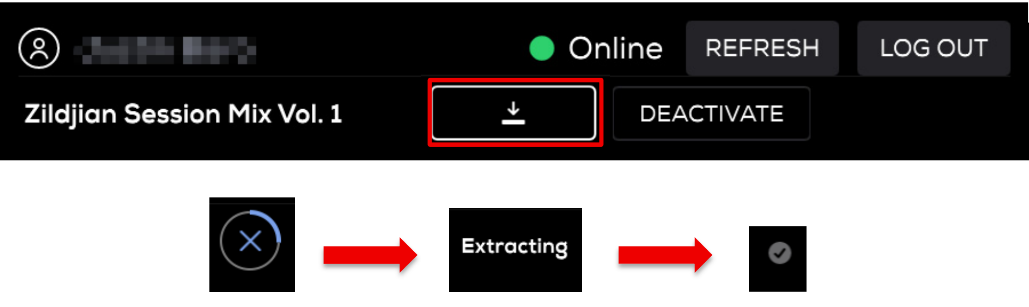
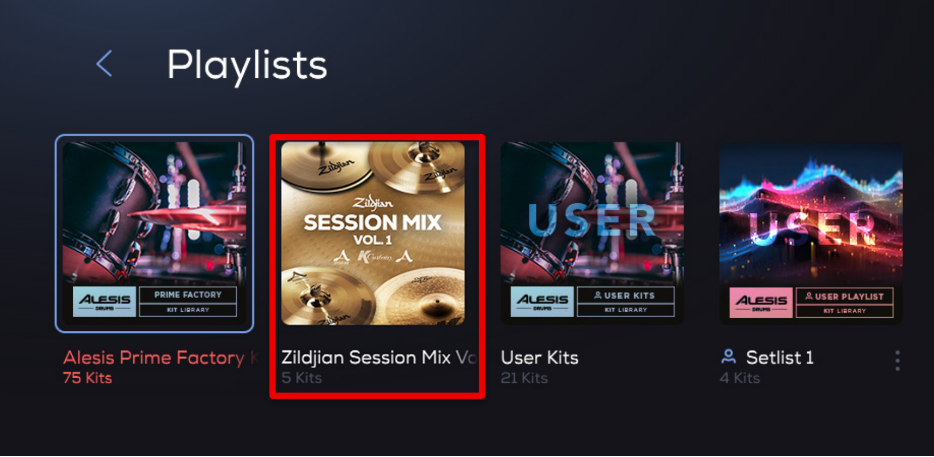
Once the installation is complete, a check mark will appear next to the pack name. You can now find and use the new drums and cymbals in the Expansion Pack Preset Playlist and Kit Piece Library. To begin playing your new drum and cymbal sounds, tap Browse > (Playlist) and tap the Expansion Pack playlist.
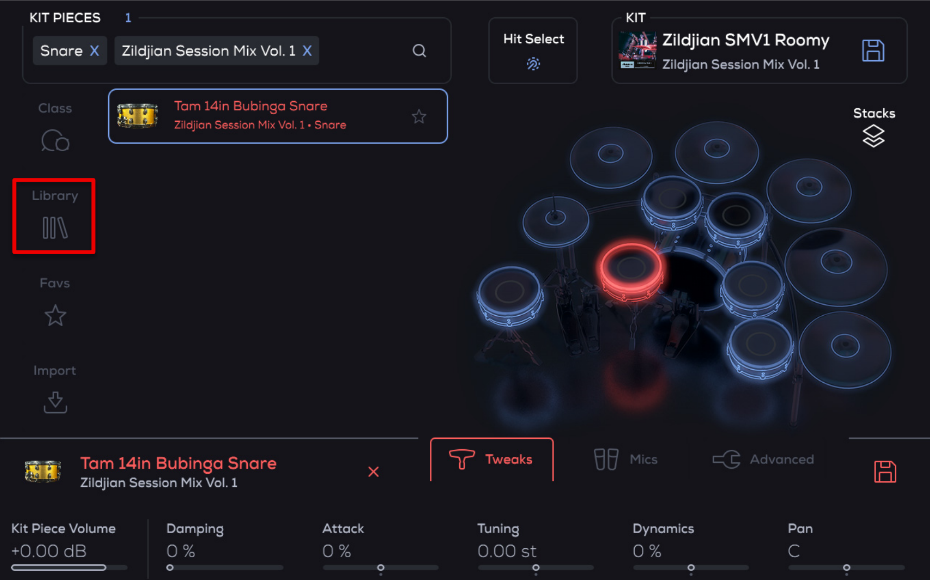
To select new Kit Pieces from the Expansion Pack, tap Edit and in the Edit screen tap the Drum or Cymbal you would like to edit. Once you've selected the kit piece you would like to edit, tap Library > Your Expansion Pack.
Frequently Asked Questions
If I buy a Zildjian Expansion for my Strata Series Drum Kit, do I also get a license for BFD3 and BFD Player?
Yes. The Zildjian Expansion licenses are cross-platform between Alesis Strata Modules, BFD3 & BFD Player. This means that when you purchase the expansion pack for your Strata Series drum kit, you receive three activations that can be used across compatible devices and software.
For example, you could use:
- 1 activation on your Strata module
- 1 activation for BFD Player on your computer
- 1 activation for BFD3 on your computer
Or you may allocate the three activations in any other combination that suits your needs.
Important: To access the expansion on your Strata Module or in BFD3/BFD Player, you must sign in with the same inMusic Profile account used at the time of purchase to permit activation.
What are the storage drive requirements?
USB 3.0 or lower, formatted to exFAT - Be sure to use the recommended drive speed and formatting. If you are downloading/installing the Expansion Pack content to an external USB drive, the USB drive must still be a speed of 3.0 or lower, formatted to exFAT.
Note: The content may not perform as expected with a USB drive speed of 3.1 or higher, which is unsupported.
If you are downloading/installing the Expansion Pack content to an SD card, ensure it is an SDHC or SDXC card (ex-FAT or FAT32 formatted).
My Strata Prime or Core Module is not displaying the QR Code to log into my inMusic Account
If you are having issues connecting to your account due to the QR code not generating, please follow these instructions:
- Open Settings on your Module and go to Wi-Fi
- Forget the current network
- Reconnect by re-entering your Wi-Fi Password
- Return to the Expansion Packs screen and press Connect.
I have run out of space while downloading the expansion pack. What should I do?
You will need approximately twice the advertised package size available on your device during the download and installation process. This is because both the downloaded package and the installed content must exist temporarily at the same time. Once installation is complete, the original download package will be automatically removed, freeing up the additional storage space.
If you run out of storage space, please use a drive with more available free space or remove files from the current drive to accommodate the additional storage required during the download and installation process.
Note: The Strata Club and Core modules require an external storage drive for download and use of Expansions.
I have just purchased a new Expansion, but I do not see it in my Module's Expansion Packs Menu
If you are not seeing your recently purchased expansion pack, please check the following;
- Ensure you have updated to Firmware 1.5 or higher. ⚙️>Info to check your Firmware Version.
- Press the "Refresh" button in the Expansion Packs menu. ⚙️>Expansion Packs>Refresh
- Ensure you are logged into the inMusic account associated with the email address that the expansion pack was purchased through.
Was this article helpful?
That’s Great!
Thank you for your feedback
Sorry! We couldn't be helpful
Thank you for your feedback
Feedback sent
We appreciate your effort and will try to fix the article