
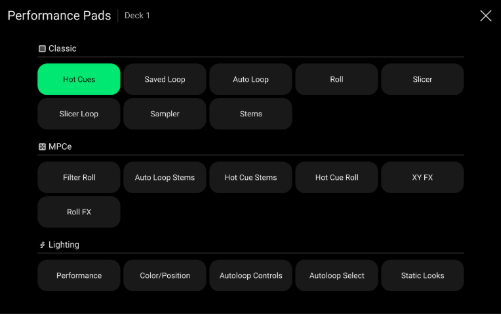
PRIME 4 G2 features eight classic pad modes, six *MPCe™ pad modes, and five Engine Lighting-capable pad modes. The eight performance pads on each deck have different functions in each pad mode.
TABLE OF CONTENTS
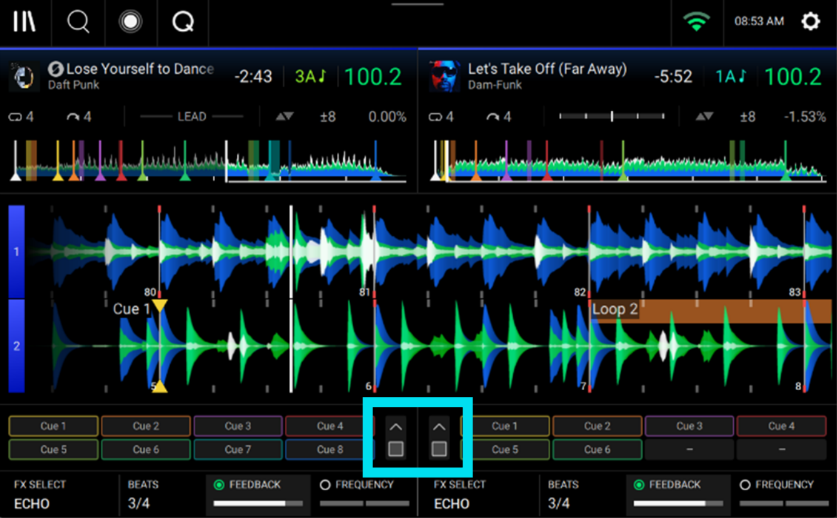
All pad modes can be selected using the Performance Pads selection menu, accessible by tapping the pad menu icon
next to the Performance Pads when enabled in Performance View.

Classic Pad Modes
Hot Cue Mode
In Hot Cue Mode, you can use each pad to jump to an assigned hot cue point. The location of set hot cue points and
timing of triggered hot cue points will depend on the current Quantize setting, if enabled.
Saved Loop Mode
In Saved Loop Mode, you can use each pad to enable an assigned loop. Pressing Loop for the first time will always
enter Saved Loop Mode.
Auto Loop Mode
In Auto Loop Mode, you can use each pad to create and activate an auto loop.
Roll Mode
In Roll Mode, you can press and hold each pad to trigger a “loop roll” of a certain length while the track’s timeline continues (the lower half of the waveform in the display will continue moving forward). When you release the pad, the track will resume normal playback from where it would have been if you had never done anything (i.e., as if the track had been playing forward the whole time).
Slicer Mode
In Slicer Mode, the eight pads represent eight sequential beats—“slices”—in the beatgrid.
Slicer Loop Mode
Slicer Loop Mode operates the same as Slicer Mode, but entering it automatically activates an eight-slice phrase that
loops.
Sampler Mode
In Sampler Mode, you can assign and trigger up to eight samples using your performance pads.
To enter Sampler Mode, press Loop a second time. The Loop button will light up green in this mode.
Stems Mode
Stems Mode is automatically included with PRIME 4 G2 hardware. Track stems can be created directly on PRIME 4
G2 (partially swipe a track to the left and tap Stems), or using the Engine DJ software and packed to an external drive
for use with PRIME 4 G2.
MPCe™ Pad Modes
There are six available MPCe™ pad modes, utilizing the 3D-sensing pads for additional control options. These pad modes can all be selected using the Performance Pad selection menu, and some modes may be accessed using the hardware buttons.
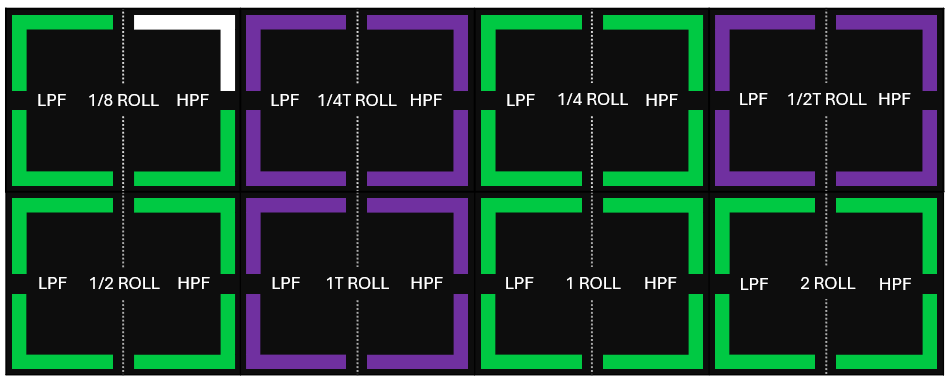
Filter Roll Mode
In Filter Roll Mode, you can use each pad to trigger a “loop roll” of a certain length and activate a low pass filter (left)
or high pass filter (right) depending on which side of the pad is struck.
Auto Loop Stems Mode
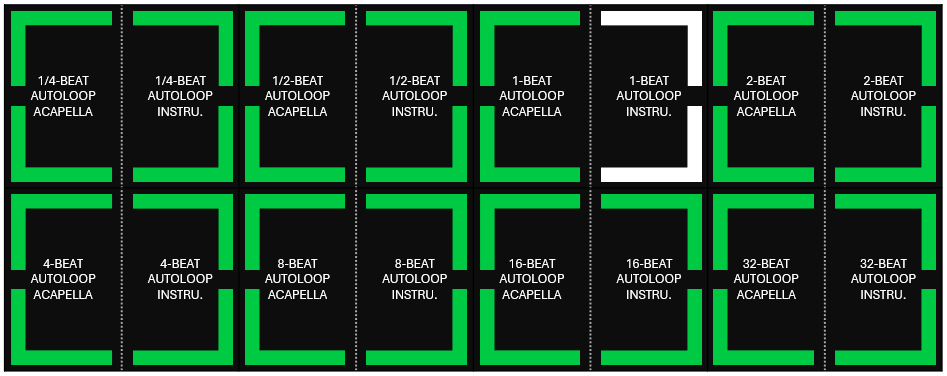
In Auto Loop Stems Mode, you can use each pad to jump to trigger an auto loop and activate the Acapella or Instrumental stem parts.
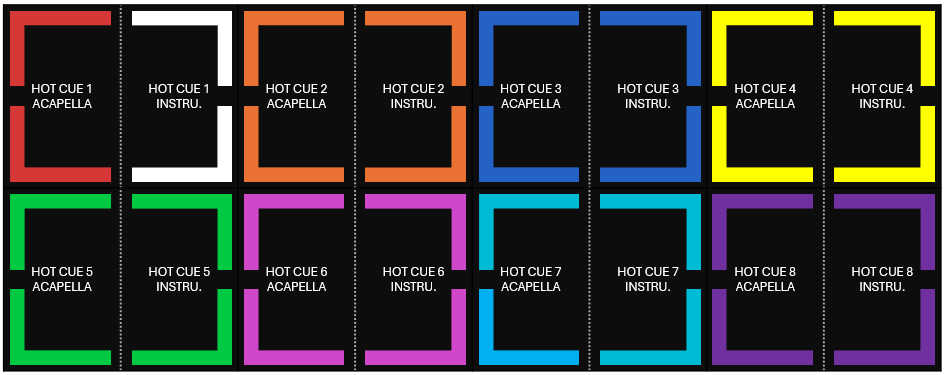
Hot Cue Stems Mode
In Hot Cue Stems Mode, you can use each pad to jump to the assigned hot cue point and activate the Acapella or
Instrumental stem parts.
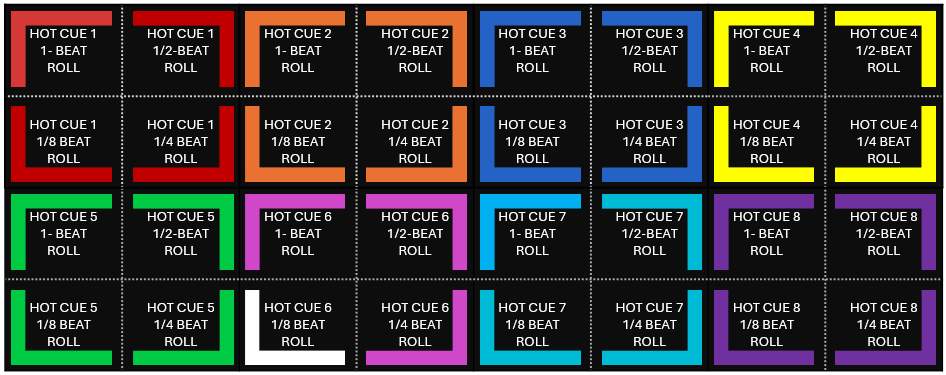
Hot Cue Roll Mode
In Hot Cue Roll Mode, you can use each pad to jump to the assigned hot cue point and trigger a roll at the same time.
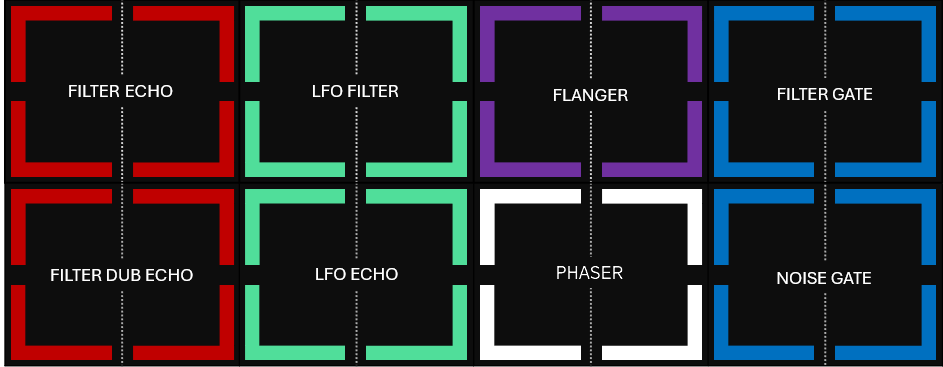
XY FX Mode
In XY FX Mode, you can use each pad to trigger XY effects.
Different parameter variations will be applied depending on where the pad is struck, and you can drag your finger around the pad for real-time parameter manipulation. XY FX are triggered momentarily, and deactivate after lifting your finger off the pad.
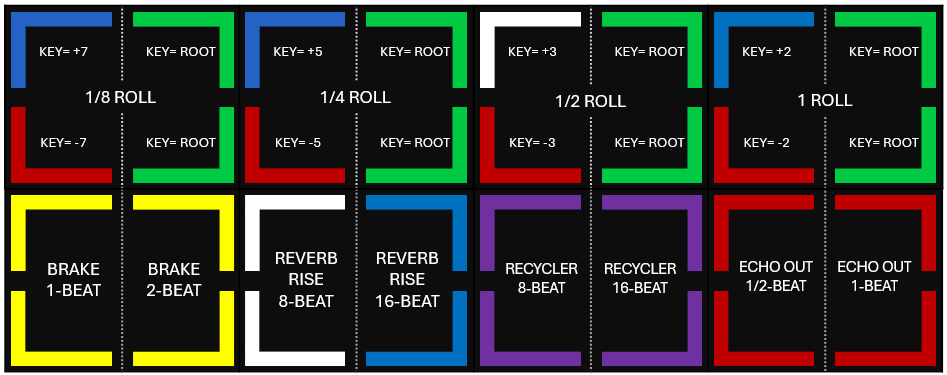
Roll FX Mode
In Roll FX Mode, you can use each pad to trigger a “loop roll” of a certain length, with or without a key change, as well
as applying FX, depending on which pad and where it is struck.
Engine Lighting Pad Modes
There are five available pages of Engine Lighting pad modes which allow you to control various Engine Lighting
parameters.
Performance
In Performance Mode, you can use the pads to trigger performance overrides and adjust performance parameters.
Press in the center of the top four pads to enable or disable the selected effect override. Use the left/right XY pad
control to adjust the parameter amount.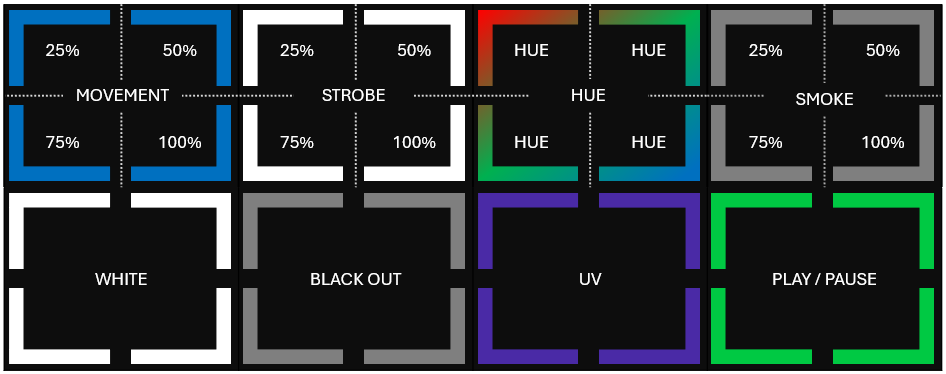
Color/Position
In Color & Position Mode, you can use the pads to activate color and position overrides.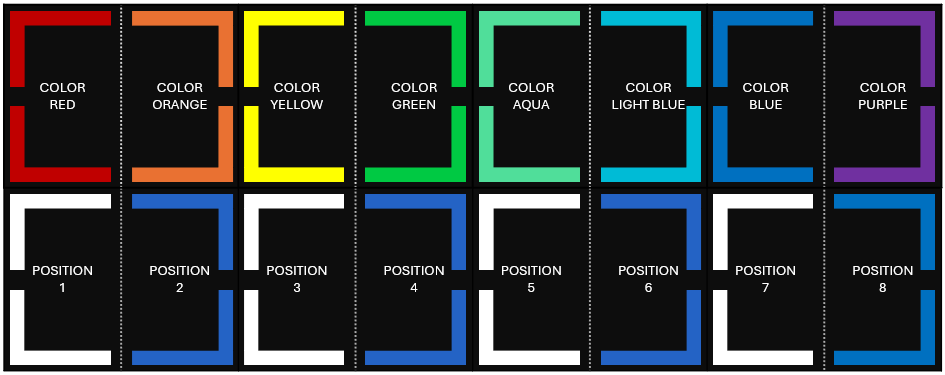
Autoloop Controls
In Autoloop Controls Mode, you can use the select auto loop banks, play autoloops, move to the previous or next
autoloop, repeat the current autoloop, and override scripted tracks.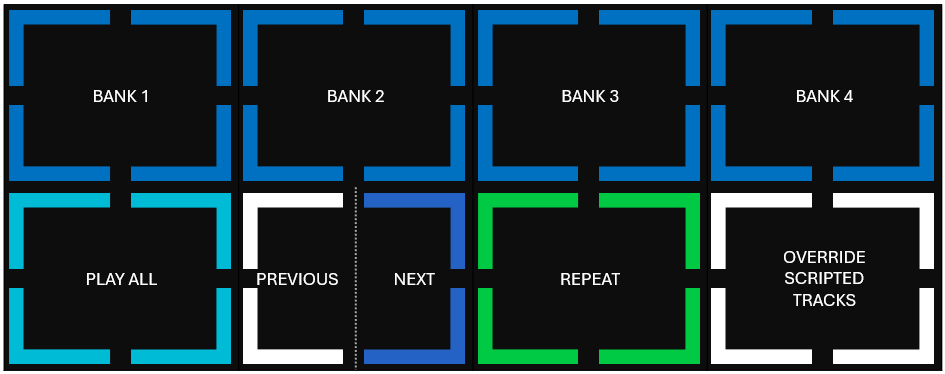
Autoloop Select
In Autoloop Select Mode, you can use the pads to select autoloops from the current bank.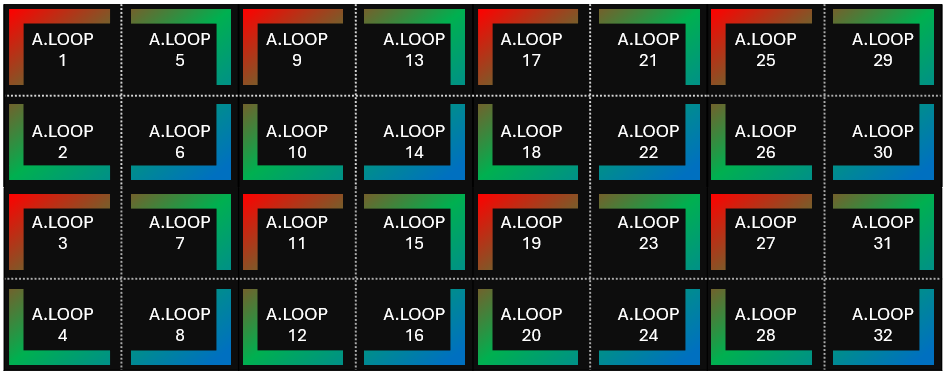
Static Look Select
In Static Look Select Mode, you can use the pads to select static looks.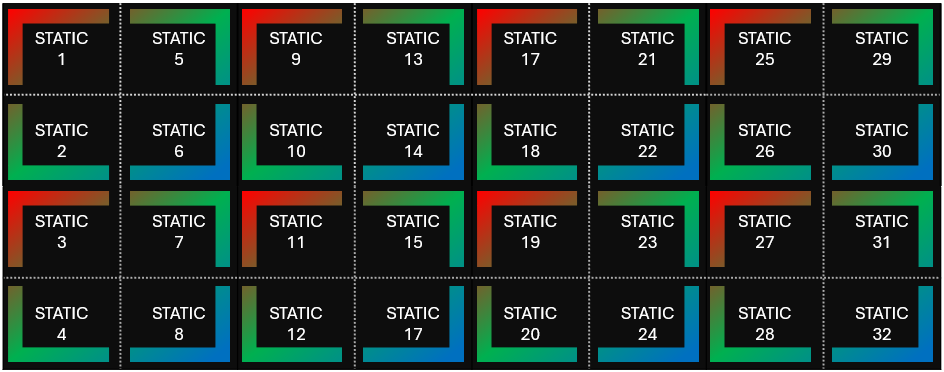
*MPCe™ is a trademark of inMusic Brands. Patent Pending.
Was this article helpful?
That’s Great!
Thank you for your feedback
Sorry! We couldn't be helpful
Thank you for your feedback
Feedback sent
We appreciate your effort and will try to fix the article