MPC 3 Standalone | Copying MIDI Between The Arranger And Clip Matrix
If you've recorded a performance into the Arranger and would prefer to work with it as a clip, or vice versa, you can easily transfer the MIDI data between the two by following the steps in this article:
Copy From Arranger To Clip
1. Press the MAIN button.
2. Using the Main Dial, scroll to the track containing the performance you would like to copy to a clip.
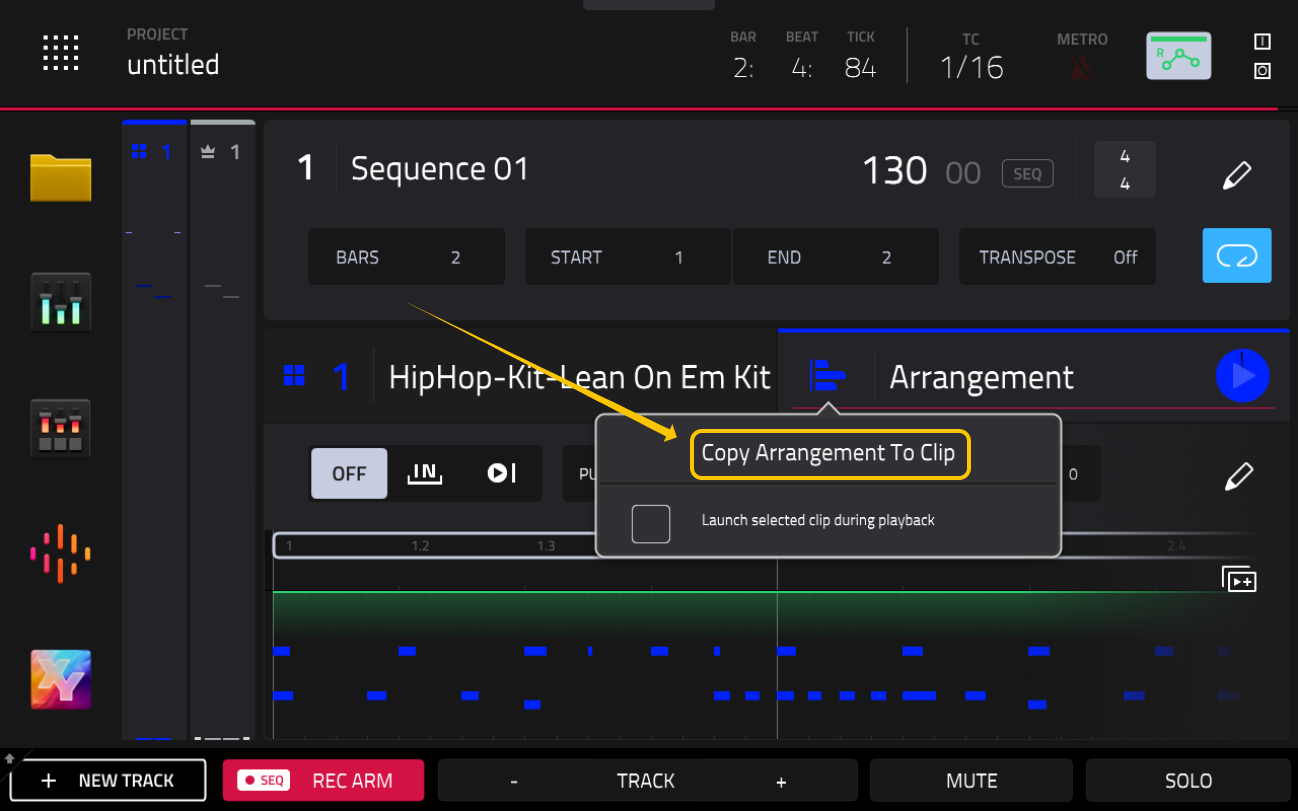
3. Tap the icon with the 3 horizontal lines located on the left side of the Arrangement tab header.
4. Select Copy Arrangement to Clip.
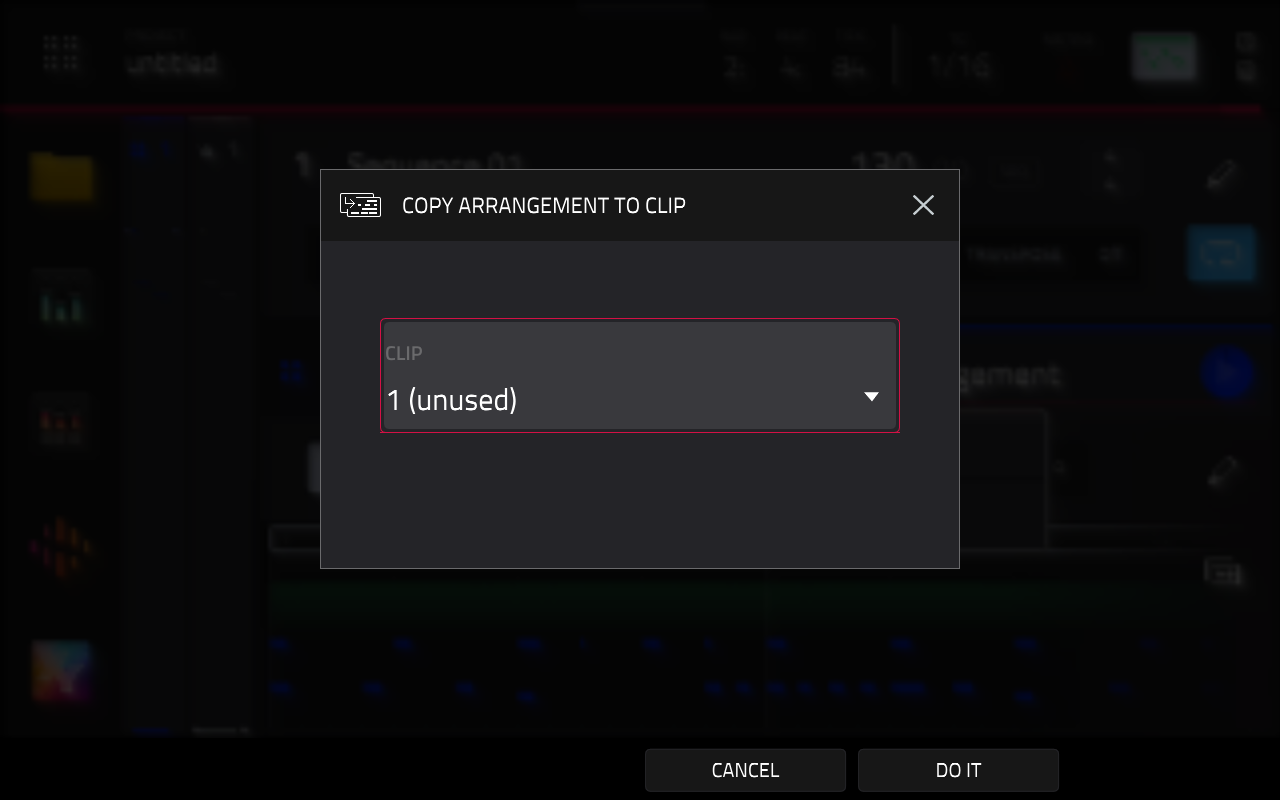
5. When the "Copy Arrangement To Clip" window appears, select a clip. Available clips will display "(unused)" in their name. Once selected, tap DO IT.
6. Press the MENU button, then select CLIP MATRIX (you may need to tap the arrow icon to the right of the Menu screen to turn the page and find this option).
7. You'll see the Clip you selected in step 5 here.
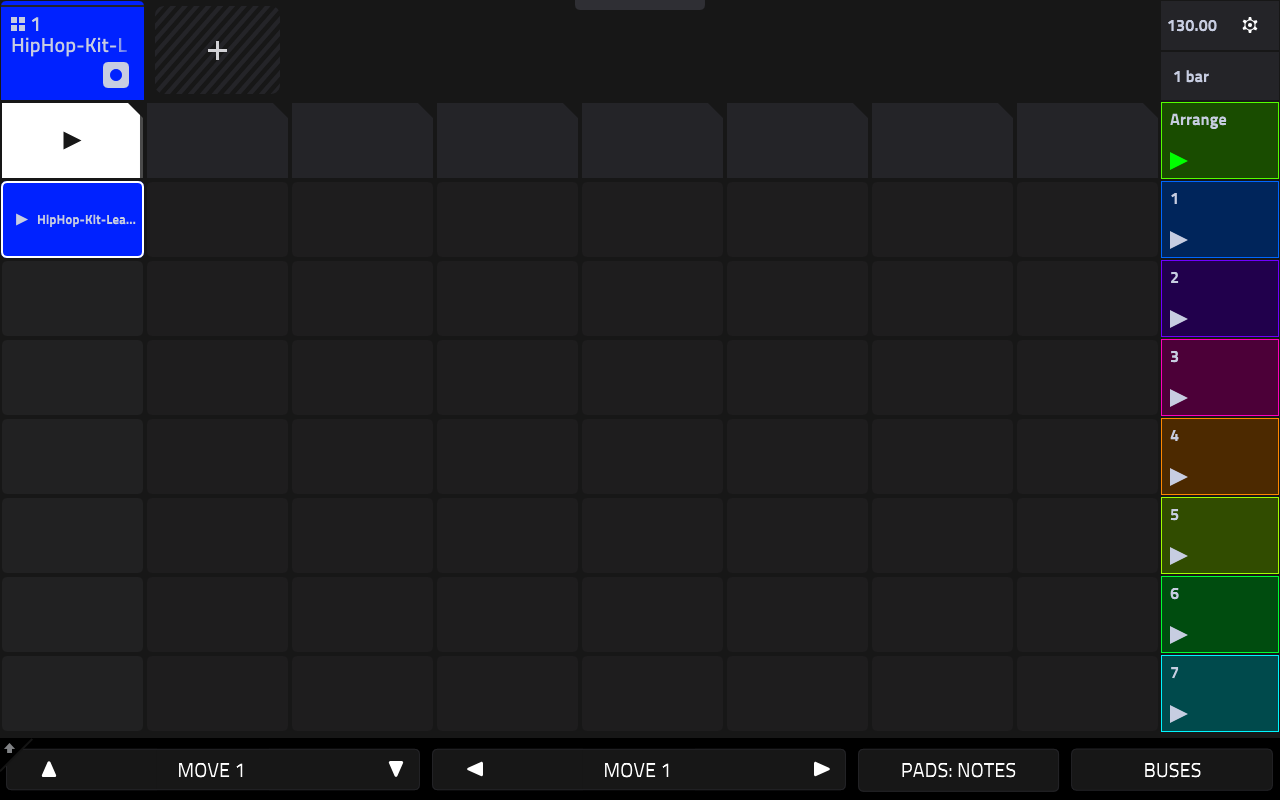
8. Tap the clip to launch it. You'll hear that it contains the same MIDI performance that was previously recorded in the Arranger.
Copy From Clip To Arranger
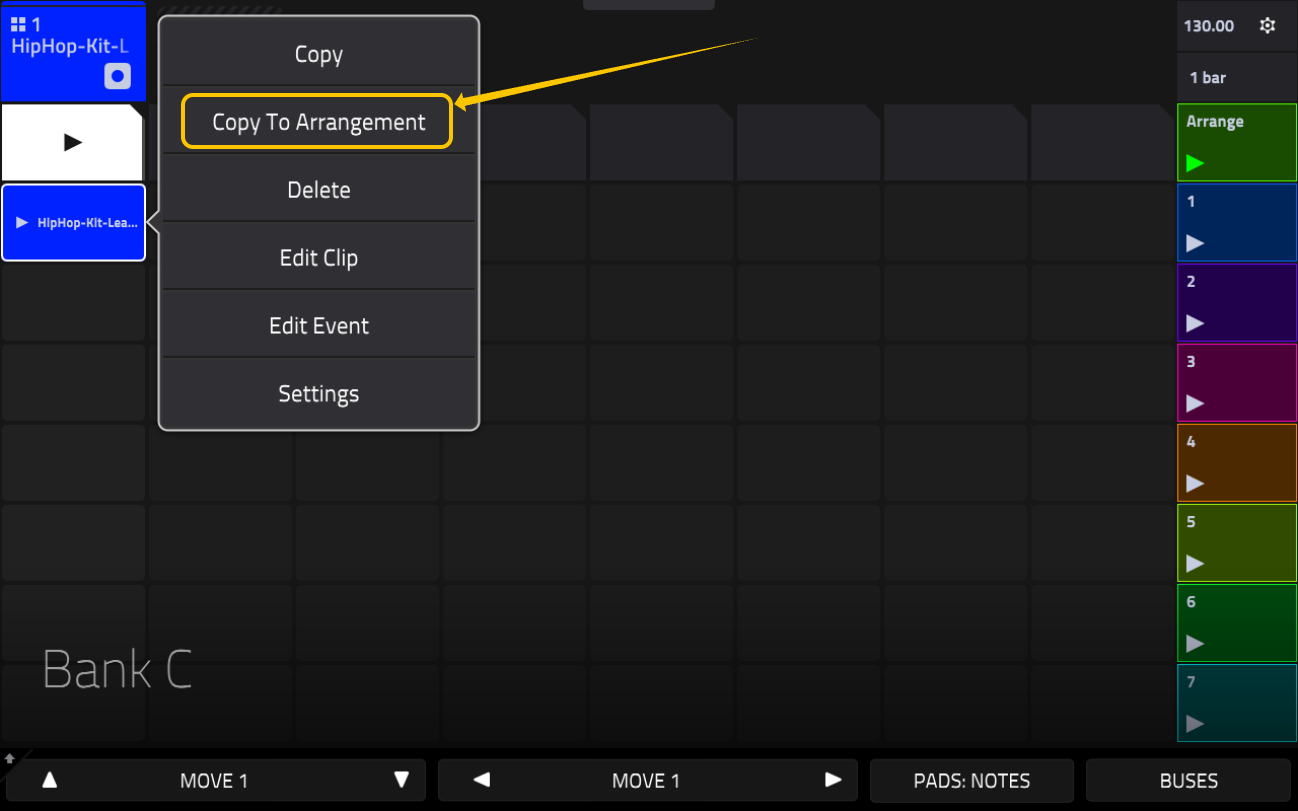
1. In the Clip Matrix, press and hold the clip you would like to copy, then select Copy to Arrangement.
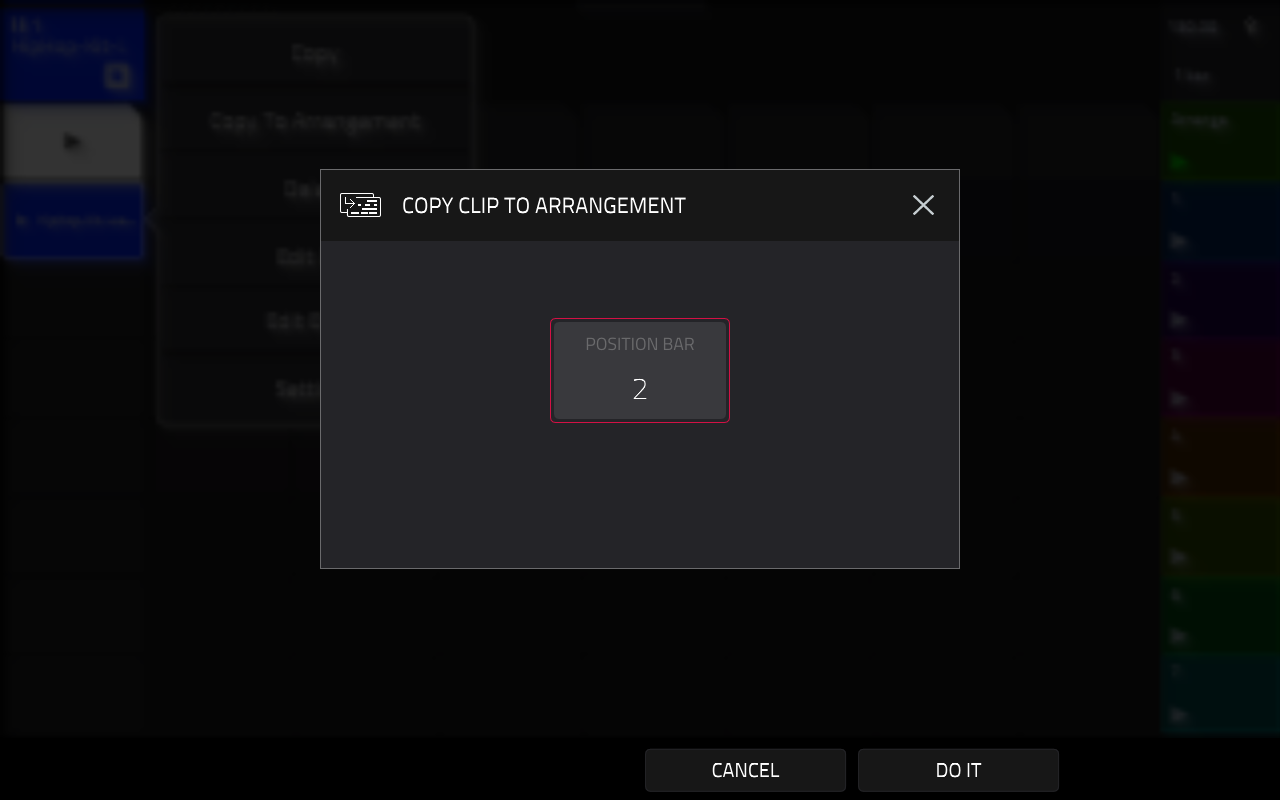
2. When the "Copy Clip To Arrangement" window appears, choose the Position Bar where you would like the clip's MIDI data to begin in the Arranger. In this example, I'm going to select Bar 2.
3. Press the MAIN button, then open the Arrangement tab. You'll see the copied MIDI data starting at the bar selected in Step 2.
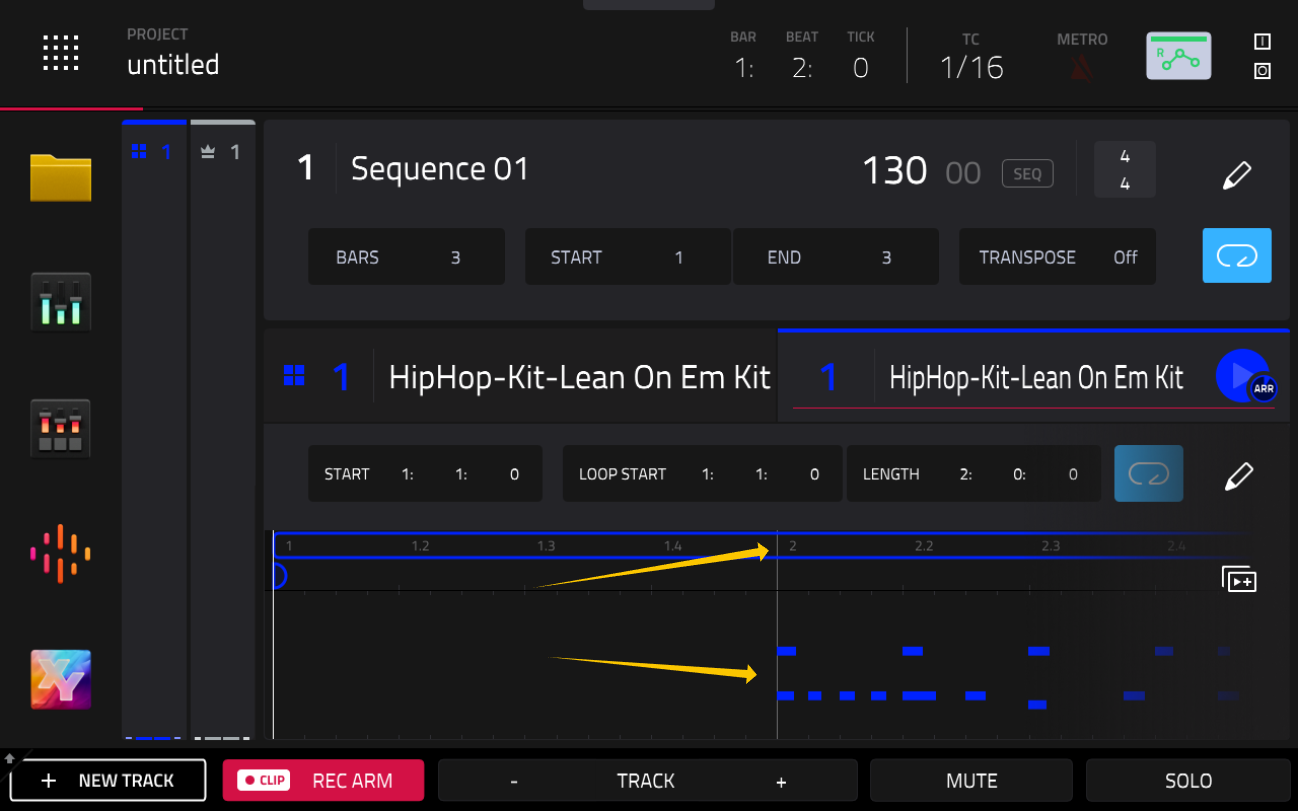
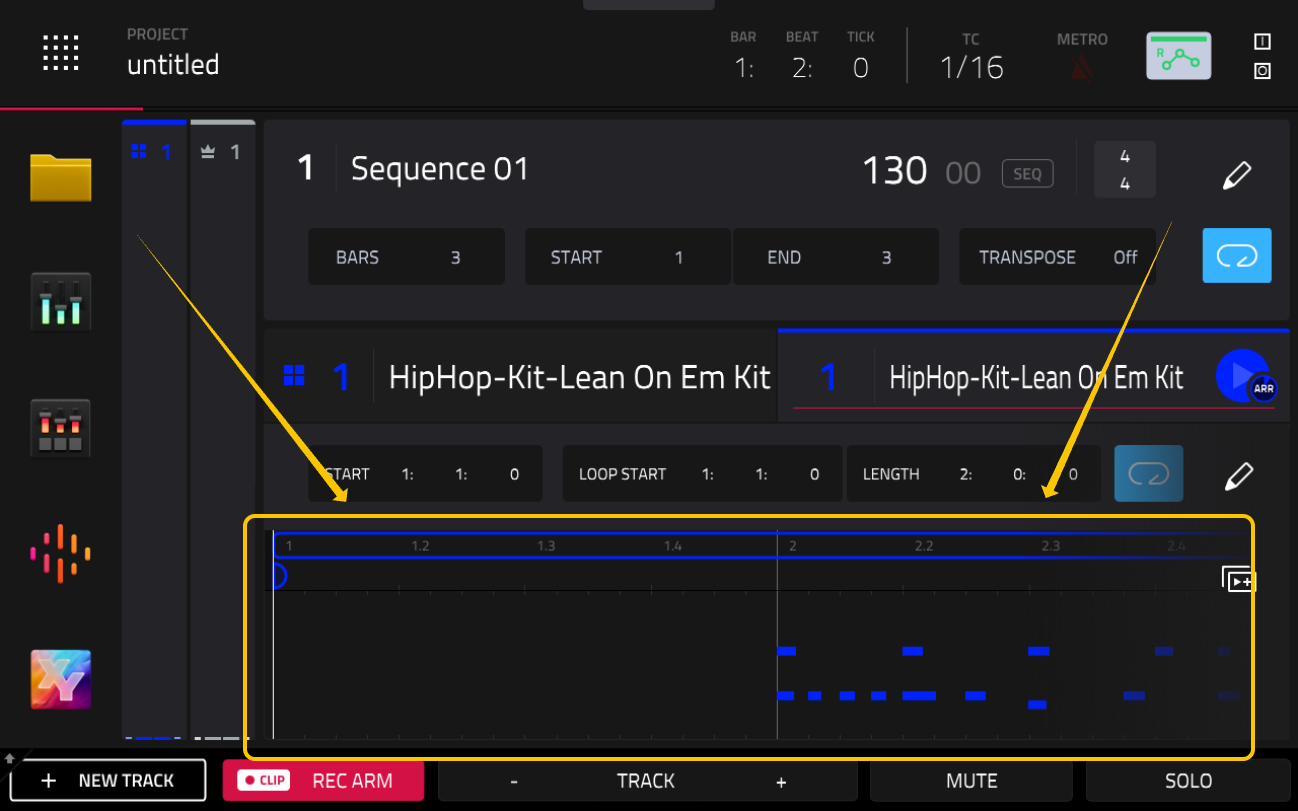
4. To get a closer view of the arrangement, double-tap the Arrangement preview area (where the MIDI events and bar markers are displayed) to expand the timeline.
Was this article helpful?
That’s Great!
Thank you for your feedback
Sorry! We couldn't be helpful
Thank you for your feedback
Feedback sent
We appreciate your effort and will try to fix the article