Akai Pro MPC Series | Troubleshooting MIDI Learn Mappings

This article will cover the steps to troubleshoot mapping related issues when using MIDI Learn on your MPC.
TABLE OF CONTENTS
Learned (CC) to Macro
If you receive Learned (CC) to Macro after mapping, this indicates that the MIDI device you are using is not set up correctly for MIDI Learn control. At this stage, the mapping will not be applied to your controller.
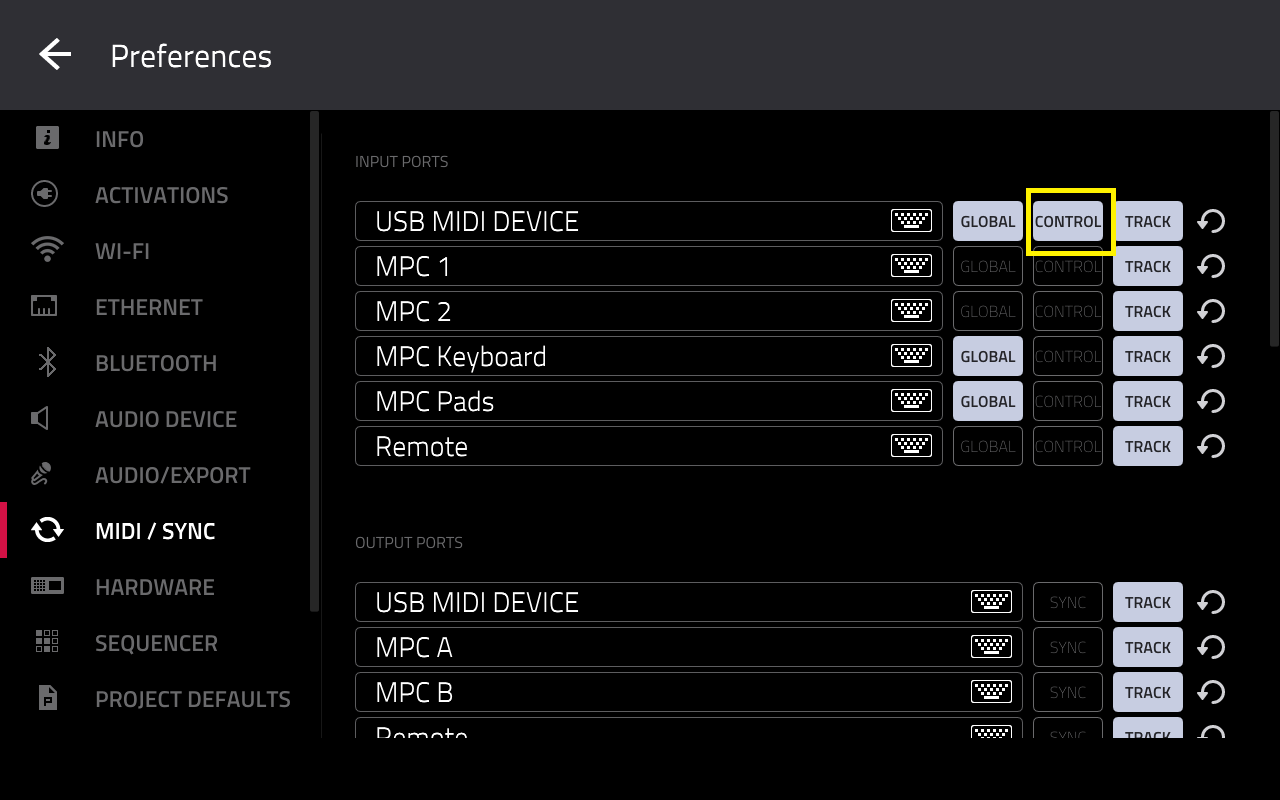
1. To resolve this, navigate to Menu > Preferences > MIDI/Sync
2. Enable Control for the MIDI device you are using for MIDI Learn
When Control is enabled, MIDI data from this port will be sent to MIDI Learn.
MPC Pads Triggering MIDI Learn Assignments
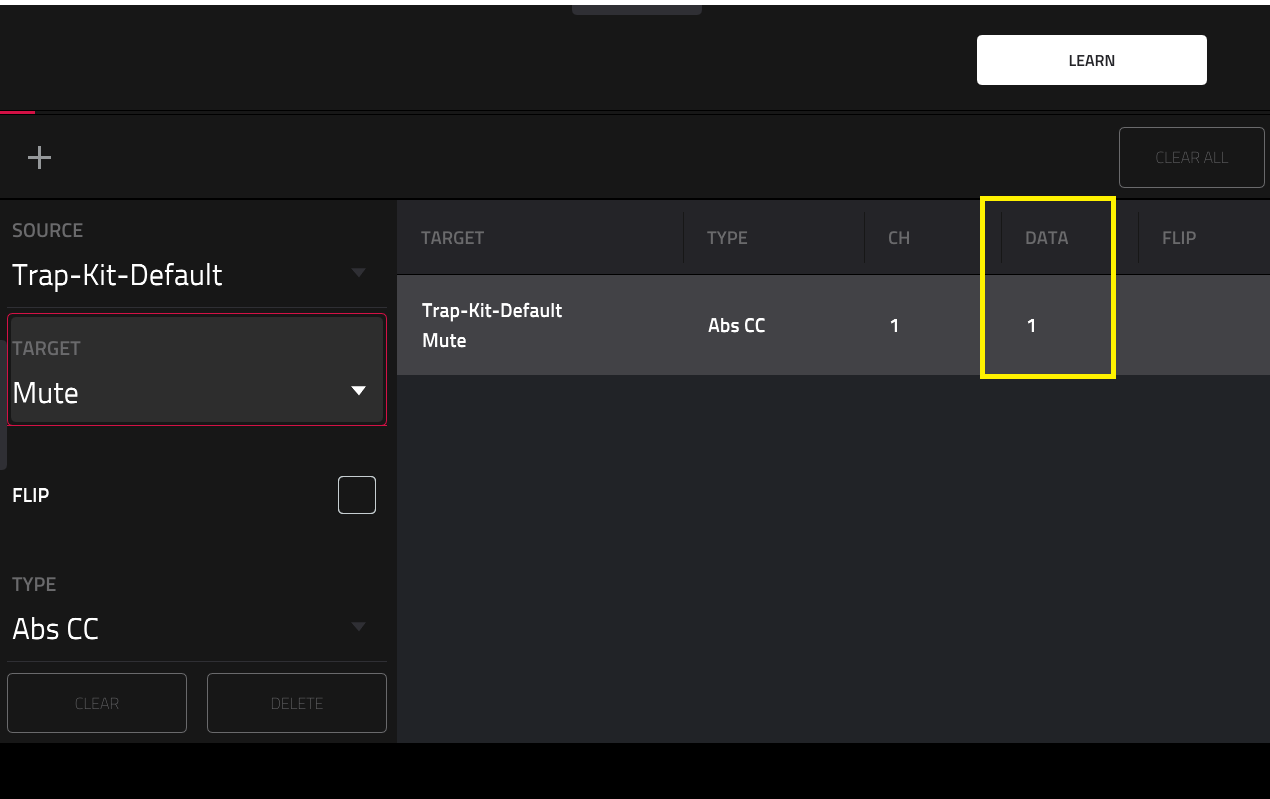
When a MIDI controller is assigned to a parameter, The Type, Ch, and Data fields will be automatically assigned. The DATA filed represents the MIDI note number or CC number for the MIDI controller.
If you find that your MPC's pads are also triggering the same assignment on your MIDI controller - this is likely because your MIDI controllers parameter (knob, fader, pad) is using the same MIDI note number assigned to the MPC's pads.
To better understand this, please see the following example scenario:
In this example our MIDI controller has been assigned to 'Mute', using DATA number 1.
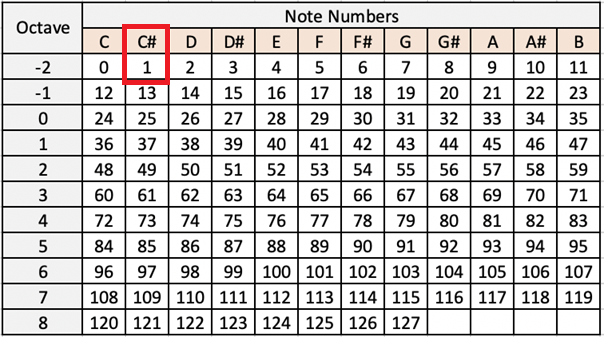
In the MIDI note numbering system, Note 1 is C#1
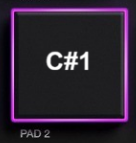
In our example, we have noticed that the MPC's pad is also triggering mute. This suggests the MPC's pad note mapping includes C#1.
To resolve this for your scenario, start by finding out the pad note map on your drum track.
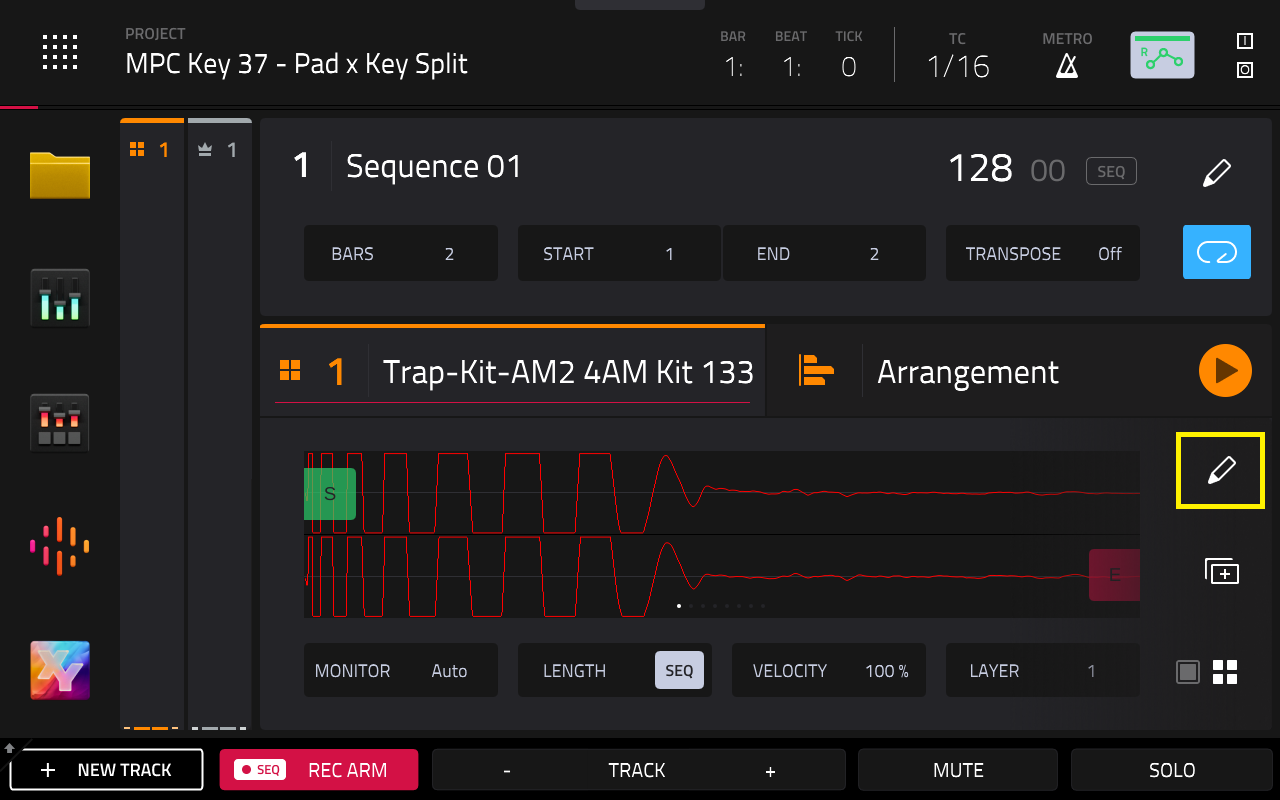
1. Go to Main Mode, and tap on the Pencil Icon
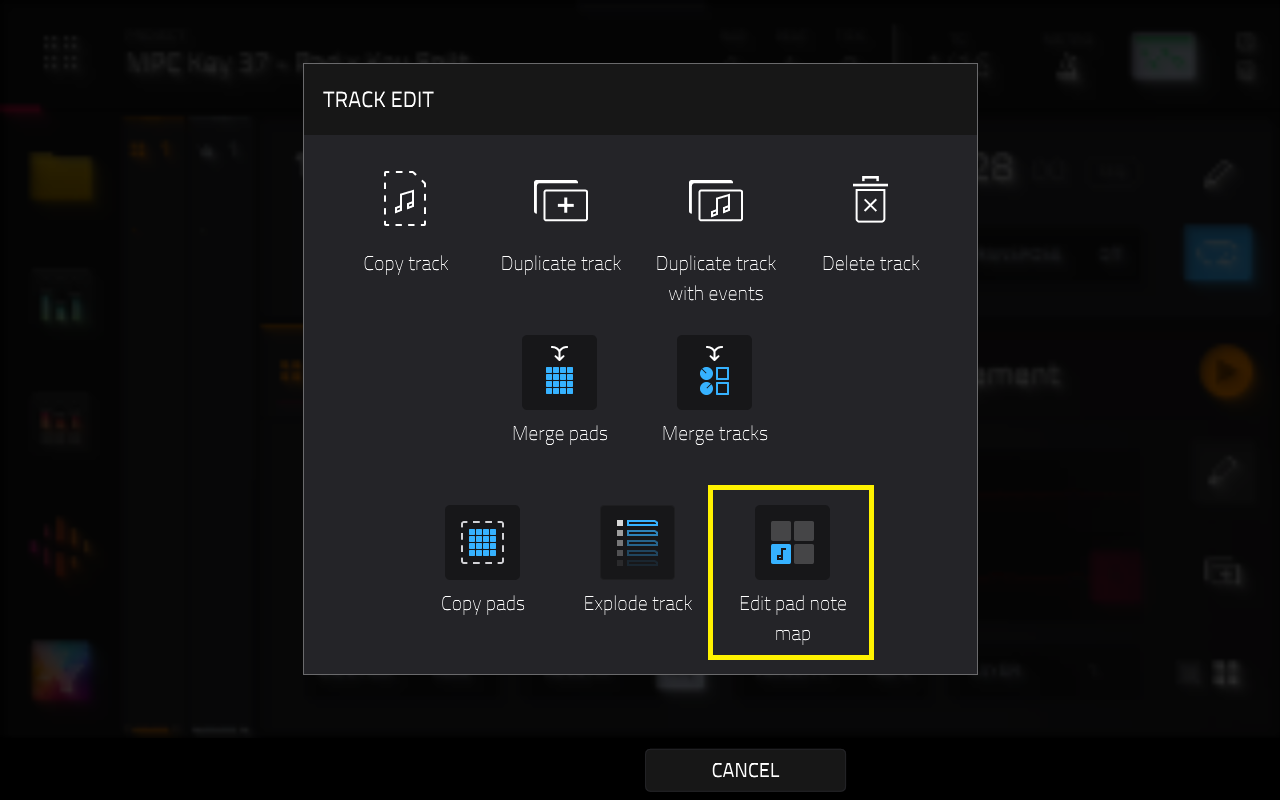
3. You will see the Edit Pad Note Map window.
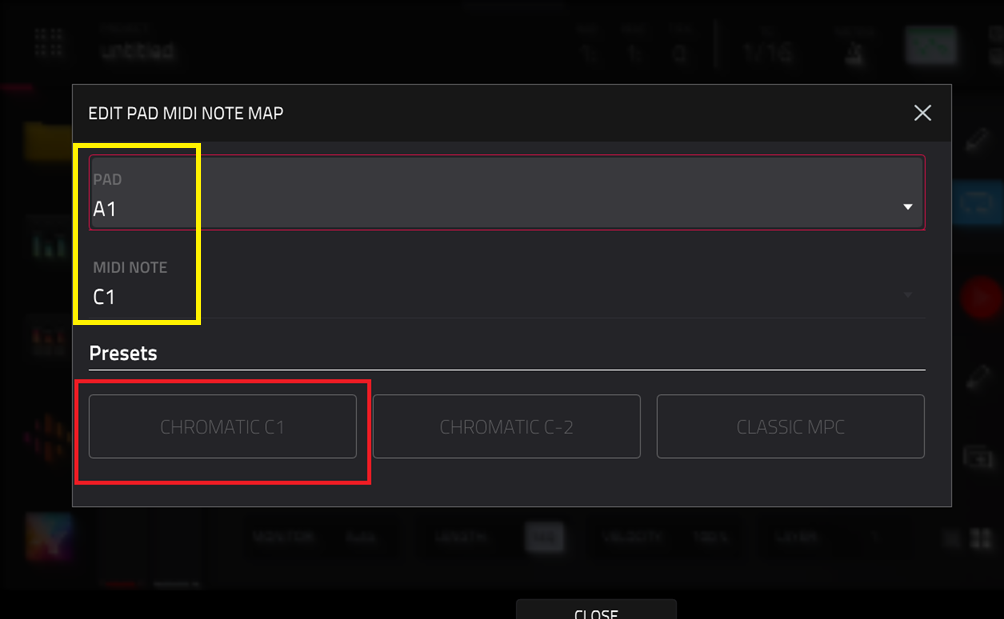
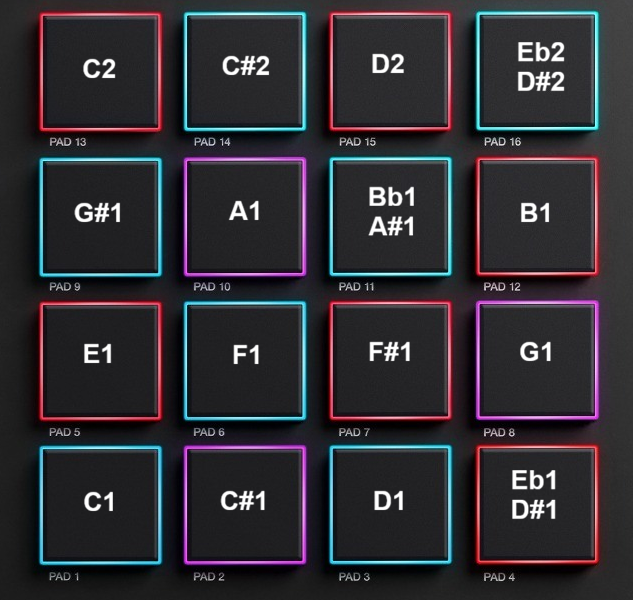
4. When a drum track is loaded on the MPC, the pads will be automatically mapped to predetermined notes using the Chromatic C1 preset. In this preset, the MPC's pads are mapped chromatically per Pad Bank.
See an example with Bank A:
5. The next step is to change the note number for the parameter (knob, fader etc) on your external MIDI controller. This can usually be done within the accompanying editor or within the controller itself.
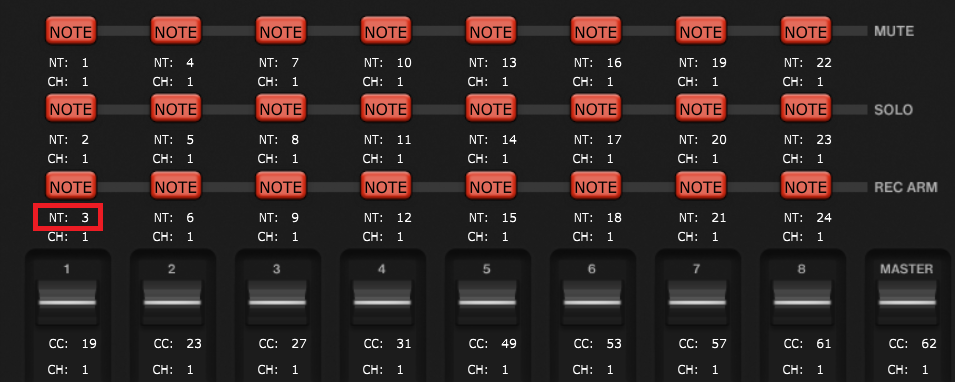
6. Select a note that does not conflict with the MPC's pad mapping. You can also use the below chart to help with changing the note number for your controller:
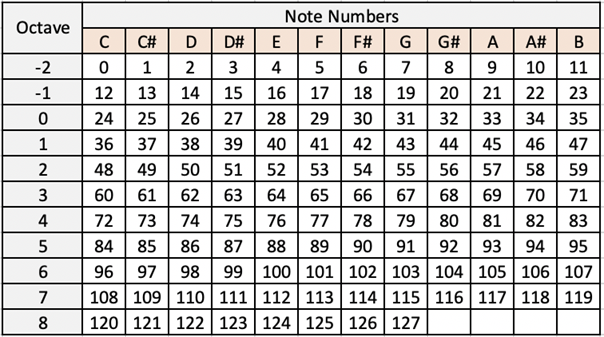
Once done, remap your controller in MIDI Learn, you should find the mapping conflicts have been resolved.
Was this article helpful?
That’s Great!
Thank you for your feedback
Sorry! We couldn't be helpful
Thank you for your feedback
Feedback sent
We appreciate your effort and will try to fix the article