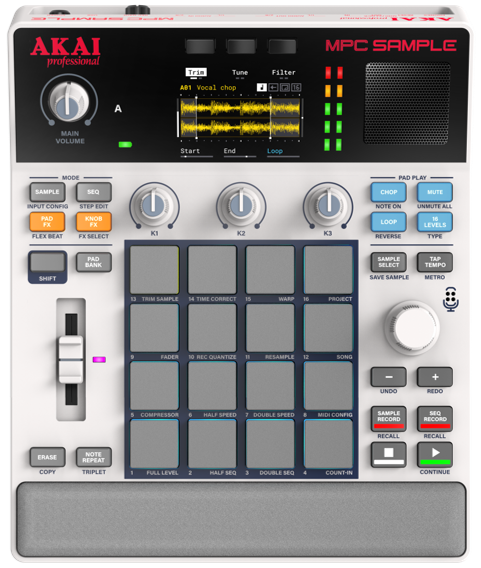
This guide provides step-by-step instructions for updating the firmware on your MPC Sample.
TABLE OF CONTENTS
Note 1: For Windows 10 users, please use the downloadable updater app available on the MPC Sample Downloads page. See I Am Using Windows 10. How Do I Update? for instructions
Note 2: For iOS users, you will require an iOS that has a USB-C port. If your iOS device uses a lightening port - you will require Apple's Lightening to USB 3 Camera Adapter. See Troubleshooting / Frequently Asked Questions for instructions.
Update Instructions
- Turn on MPC Sample.
- Connect MPC Sample via USB to a computer or iOS device.
- In a web browser, type mpc-sample.local in the address bar.
- On the page below, press ‘Update Now’.
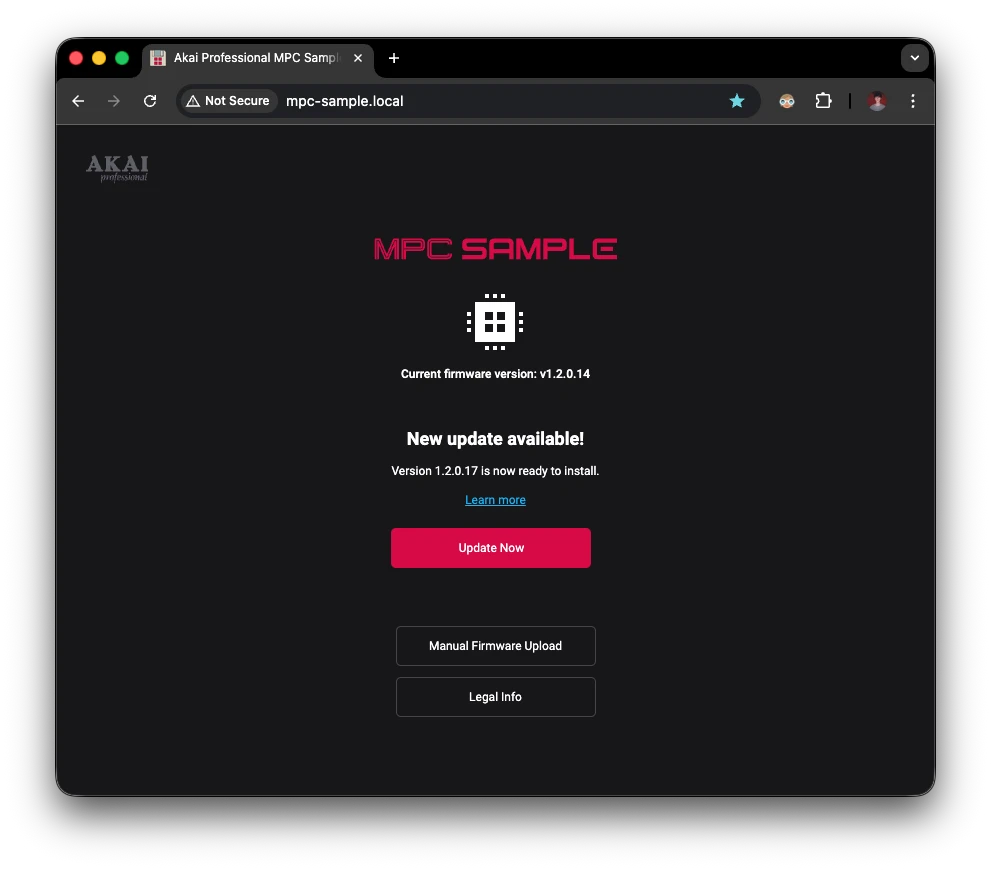
- The update process will begin, do not unplug the device while an update is in progress.
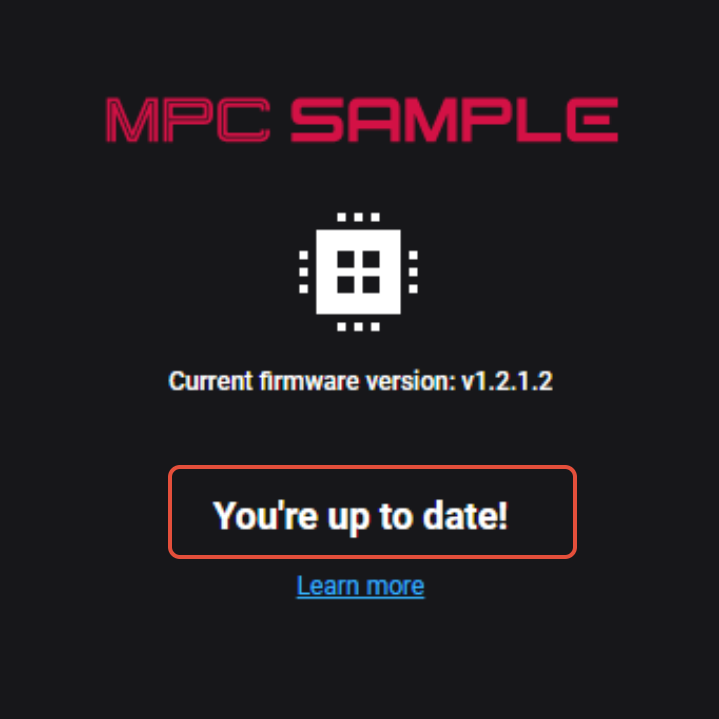
- Once the update has completed successfully, you can disconnect the USB.
- Once the update is complete, the device will automatically restart with the latest firmware.
Troubleshooting / Frequently Asked Questions:
I cannot connect to mpc-sample.local in my web browser. What can I try?
- While connected via USB, power off MPC Sample and then power back on. Retry connection.
- Enter 192.168.155.1 in the browser address bar while MPC Sample is connected.
I cannot connect to mpc-sample.local in my web browser on iOS.
Important: iOS users, will require an iOS device that has a USB-C port. Ensure you are using the included USB-C cable.
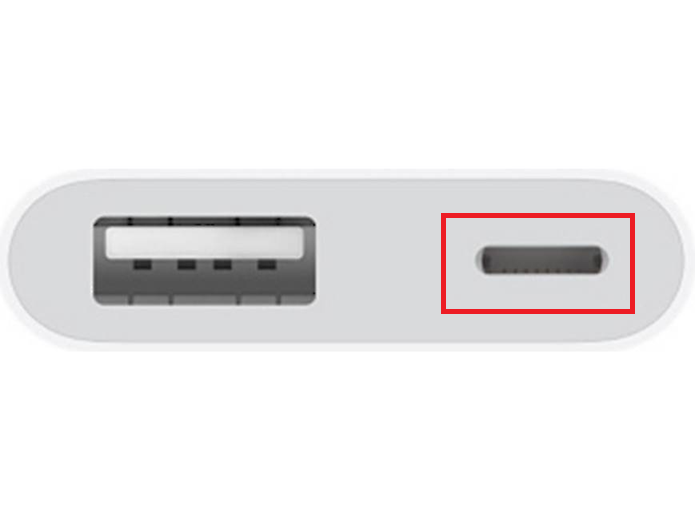
If your iOS device uses a lightening port - you will require Apple's Lightening to USB 3 Camera Adapter that features a power passthrough.
1. Connect a 20W USB-C power adapter to the power passthrough port on the adapter.
2. Obtain a USB-A to USB-C cable that supports full data transfer.
3. Connect the USB cable to the adapters' USB-A port
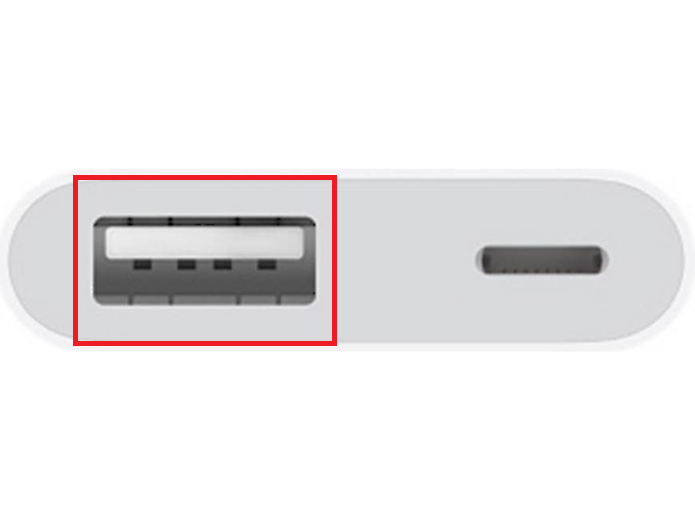
4. Connect the other end of the USB-A to USB-C cable to the MPC Sample's USB-C port.
I Am Using Windows 10. How Do I Update?
To update using Windows 10, follow the directions below:
- Download the desktop MPC Sample Updater for Windows from the MPC Sample Downloads page.
- Power off MPC Sample.
- While holding CHOP + MUTE + SAMPLE SELECT, power on MPC Sample to enter Update Mode.
- Ensure MPC Sample is connected to your computer via USB.
- Run the desktop MPC Sample Updater.
Was this article helpful?
That’s Great!
Thank you for your feedback
Sorry! We couldn't be helpful
Thank you for your feedback
Feedback sent
We appreciate your effort and will try to fix the article