TABLE OF CONTENTS
- Why isn't my MPC XL recognized by my computer?
- How do I record over USB into my MPC 3's Sampler?
- What Operating Systems are compatible with the MPC XL?
- How do I bus out my tracks from MPC XL into a DAW?
- How do I access the new Super algorithm?
- How do I access and edit Q-Links from the new Pull-Down Menu?
- How come my Touch Strip actions aren't recording?
- How can I layer drum samples together to take advantage of the new MPCe™ pads?
- Why isn't my MIDI controller working with the MPC XL standalone?
- Turning off pad XY events
- Assigning an analog input to a digital input
- How do I make a kit that takes advantage of the MPCe™ pads?
- How do I assign the Envelope Follower to a pad?
Why isn't my MPC XL recognized by my computer?
The most important thing to verify when troubleshooting connectivity issues with your computer is the driver and firmware version currently installed on your system. The firmware version on your device must match the software versions currently installed on your computer. You can find your MPC Firmware and Drivers bundled into your inMusic Software Center located in your Akai Pro account.
How do I record over USB into my MPC 3's Sampler?
To set up the Sampler before recording:
1. Make sure to reduce the volume levels of your audio source and speakers, headphones, and/or monitors before you make any connections to avoid “pops” or feedback.
2. Connect your computer via the USB-C port.
3. Set the Input ___ menu in the upper-left corner to the input(s) where you connected your source as USB Input 1,2.
4. Return to the Sampler Mode Screen, and when you play audio from your source, you should now see the level in the meter. Make sure it does not exceed the maximum level (the meter should not be “peaking” constantly).
5. Set the recording controls as desired.
6. Tap the Arm button to record-arm the Sampler.
For additional information on recording through USB-C, please refer to the MPC Live III video that demonstrates the same technique.
What Operating Systems are compatible with the MPC XL?
All controller mode functions with the MPC XL will require the following:
- Windows 10 or 11.
- Mac OS 13, 15 and 26
In addition, MPC 3.6 will be the minimum MPC software that can be used with MPC XL, which carries the same requirements.
How do I bus out my tracks from MPC XL into a DAW?
When selected as a DAW's Audio interface, MPC XL will show a range of stereo outputs that will correspond to the inputs on your computer. Select the input that matches the MPC XL's output, and you will be able to record from it. Please note, these 24 outputs are digital for track separation, and cannot be split via the audio outputs for monitoring purposes within the MPC XL. For audio track splitting for use with a mixing board for up to 32 tracks, please see external interfaces in the user guide.
Note: Increasing the number of simultaneous inputs and outputs will also increase CPU overhead.
How do I access the new Super algorithm?
The new warp algorithms can be found inside the sample edit mode, towards the bottom of the screen. Use the Algorithm field to set the Warp algorithm for the sample. By default, this will be set to whatever is selected as the Default Audio Warp Algorithm under Menu > Preferences > Audio/Export. Adjusting the setting here will override the default selection. Select Pro Ten, Repitch, or Super. When using Repitch, warping an audio sample will adjust its pitch to synchronize it with the MPC tempo.
How do I access and edit Q-Links from the new Pull-Down Menu?
Q-Link controls can quickly be mapped and edited using the new Pull Down menu function from any of the MPC modes, and navigating to page 2 using the right arrow.
Tap the Current Control field to select the type of control you want to create an assignment for. In the above screenshot, we are editing Q-Link 1.
Tap the Learn button to activate MIDI learning. Once activated, the Q-Link Bank LED on your MPC Live III will blink.
Navigate to the mode that displays the parameter you would like to learn, and then adjust that parameter. The screen
will show a message, "Learned [parameter] to [macro control]." To lock in the assignment, tap the Learn button again.
Tap the Momentary button to turn momentary behavior on or off. When on, moving the knob will adjust its parameter, but the parameter will immediately return to its original position (when you turned Momentary on) when you release the knob.
When off, moving the knob will adjust its parameter, and the parameter will remain at its new setting when you release the knob.
Tap the arrow next to the Momentary to adjust additional settings for when the macro control is released:
To revert the macro parameter(s) to their minimum value on release, check the Go to Minimum box.
To revert to the last value state before the macro was changed on release, check the Go to Previous box.
How come my Touch Strip actions aren't recording?
Touch strip FX are configured using the Touch Strip button below the Touch Strip on the MPC. Holding down the button will allow you to select the different functions, while SHIFT+Touch Strip will allow you to edit parameters that the touch strip is manipulating. Please note that not all Touch Strip actions will have editable parameters, such as pitch bend or mod wheel.
To record them, you need to enable Automation from the Record Automation icon in the top right corner, setting it to the red W for Write.
How can I layer drum samples together to take advantage of the new MPCe™ pads?
Drum layers can be layered using the sample edit screen, using the new layers column underneath the waveform:
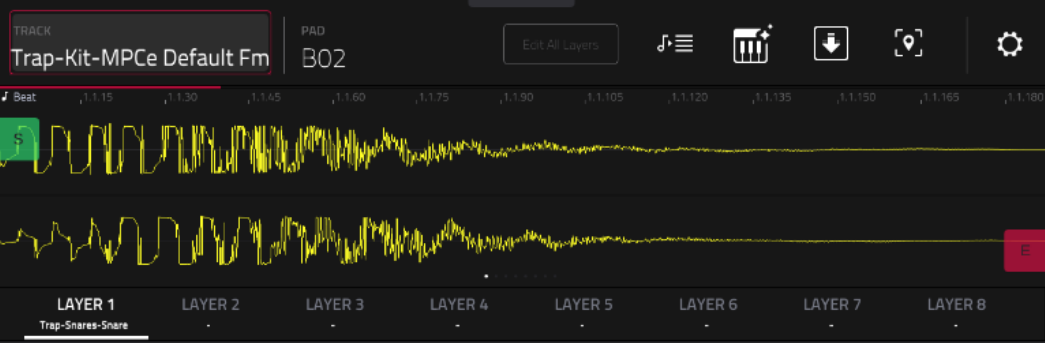
These layers can be edited to have multiple samples applied per pad and how they express together. Tapping the sample button again at the bottom of the screen will allow you to edit different parameters in terms of the way they act when triggered:
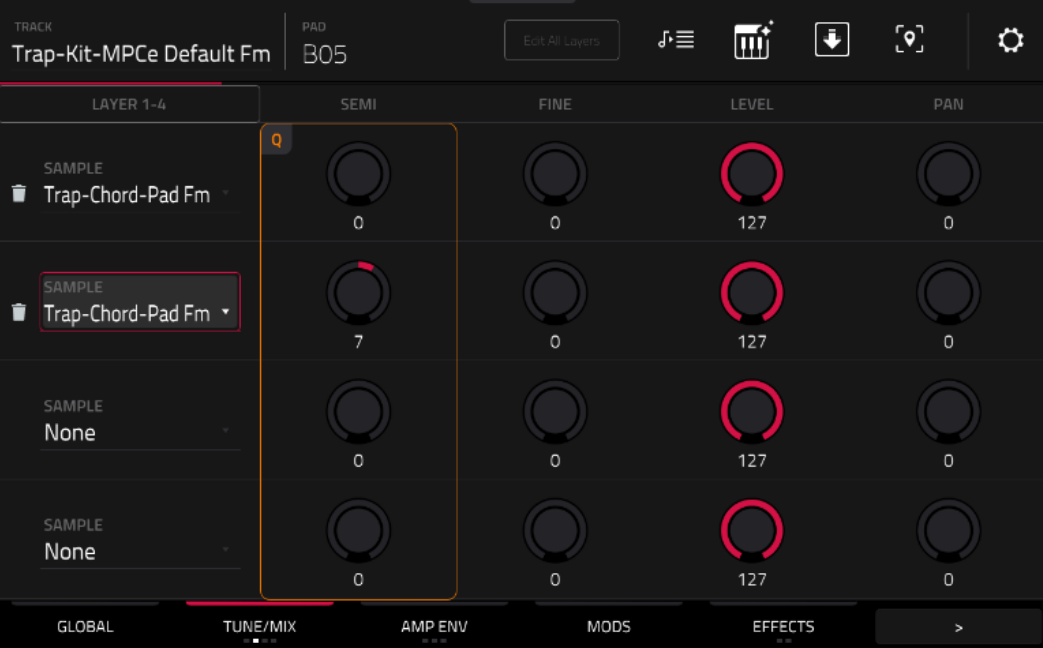
For example, on the TUNE/MIX screen, you can adjust the levels of each layer to adjust how each layer will sound in harmony with each other. For more information on creating new MPCe™ kits and layering sounds, Kindly refer to our YouTube guide on Live III, which utilizes the same approach.
Why isn't my MIDI controller working with the MPC XL standalone?
Midi controllers should be connected to the regular USB-A ports on the MPC, as the USB-C port is strictly for Computer connections.
Turning off pad XY events
You can turn off the recording of Pad X Y messages in the Preferences > Sequencer “Record Pad XY Events” field. This can be helpful when recording chords on pads using plugins.
Assigning an analog input to a digital input
On the MPC XL, the 2x XLR/1/4" combo outputs, and the Phono inputs are assignable using the Inputs menu, accessible from the Menu screen. From this screen, you can also select which of the physical inputs are used, in addition to the ability to split a single input from the different sets for simultaneous recording. Additionally, you can also combine your digital inputs into one stereo input and activate phantom power.
Please note that the phono amplifier on this unit is automatically activated on the MPC XL.
How do I make a kit that takes advantage of the MPCe™ pads?
To take advantage of the MPCe™ pads, you will want to use the sample layer assignments from the previous question, then head into the Track Edit's global page and edit the Layer play field, which will dictate how the layers on the pad will interact. From there, double-tap the effects tab at the bottom of the screen to adjust how the MPC pads will articulate when pressed, and make sure to turn on the MPCe™ button to the right of Articulations before selecting what articulation you would like to use(by default, None will be selected when you make your first kit). The corresponding numbers between the MPCe™ button and the articulation you've selected will correspond to the zone on the pad, which should change when a number is tapped on screen or a corner of the pad is selected.
For more information, please see the following video from our MPC Academy series:
How do I assign the Envelope Follower to a pad?
Hit a pad and turn on the source, tap Learn, then tap the + sign on the screen and assign the parameters you want the Envelope Follower to correspond to.
MPCe™ is a trademark of inMusic Brands. Patent Pending.
Was this article helpful?
That’s Great!
Thank you for your feedback
Sorry! We couldn't be helpful
Thank you for your feedback
Feedback sent
We appreciate your effort and will try to fix the article