Akai Pro MPC Series | Understanding the MPC's Internal Drive

This guide will provide an overview on the MPC's internal drive, explaining how to access and manage it.
TABLE OF CONTENTS
- Mounting the Internal Drive in Controller Mode
- Managing the Internal Drive Contents
- Splice and Synths Folders
- User Projects and User Files
Mounting the Internal Drive in Controller Mode
The internal drive on Gen 1 MPC's do not mount to a computer in controller mode. Gen 1 MPC's include the MPC Live, Live II, One, One+, X, X SE, Key 61 and Key 37.
The only MPCs that has this feature are the MPC Live III and MPC XL. Please refer to the following articles to learn more:
Managing the Internal Drive Contents

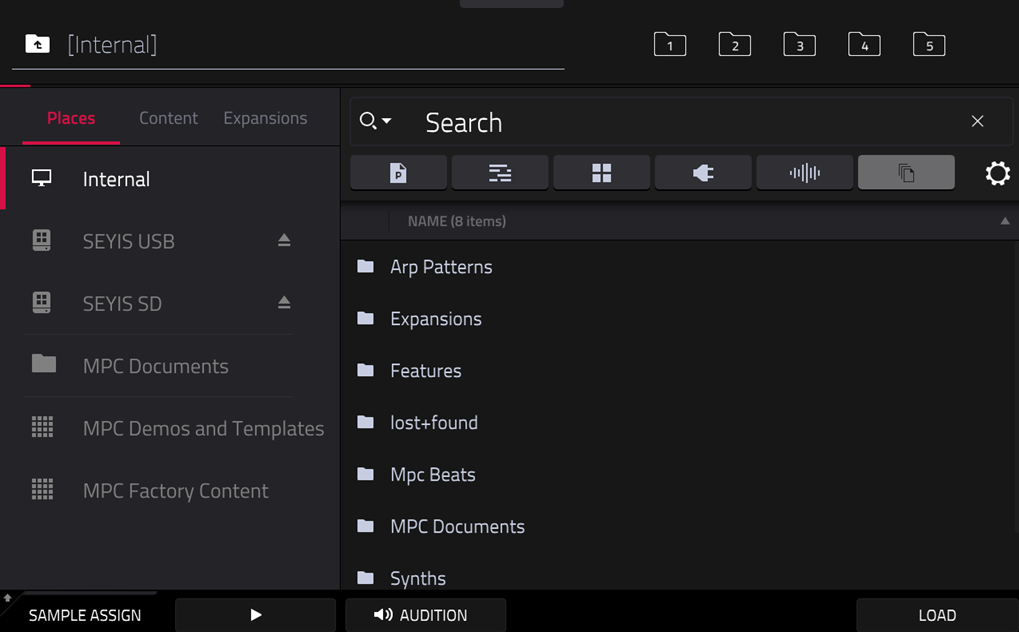
The Browser lets you navigate your MPC’s internal drive and your user external drives to load samples, sequences, songs, etc. To view the internal drive, navigate to Browser > Places > Internal.
Once you have accessed this section, you will see various folders within it that play crucial roles in the overall functionality of the system.
Splice and Synths Folders
If you have a Splice and/or Synths folders on the internal drive, these two folders will naturally hold a lot of files and take up a significant amount of space if they are located on the internal drive.
- The Synths folder will contain files associated with the various plugins you've downloaded to your MPC
- The Splice folder will contain various .wav files synced from a connected Splice account
- To delete the Splice folder and re-sync it to another drive, see this article: Akai Pro MPC Series | Splice Troubleshooting : Akai Professional
- To delete the Synths folder and redownload plugin files to another drive, see this article: Akai Pro MPC Series | Managing Plugins : Akai Professional
User Projects and User Files

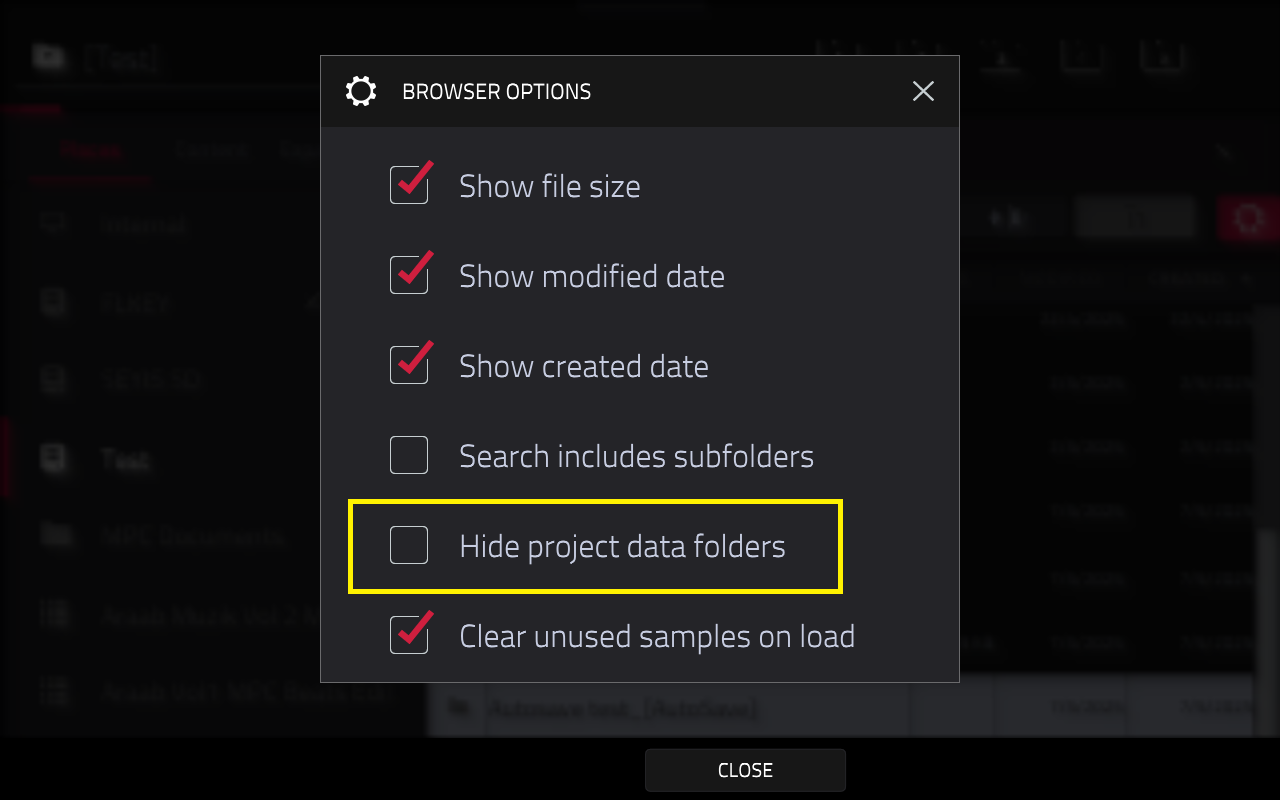
- Akai Pro MPC Series | Saving Projects with Auto Save : Akai Professional
- Akai Pro MPC Series | How To Save Samples : Akai Professional
Was this article helpful?
That’s Great!
Thank you for your feedback
Sorry! We couldn't be helpful
Thank you for your feedback
Feedback sent
We appreciate your effort and will try to fix the article