Starting with version 3.14, Native Access offers better support for proxies on Windows. If your internet connection requires a proxy, please follow the instructions below to allow Native Access to use it.
macOS
On macOS, setting the proxy is straightforward and does not require any additional user interaction once configured. Simply set your proxy in the default location within the system settings, and Native Access will pick it up automatically.
Windows
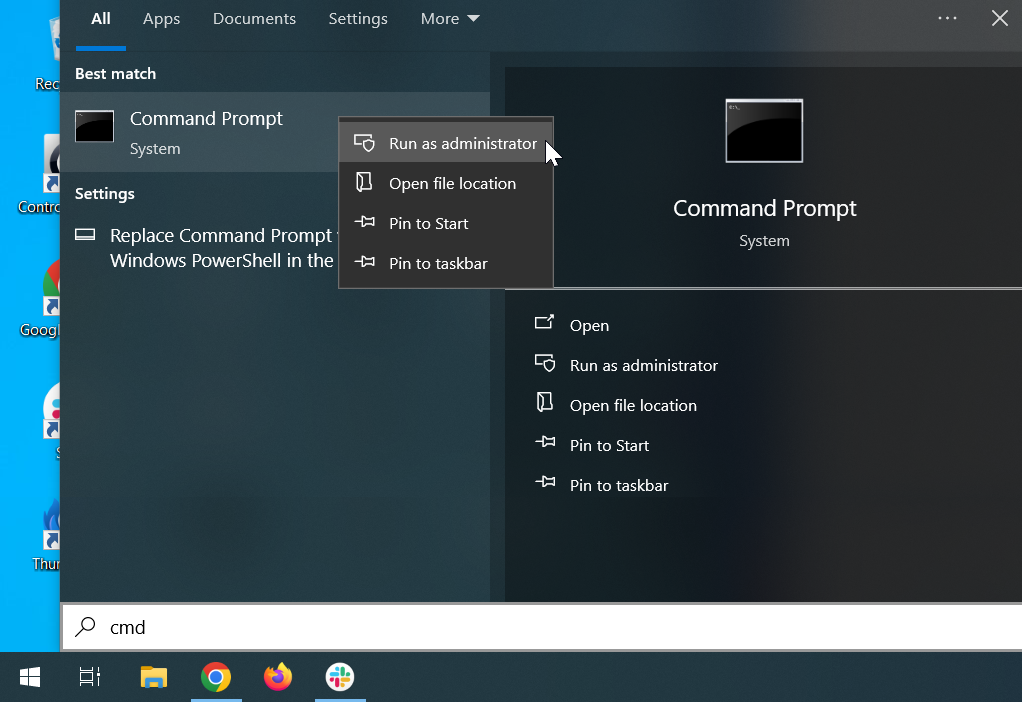
1. Open Command Prompt as an administrator:
- Click the Windows Start Button.
- Type cmd in the search bar, right-click on Command Prompt and select Run as administrator.
2. Check your current proxy settings:
In the Command Prompt window, type the following command and press Enter:
- netsh winhttp show proxy
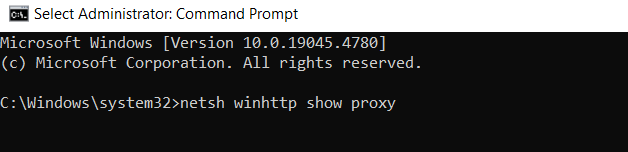
This command will display your current proxy settings. If no settings are displayed (or "no proxy server"), it means no proxy is currently set.
3. Set your proxy server
To set a proxy server, type the following command and replace proxy-server-address and port-number.
- netsh winhttp set proxy proxy-server-address:port-number
Example:
If your proxy server address is 'proxy.example.com' and the port is '8080', you would type:
- netsh winhttp set proxy proxy.example.com:8080
Press Enter. You should see a message confirming that the proxy has been set:
4. Confirm your proxy settings
To confirm that the proxy settings have been applied, type the following command again and press Enter:
- netsh winhttp show proxy
You should now see your proxy settings displayed.
5. Removing the proxy (if needed)
If you need to remove the proxy settings at any time, you can reset them to the default (no proxy) by opening the Command Prompt window as an administrator (see step 1.) and typing:
- netsh winhttp reset proxy
Press Enter, and your proxy settings will be cleared.
Was this article helpful?
That’s Great!
Thank you for your feedback
Sorry! We couldn't be helpful
Thank you for your feedback
Feedback sent
We appreciate your effort and will try to fix the article