Native Access Error: "Please grant permission to Native Access to install dependencies"
If Native Access fails to launch and shows a permission error related to installing dependencies, this typically indicates missing system permissions or a blocked helper process required for installation.
TABLE OF CONTENTS
When trying to start Native Access, the startup fails with the following error message:
Please grant permission to Native Access to install dependencies.
Please choose your operating system:
Windows
- Download the NTK Daemon installer.
- Unzip the file and run it as Administrator.
- After the installation is finished, launch Native Access as Administrator.
macOS
Preparation
1. Restart your computer.
2. Open Activity Monitor from Applications > Utilities > Activity Monitor.app
3. Check if the following processes are running: NTKDaemon, Native Access Helper.
4. If they are running, select them and click the X button to stop them.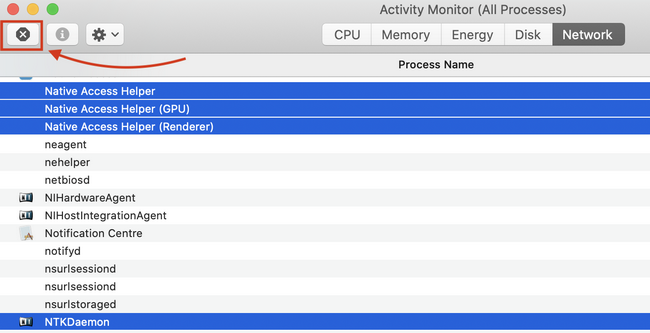
Deleting the Plist Files and Folders
1. Please delete the following files and folders:
- Macintosh HD > Library > LaunchDaemons > com.native-instruments.NativeAccess.Helper2.plist
- Macintosh HD > Library > PrivilegedHelperTools > com.native-instruments.NativeAccess.Helper2
- Macintosh HD > Users > *Your User Name* > Library > Preferences > com.native-instruments.Native Instruments.plist
- Macintosh HD > Users > *Your User Name* > Library > Preferences > com.native-instruments.NTKDaemon.plist
- Macintosh HD > Users > *Your User Name* > Library > Application Support > Native Instruments > NTK (folder)
Macintosh HD > Users > *Your User Name* > Library > Application Support > Native Instruments > Native Access (folder)
Note: the User Library folder is hidden. To access it, click on Go in the menu bar and press down the Alt key. You'll now find the Library entry in the menu.

2. Empty the trash.
Reinstall NTKDaemon
1. Open the Applications folder, right-click Native Access and select Show Package Contents.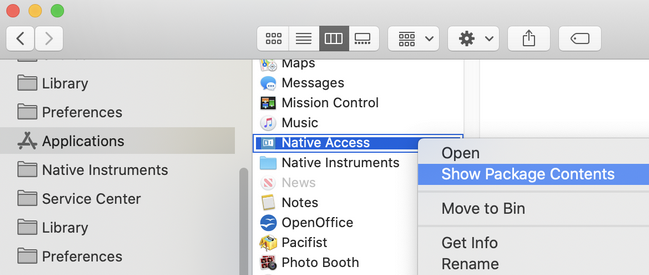
2. Navigate to: Contents > Resources > daemon > mac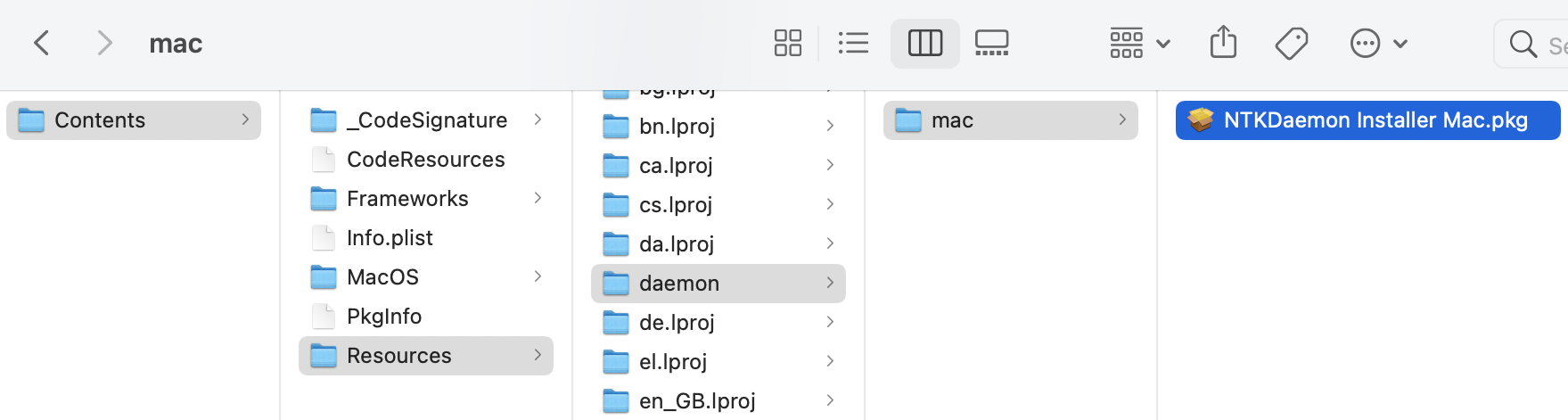
3. Right-click the NTKDaemon Installer Mac and select Open.
4. Follow the installation procedure.
Restart Native Access Helper
1. Open Terminal from: Applications > Utilities > Terminal.app
2. Copy the following command line, paste it into Terminal and hit Enter:
sudo launchctl enable system/com.native-instruments.NativeAccess.Helper2
3. Enter your macOS password when prompted.
4. Start Native Access.
Was this article helpful?
That’s Great!
Thank you for your feedback
Sorry! We couldn't be helpful
Thank you for your feedback
Feedback sent
We appreciate your effort and will try to fix the article