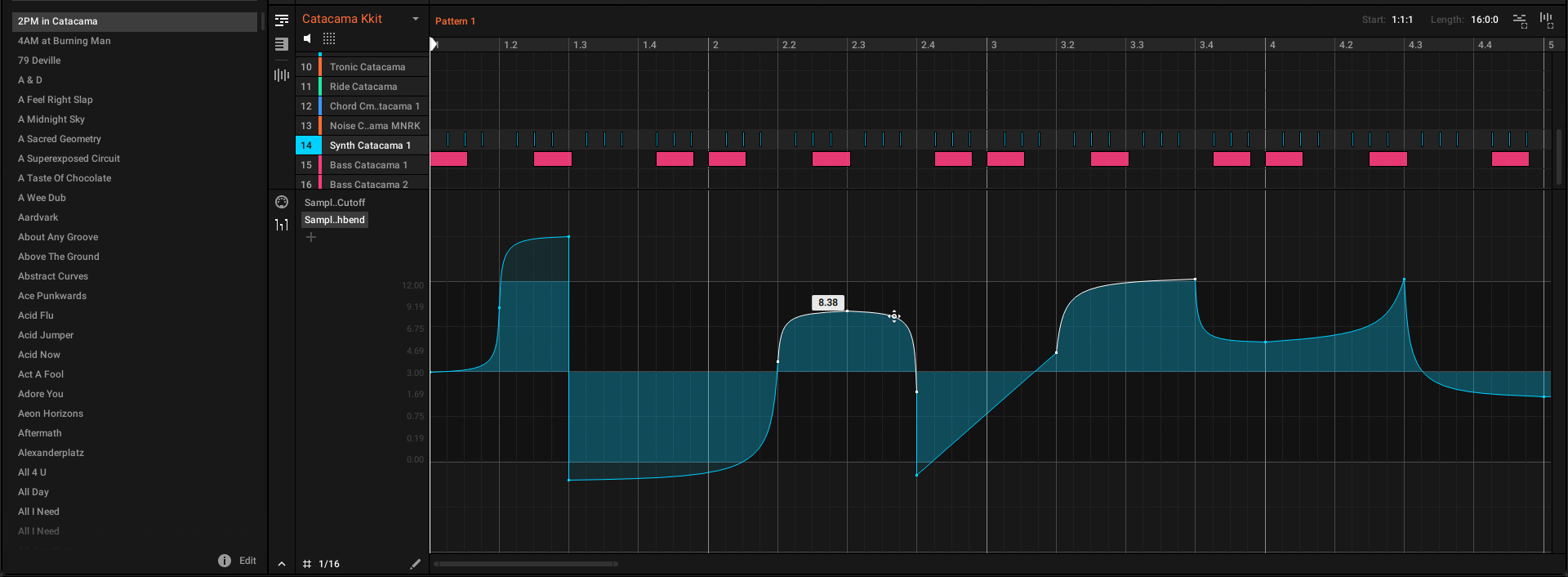
Maschine 3.4 introduces a completely modernized modulation editor. The system has been rebuilt from the ground up to be more flexible, precise, and visual, moving from a step-based system to a new linear-point workflow.
This guide explains how to use the new tools to create, edit, and manage your modulation. These new features and tools apply to parameter modulation. The workflow for the MIDI modulation editor is not affected by this update.
Understanding the New Linear Workflow
The new editor is based on linear interpolation. This means that by default, Maschine creates a smooth, straight-line transition between any two modulation points you create. This allows you to easily create smooth ramps, fades, and sweeps without having to draw in every intermediate step.
- Playback: During playback, the parameter's value will change smoothly along this line, in perfect sync with the playhead.
- Recording: When you record automation from your hardware (e.g, by turning a knob), Maschine automatically optimizes the recording. It creates a clean, editable line with a minimal number of points , adding new points only when you change direction (like at a peak or trough). This avoids the cluttered "staircase" of tiny steps from older versions.
Editing in Select Mode (Default)
Select Mode is your primary tool for all precision edits.
Adding and Removing Points
- Add a Point: double-click in any empty area of the modulation lane. A new point will be created, snapping horizontally to the current grid setting.
- Remove a Point: double-click directly on any existing modulation point to delete it.
Moving Points
Click and hold on any modulation point and drag it. You can move the point horizontally (to change its timing) and vertically (to change its value) at the same time.
NEW: Creating Curves
This is a powerful new feature for creating expressive, non-linear automation.
- In Select Mode, hover your mouse over a line segment between two points.
- Hold Alt (Windows) / Option (macOS). Your cursor will change, and the line segment will highlight.
- While still holding the key, click and drag up or down to bend the line into an exponential curve.
- To reset a curve to a straight line: Hold Alt (Windows) / Option (macOS) and double-click the curved segment.
Using the Pencil Tool
The Pencil Tool is for drawing modulation shapes freely, similar to an automation-drawing tool in a DAW.
- Select the Pencil icon to enter Pencil Mode.
- Click and drag across the modulation lane to draw a continuous series of points.
The Pencil Tool's behavior changes based on the grid:
- Grid OFF: Drawing with the grid off allows you to create freehand, high-resolution modulation, similar to the "step" mode in previous versions.
- Grid ON: Drawing with the grid on (e.g. set to "1/16") will create quantized, stepped automation, placing one point on each grid line you draw across.
Advanced Selection Techniques
Marquee Selection
In Select Mode, you can select multiple points at once.
- Click and hold in an empty area of the modulation lane.
- Drag the mouse to draw a selection box (marquee).
- Release the mouse. All points fully contained within the box will be selected.
Multi-Selection (Shift-Click)
For more precise control, you can select multiple points that are not next to each other (discontiguous).
- In Select Mode, hold the Shift key.
- Click on any unselected point to add it to your selection.
- To remove a point from your selection, continue holding Shift and click on an already-selected point.
- Once selected, you can click and drag any one of the selected points to move the entire group at once.
Workflow and Visual Improvements
- Visual Feedback & Tooltips: The entire editor has a new visual design with a clearer background grid. When you hover over a point or line in Select Mode, it will highlight. A tooltip will also appear showing its precise parameter value. This tooltip updates in real-time as you drag a point.
- Modulation in the Arranger: You can now see a preview of your modulation directly on clips in the Arranger view. This allows you to see your automation in the context of your full song. The preview automatically updates to show whichever modulator (e.g. "Filter Cutoff", "Volume") is currently selected in the main Control Lane.
- Synchronized Playhead: A vertical playhead line is now visible in the modulation lane. It moves in perfect synchronization with the main Pattern or Arranger playhead, giving you clear visual feedback for your edits.
- Horizontal Zoom Shortcut: You can now zoom horizontally in both the Pattern Editor and Arranger views using your mouse:
- macOS: Cmd + Scroll
- Windows: Ctrl + Scroll
- Visual Modulation Range: You can now see the Modulation Range of the Parameter highlighted visually with different background colors in the Modulation Editor
Was this article helpful?
That’s Great!
Thank you for your feedback
Sorry! We couldn't be helpful
Thank you for your feedback
Feedback sent
We appreciate your effort and will try to fix the article