This article explains how to set up your Kontrol keyboard for advanced integration with your DAW.
TABLE OF CONTENTS
- Avid Pro Tools
- Bitwig Studio
- Cubase Artist / Pro or Nuendo
- Digital Performer
- FL Studio
- GarageBand
- Logic Pro
- Setting Up Logic Pro for Kontrol MK3
- Setting Up Logic Pro for Kontrol MK1 & MK2
- Maschine 2
- Studio One
- Ableton Live for Kontrol S-Series MK3
- Ableton Live for KOMPLETE KONTROL M32 and A-Series
- Ableton Live for Komplete Kontrol S-Series MK2
- Ableton Live for KOMPLETE KONTROL S-Series MK1
- Integration with other DAWs using MCU Protocol
- DAW Shortcut Sheets
All Kontrol keyboards can be used in any DAW with the Komplete Kontrol plug-in. Full Komplete Kontrol plug-in control (including Browser, Native Map and the perform features) is available in any host software which can load the Komplete Kontrol plug-in (VST, AU, AAX).
The guides below explain how to set up your keyboard with supported hosts for deeper integration and transport controls (Play, Stop, Record, etc.).
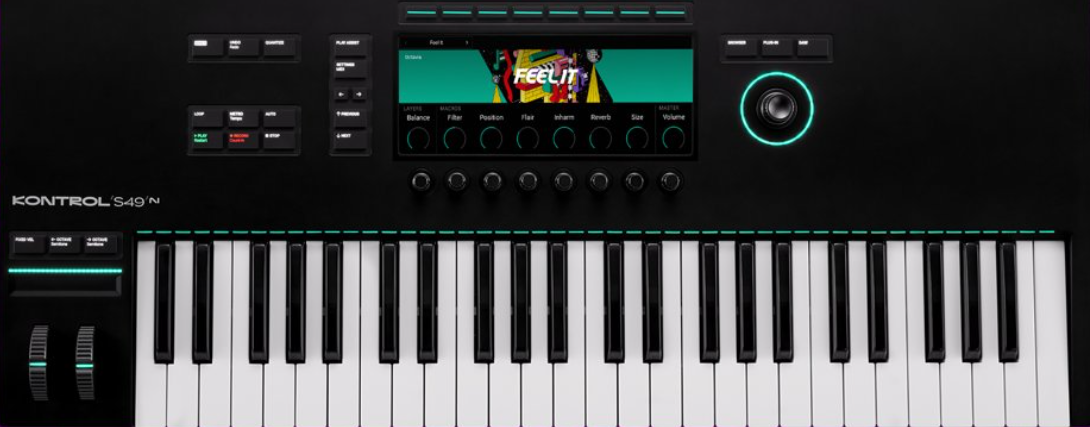
Avid Pro Tools
The following explains how to set up Avid Pro Tools for Komplete Kontrol S-Series MK3, MK2, A-Series, and M32 keyboards.
Note: The Kontrol S-Series MK3 requires Pro Tools 2023.12 (or higher). The S-Series MK2, A-Series and M32 keyboards require Pro Tools 2021.10 (or higher). This feature is not available with the S-Series MK1 keyboards.
- Ensure that the keyboard is connected to your computer and switched on.
- Launch Pro Tools.
- Navigate to the Setup tab in the menu bar and select Peripherals....
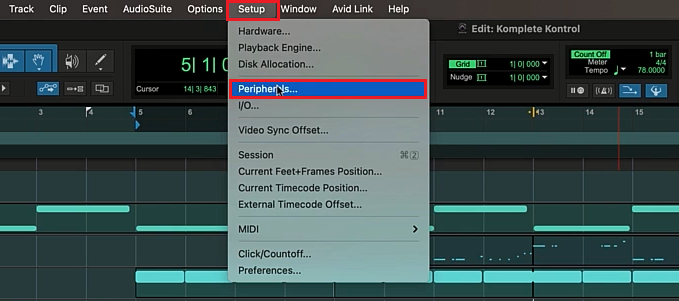
- In the Peripherals window, go to the MIDI Controllers tab.
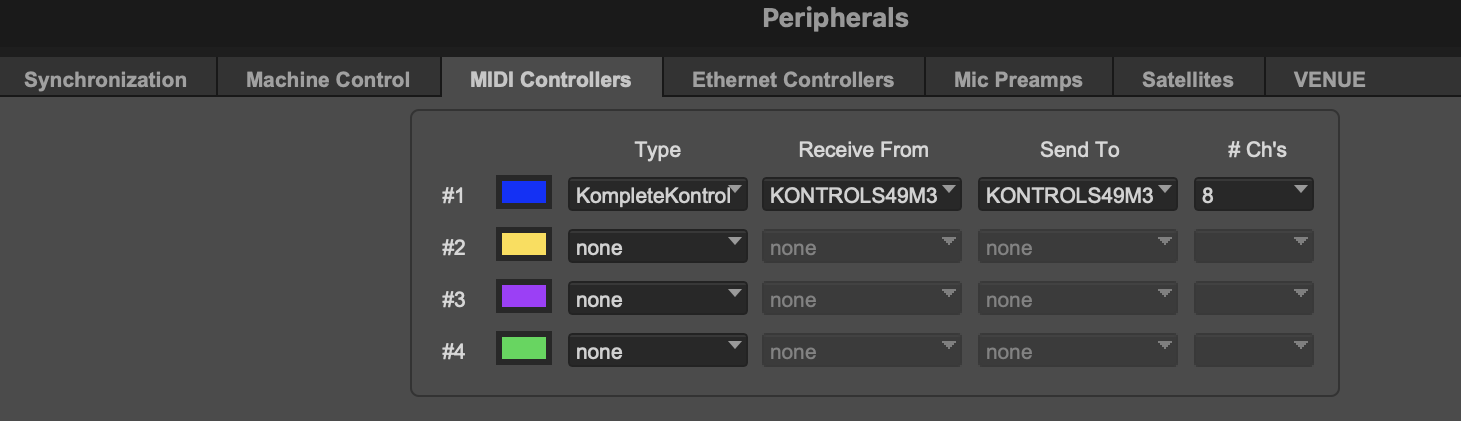
- Select Komplete Kontrol from the Type selector. Receive From and Send To should automatically be set to the correct settings.
- Click OK to confirm the settings and close the Peripherals window.
- Restart Pro Tools.
Pro Tools is now ready to be used with your Komplete Kontrol keyboard.
Note: For the S-Series MK2, A-Series and M32 keyboards, we recommend always inserting the Komplete Kontrol plug-in on Insert A of an instrument track. If you are using S-Series MK3, Komplete Kontrol and Kontakt plug-ins can now be inserted in any slot (not just the first) and be available from the keyboard.
Function Guide
Transport Control
| Action in Pro Tools | Control on Keyboard |
Start Playback | PLAY (Restart) |
Stop Playback | STOP (Clear) |
Activate / deactivate recording | REC (Count-In) |
Move playback start point | Turn 4-D Encoder |
Move timeline selection | LOOP + turn 4-D Encoder |
Activate / deactivate loop playback | LOOP |
Activate / deactivate click | METRO* |
Activate / deactivate count off | SHIFT + REC (Count-In) |
*A Click Track must be created in Pro Tools in order to be able to activate / deactivate it with the METRO button.
Editing
| Action in Pro Tools | Control on Keyboard |
Undo | UNDO (Redo) |
Redo | SHIFT + UNDO (Redo) |
| Action in Pro Tools | Control on Keyboard |
Select previous / next track | Push 4-D Encoder left / right or up / down |
Mute | M (Mute) |
Solo | S (Solo) |
Mixer Mode
Note: The A-Series and M32 keyboards do not have a Mixer mode. However, it is still possible to adjust the volume and pan for tracks in the current bank using knobs 1-8 and SHIFT + knobs 1-8.
| Action in Pro Tools | Control on Keyboard |
Select previous / next track | Push 4-D Encoder left / right |
Select track | Button 1-8 |
Move mixer back | < / > |
Mute track 1-8 | M + Button 1-8 |
Solo track 1-8 | S + Button 1-8 |
Set knobs 1-8 to control volume | SHIFT + 4-D Encoder up |
Set knobs 1-8 to control pan | SHIFT + 4-D Encoder down |
Adjust volume / pan for selected track | Knob 1-8 |
For a quick-reference guide to using the S-Series keyboards in Pro Tools, please download the DAW shortcut sheet below.
Bitwig Studio
Note: To use the latest integration features, please update the Kontrol S-Series firmware and the Hardware Connection Service.
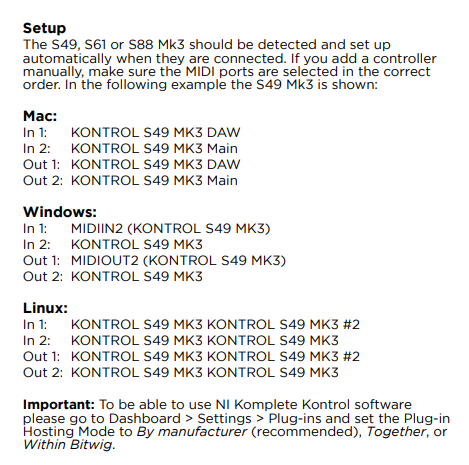
Simply start Bitwig, connect your Kontrol MK3 controller and switch it on. The keyboard is detected and set up automatically. Komplete Kontrol MK2 users can find a setup guide here.
Here you can find more information about Kontrol MK3 integration in Bitwig:
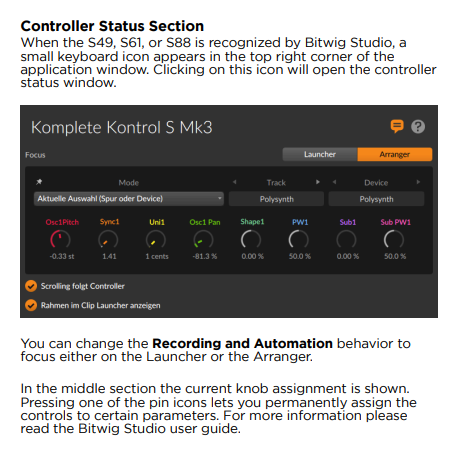
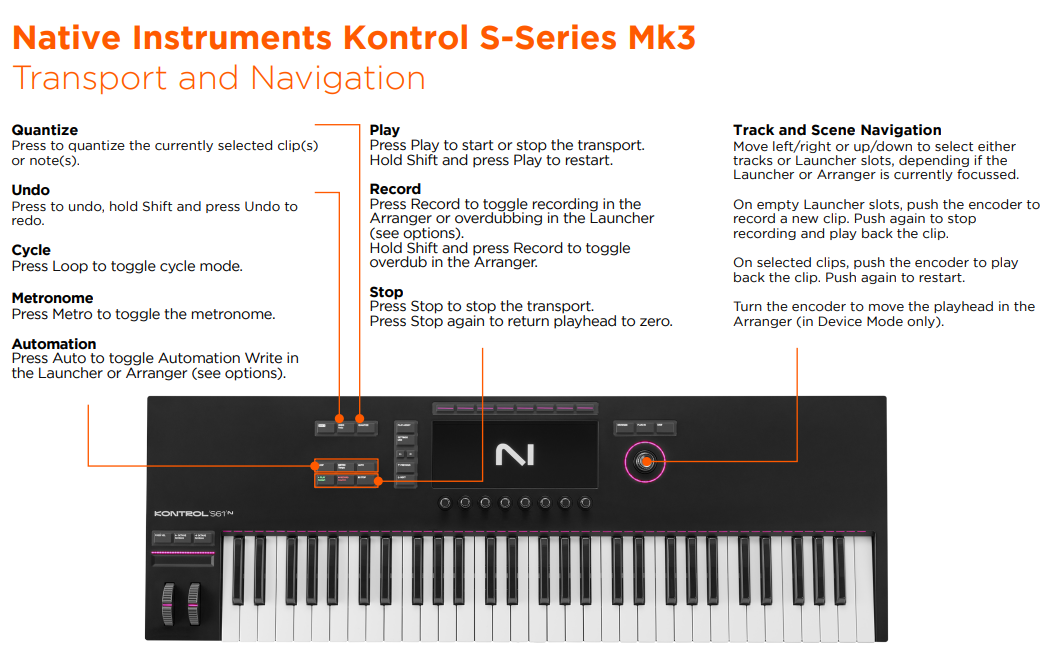
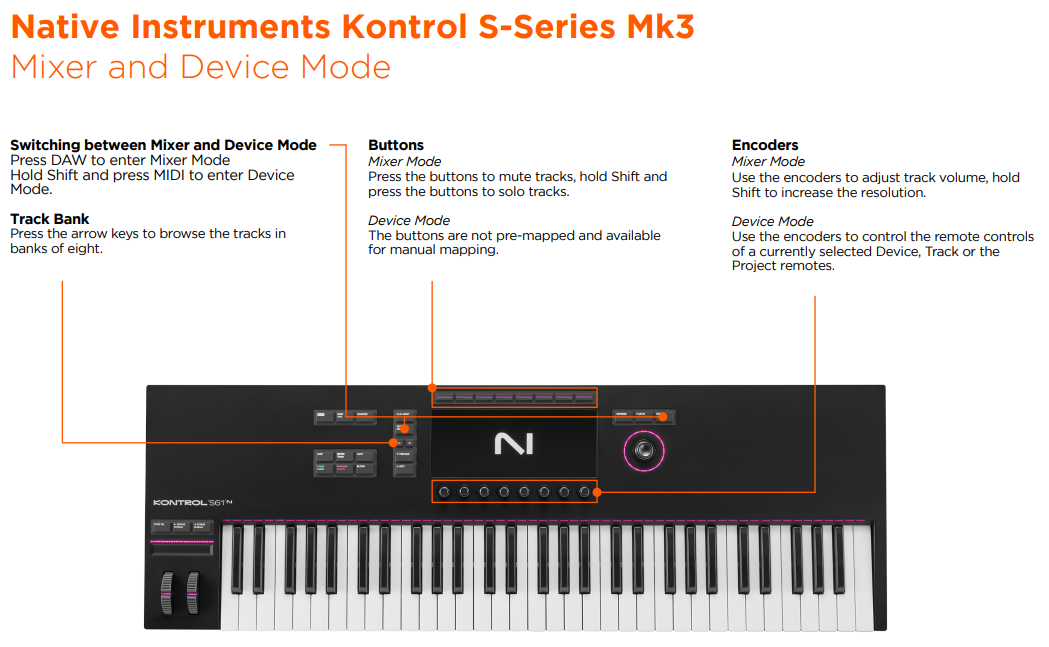
Cubase Artist / Pro or Nuendo
IMPORTANT: Komplete Kontrol software versions above 2.9 are not compatible with the Kontrol MK1 keyboard anymore.
Note: To use the latest integration features, please update the Kontrol S-Series firmware and the Hardware Connection Service.
Setup
- Connect your keyboard and switch it on.
- Start Cubase / Nuendo.
- Navigate to Studio > Studio Setup.
- Click the "+" button in the upper left:
- Select your keyboard from the list:
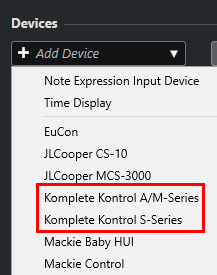
- On a Mac, set MIDI Input and MIDI Output to "*Your Keyboard* DAW".
In the example below we are selecting the KONTROL S49 MK3 DAW: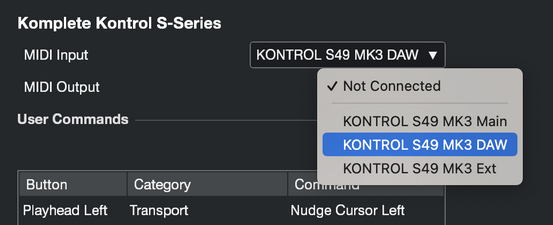
- On Windows, if you are using a Kontrol S MK3, set Input to MIDIIN2(KONTROL S MK3) and Output to MIDIOUT2 (KONTROL S MK3):
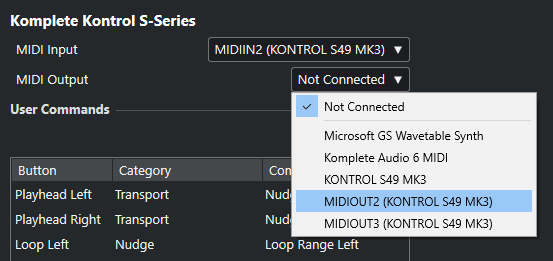
If you are using a different Komplete Kontrol keyboard, select "*Your Keyboard* DAW". Here is an example of Komplete Kontrol M32 on Windows: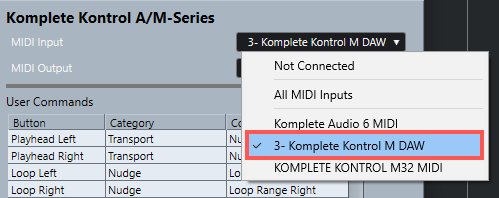
Your keyboard is now configured for advanced host integration in Cubase / Nuendo. The main transport functions of the keyboard are listed below:
| BUTTON | FUNCTION |
| PLAY | Start playback |
| STOP | Stop playback / recording |
| REC | Record (Count-in) |
| SHIFT + REC | Toggle Count-in On / Off |
| LOOP | Toggle Loop Mode On / Off |
| LOOP + Main Rotary Encoder | Move loop in one bar increments |
For a detailed list of all controls and functions, please consult your keyboard's manual.
Digital Performer
This setup requires Digital Performer 11 or higher. The latest installer for Digital Performer 11.22 or higher is required for Kontakt 7 Direct Connection.
Note: To use the latest integration features, please update the Kontrol S-Series firmware and the Hardware Connection Service.
- Connect your keyboard and switch it on.
- Start Digital Performer.
- Navigate to Setup > Control Surface Setup…
- Click the “+” button in the top right:
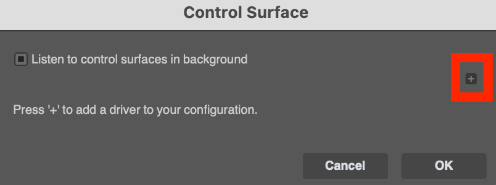
- Select Komplete Kontrol from the list:
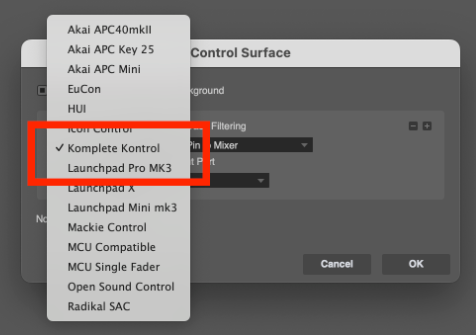
- Set Input Port and Output Portto the corresponding output based on your setup.Note: On Mac, this might be under “Unconfigured Ports” (see screenshot below).
macOS Windows Kontrol MK3 (S49/S61/S88) Kontrol S49/S61/S88 DAW,
MK3MIDIIN2 (Input Port),
MIDIOUT2 (Output Port)Komplete Kontrol A
(A25/A49/A61)Komplete Kontrol A DAW Komplete Kontrol A DAW Komplete Kontrol M32 Komplete Kontrol M DAW Komplete Kontrol M DAW Komplete Kontrol S MK2
(S49/S61/S88)Komplete Kontrol DAW Komplete Kontrol DAW 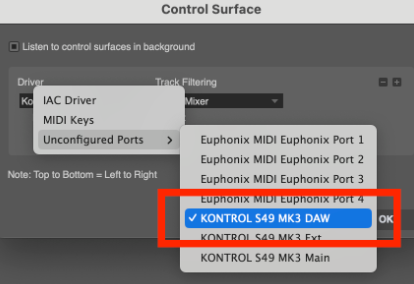
Your keyboard is now configured for advanced host integration in Digital Performer. The main transport functions of the keyboard are listed below:
| BUTTON | FUNCTION |
| PLAY | Start / Stop / Restart playback |
| STOP | Stop playback / recording |
| REC | Start / Stop recording |
| SHIFT + REC | Toggle Count-in On / Off |
| LOOP | Toggle Memory Cycle On / Off |
| LOOP + Main Rotary Encoder | Move the Memory Cycle in one bar increments |
FL Studio
Kontrol S-Series MK3, S-Series MK2, A-Series and M32 keyboards are compatible with FL Studio 21.2.3 and higher. If you are using an S-Series MK1 keyboard, you can find instructions further below in this chapter.
Setup for Kontrol S-Series MK3, MK2, A-Series and M32 keyboards
If it's the first time you set up your keyboard with FL Studio, make sure that your keyboard is connected and powered on (if it has a power switch). Start FL Studio and it will auto-detect the keyboard and auto-select the MIDI settings.
If this does not work, please follow the steps below to set it up manually. In our example we use the Kontrol S-Series MK3 - but the same steps apply to all other compatible keyboards:
macOS Setup
- Make sure your keyboard is connected and powered on (if it has a power switch).
- Start FL Studio and select Options > MIDI settings from the menu bar.
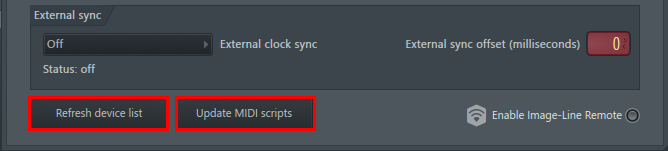
- Click Update MIDI scripts and then Refresh device List at the bottom of the settings window.
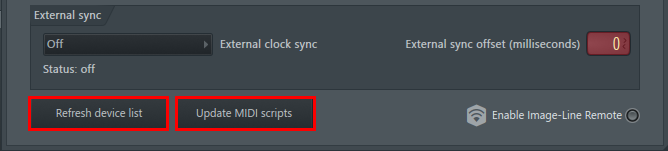
- In the Input section, select your keyboard's MAIN entry (e.g. KONTROL S49 MK3 Main) and click the Enable button. Select Port236.
- Also select the DAW entry in the Input area (e.g. KONTROL S49 MK3 DAW), click the Enable button and select Port 237.
- In the Output section, make sure to select the same ports (236 and 237) for the corresponding entries - in our example these are KONTROL S49 MK3 Main and KONTROL S49 MK3 DAW. Your MIDI settings should look similar to this now:
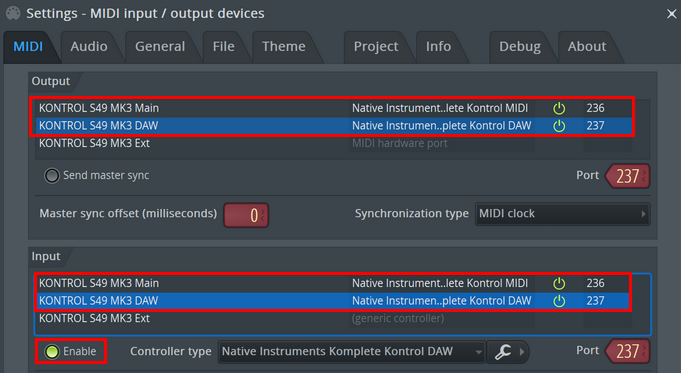
- Set the Controller type for all entries as seen in the picture above.
- The KONTROL S49 MK3 Main entries should be set to Native Instruments Komplete Kontrol MIDI.
- Both entries for KONTROL S49 DAW should be set to Native Instruments Komplete Kontrol DAW. - Close the Settingswindow. FL Studio is now set up for your Kontrol keyboard.
Note: The actual values of the port number should not matter as long as they are unique in each section (input/output) and are the same for the input and output port of the respective device.
Important: if your pitch and mod wheel don't work, please manually assign them as Global Links:
- Load Komplete Kontrol from the Generator's tab.
- Within Komplete Kontrol, load an instrument that has a mod and pitch wheel.
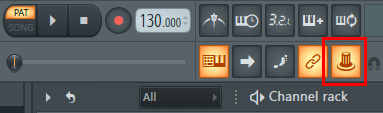
- Click the Multilink to controllers button:
- Click on the modulation wheel of the instrument and move it.
- Move the mod wheel of your keyboard to link it.
- Right-click the Multilink to controllers button and select Overwrite global links.
- Move the mod wheel again when the window comes up so it populates this with a permanent link which will carry over into new projects when this plugin is in focus.
- Repeat the same process for the pitch wheel.
If you still have issues with the wheels, open the PROJECT settings in the browser. Expand Current project > Remote control. Click Omni - Mod Wheel (Wrapper), select Smoothing and move your keyboard's mod wheel. Click Accept. Please repeat this for Omni - Channel pitch and your pitch wheel. The wheels should work now.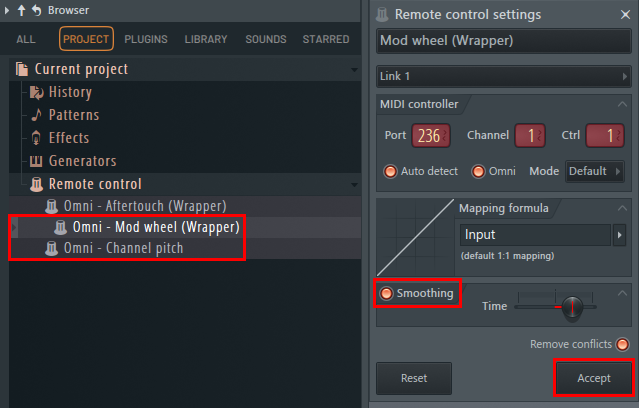
Open the Plugin Editor for Komplete Kontrol and set the Pitch Range to your liking, e.g. 10.
Please don't forget to save your Project!
Windows Setup
- Make sure your keyboard is connected and powered on (if it has a power switch).
- Start FL Studio and select Options > MIDI settings from the menu bar.
- Click Update MIDI scripts and then Refresh device List at the bottom of the settings window.
- In the Input section, select your keyboard (e.g. KONTROL S49 MK3) and click the Enable button. Select Port236.
- Also select the MIDIIN2 entry in the Input area - e.g. MIDIIN2 (KONTROL S49 MK3), click the Enable button and select Port 237.
- In the Output section, make sure to select the same ports (236 and 237) for the corresponding entries - in our example these are KONTROL S49 MK3 and MIDIOUT2 (KONTROL S49 MK3). Your MIDI settings should look similar to this now:
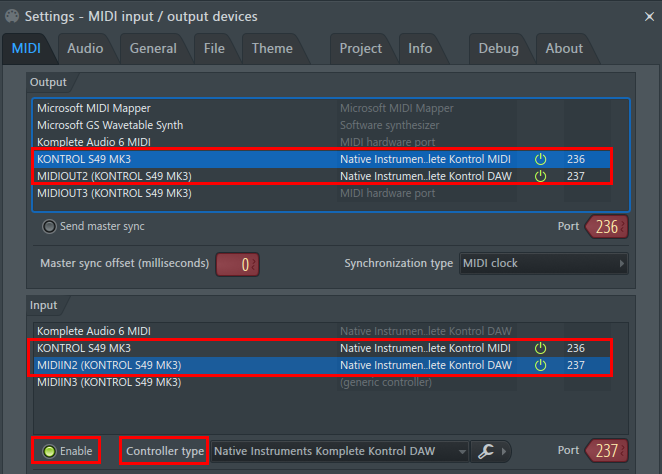
- Set the Controller type for all entries as seen in the picture above.
- The MIDIOUT2 (KONTROL S49 MK3) and MIDIIN2 (KONTROL S49 MK3) should be set to Native Instruments Komplete Kontrol DAW.
- Both entries for KONTROL S49 MK3 should be set to Native Instruments Komplete Kontrol MIDI. - Close the Settingswindow. FL Studio is now set up for your Kontrol keyboard.
Note: The actual values of the port number should not matter as long as they are unique in each section (input/output) and are the same for the input and output port of the respective device.
Important: if your pitch and mod wheel don't work, please manually assign them as Global Links:
- Load Komplete Kontrol from the Generator's tab.
- Within Komplete Kontrol, load an instrument that has a mod and pitch wheel.
- Click the Multilink to controllers button:
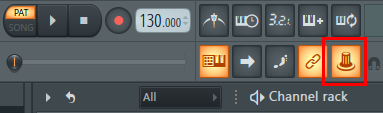
- Click on the modulation wheel of the instrument and move it.
- Move the mod wheel of your keyboard to link it.
- Right-click the Multilink to controllers button and select Overwrite global links.
- Move the mod wheel again when the window comes up so it populates this with a permanent link which will carry over into new projects when this plugin is in focus.
- Repeat the same process for the pitch wheel.
If you still have issues with the wheels, open the PROJECT settings in the browser. Expand Current project > Remote control. Click Omni - Mod Wheel (Wrapper), select Smoothing and move your keyboard's mod wheel. Click Accept.
Please repeat this for Omni - Channel pitch and your pitch wheel. The wheels should work now.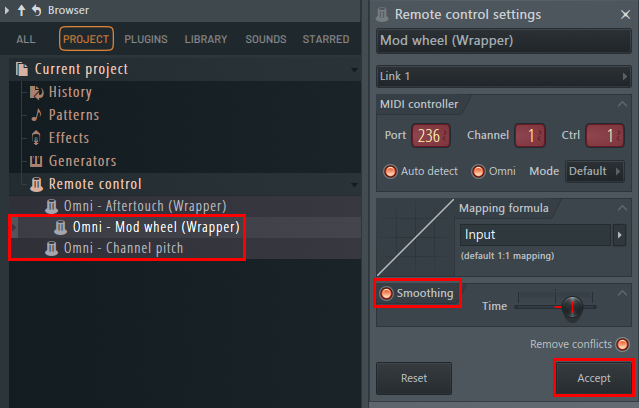
Open the Plugin Editor for Komplete Kontrol and set the Pitch Range to your liking, e.g. 10.
Please don't forget to save your Project!
Setup for Komplete Kontrol S-Series MK1 keyboards
IMPORTANT: Komplete Kontrol software versions above 2.9 are not compatible with the Kontrol MK1 keyboard anymore.
Komplete Kontrol S-Series MK1 keyboards can be integrated with FL Studio by using the MCU (Mackie Control Universal) protocol. In this case, the host integration functionality is limited. Here's how to set it up with FL Studio.
- Make sure your Komplete Kontrol keyboard is connected and powered on (if it has a power switch).
- Start FL Studio and select Options > MIDI settings from the menu bar.
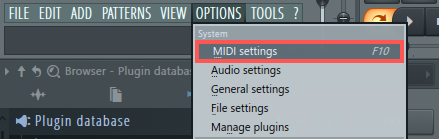
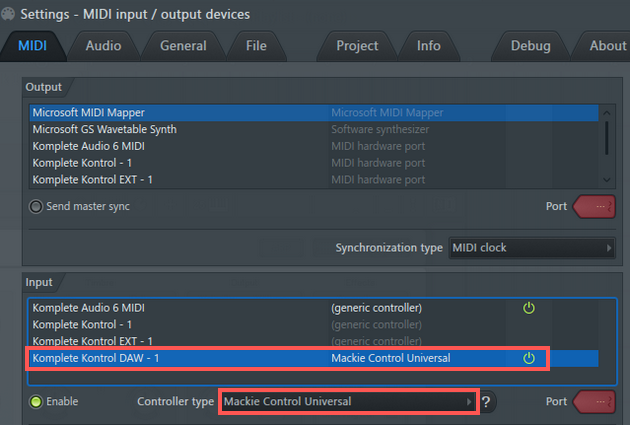
- In the Input section, select Komplete Kontrol DAW and choose Enable. Then, click the drop-down menu right next to Controller type and choose Mackie Control Universal from the list:
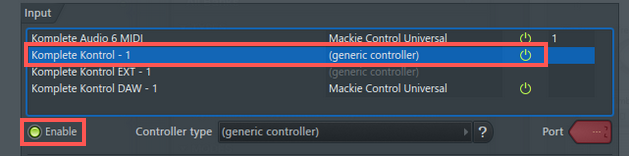
- Next, select Komplete Kontrol in the Input section and click the Enable button:
- Close the Settings window.
Note: the Komplete Kontrol entries in the Input section will vary slightly depending on the model of the keyboard you are using.
FL Studio is now set up for the Komplete Kontrol keyboard.
GarageBand
Setting Up GarageBand for KOMPLETE KONTROL
- Make sure your KOMPLETE KONTROL keyboard is connected and powered on.
- Start GarageBand.
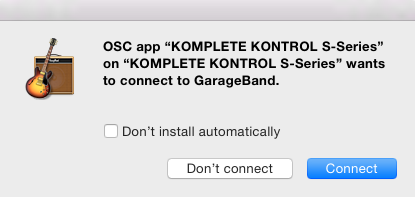
- The following prompt will be shown each time you launch GarageBand. Click Connect to connect your KOMPLETE KONTROL keyboard to GarageBand.
GarageBand is now set up for KOMPLETE KONTROL.
Loading KOMPLETE KONTROL in GarageBand for the First Time
- Load the KOMPLETE KONTROL plug-in on a Software Instrument Track.
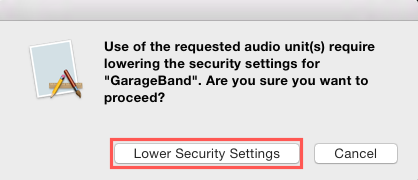
- If GarageBand prompts you to lower your security settings, click Lower Security Settings to proceed.
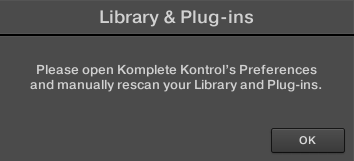
- KOMPLETE KONTROL prompts you to rescan your Library and Plug-ins. Click OK to proceed.
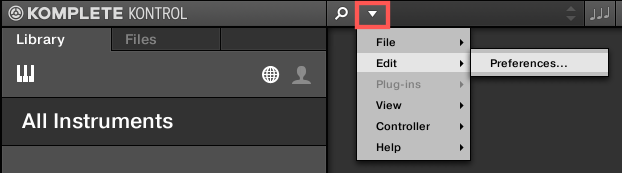
- Open the KOMPLETE KONTROL Preferences.
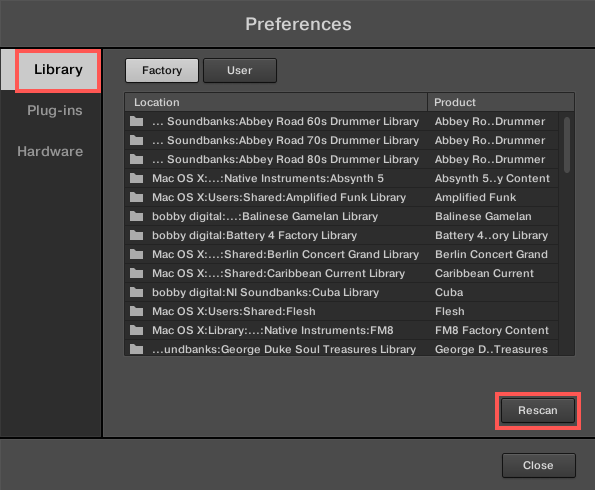
- Go to the Library tab and press the Rescan button. Wait for the Database to be updated; this can take a few minutes.
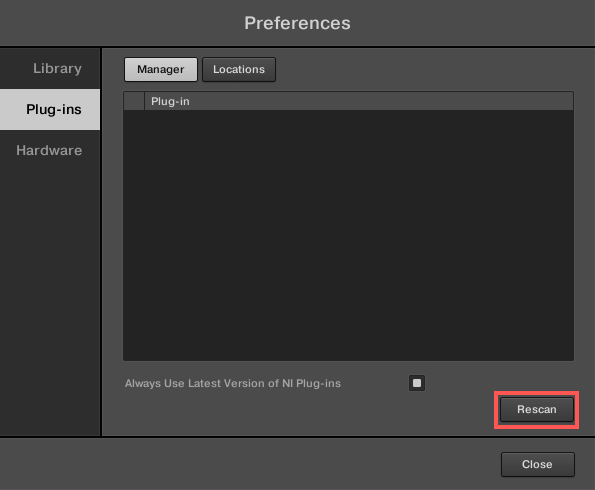
- Go to the Plug-ins tab, and press the Rescan button. Wait for the Database to be updated.
- You can now close KOMPLETE KONTROL's Preferences and start using KOMPLETE KONTROL.
Please note a separate database cache is created for GarageBand that will not automatically synchronize with the standalone application of KOMPLETE KONTROL or KOMPLETE KONTROL plug-ins used in other hosts. However, it can be synchronized manually via Preferences > Library > Rescan (see steps 4 and 5 above). Please update the database every time you add a new instrument or save new presets in the standalone application or plug-ins of KOMPLETE KONTROL used in other hosts.
Logic Pro
Note: To use the latest integration features, please update the Kontrol S-Series firmware and the Hardware Connection Service.
Setting Up Logic Pro for Kontrol MK3
The features described here require Apple Logic Pro 11 (or higher) as well as Komplete Kontrol 3.0 (or higher).
- Connect the Kontrol MK3 keyboard to your computer and switch it on.
- Start the Logic Pro application.
- When asked for confirmation if you want to automatically assign controls of your Kontrol S MK3, click Auto Assign.
Setting Up Logic Pro for Kontrol MK1 & MK2
If you're using a Kontrol MK1 keyboard, the features described here require Apple Logic Pro 10.2.0 (or higher) as well as Komplete Kontrol 1.6.1 (or higher).
If you're using a Kontrol MK2 keyboard, the features described here require Apple Logic Pro 10.3.1 (or higher) as well as Komplete Kontrol .9.0 (or higher).
- Make sure your Kontrol keyboard is connected and powered on.
- Start Logic Pro.
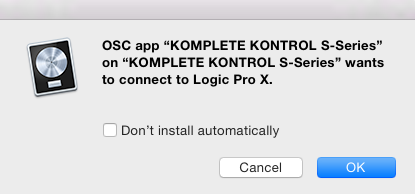
- The following prompt will be shown. Click OK to connect your keyboard to Logic.
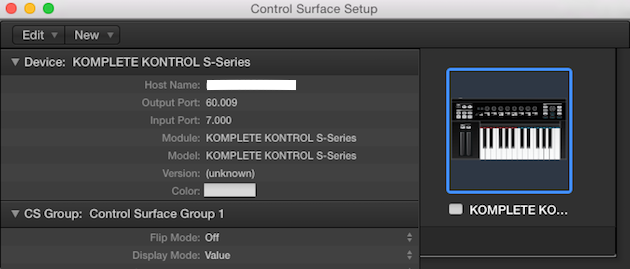
- Logic will display the Control Surface Setup window. You can see that it has identified the Kontrol Keyboard.
- Close the Control Surface Setup window.
Logic Pro is now set up for Kontrol.
Note: If you have additional Devices installed (e.g. Mackie Controller) in the Control Surface Setup window and remove them manually, Kontrol may not be automatically moved to the correct Control Surface Group. Ensure that it is in Control Surface Group 1 by dragging it to the top of the Control Surface Setup area or restarting Logic Pro.
Maschine 2
The Kontrol S-Series MK3 keyboard is currently not supported.
It is possible to control many of MASCHINE’s functions directly from the KOMPLETE KONTROL S-Series MK1 & MK2, the A-Series and the M32 keyboards. Furthermore, the Arrange buttons located at the left of the keyboard’s displays allows access to certain modes and views of the MASCHINE software that makes the integration of KOMPLETE KONTROL into MASCHINE straight-forward.
Please check the KOMPLETE KONTROL manual for further details on how KOMPLETE KONTROL can integrate with MASCHINE.
Studio One
All the the Kontrol keyboards are automatically detected in Studio One. The Kontrol MK3 requires Studio One 6.5 (or higher). The Kontrol MK2 keyboards require Studio One 4.5.3 (or higher).
If your keyboard has not connected automatically, or if you are using an older version of Studio One, please follow the steps below.
Integration of the keyboard as a MIDI controller
To make use of the keyboard as a MIDI controller, follow the steps below:
- Open the Studio One Options window and select the ExternalDevices tab.
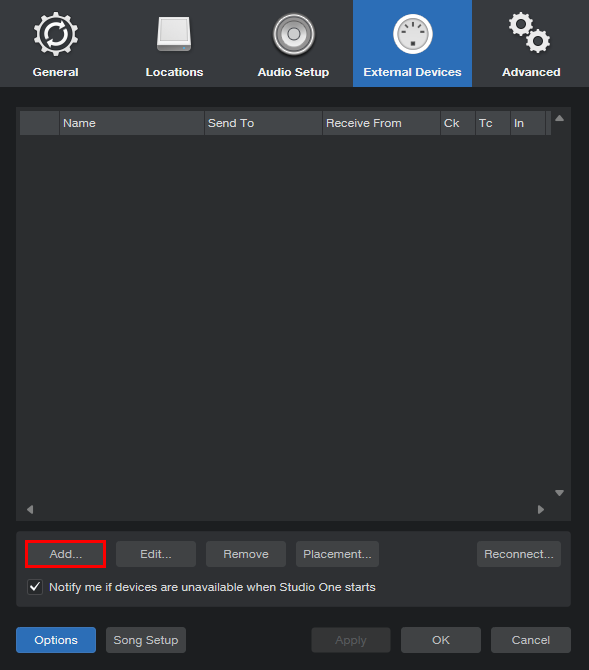
- Click Add and scroll down to the Native Instruments entry. Unfold it and select the keyboard you want to set up. In this example, we are selecting Komplete Kontrol S.
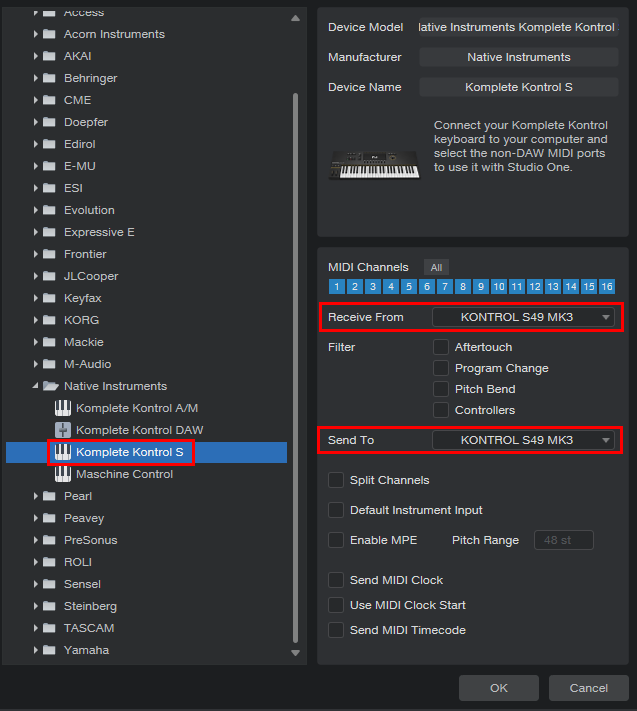
- In the Receive From and Send To tabs, select the keyboard that you want to use. In our case on Windows, it is the KONTROL S49 MK3. On a Mac, it's called KONTROL S49 MK3 Main.
Integration of the control surface functionalities
The steps to enable the transport and control surface features are similar to the above instructions.
- In the Studio One Options window, select the ExternalDevices tab.
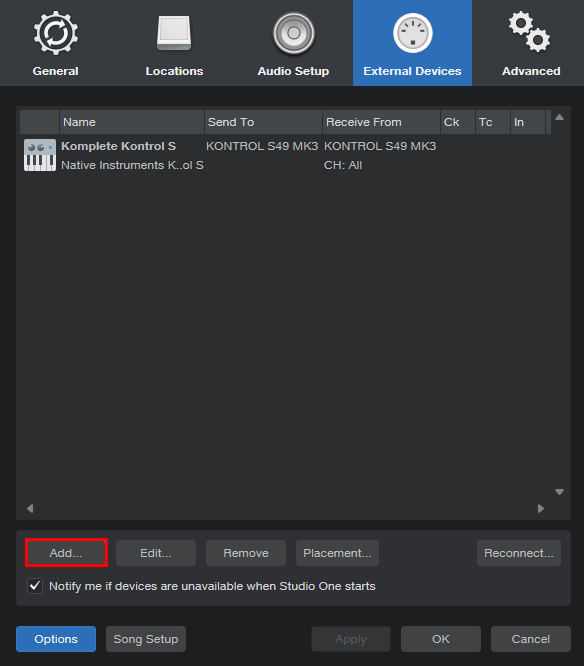
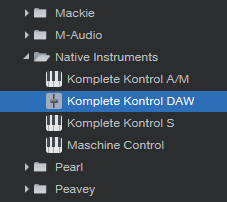
- Click Add and scroll down to the Native Instruments entry. Unfold it and select Komplete Kontrol DAW.
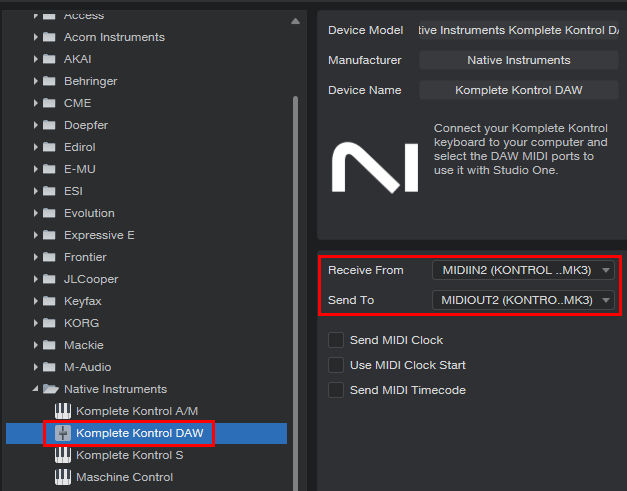
- If you are using a Kontrol S MK3 on Windows, set Receive From to MIDIIN2 (KONTROL S MK3) and Send To to MIDIOUT2 (KONTROL S MK3).
If you are using a Kontrol S MK3 on macOS, set Receive From and Sent To to KONTROL S49 MK3 DAW (or the DAW entry corresponding to your keyboard size).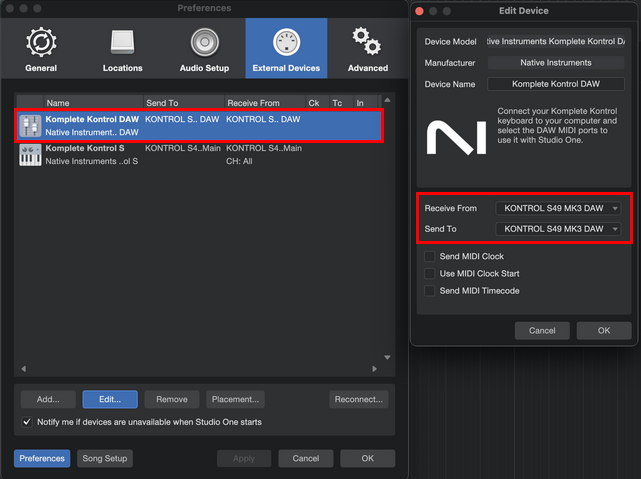
If you are using a different Komplete Kontrol keyboard, set the Receive From and Send To to the DAW entry available. In our case, it's Komplete Kontrol DAW - 1: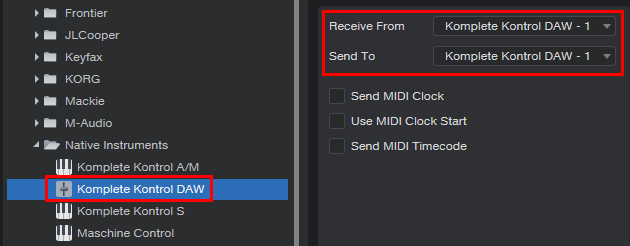
Using a Kontrol keyboard to control the Komplete Kontrol plug-in
When the MIDI and DAW functionalities are enabled, you must press the PLUG-IN button in order to change the keyboard state so that it controls the Komplete Kontrol plug-in. To revert back to controlling Studio One, press the DAW / INSTANCE button. The transport buttons (PLAY, REC, STOP, LOOP, METRO, and TEMPO) will still control Studio One even in plug-in mode.
Ableton Live for Kontrol S-Series MK3
Ableton Live has different setup instructions depending on which keyboard you are using. Choose the guide for your specific model.
Ableton Live - Kontrol S-Series MK3 (Mac)
This setup requires Live 11.3.11 and Komplete Kontrol software 3.0.
Note: To use the latest integration features, please update the Kontrol S-Series firmware and the Hardware Connection Service.
- Connect your Kontrol MK3 keyboard to your computer and switch it on.
- Start Ableton Live and go to Preferences > Link MIDI.
- Assign a free Control Surface slot to Komplete Kontrol S Mk3.
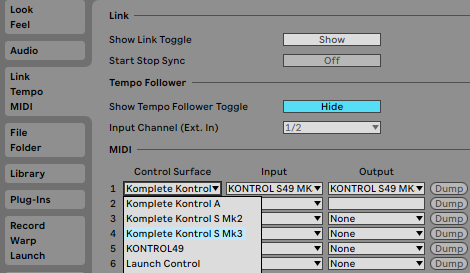
- Select KONTROL S MK3 (DAW) under Input and Output.
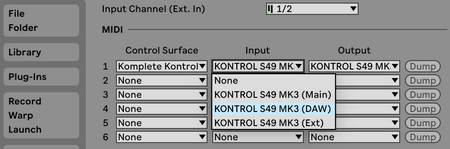
Your Kontrol MK3 is now set up for host integration in Ableton Live.
Ableton Live - Kontrol S-Series MK3 (Windows)
This setup requires Live 11.3.11 and Komplete Kontrol software 3.0.
Note: To use the latest integration features, please update the Kontrol S-Series firmware and the Hardware Connection Service.
- Connect your Kontrol MK3 keyboard to your computer and switch it on.
- Start Ableton Live and go to Preferences > Link MIDI.
- Assign a free Control Surface slot to Komplete Kontrol S Mk3.
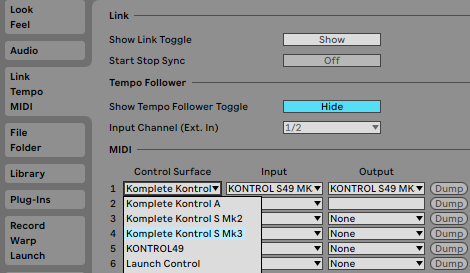
- Select KONTROL S MK3 (Port2) under Input and Output.
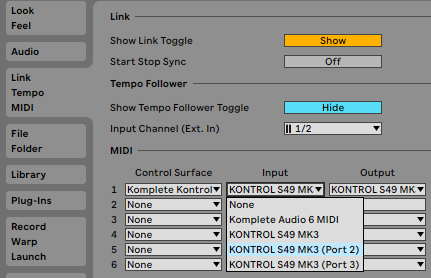
Your Kontrol MK3 is now set up for host integration in Ableton Live.
Ableton Live for KOMPLETE KONTROL M32 and A-Series
Ableton Live - Komplete Kontrol M32
M32 keyboards currently require the user to select 'Komplete Kontrol A' as the control surface. Please follow these steps:
- Connect your KOMPLETE KONTROL M32 keyboard to your computer.
- Start Ableton Live and go to Preferences > Link MIDI.
- Assign a free Control Surface slot to Komplete Kontrol A by selecting it from the drop-down list.
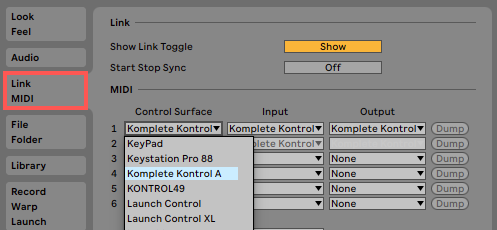
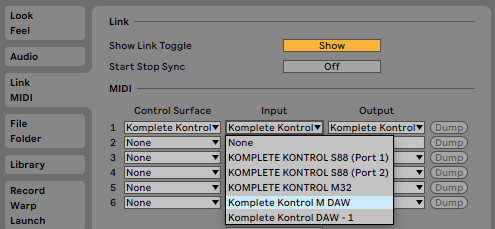
- Under Input, select Komplete Kontrol M DAW:
- Under Output, select Komplete Kontrol M DAW:
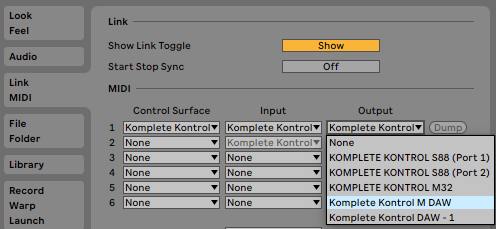
To find out how to use the host integration features, please download the 'KOMPLETE KONTROL M32 DAW Shortcut sheet' that is linked at the bottom of the page.
Ableton Live - Komplete Kontrol A-Series
- Connect your A-Series keyboard with your computer.
- Start Ableton Live and go to Preferences > Link MIDI.
- Assign a free Control Surface slot to Komplete Kontrol A by selecting it from the drop-down list.
- Select Komplete Kontrol A DAW under Input and Output.
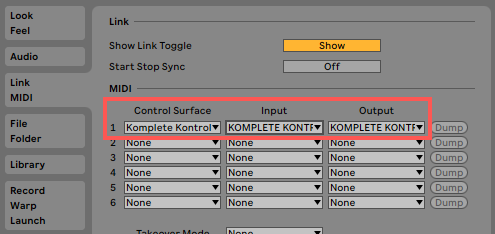
To find out how to use the host integration features, please download the 'KOMPLETE KONTROL A-Series DAW Shortcut Sheet' that is linked at the bottom of this page.
Ableton Live for Komplete Kontrol S-Series MK2
Ableton Live for Komplete Kontrol S-Series MK2 (Mac)
Ableton Live 10 / 11 / 12
This feature requires at least Live 10.1 and KOMPLETE KONTROL 2.1.2.
- Connect your S-Series MK2 keyboard to your computer.
- Start Live and go to Preferences > Link MIDI.
- Assign a free Control Surface slot to Komplete Kontrol SMK2 by selecting it from the drop-down list.
- Select Komplete Kontrol DAW -1 under Input and Output.
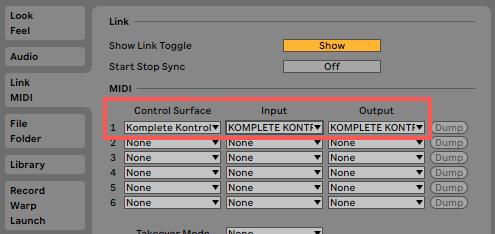
To find out how to use the host integration features, please download the 'KOMPLETE KONTROL S-Series MK2 DAW Shortcut Sheet' that is linked below this article.
Ableton Live 9
The features described here require at least Live 9.2.3. and KOMPLETE KONTROL 1.9.0.
There are four steps involved to set up Live with your KOMPLETE KONTROL S-Series MK2:
1. Installing the MIDI Remote Script
- Ensure that Live is not running.
- Navigate to the following folder:
Macintosh HD > Library > Application Support > Native Instruments > Host Integration > Ableton Live - Copy the "_NativeInstruments" folder, as well as the "Komplete_Kontrol_Mk2" folder.
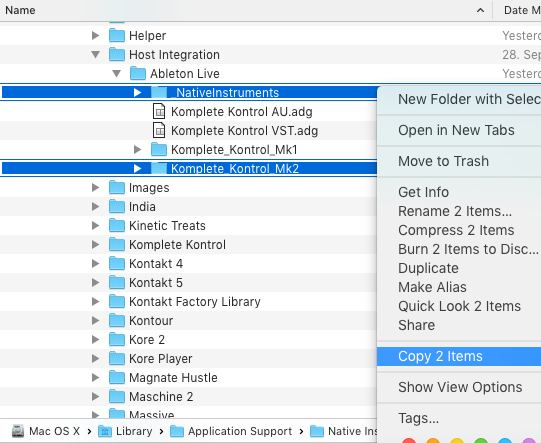
- Open your Applications folder and right-click the Live application symbol. In the context menu, click on Show Package Contents.
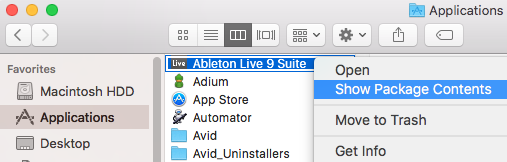
- In the Live package, navigate to Contents > App-Resources > MIDI Remote Scripts.
- Paste the folders you have copied into the MIDI Remote Scripts folder:
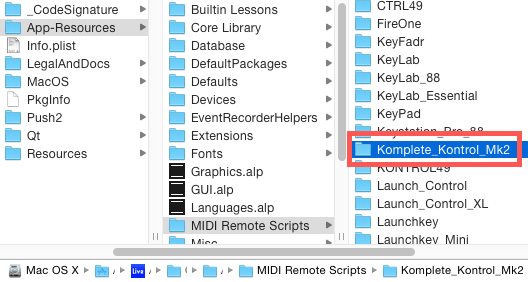
2. Installing the KOMPLETE KONTROL Instrument Racks
In this step, you will learn how to copy the required KOMPLETE KONTROL Instrument Rack files to your Live User Library. This way Live will recognize the KOMPLETE KONTROL Instrument Racks and add them to the browser.
- Navigate to the following folder:
Macintosh HD > Library > Application Support > Native Instruments > Host Integration > Ableton Live - Copy the "Komplete Kontrol VST.adg" and "Komplete Kontrol AU.adg" files to your clipboard by selecting both of them, right-clicking on the selection and choosing Copy 2 Items.
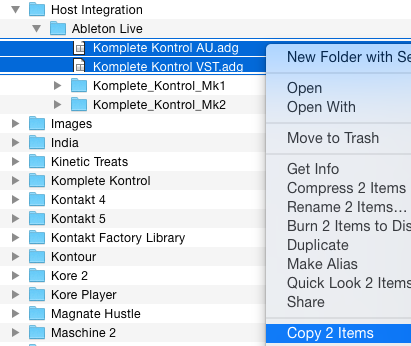
- Paste the .adg files to your Live Instrument Rack folder. By default this folder is located here: Macintosh HD > Users > *Username* > Music > Ableton > User Library > Presets > Instruments > Instrument Rack

3. Configuring Live for the use of KOMPLETE KONTROL with the KOMPLETE KONTROL S-Series Keyboards
Once the MIDI remote script and the instrument rack files are installed in the correct locations, you need to activate Komplete Kontrol as a control surface in Live's preferences.
- Start Live.
- Open Live's Preferences and go to the Link MIDI Tab.
- Assign a free Control Surface slot to Komplete Kontrol MK2 by selecting it from the drop-down list.
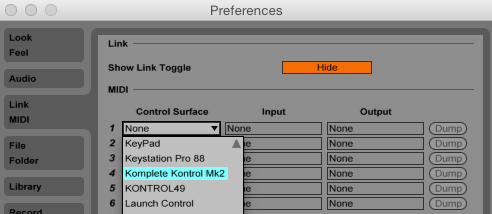
- Select Komplete Kontrol DAW - 1 under Input and Output.
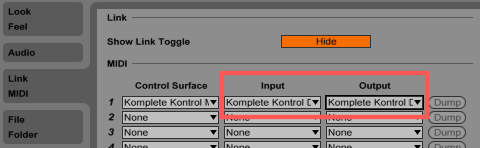
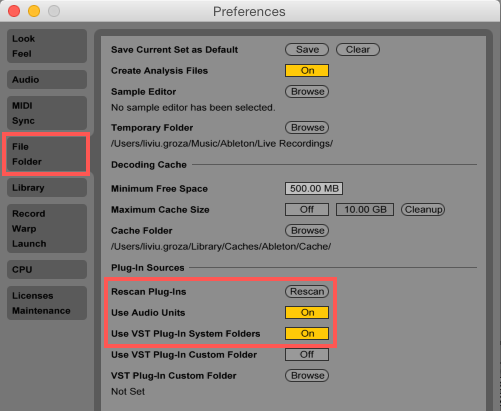
- Go to the File / Folder tab of Live's Preferences and make sure the Use Audio Units and Use VST Plug-in System Folders options are activated. If these options were not activated, press the Rescan button after having set them to On. If you skip this step, you will not be able to load KOMPLETE KONTROL correctly in Live.
4. Loading KOMPLETE KONTROL in Live
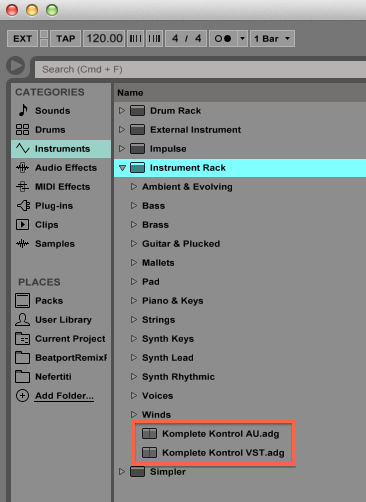
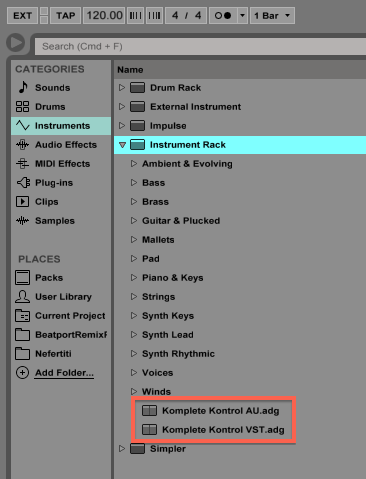
To load KOMPLETE KONTROL in Live, drag the KOMPLETE KONTROL Instrument Rack from the browser to an empty MIDI Track. The KOMPLETE KONTROL Instrument Racks are called:
- Komplete Kontrol VST.adg (VST plug-in format)
- Komplete Kontrol AU.adg (Audio Units plug-in format, Mac only)
You will find them here in the Live browser: Instruments > Instrument Rack. Make sure not to use the VST version instead of the Instruments Rack version of KOMPLETE KONTROL.
Important Note: Don't use both the AU and VST versions of KOMPLETE KONTROL in the same Live project. You have to use the same plug-in format across all instances in your project. Otherwise automatic track focus will not work correctly.
Ableton Live for Komplete Kontrol S-Series MK2 (Windows)
Ableton Live 10 / 11 / 12
This feature requires at least Live 10.1 and KOMPLETE KONTROL 2.1.2.
Note: if using Ableton Live 10.0.x, please follow the setup steps outlined for Ableton Live 9.
- Connect your S-Series MK2 keyboard to your computer.
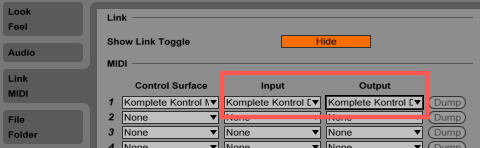
- Start Live and go to Preferences > Link MIDI.
- Assign a free Control Surface slot to Komplete Kontrol SMK2 by selecting it from the drop-down list.
- Select Komplete Kontrol DAW -1 under Input and Output.
To find out how to use the host integration features, please download the 'KOMPLETE KONTROL S-Series MK2 DAW Shortcut Sheet' that is available through this link.
Ableton Live 9
The features described here require at least Live 9.2.3. and KOMPLETE KONTROL 1.9.0.
There are four steps involved to set up Live with your KOMPLETE KONTROL S-Series MK2:
1. Installing the MIDI Remote Script
In this section, you will learn how to copy the KOMPLETE KONTROL MIDI Remote Script to Live's MIDI Remote Scripts directory. This will allow Live to recognize KOMPLETE KONTROL as a control surface.
- Ensure that Live is not running.
- Navigate to the following folder:
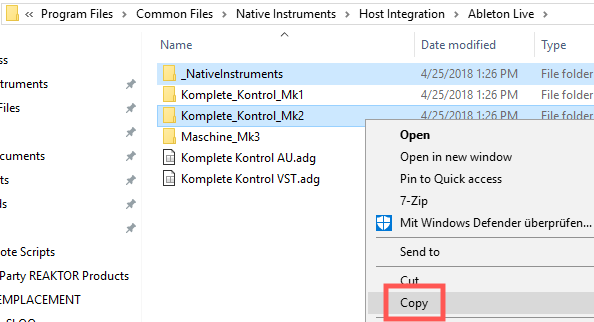
C: > Program Files > Common Files > Native Instruments > Host Integration > Ableton Live - Copy the "_NativeInstruments" folder, as well as the "Komplete_Kontrol_Mk2" folder.
- Go to the MIDI Remote Scripts folder in Live's installation directory. By default, it is located here:
C: > ProgramData > Ableton > Live 9 > Resources > MIDI Remote ScriptsNote: The Program Data folder may be hidden.
- Paste the folders you have copied into the "MIDI Remote Scripts" folder.
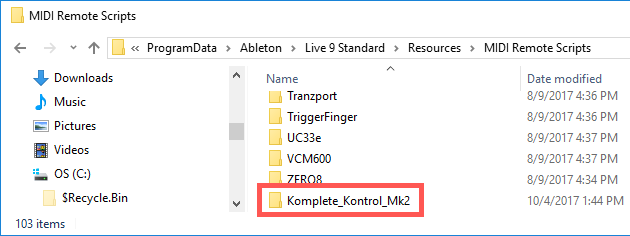
2. Installing the KOMPLETE KONTROL Instrument Racks
In this step, you will learn how to copy the required KOMPLETE KONTROL Instrument Rack files to your Live User Library. This way Live will recognize the KOMPLETE KONTROL Instrument Racks and add them to the browser.
- Navigate to the following folder:
C: > Program Files > Common Files > Native Instruments > Host Integration > Ableton Live - Copy the "Komplete Kontrol VST.adg" file to your clipboard by right-clicking it and choosing Copy.
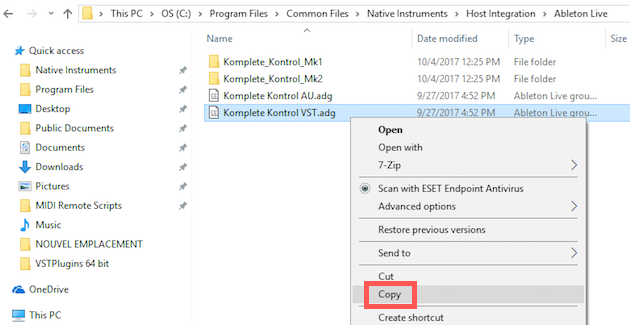
- Paste the .adg file to the Instrument Rack folder in your Live User Library. By default this folder is located here:
C: > Users > *Username* > Documents > Ableton > User Library > Presets > Instruments > Instrument Rack
3. Configuring Live for the use of KOMPLETE KONTROL with the KOMPLETE KONTROL S-Series Keyboards
Once the MIDI remote script and the instrument rack files are installed in the correct location, you need to activate Komplete Kontrol as control surface in Live's preferences.
- Start Live.
- Open Live's Preferences and go to the Link MIDI Tab.
- Assign a free Control Surface slot to Komplete Kontrol MK2 by selecting it from the drop-down list.
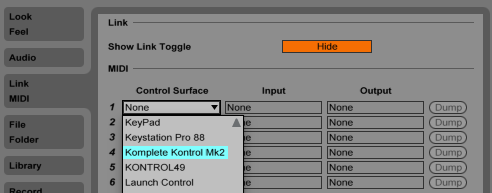
- Select Komplete Kontrol DAW - 1 under Input and Output.
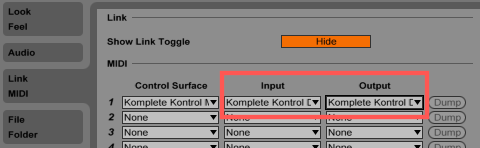
4. Loading KOMPLETE KONTROL in Live
To load KOMPLETE KONTROL in Live, drag the KOMPLETE KONTROL Instrument Rack from the browser to an empty MIDI Track. The KOMPLETE KONTROL Instrument Rack is called:
- Komplete Kontrol VST.adg (VST plug-in format)
You will find the rack here in the Live browser: Instruments > Instrument Rack. Make sure not to use the VST version instead of the Instruments Rack version of KOMPLETE KONTROL.
Ableton Live for KOMPLETE KONTROL S-Series MK1
Ableton Live 9 / 10 for Komplete Kontrol S-Series MK1 (Mac)
This feature requires at least Live 9.2.3. and KOMPLETE KONTROL 1.9.0.
IMPORTANT: Komplete Kontrol software versions above 2.9 are not compatible with the Kontrol MK1 keyboard anymore.
There are four steps involved to set up Live with your KOMPLETE KONTROL S-Series MK1 as explained below:
1. Installing the MIDI Remote Script
In this section, you will learn how to copy the KOMPLETE KONTROL MIDI Remote Script to Live's MIDI Remote Scripts directory. This will allow Live to recognize KOMPLETE KONTROL as a control surface.
- Ensure that Live is not running.
- Navigate to the following folder:
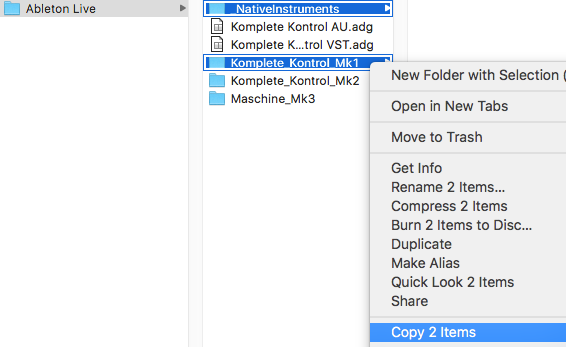
Macintosh HD > Library > Application Support > Native Instruments > Host Integration > Ableton Live - Copy the "_NativeInstruments" folder, as well as the "Komplete_Kontrol_Mk1" folder.
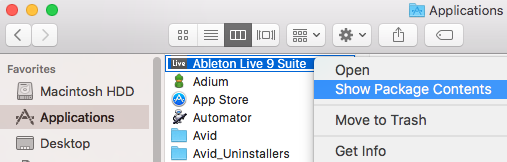
- Open your Applications folder and right-click the Live 9 (or 10) application symbol. In the context menu, click on Show Package Contents.
- In the Live package, navigate to Contents > App-Resources > MIDI Remote Scripts.
- Paste the folders you have copied into the "MIDI Remote Scripts" folder:

2. Installing the KOMPLETE KONTROL Instrument Racks
In this step, you will learn how to copy the required KOMPLETE KONTROL Instrument Rack files to your Live User Library. This way Live will recognize the KOMPLETE KONTROL Instrument Racks and add them to the browser.
- Navigate to the following folder:
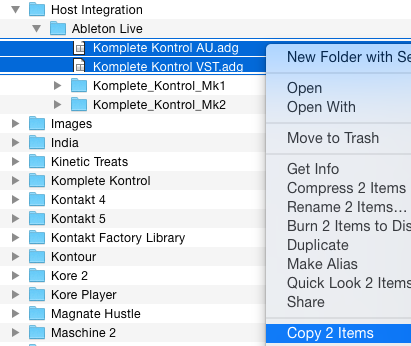
Macintosh HD > Library > Application Support > Native Instruments > Host Integration > Ableton Live - Copy the "Komplete Kontrol VST.adg" and "Komplete Kontrol AU.adg" files to your clipboard by selecting both of them, right-clicking on the selection and choosing Copy 2 Items.
- Paste the .adg files to your Live Instrument Rack folder. By default this folder is located here:
Macintosh HD > Users > *Username* > Music > Ableton > User Library > Presets > Instruments > Instrument Rack
3. Configuring Live for the use of KOMPLETE KONTROL with the KOMPLETE KONTROL S-Series Keyboards
Once the MIDI remote script and the instrument rack files are installed in the correct location, you need to activate Komplete Kontrol as control surface in Live's preferences.
- Start Live.
- Open Live's Preferences and go to the Link MIDI Tab.
- Assign a free Control Surface slot to Komplete Kontrol Mk1 by selecting it from the drop-down list.
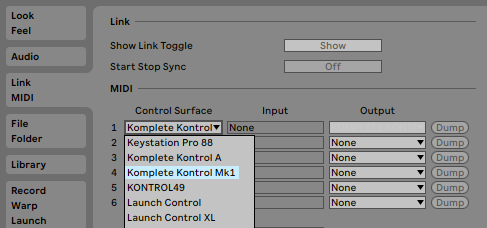
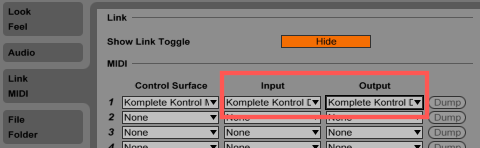
Note: Live's auto-selection may choose the Komplete Kontrol Mk2 instead of the Mk1 automatically. If it does, simply choose the Komplete Kontrol Mk1 from the Control Surface list. - Select Komplete Kontrol DAW - 1 under Input and Output.
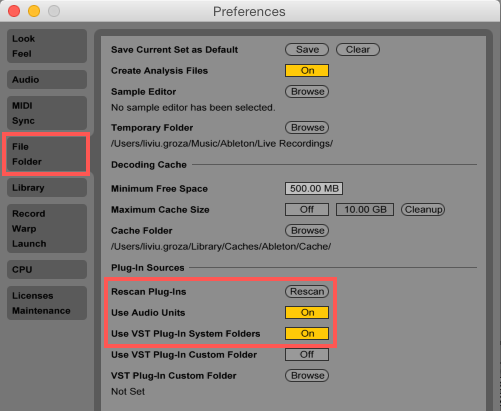
- Go to the File / Folder tab of Live's Preferences and make sure the Use Audio Units and Use VST Plug-in System Folders options are activated. If these options were not activated, press the Rescan button after having set them to On.
4. Loading KOMPLETE KONTROL in Live
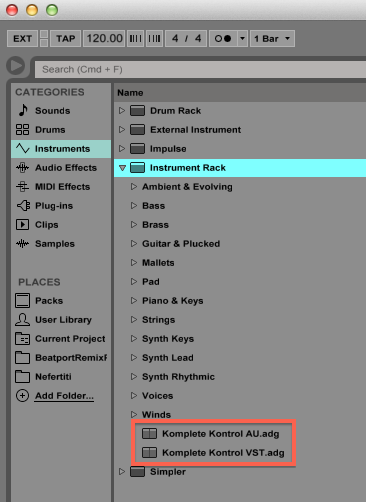
To load KOMPLETE KONTROL in Live, drag the KOMPLETE KONTROL Instrument Rack from the browser to an empty MIDI Track. The KOMPLETE KONTROL Instrument Racks are called:
- Komplete Kontrol VST.adg (VST plug-in format)
- Komplete Kontrol AU.adg (Audio Units plug-in format)
You will find them here in the Live browser: Instruments > Instrument Rack. Make sure not to use the VST version instead of the Instruments Rack version of KOMPLETE KONTROL.
Important Note: Don't use both the AU and VST versions of KOMPLETE KONTROL in the same Live project. You have to use the same plug-in format across all instances in your project. Otherwise automatic track focus will not work correctly.
Ableton Live 9 / 10 for Komplete Kontrol S-Series MK1 (Windows)
This feature requires at least Live 9.2.3. and KOMPLETE KONTROL 1.9.0.
IMPORTANT: Komplete Kontrol software versions above 2.9 are not compatible with the Kontrol MK1 keyboard anymore.
There are four steps involved to set up Live with your KOMPLETE KONTROL S-Series MK1 as explained below:
1. Installing the MIDI Remote Script
In this section, you will learn how to copy the KOMPLETE KONTROL MIDI Remote Script to Live's MIDI Remote Scripts directory. This will allow Live to recognize KOMPLETE KONTROL as a control surface.
- Ensure that Live is not running.
- Navigate to the following folder:
C: > Program Files > Common Files > Native Instruments > Host Integration > Ableton Live. - Copy the "_NativeInstruments" folder, as well as the "Komplete_Kontrol_Mk1" folder.
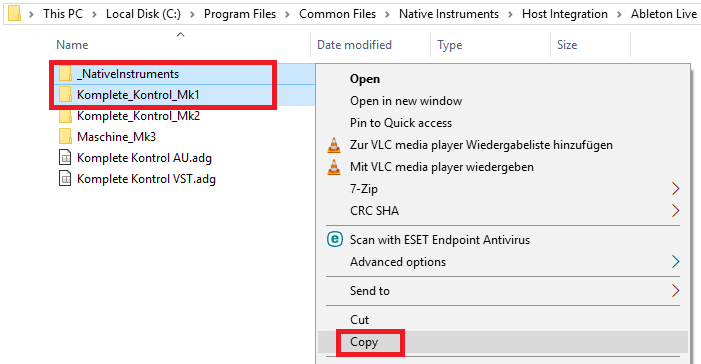
- Go to the MIDI Remote Scripts folder in Live's installation directory. By default, it is located here:
C: > ProgramData > Ableton > Live 9 (or 10) > Resources > MIDI Remote Scripts.Note: The Program Data folder may be hidden.
- Paste the folders you have copied into the "MIDI Remote Scripts" folder.
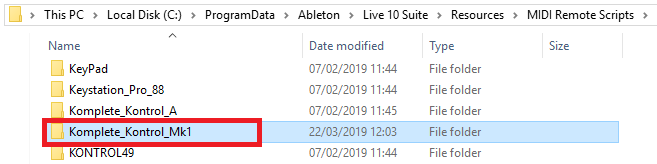
2. Installing the KOMPLETE KONTROL Instrument Racks
In this step, you will learn how to copy the required KOMPLETE KONTROL Instrument Rack files to your Live User Library. This way Live will recognize the KOMPLETE KONTROL Instrument Racks and add them to the browser.
- Navigate to the following folder:
C: > Program Files > Common Files > Native Instruments > Host Integration > Ableton Live - Copy the "Komplete Kontrol VST.adg" file to your clipboard by right-clicking it and choosing Copy.
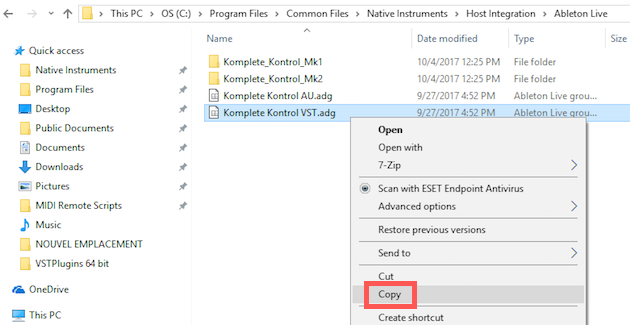
- Paste the .adg file to the Instrument Rack folder in your Live User Library. By default this folder is located here:
C: > Users > *Username* > Documents > Ableton > User Library > Presets > Instruments > Instrument Rack
3. Configuring Live for the use of KOMPLETE KONTROL with the KOMPLETE KONTROL S-Series Keyboards
Once the MIDI remote script and the instrument rack files are installed in the correct location, you need to activate Komplete Kontrol as control surface in Live's preferences.
- Start Live.
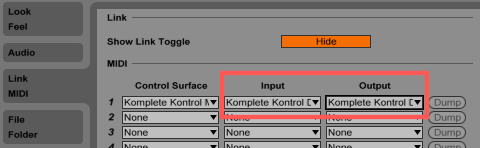
- Open Live's Preferences and go to the Link MIDI Tab.
- Assign a free Control Surface slot to Komplete Kontrol Mk1 by selecting it from the drop-down list.
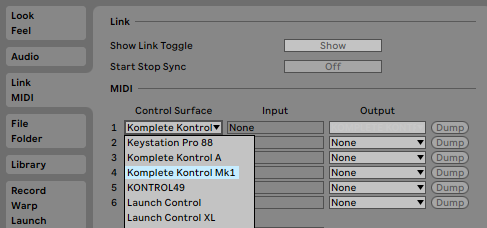
Note: Live's auto-selection may choose the Komplete Kontrol Mk2 instead of the Mk1 automatically. If it does, simply choose the Komplete Kontrol Mk1 from the Control Surface list. - Select Komplete Kontrol DAW - 1 under Input and Output.
4. Loading KOMPLETE KONTROL in Live
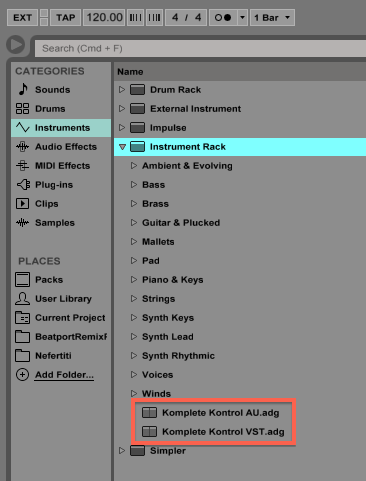
To load KOMPLETE KONTROL in Live, drag the KOMPLETE KONTROL Instrument Rack from the browser to an empty MIDI Track. The KOMPLETE KONTROL Instrument Rack is called:
- Komplete Kontrol VST.adg (VST plug-in format)
You will find the rack here in Live's browser: Instruments > Instrument Rack. Make sure not to use the VST version instead of the Instruments Rack version of KOMPLETE KONTROL
Ableton Live 11 for Komplete Kontrol S-Series MK1 (Mac)
This feature requires at least Live 11.0.2 and KOMPLETE KONTROL 2.6.0.
IMPORTANT: Komplete Kontrol software versions above 2.9 are not compatible with the Kontrol MK1 keyboard anymore.
There are four steps involved to set up Live with your KOMPLETE KONTROL S-Series MK1 as explained below:
1. Download and install the MIDI Remote Script
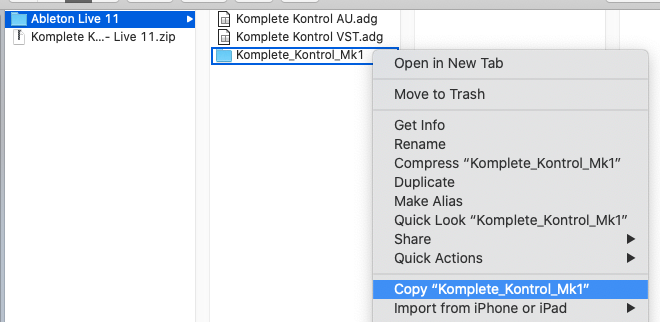
- Download and unzip the Komplete Kontrol MK1 - Live 11.zip.
- Open the unzipped folder Ableton Live 11.
- Copy the folder Komplete_Kontrol_Mk1.
- Ensure that Live is not running.
- Open your Applications folder and right-click the Live 11 application symbol. In the context menu, click on Show Package Contents.
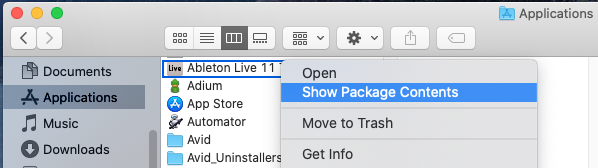
- In the Live package, navigate to Contents > App-Resources > MIDI Remote Scripts.
- Paste the Komplete_Kontrol_Mk1 folder you have copied into the "MIDI Remote Scripts" folder:

2. Installing the KOMPLETE KONTROL Instrument Racks
- Open again the unzipped Ableton Live 11 folder.
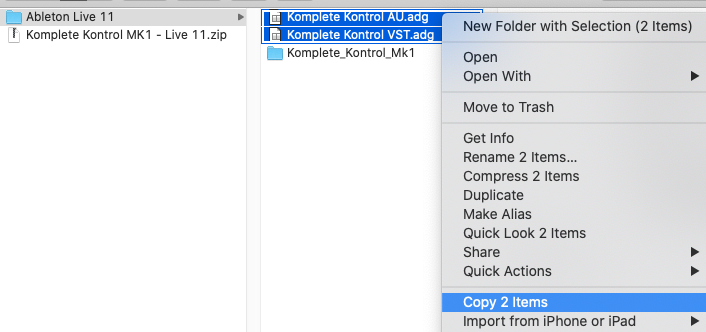
- Copy the "Komplete Kontrol VST.adg" and "Komplete Kontrol AU.adg" files to your clipboard by selecting both of them, right-clicking on the selection and choosing Copy 2 Items.
- Paste the .adg files to your Live Instrument Rack folder. By default this folder is located here:
Macintosh HD > Users > *Username* > Music > Ableton > User Library > Presets > Instruments > Instrument Rack
3. Configuring Live for the use of KOMPLETE KONTROL with the KOMPLETE KONTROL S-Series Keyboards
- Start Live.
- Open Live's Preferences and go to the Link MIDI Tab.
- Assign a free Control Surface slot to Komplete Kontrol Mk1 by selecting it from the drop-down list.
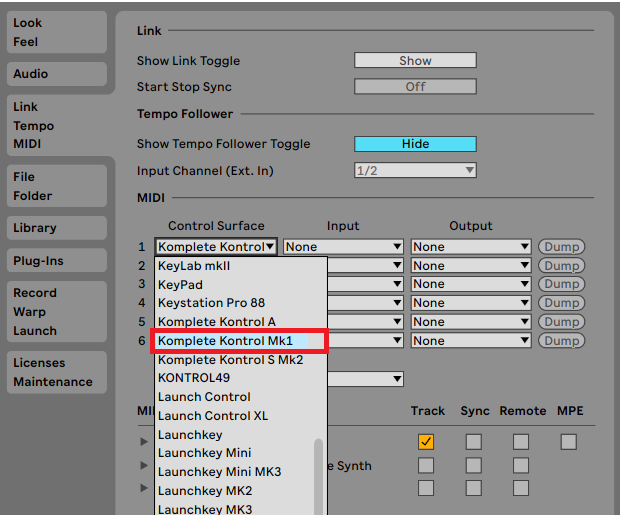
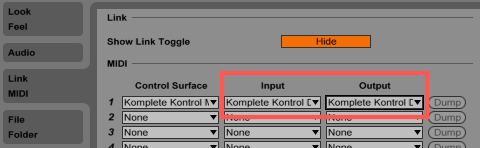
Note: Live's auto-selection may choose the Komplete Kontrol Mk2 instead of the Mk1 automatically. If it does, simply choose the Komplete Kontrol Mk1 from the Control Surface list. - Select Komplete Kontrol DAW - 1 under Input and Output.
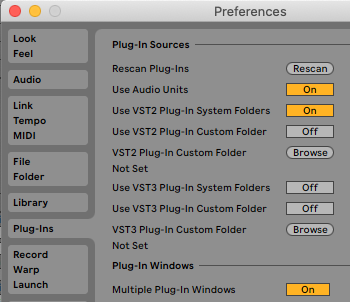
- Go to the Plug-Ins tab of Live's Preferences and make sure the Use Audio Units and Use VST Plug-in System Folders options are activated. If these options were not activated, press the Rescan Plug-Ins button after having set them to On.
4. Loading KOMPLETE KONTROL in Live
To load KOMPLETE KONTROL in Live, drag the KOMPLETE KONTROL Instrument Rack from the browser to an empty MIDI track. The KOMPLETE KONTROL Instrument Rack is called:
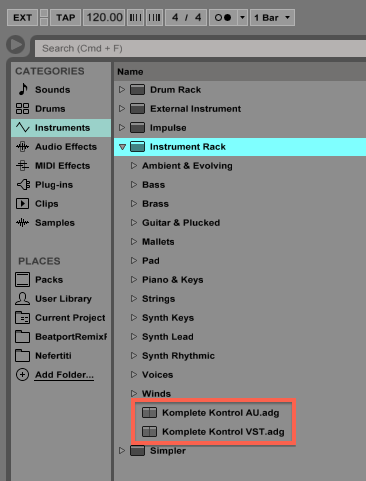
- Komplete Kontrol VST.adg (VST plug-in format)
- Komplete Kontrol AU.adg (Audio Units plug-in format)
You will find the rack here in Live's browser: Instruments > Instrument Rack.
Make sure to use the Instruments Rack version of KOMPLETE KONTROL and not the normal plug-in version.
Important Note: Don't use both the AU and VST versions of KOMPLETE KONTROL in the same Live project. You have to use the same plug-in format across all instances in your project. Otherwise automatic track focus will not work correctly.
Ableton Live 11 for Komplete Kontrol S-Series MK1 (Windows)
This feature requires at least Live 11.0.2 and KOMPLETE KONTROL 2.6.0.
IMPORTANT: Komplete Kontrol software versions above 2.9 are not compatible with the Kontrol MK1 keyboard anymore.
If you accidentally upgraded beyond version 2.9, you can download the 2.9.6 installer below:
There are four steps involved to set up Live with your KOMPLETE KONTROL S-Series MK1 as explained below:
1. Download and install the MIDI Remote Script
- Download and unzip the Komplete Kontrol MK1 - Live 11.zip
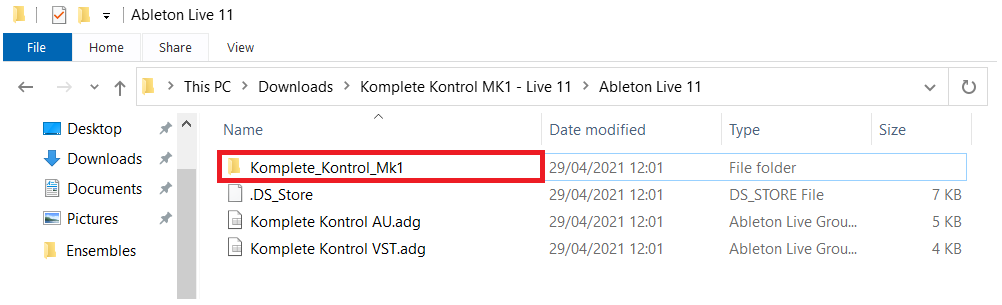
- Open the unzipped folder and navigate to Komplete Kontrol MK1 - Live 11 > Ableton Live 11.
- Copy the folder Komplete_Kontrol_Mk1.
- Ensure that Live is not running.
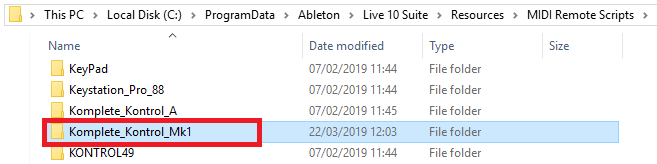
- Go to the MIDI Remote Scripts folder in Live's installation directory. By default, it is located here:
C: > ProgramData > Ableton > Live 11 (Suite) > Resources > MIDI Remote Scripts.Note: The Program Data folder may be hidden.
- Paste the folder you have copied into the "MIDI Remote Scripts" folder.
2. Installing the KOMPLETE KONTROL Instrument Racks
- Open again the unzipped Komplete Kontrol MK1 - Live 11.zip folder and navigate to Komplete Kontrol MK1 - Live 11 > Ableton Live 11.
- Copy the Komplete Kontrol VST.adg file.
- Paste the .adg file to the Instrument Rack folder in your Live User Library. By default this folder is located here:
C: > Users > *Username* > Documents > Ableton > User Library > Presets > Instruments > Instrument Rack
3. Configuring Live for the use of KOMPLETE KONTROL with the KOMPLETE KONTROL S-Series Keyboards
- Start Live.
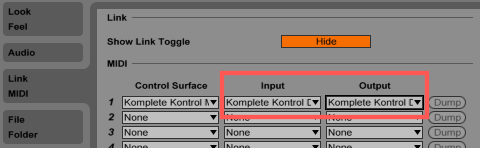
- Open Live's Preferences and go to the Link MIDI Tab.
- Assign a free Control Surface slot to Komplete Kontrol Mk1 by selecting it from the drop-down list.
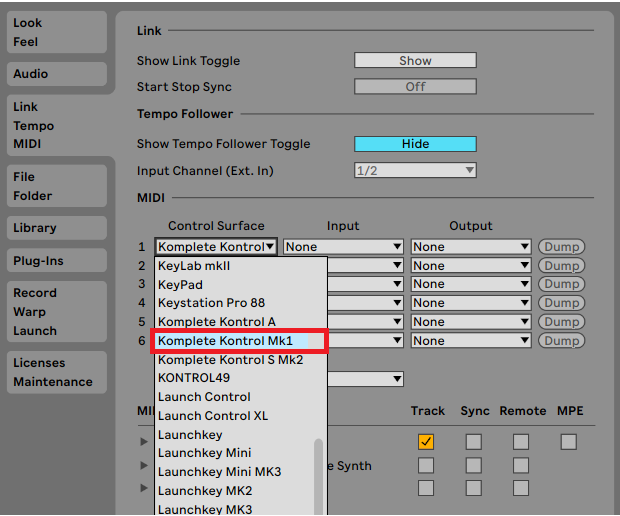
Note: Live's auto-selection may choose the Komplete Kontrol Mk2 instead of the Mk1 automatically. If it does, simply choose the Komplete Kontrol Mk1 from the Control Surface list.
- Select Komplete Kontrol DAW - 1 under Input and Output.
4. Loading KOMPLETE KONTROL in Live
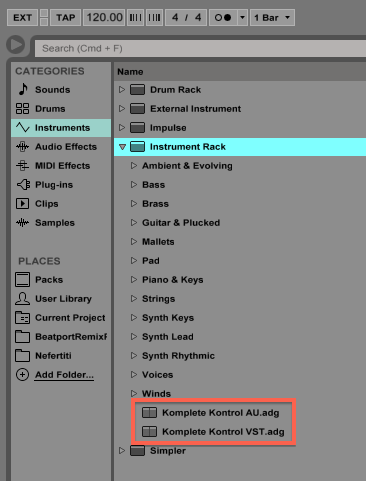
To load KOMPLETE KONTROL in Live, drag the KOMPLETE KONTROL Instrument Rack from the browser to an empty MIDI Track. The KOMPLETE KONTROL Instrument Rack is called:
- Komplete Kontrol VST.adg
You will find the rack here in Live's browser: Instruments > Instrument Rack. Make sure to use the Instruments Rack version of KOMPLETE KONTROL and not the normal plug-in version.
Integration with other DAWs using MCU Protocol
Setting up KOMPLETE KONTROL in DAWs supporting MCU differs with each DAW. Generally, it involves the following:
- Open your DAW's device / control surface preferences.
- Select the MCU / Mackie Control Universal as the device.
- Set the ports to Komplete Kontrol DAW.
For more information on setting up controllers with MCU, refer to the documentation of your DAW.
The following table provides an overview of the basic transport controls supported with MCU:
| Action in DAW using MCU | Button |
| Basic Transport | |
| Start / pause playback | PLAY (RESTART) |
| Enable / disable recording | REC (COUNT-IN) |
| Punch in while recording | REC (COUNT-IN) |
| Punch out while recording | REC (COUNT-IN) |
| Stop playback / recording | STOP |
| Relocate playhead position to start when stopped | STOP |
| Enable / disable looping | LOOP |
| Scroll playhead position (if supported by host) | Turn 4-D encoder |
| Track Navigation | |
| Select previous / next track (if supported by host) | Move 4-D encoder up / down / left / right |
| Select previous / next region (if supported by host) | Move 4-D encoder up / down / left / right |
Note: Automatic track focus is not supported with MCU. However, you can press the INSTANCE button on your KOMPLETE KONTROL keyboard to call up a dialog in the displays to switch between all loaded instances of the plug-in.
DAW Shortcut Sheets
Download the DAW shortcut sheet below for a quick-reference guide to controlling Logic Pro, Garage Band, Ableton Live, Cubase, Nuendo and Pro Tools with your KOMPLETE KONTROL keyboard.
Was this article helpful?
That’s Great!
Thank you for your feedback
Sorry! We couldn't be helpful
Thank you for your feedback
Feedback sent
We appreciate your effort and will try to fix the article