Overview
NKS Connect brings the NKS browsing and parameter control experience to supported MIDI controllers, extending the hands-on workflow known from Native Instruments Kontrol keyboards to more devices musicians already own and use.
With NKS Connect, supported controllers can connect directly to the Native Instruments and NKS ecosystem. You can browse, load, play, and control NKS instruments in Kontakt, Komplete Kontrol, and Maschine directly from compatible controller hardware.
NKS Connect works together with Hardware Connection Service, which is required for supported hardware to communicate with Native Instruments software. Both components must be installed for NKS Connect integration to work correctly.
TABLE OF CONTENTS
- What NKS Connect does
- Supported controllers
- Supported Native Instruments software
- Supported DAWs
- Installing NKS Connect
- Setting up AKAI MPK mini IV and MPK mini plus II
- Checking NKS Connect status
- Using NKS Mode
- Using NKS Connect with Kontakt
- Using NKS Connect with Komplete Kontrol
- Using NKS Connect with Maschine
- DAW setup notes
- Troubleshooting
- What is the difference between NKS Connect and NKS MIDI Templates?
What NKS Connect does
Depending on the connected controller and software, NKS Connect can provide:
- Direct integration with Kontakt, Komplete Kontrol, and Maschine
- NKS Mode for hardware-based browsing and parameter control
- Preset browsing from the controller display
- Preset loading from the controller hardware
- Filtered preset list browsing from Kontakt, Komplete Kontrol, or Maschine
- Mapped parameter control from the controller
- Parameter names and values shown on the controller display
- Visual feedback from the selected track or instrument, where supported
- Fast browsing using Shift with the encoder
- Fine parameter adjustment using Shift with supported controls
- Parameter page navigation from the controller
- Device status through the NKS Connect menu bar / system tray application
Supported controllers
NKS Connect currently supports:
- AKAI MPK mini IV
- AKAI MPK mini plus II
Additional supported controllers may be added in future updates.
Supported Native Instruments software
NKS Connect supports direct integration with:
- Kontakt
- Komplete Kontrol
- Maschine
Kontakt-based instruments can be used directly in Kontakt. To use NKS Mode with NI instruments that do not run inside Kontakt, such as Massive, Massive X, Monark, or Conflux, load the instrument in Komplete Kontrol.
Supported DAWs
NKS Connect currently supports:
- Ableton Live
- Apple Logic Pro
- Steinberg Cubase/Nuendo
- Bitwig
Additional DAW support may be added in future updates.
For best results, update your DAW to the latest available version before using NKS Connect.
In supported DAWs, NKS Connect works alongside the controller’s existing DAW integration. After setup, use the controller’s Plugin / DAW button to switch between DAW mode and NKS Mode when working with Kontakt, Komplete Kontrol, or Maschine.
Installing NKS Connect
NKS Connect is installed through Native Access.
- Download and install Native Access.
- Sign in with your Native ID.
- Connect your supported controller. If Native Access is running, it detects the controller and shows the required and optional software to install for NKS Connect.
- Follow the setup steps shown in Native Access.
- Install the required components.
Windows only: After installing NKS Connect for the first time, restart your computer before connecting the controller. Alternatively, open Native Access, search for NKS Connect, click the three dots, select Installation Paths, open the installation folder, and run the NKS Connect .exe file once.
The following components are required:
- NKS Connect
- Hardware Connection Service
- Kontakt (latest version)
- Komplete Kontrol 3.5.4 or later
If you use Maschine, Maschine 3.6.0 or later is also required.
NKS Connect and Hardware Connection Service must both be installed for NKS Connect integration to work correctly.
If your controller includes Komplete Select, Native Access will guide you through selecting and installing your included Komplete Select edition. After the required components are installed, install the instruments included with your software bundle from the Library in Native Access.
Note: Maschine 3 is not included with Komplete Select. Maschine 3 is available separately from the NI online shop.
Installing the required components manually
If Native Access does not offer the required components when you connect your controller, install them from the Library.
Install Hardware Connection Service
- Open Native Access.
- Select Library in the left panel.
- Click the magnifying glass in the top right.
- Enter Hardware Connection Service.
- Click Install next to the application.
Repeat these steps to install NKS Connect, Kontakt, and Komplete Kontrol. If you use Maschine, install Maschine too. Enter each name in the search field. If an application is already installed, click Update when an update is available.
Setting up AKAI MPK mini IV and MPK mini plus II
Before using NKS Connect with AKAI MPK mini IV or MPK mini plus II, update the controller firmware and install the required DAW scripts using inMusic Software Center.
Update the controller firmware
- Open inMusic Software Center.
- Connect the controller.
- Install the latest available firmware update.
- Restart the controller if instructed.
The latest firmware is required for NKS Connect integration.
Install DAW scripts
After updating the firmware, install the available DAW scripts for your controller using inMusic Software Center.
- Open inMusic Software Center.
- Select the MPK mini IV or MPK mini plus II.
- Install the available DAW scripts for the DAWs you use.
- Restart your DAW after installation.
DAW scripts are required for the controller’s standard DAW control features. NKS Connect works alongside this DAW integration, allowing you to switch between DAW mode and NKS Mode from the controller.
Reset the MIDI device on macOS
After updating the controller firmware on macOS, reset the MIDI device so macOS detects the updated MIDI ports correctly.
- Disconnect the controller.
- Open Audio MIDI Setup.
- Select Window > Show MIDI Studio, or press Cmd + 2.
- Delete the existing controller device.
- Reconnect the controller.
macOS creates a new device entry with the updated MIDI configuration.
Checking NKS Connect status
When the controller is connected and NKS Connect is running, the controller appears in the NKS Connect menu bar / system tray application.
- Blue: controller is active and connected to NKS Connect. A blue keyboard icon appears next to the controller.
- Grey: controller is detected but NKS Connect is inactive for that device
To use NKS Mode, make sure the controller is active in NKS Connect. If the controller does not appear or stays grey, see the NKS Connect Troubleshooting Guide.
Using NKS Mode
NKS Mode is available when an NKS-compatible plug-in, such as Kontakt, Komplete Kontrol, or Maschine, is loaded on the selected track.
On the MPK mini IV or MPK mini plus II, press the Plugin / DAW button to switch between the controller’s DAW mode and NKS Mode.
Use NKS Mode to:
- Browse presets from the controller
- Load presets from the controller
- Control mapped NKS parameters
- View parameter names and values on the controller display
- Navigate parameter pages
- Fast-scroll through preset lists
- Fine-adjust supported parameters
- View track or instrument color feedback where supported
Controller mapping
Use these controls to browse presets and control parameters in NKS Mode. The MPK mini IV and MPK mini plus II use the same NKS Mode controls.
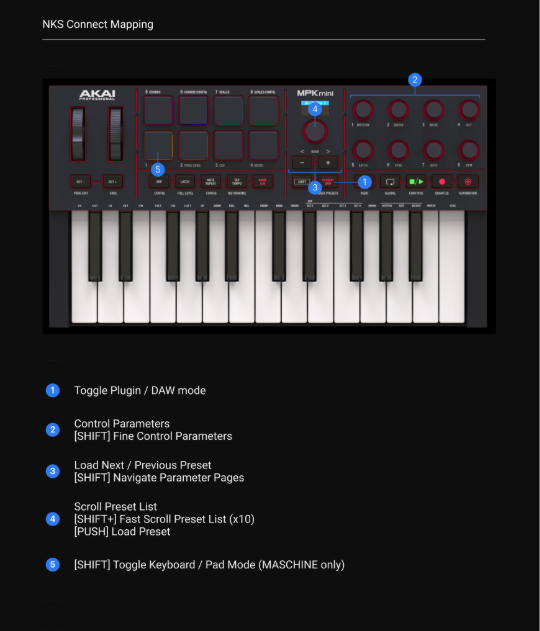
Image file: nks-connect-mapping-mpk-mini-iv.png · Alt text: NKS Connect mapping for the MPK mini IV with five numbered callouts: 1 Plugin / DAW button, 2 knobs 1 to 8, 3 minus and plus buttons, 4 encoder, 5 Pad 1.
NKS Connect mapping for the MPK mini IV.
- Plugin / DAW button: switch between DAW mode and NKS Mode.
- Knobs 1–8: control parameters. Hold Shift to fine-adjust parameters.
- – / + buttons: load the previous or next preset. Hold Shift to navigate parameter pages.
- Encoder: turn to scroll the preset list. Hold Shift and turn to fast-scroll (x10). Push to load the preset.
- Pad 1: hold Shift and press Pad 1 to switch between Keyboard Mode and Pad Mode (Maschine only).
[Image to be added: NKS Connect mapping for the MPK mini plus II.]
Using NKS Connect with Kontakt
Load a Kontakt instrument and select the Kontakt track or plug-in. When Kontakt is focused, switch the controller to NKS Mode to browse presets and control mapped parameters from the hardware.
Using NKS Connect with Komplete Kontrol
Use Komplete Kontrol to access the NKS Mode experience for NI instruments and third-party NKS instruments.
For NI instruments that do not run inside Kontakt, such as Massive, Massive X, Monark, or Conflux, load the instrument in Komplete Kontrol to browse presets, control mapped parameters, and view feedback from the controller.
Using NKS Connect with Maschine
Maschine supports NKS Mode, Pad Mode, and Keyboard Mode with compatible NKS Connect controllers. Maschine 3.6.0 or later is required.
With AKAI MPK mini IV or MPK mini plus II, you can use NKS Mode to browse and control sounds in Maschine. You can also use Pad Mode and Keyboard Mode for Maschine performance workflows.
In Maschine, hold Shift + Pad 1 to switch between Pad Mode and Keyboard Mode.
In Pad Mode, the pads trigger sounds in the focused Maschine Group. Since the controller has 8 pads, use Bank A / B to switch between sounds 1–8 and 9–16.
In Keyboard Mode, the pads play notes of the selected or pinned Sound.
Maschine also includes a pinned Sound workflow that lets you play one Sound from the controller’s keyboard while using the pads to trigger other sounds in the same Group.
DAW setup notes
Ableton Live
NKS Connect is designed to work automatically in Ableton Live 12.4.1 or later after the required software, controller firmware, and DAW scripts are installed.
Known limitation: Maschine Pad Mode is currently affected when using Maschine as a plug-in in Ableton Live. To use Maschine Pad Mode, use Maschine in standalone mode.
Apple Logic Pro
NKS Connect works in Logic Pro after the required software, controller firmware, and DAW scripts are installed. Additional setup is required for Maschine Pad Mode.
- Open Logic Pro.
- Go to Logic Pro > Control Surfaces > Setup.
- Click New > Install.
- Search for NKS Connect.
- Select NKS Connect and click Add.
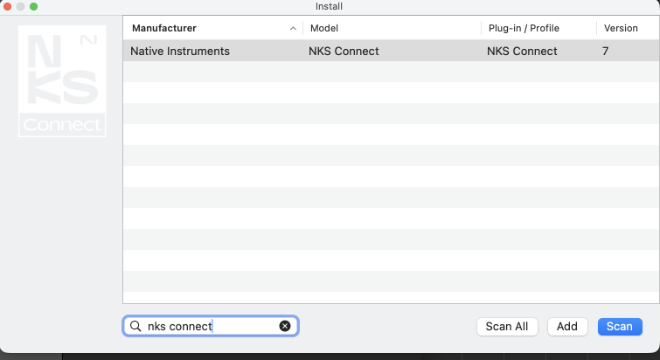
Image file: logic-install-nks-connect-control-surface.png · Alt text: Logic Pro Install dialog with "nks connect" typed in the search field and one result: Manufacturer Native Instruments, Model NKS Connect, Plug-in / Profile NKS Connect, version 7.
Logic Pro Install dialog with NKS Connect selected.
- In the Device settings, set Output Port to NKS Connect.
- Set Input Port to NKS Connect.
Make sure the Logic Pro scripts for your controller are installed using inMusic Software Center. Logic Pro creates the controller’s control surface when you restart Logic Pro or reconnect the controller. Check that its Output Port and Input Port are set to the controller’s MIDI Port, for example MPK mini IV MIDI Port or MPK mini plus II MIDI Port.
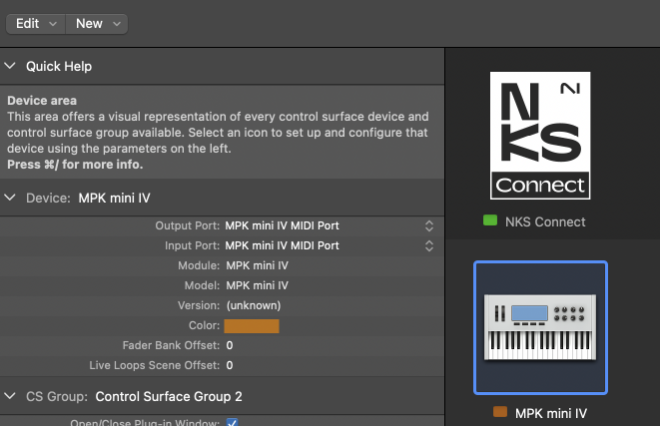
Image file: logic-control-surface-setup-device.png · Alt text: Logic Pro Control Surface Setup window showing the NKS Connect device and an MPK mini IV device, with Output Port and Input Port set to MPK mini IV MIDI Port.
Logic Pro control surface setup with NKS Connect and the MPK mini IV.
- Go to Logic Pro > Settings > MIDI > Inputs.
- Disable MPK mini IV Plugin Port or MPK mini plus II Plugin Port.
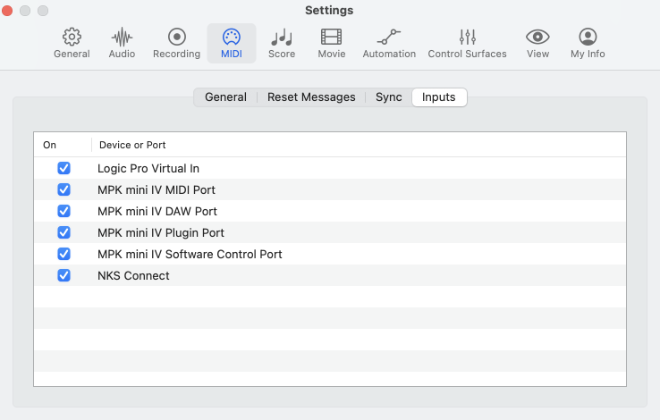
Image file: logic-midi-inputs.png · Alt text: Logic Pro Settings, MIDI tab, Inputs view, listing the MPK mini IV ports and NKS Connect.
Logic Pro MIDI inputs.
This setup allows Maschine Pad Mode to work correctly in Logic Pro.
Steinberg Cubase/Nuendo
NKS Connect is designed to work automatically in Cubase/Nuendo after the required software, controller firmware, and DAW scripts are installed.
Troubleshooting
If NKS Connect does not work as expected, see the NKS Connect Troubleshooting Guide.
What is the difference between NKS Connect and NKS MIDI Templates?
NKS MIDI Templates in Komplete Kontrol provide basic MIDI mappings for selected third-party controllers. These templates are managed inside Komplete Kontrol and only apply to Komplete Kontrol.
NKS Connect provides a deeper hardware integration for supported controllers. It connects directly to Kontakt, Komplete Kontrol, and Maschine and enables NKS Mode with browsing, parameter feedback, display feedback, and product-specific workflows such as Maschine Pad Mode.
Was this article helpful?
That’s Great!
Thank you for your feedback
Sorry! We couldn't be helpful
Thank you for your feedback
Feedback sent
We appreciate your effort and will try to fix the article