This article helps you troubleshoot common setup and connection issues when using NKS Connect with AKAI MPK mini IV or MPK mini plus II.
NKS Connect does not appear in Native Access
Problem:
NKS Connect is not shown or available in Native Access after connecting the controller.
Expected behavior:
When a supported controller is connected, Native Access should detect the device and guide you through the required software setup.
Try this:
- Make sure the controller is connected via USB.
- Confirm that the LEDs on the controller are on.
- Open Native Access and sign in with your Native ID.
- Update Native Access to the latest version.
- Disconnect and reconnect the controller while Native Access is running.
- Restart your computer and open Native Access again.
- Try another USB port or USB cable if the controller is still not detected.
- If Native Access still does not offer NKS Connect, search for NKS Connect and Hardware Connection Service in the Library and install them manually. See “Installing NKS Connect” in NKS Connect - How to set up and use.
NKS Connect does not open in the menu bar or system tray
Problem:
The NKS Connect menu bar / system tray icon does not appear after connecting the controller.
Expected behavior:
NKS Connect runs in the background. When the controller is connected, the NKS Connect icon should appear in the menu bar on macOS or the system tray on Windows.
Try this:
- Make sure the controller is connected and powered via USB.
- Check that NKS Connect has not been closed manually:
- macOS: check Activity Monitor.
- Windows: check Task Manager.
- Check that Hardware Connection Service is also running. If it is not, see “Hardware Connection Service is not running” below.
- Restart your computer.
- Open NKS Connect manually from Native Access:
- Open Native Access.
- Search for NKS Connect.
- Click Open
.
Hardware Connection Service is not running
Problem:
The controller does not appear in NKS Connect, or NKS Mode does not work, because Hardware Connection Service is not running.
Expected behavior:
Hardware Connection Service runs in the background and lets supported controllers communicate with Native Instruments software. It must be running for NKS Connect to work.
Try this:
- Open Activity Monitor on macOS or Task Manager on Windows.
- Look for NIHardwareConnectionService in the list of running processes. This is the process name for Hardware Connection Service.
- If it is not running, open it manually:
- Open Native Access.
- Search for Hardware Connection Service.
- Click the three dots (...) next to the application.
- Select Installation Paths.
- Click the folder icon to open the installation folder.
- Double-click NIHardwareConnectionService (the app on macOS, the .exe file on Windows).
- Check that the controller appears in the NKS Connect menu bar / system tray application and is blue.
NKS Connect system tray app does not reopen after inactivity
Problem:
The NKS Connect app may not reopen after a period of inactivity or after reconnecting the controller.
Expected behavior:
The NKS Connect app is designed to appear automatically when the controller is connected and disappear when the controller is disconnected.
Workaround:
Open NKS Connect manually from Native Access:
- Open Native Access.
- Search for NKS Connect.
- Click Open.
The controller is shown as inactive in NKS Connect
Problem:
The controller appears in the NKS Connect menu bar / system tray application, but it is not active.
Expected behavior:
When the controller is active, it should appear blue in NKS Connect. A blue keyboard icon appears next to the controller.
- Blue: controller is active and connected to NKS Connect.
- Grey: controller is detected but inactive.
Try this:
- Open the NKS Connect menu bar / system tray application.
- Click controller to activate it.
- Confirm that the controller appears blue with a blue keyboard icon next to it.
- If it remains grey, disconnect and reconnect the controller.
- Check that Hardware Connection Service is running. See “Hardware Connection Service is not running” above.
- Restart your computer if the controller still does not activate.
NKS Mode does not work
Problem:
The controller does not enter NKS Mode, or NKS Mode does not control the loaded instrument.
Expected behavior:
When an NKS-compatible plug-in is loaded on the selected track, pressing Plugin / DAW on the controller should switch between DAW mode and NKS Mode.
Try this:
- Make sure NKS Connect and Hardware Connection Service are running.
- Confirm that the controller is active in NKS Connect.
- Make sure the latest controller firmware is installed using inMusic Software Center.
- On macOS, reset the controller MIDI device after updating the firmware. See “macOS: NKS Mode does not work after firmware update” below.
- Install the available controller DAW scripts using inMusic Software Center.
- Restart your DAW after installing DAW scripts.
- Load an NKS-compatible plug-in on the selected track:
- Kontakt
- Komplete Kontrol
- Maschine
- Select the track containing the NKS-compatible plug-in.
- Press Plugin / DAW on the controller to switch to NKS Mode.
- If you use Logic Pro, see “Logic Pro: NKS Mode or DAW mode does not work as expected” below.
For NI instruments that do not run inside Kontakt, such as Massive, Massive X, Monark, or Conflux, load the instrument in Komplete Kontrol to use NKS Mode.
DAW mode does not work
Problem:
The controller does not control your DAW after installing NKS Connect.
Expected behavior:
NKS Connect works alongside the controller’s standard DAW integration. DAW mode requires the correct controller DAW scripts from inMusic Software Center.
Try this:
- Open inMusic Software Center.
- Select the controller.
- Install the available DAW scripts for your DAW.
- Restart your DAW.
- Press Plugin / DAW on the controller to switch between DAW mode and NKS Mode.
NKS Mode or DAW mode does not work after setup
Problem:
NKS Connect is installed and running, but either NKS Mode or DAW mode does not work correctly.
Try this:
- Confirm that NKS Connect and Hardware Connection Service are installed and running.
- Confirm that NKS Connect is running in the menu bar / system tray.
- Confirm that the controller is active in NKS Connect.
- Install the latest controller firmware using inMusic Software Center.
- Install the available controller DAW scripts using inMusic Software Center.
- Restart your DAW.
- Restart your computer.
- On macOS, reset the controller MIDI device after updating the firmware.
- On Windows, make sure your system and required drivers are up to date.
- If you use Logic Pro, see “Logic Pro: NKS Mode or DAW mode does not work as expected” below.
macOS: NKS Mode does not work after firmware update
Problem:
NKS Mode does not work on macOS after updating the controller firmware.
Cause:
After a firmware update, macOS may continue using the old controller MIDI device profile. This can prevent NKS Connect from using the updated MIDI ports correctly.
Try this:
- Disconnect the controller.
- Open Audio MIDI Setup.
- Select Window > Show MIDI Studio, or press Cmd + 2.
- Delete the existing controller device.
- Reconnect the controller.
- Restart your DAW.
macOS will create a new device entry with the updated MIDI configuration.
Ableton Live: NKS Connect does not work as expected
Problem:
NKS Mode or DAW mode does not work as expected in Ableton Live.
Try this:
- Update Ableton Live to version 12.4.1 or later.
- Install the controller DAW scripts using inMusic Software Center.
- Restart Ableton Live.
- Connect the controller.
- Open a project with Kontakt, Komplete Kontrol, or Maschine.
- Select the track containing the NKS-compatible plug-in.
- Press Plugin / DAW on the controller to switch between DAW mode and NKS Mode.
Known limitation:
Maschine Pad Mode is currently affected when using Maschine as a plug-in in Ableton Live. To use Maschine Pad Mode, use Maschine in standalone mode.
Logic Pro: NKS Mode or DAW mode does not work as expected
Problem:
NKS Mode or DAW mode does not work as expected in Logic Pro.
Expected behavior:
NKS Connect works in Logic Pro after the required software, controller firmware, and DAW scripts are installed. Logic Pro creates the controller’s control surface when you restart Logic Pro or reconnect the controller.
Try this:
- Install the Logic Pro scripts for your controller using inMusic Software Center. Restart Logic Pro.
- Rebuild the control surface defaults. See “Logic Pro: rebuild control surface defaults” below.
- Go to Logic Pro > Control Surfaces > Setup.
- Make sure NKS Connect is listed, with Output Port and Input Port set to NKS Connect. If it is not listed, click New > Install, search for NKS Connect, select it, and click Add.
- Make sure your controller is also listed, with Output Port and Input Port set to its MIDI Port (for example, MPK mini IV MIDI Port or MPK mini plus II MIDI Port). If its control surface looks wrong, remove it from the list, then restart Logic Pro or reconnect the controller. Logic Pro creates it again, and removing it does not change the rest of your setup.
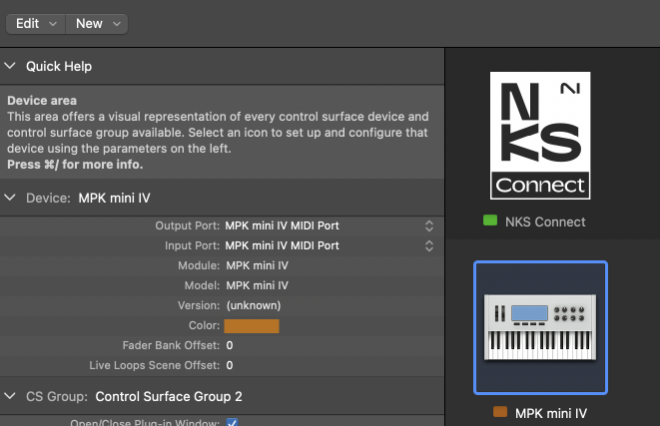
Image file: logic-control-surface-setup-device.png · Alt text: Logic Pro Control Surface Setup window showing the NKS Connect device and an MPK mini IV device, with Output Port and Input Port set to MPK mini IV MIDI Port.
Logic Pro control surface setup with NKS Connect and the MPK mini IV.
- Go to Logic Pro > Settings > MIDI > Inputs.
- Make sure the controller ports and NKS Connect are enabled. Only disable the Plugin Port if you use Maschine Pad Mode. See “Logic Pro: Maschine Pad Mode does not work” below.
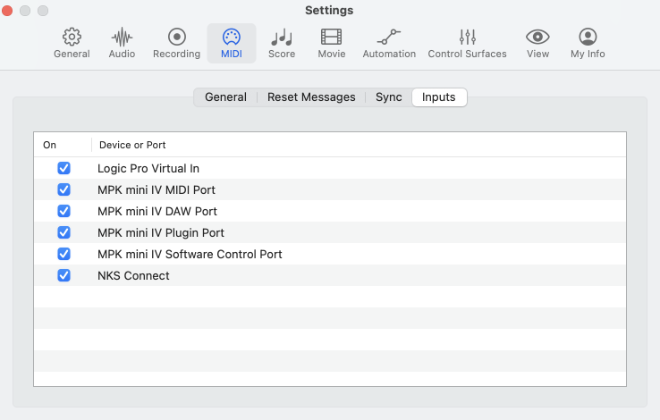
Image file: logic-midi-inputs.png · Alt text: Logic Pro Settings, MIDI tab, Inputs view, listing the MPK mini IV ports and NKS Connect.
Logic Pro MIDI inputs with the controller ports and NKS Connect enabled.
- If the problem continues, reset the control surface preferences file. See “Logic Pro: reset the control surface preferences file” below.
Logic Pro: Maschine Pad Mode does not work
Problem:
Maschine Pad Mode does not work as expected when using Maschine in Logic Pro.
Expected behavior:
Logic Pro requires additional setup for Maschine Pad Mode.
Try this:
- Open Logic Pro.
- Go to Logic Pro > Control Surfaces > Setup.
- Remove any existing controller control surface if it was created before installing NKS Connect.
- Restart Logic Pro.
- Go to Logic Pro > Control Surfaces > Setup.
- Click New > Install.
- Search for NKS Connect.
- Select NKS Connect and click Add.
- In the Device settings, set Output Port to NKS Connect.
- Set Input Port to NKS Connect.
- Go to Logic Pro > Settings > MIDI > Inputs.
- Disable MPK mini IV Plugin Port or MPK mini plus II Plugin Port.
This setup allows Maschine Pad Mode to work correctly in Logic Pro.
Logic Pro creates the controller’s control surface again when you restart Logic Pro or reconnect the controller. Removing it does not change the rest of your setup.
Logic Pro: rebuild control surface defaults
Problem:
Logic Pro does not recognize the controller or NKS Connect after setup, or the control surface setup looks incorrect.
Expected behavior:
Rebuild Defaults resets the control surface setup in Logic Pro so it detects your controller again.
Try this:
- Disconnect the controller from your computer.
- Open Logic Pro.
- Go to Logic Pro > Control Surfaces > Rebuild Defaults.
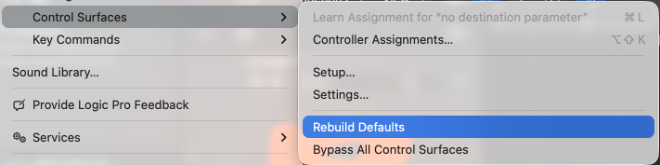
Image file: logic-rebuild-defaults.png · Alt text: Logic Pro menu with the Control Surfaces submenu open and Rebuild Defaults highlighted.
Logic Pro Control Surfaces menu with Rebuild Defaults selected.
Then reconnect the controller. If NKS Connect is no longer listed, add it again. See “Logic Pro: NKS Mode or DAW mode does not work as expected” above.
Logic Pro: reset the control surface preferences file
Problem:
NKS Connect or the controller still does not work in Logic Pro after rebuilding the control surface defaults.
Expected behavior:
Logic Pro stores its control surface setup in a preferences file. Removing this file resets the control surface setup. Logic Pro creates a new file the next time it opens.
Note: This resets your control surface setup in Logic Pro. You will need to add NKS Connect again afterward.
Try this:
- Close Logic Pro.
- In Finder, select Go > Go to Folder.
- Enter ~/Library/Preferences and press Return.
- Find com.apple.logic.pro.cs and move it to the Trash.
- Open Logic Pro.
- Set up NKS Connect again. See “Apple Logic Pro” in NKS Connect - How to set up and use.
Advanced: use Terminal
If you prefer, you can remove the file in Terminal. This deletes the file immediately.
- Close Logic Pro.
- Open Terminal.
- Run the following command, replacing <USERNAME> with your macOS username. To find your username, run whoami.
rm /Users/<USERNAME>/Library/Preferences/com.apple.logic.pro.cs
Cubase: NKS Connect does not work as expected
Problem:
NKS Mode or DAW mode does not work as expected in Cubase.
Try this:
- Update Cubase to the latest available version.
- Install the controller DAW scripts using inMusic Software Center.
- Restart Cubase.
- Connect the controller.
- Open a project with Kontakt, Komplete Kontrol, or Maschine.
- Select the track containing the NKS-compatible plug-in.
- Press Plugin / DAW on the controller to switch between DAW mode and NKS Mode
Maschine Pad Mode does not work in a DAW
Problem:
Maschine Pad Mode does not work as expected when Maschine is loaded as a plug-in inside a DAW.
Expected behavior:
Maschine Pad Mode works as expected in Maschine standalone mode. When using Maschine as a plug-in inside a DAW, additional DAW setup may be required.
Try this:
- For Ableton Live: use Maschine in standalone mode for Maschine Pad Mode.
- For Logic Pro: follow the Logic Pro setup steps above.
- For Cubase: update to the latest version and make sure the required DAW scripts are installed.
Parameters do not show or control correctly
Problem:
The knobs do not control the expected parameters, or parameter names and values do not appear on the controller display.
Try this:
- Confirm that the controller is in NKS Mode.
- Confirm that an NKS-compatible plug-in is loaded on the selected track.
- Confirm that the controller is active in NKS Connect.
- Load a Kontakt, Komplete Kontrol, or Maschine instrument.
- Try another NKS preset or instrument.
- Restart the DAW.
- Restart NKS Connect from Native Access.
Preset browsing does not work
Problem:
Preset browsing from the controller does not work, or the expected preset list is not shown.
Expected behavior:
In NKS Mode, the controller follows the filtered preset list shown in Kontakt, Komplete Kontrol, or Maschine.
Try this:
- Confirm that the controller is in NKS Mode.
- Confirm that Kontakt, Komplete Kontrol, or Maschine is focused.
- Select the track containing the NKS-compatible plug-in.
- Check whether filters are applied in the software browser.
- Clear or adjust filters if the expected presets are not shown.
- Use the encoder to browse presets.
- Hold Shift while turning the encoder to move through the list faster.
If the issue continues
If the issue continues, please contact Support and include the following information:
- Operating system and version
- DAW and version
- Native Access version
- NKS Connect version
- Hardware Connection Service version
- Controller model (MPK mini IV or MPK mini plus II) and firmware version
- NI software used: Kontakt, Komplete Kontrol, or Maschine
- Whether you used standalone mode or plug-in mode
- Whether NKS Connect and Hardware Connection Service were running
- Logic Pro only: whether you rebuilt the control surface defaults or reset the control surface preferences file
- Steps to reproduce the issue
- What you expected to happen
- What actually happened
- Screenshots or videos, if helpful
Was this article helpful?
That’s Great!
Thank you for your feedback
Sorry! We couldn't be helpful
Thank you for your feedback
Feedback sent
We appreciate your effort and will try to fix the article