My Komplete Kontrol / Maschine Browser has duplicate presets
Symptom
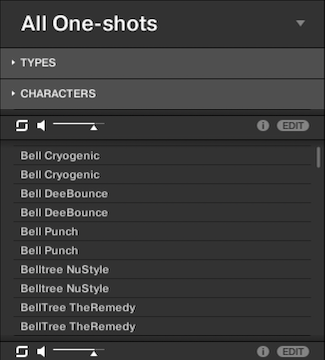
The Komplete Kontrol or Maschine Browser displays duplicate presets.
Solutions
Reinitializing the Komplete Kontrol / Maschine Database
In this example, we reinitialize the Maschine database but this procedure is the same with Komplete Kontrol. Please choose your operating system below:
macOS:
- Close Maschine and all other music applications.
- Navigate to the following folder:
Macintosh HD > Users > *Your User Name* > Library > Application Support > Native Instruments > Maschine 2 / 3Note: The User Library is a hidden folder on macOS
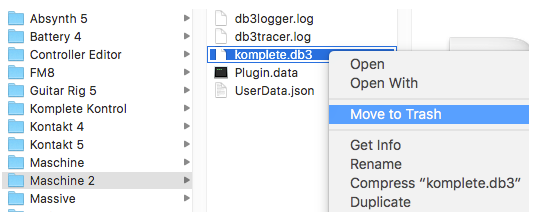
. - Delete the "komplete.db3" file by right-clicking it and choosing Move to Trash.
- Also, delete the Favorites database file that is used by the Komplete Kontrol and Maschine software.
Note: We recommend saving a backup copy of the Favorites database file before deleting it.
- In the macOS Finder, navigate to the following folder:
Macintosh HD > Users > *Your User Name* > Library > Application Support > Native Instruments > SharedNote: The User Library is a hidden folder on macOS.
- Delete the "favorites.db3" file by right-clicking it and choosing Move to Trash.
- Relaunch the Maschine software and wait for the database to be rebuilt.
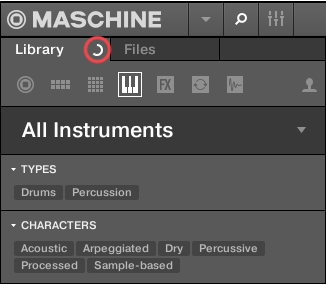
Once completed, the presets will be properly displayed in the browser.
Windows:
- Close Maschine and all other music applications.
- Click the Windows Start Button on the bottom left of your screen.
- Type %localappdata% into the search bar, then press Enter.
- This will open the following folder location:
C: > Users > *Your User Name* > AppData > Local
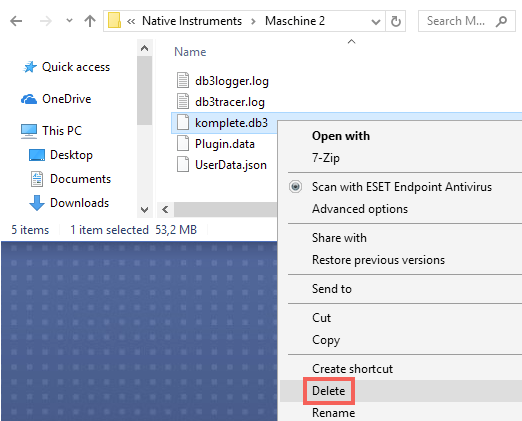
From here, navigate to the folders: Native Instruments > Maschine 2 / 3 - Delete the "komplete.db3" file by right-clicking it and choosing Delete.
- Also, delete the Favorites database file that is used by the Komplete Kontrol and Maschine software.
Note: We recommend saving a backup copy of the Favorites database file before deleting it.
- Click the Windows Start Button on the bottom left of your screen.
- Type %localappdata% into the search bar, then press Enter.
- This will open the following folder location:
C: > Users > *Your User Name* > AppData > Local
From here, navigate to the folders; Native Instruments > Shared. - Delete the "favorites.db3" file by right-clicking it and choosing Delete.
- Relaunch the Maschine software and wait for the database to be rebuilt.
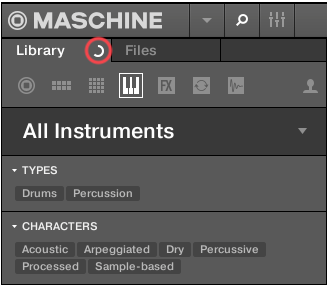
Once completed, the presets will be properly displayed in the browser.
Was this article helpful?
That’s Great!
Thank you for your feedback
Sorry! We couldn't be helpful
Thank you for your feedback
Feedback sent
We appreciate your effort and will try to fix the article