
Komplete Kontrol uses the VST plug-in format. To use your NI or third-party plug-ins in Komplete Kontrol, you must ensure that it scans the folders where your VST plug-ins are located.
TABLE OF CONTENTS
Mac
On a Mac computer, all VST files are automatically installed in the same default folders:
- Macintosh HD > Library > Audio > Plug-Ins > VST
- Macintosh HD > Library > Audio > Plug-Ins > VST3
Komplete Kontrol scans these folders at each startup and recognizes any new plug-ins that have been installed.
Windows
On a Windows computer, VST plug-ins can be installed in any location on your hard drive. The default installation path offered by Native Access is automatically scanned by Komplete Kontrol:
- C: > Program Files > Native Instruments > VSTPlugins 64 bit
Note: VST3 files are always installed in the default folder and should not be moved:
C: > Program Files > Common Files > VST3
If you have installed your VST in a custom folder, the folder path has to be added to the plug-in locations in Komplete Kontrol's Preferences:
- Open Native Access and find your product in the list.
- Click the three dots on the right side and choose Installation Paths.
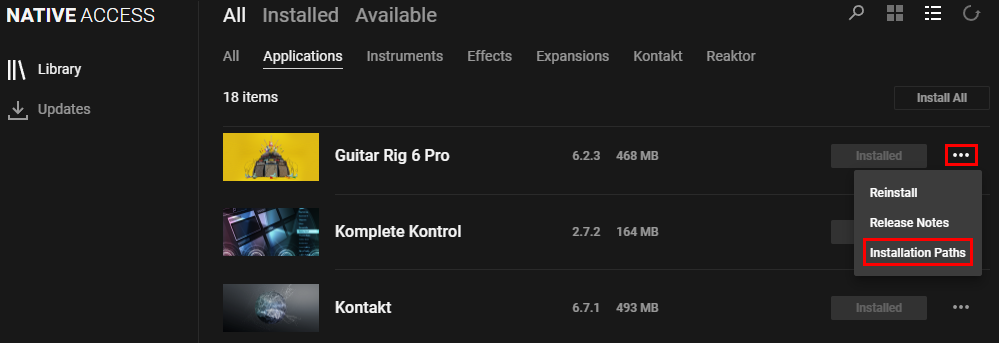
- Below VST Location (64bit), you can see where you've installed the plug-in. In this example, the GUITAR RIG 6 VST plug-in is installed in:
C: > Program Files > My Music Production > My VSTs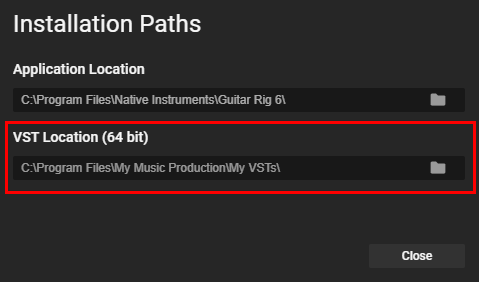
- Close Native Access and start Komplete Kontrol.
- Open Preferences > Plug-ins > Locations.
- If the VST Location doesn't appear already in the list, click Add, navigate to the location, and confirm with Ok. Here, we've added the custom path:
C: > Program Files > My Music Production > My VSTs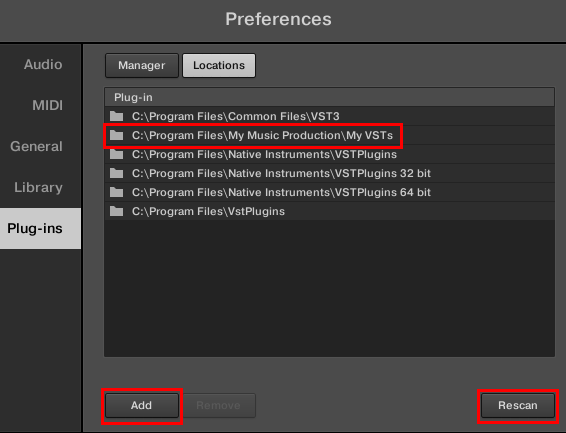
- Now you can click Rescan to scan the new location. This will happen automatically with each start from now on.
Third-Party VST Plug-ins
The above also applies to third-party VST plug-ins. Find out where the plug-ins are installed and add the path to Komplete Kontrol's plug-in locations as shown above.
If your plug-ins are still missing in Komplete Kontrol, please read this article.
Precautions
- Don't add your whole C: or C: > Program Files path.
- Make sure that the added folder only contains sub-folders and VST files.
- VST3 files are always installed in the default folder and should not be moved:
C: > Program Files > Common Files > VST3
Was this article helpful?
That’s Great!
Thank you for your feedback
Sorry! We couldn't be helpful
Thank you for your feedback
Feedback sent
We appreciate your effort and will try to fix the article