KOMPLETE KONTROL Error: “Could Not Load Plug-in” (Mac)
If you receive a “Could not load Plug-in” error in KOMPLETE KONTROL on macOS, it usually means the required plug-in is missing or not found in the correct location.
TABLE OF CONTENTS
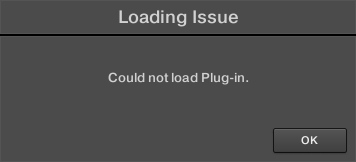
When loading a preset from the KOMPLETE KONTROL Browser, you may receive the following error:
Cause
When you load a preset, KOMPLETE KONTROL loads a plug-in (e.g. Battery, FM8, Massive) that generates the sound.
This error occurs when:
- The required VST plug-in is not found in the expected location
- The product is not installed or not properly installed
Additionally:
- Some Expansions include content (e.g. Battery 4) that requires a valid license
- If the required product is not licensed, this error can appear
Solutions
Check for the plug-in file
The KOMPLETE KONTROL software recognizes VST and VST3 plug-in formats only. If the VST or VST3 version of your NI plug-in is not installed or has been removed, this error message can appear.
To check for the VST plug-in, go to the following location of your computer:
Macintosh HD > Library > Audio > Plug-Ins > VST (folder) / VST3 (folder)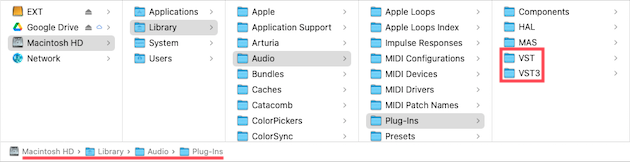
Verify that the NI VST files (.vst / .vst3) are present in their respective VST and VST3 folders.
Reinstall the affected product
- Quit your DAW, and all music software.
- Open Native Access and go to Library > Installed.
- Scroll to the affected NI software and select Reinstall from the three dots menu.
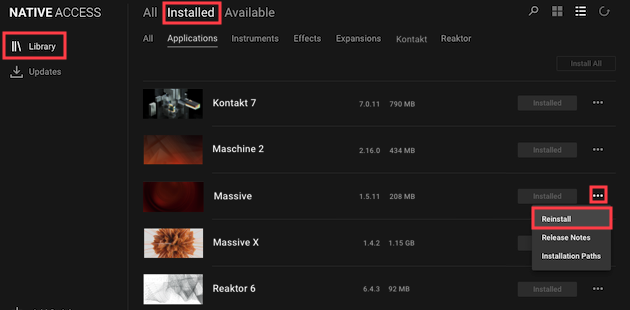
Note: This applies only to NI software plug-ins. You do not need to reinstall any sample libraries.
- Once the reinstallation is finished, relaunch the Komplete Kontrol software and check the Komplete Kontrol Browser to load your presets.
If you still receive the same error message, please proceed to the next chapter below.
Reset the KOMPLETE KONTROL database
- Quit Komplete Kontrol or your DAW.
- Navigate to the folder containing your Komplete Kontrol database files:
Macintosh HD > Users > "User Name" > Library > Application Support > Native Instruments - Delete the folder named Komplete Kontrol that you find here.
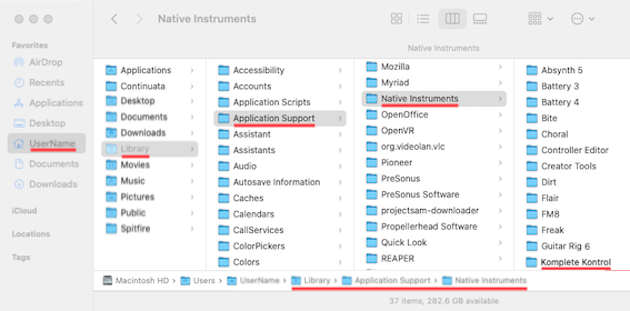
- Relaunch the Komplete Kontrol software and allow the database to rebuild. It may take some time for all content to re-appear in the Browser.
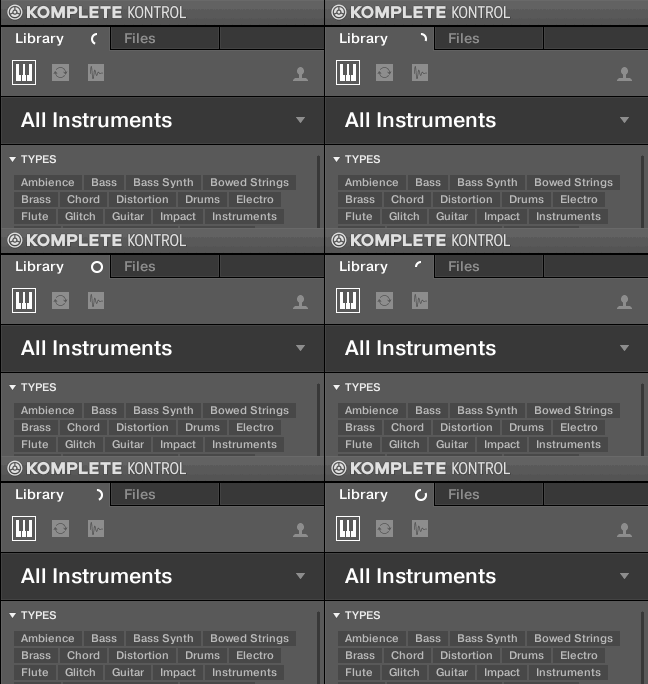
- Once finished, check the Komplete Kontrol Browser to load your presets.
After following these troubleshooting steps, you should now be able to load your presets from within the Komplete Kontrol Browser.
Was this article helpful?
That’s Great!
Thank you for your feedback
Sorry! We couldn't be helpful
Thank you for your feedback
Feedback sent
We appreciate your effort and will try to fix the article