If you see a “Plug-in not found” error in KOMPLETE KONTROL, it is usually caused by a corrupted database or failed plugin scan.
Loading Issue: Plug-in not found. Please open standalone application to rescan, or rescan manually in the plug-in preferences.
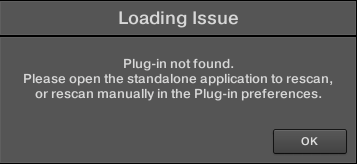
TABLE OF CONTENTS
Cause
This issue occurs if the Komplete Kontrol database becomes corrupted. This can happen if, for example, the startup routine of the Komplete Kontrol software does not initialize correctly.
How to fix it
Resetting the Komplete Kontrol database will resolve the issue. Below you find the steps to do this for both macOS and Windows:
Resetting the Komplete Kontrol Database for macOS
- Make sure Komplete Kontrol is not running.
- Navigate to the following folder:
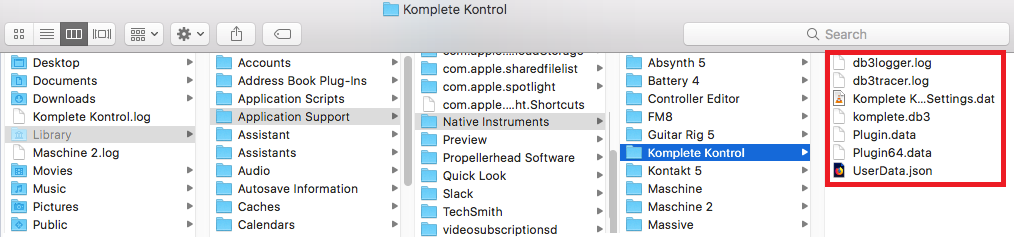
Macintosh HD > Users > *Your User Name* > Library > Application Support > Native Instruments > Komplete KontrolNote: the User Library folder is hidden. To access it, click on Go in the menu bar and press the Alt key. You'll now find the Library entry in the menu:

- Delete the files contained there:
- Start Komplete Kontrol in standalone mode. You find the standalone application here:
Macintosh HD > Applications > Native Instruments > Komplete Kontrol
A splash screen will indicate that it is scanning your Native Instruments libraries and plug-ins. Wait until the scan is complete. - Close the Komplete Kontrol application and start your DAW.
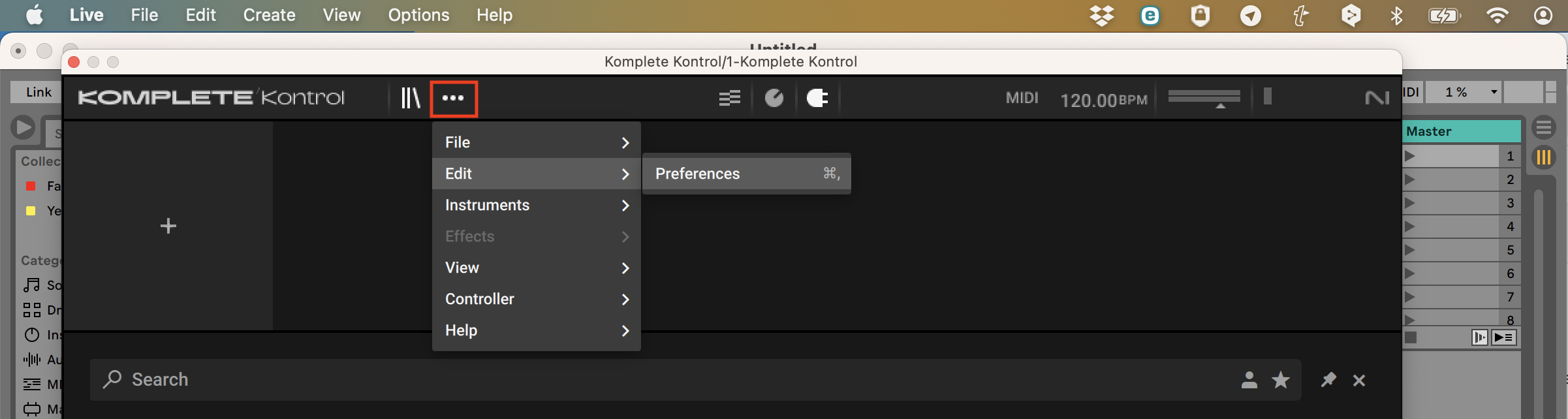
- Load the Komplete Kontrol plug-in and open Edit > Preferences > Plug-ins.
- Click the Rescan button and wait until the scan is finished.
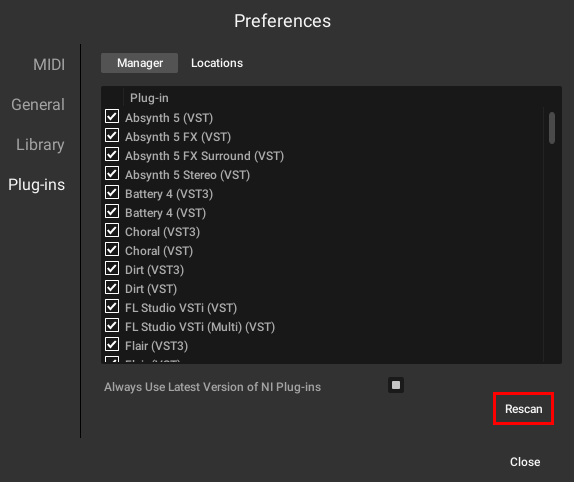
Once complete, the database will have been newly initialized.
Resetting the Komplete Kontrol Database for Windows
- Make sure Komplete Kontrol is not running.
- Navigate to the following folder:
C > Users > *User name* > App Data > Local > Native Instruments > Komplete Kontrol - Delete the files contained there.
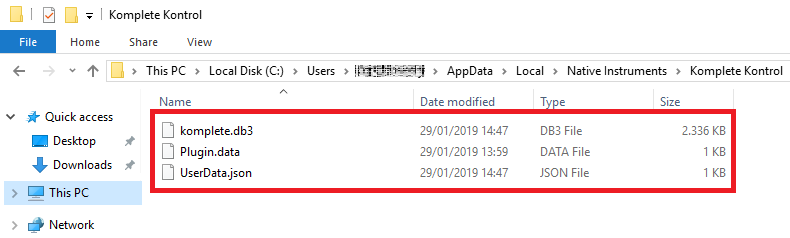
- Start Komplete Kontrol in standalone mode. You find the standalone application here:
C: > Program Files > Native Instruments > Komplete Kontrol
A splash screen will indicate that it is scanning your Native Instruments libraries and plug-ins. Wait until the scan is complete. - Close the Komplete Kontrol application and start your DAW.
- Load the Komplete Kontrol plug-in and open Edit > Preferences > Plug-ins.
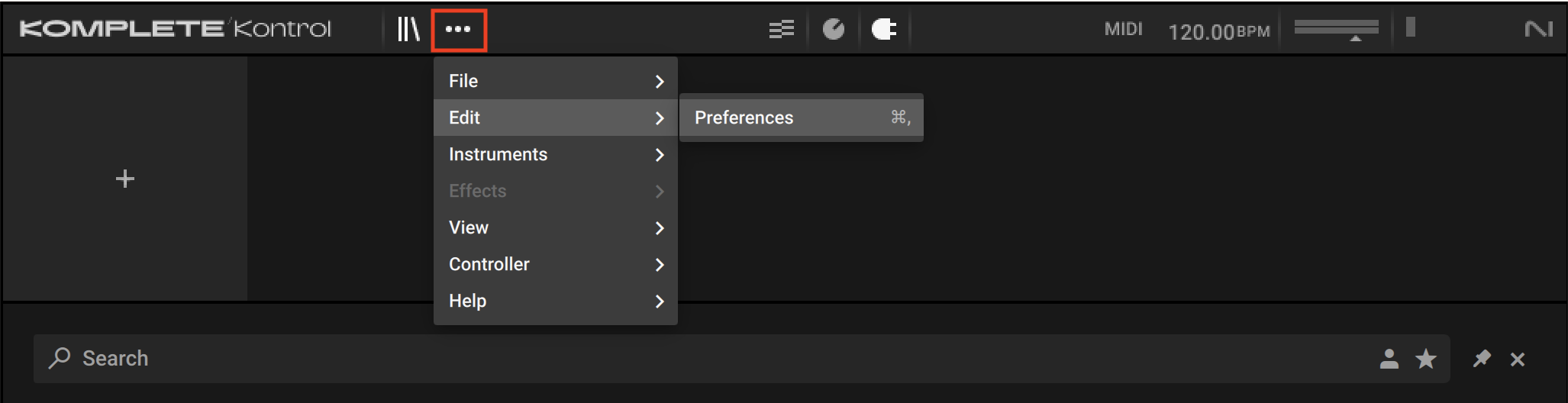
- Click the Rescan button and wait until the scan is finished.
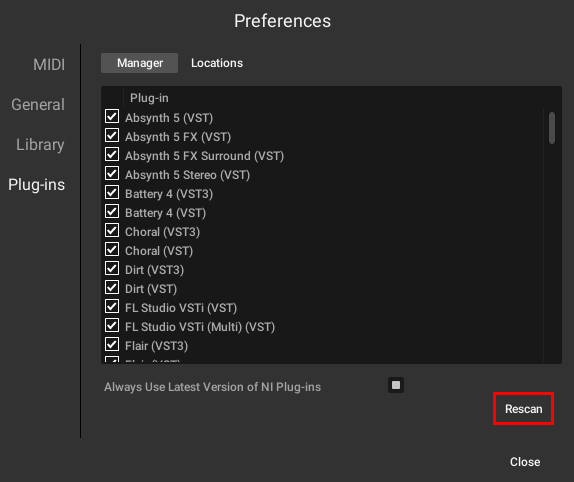
Once complete, the database will have been newly initialized.
Was this article helpful?
That’s Great!
Thank you for your feedback
Sorry! We couldn't be helpful
Thank you for your feedback
Feedback sent
We appreciate your effort and will try to fix the article