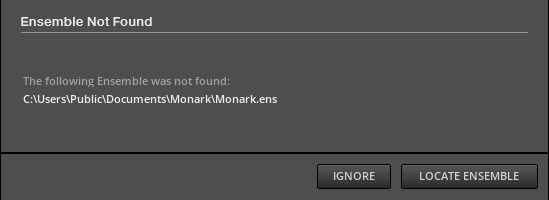
If you see an “Ensemble Not Found” error in KOMPLETE KONTROL, it usually means a required Reaktor-based product is missing or not installed correctly.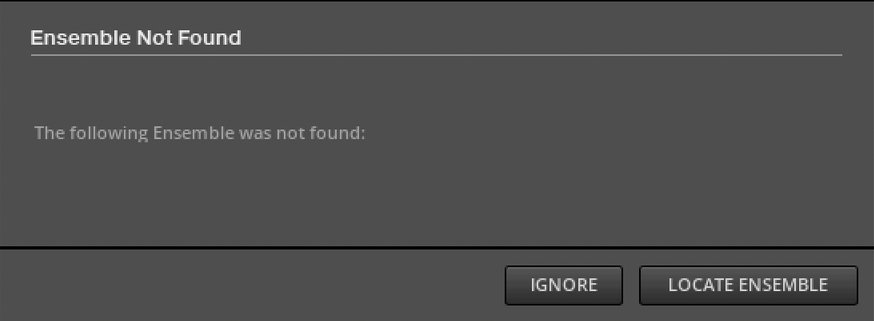
TABLE OF CONTENTS
Common causes
- The required product is not installed
- The product has been moved from its original location
- A preset from an Expansion requires additional Reaktor-based products (e.g., Monark, Prism)
How to fix it
Click the scenario you are experiencing below to reveal the appropriate steps
The Name of the Missing Ensemble Does not Appear in the Error Message
Expansion users:
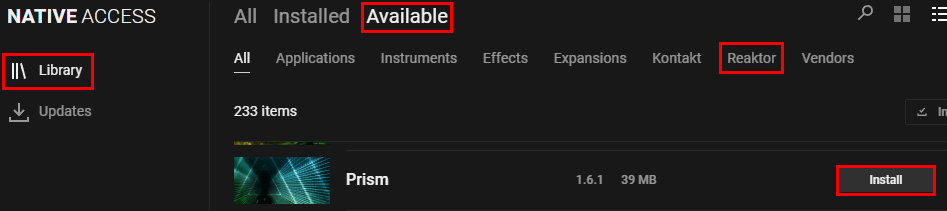
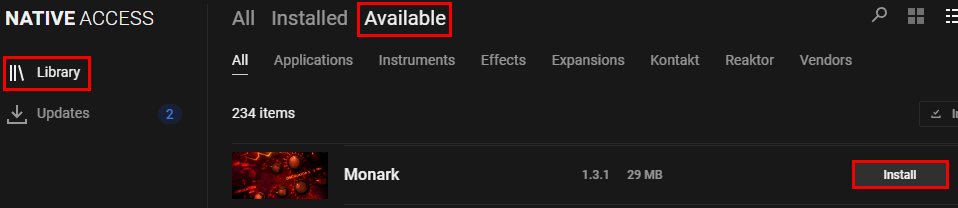
- In case you have Expansions installed, please open Native Access 2 and install Massive, Monark, Prism, or any other Reaktor-based product from Library > Available > Reaktor:
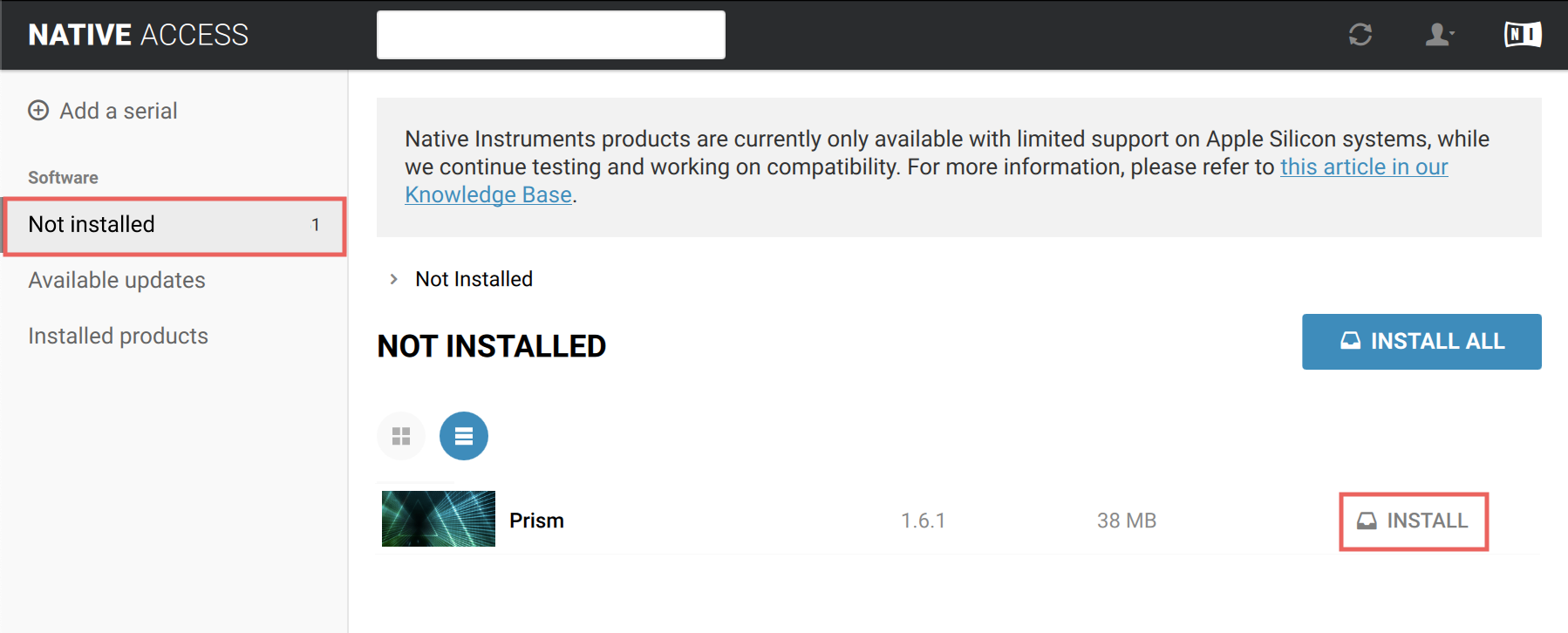
- If you are using Native Access 1, you find them in the Not installed tab:
- Relaunch Komplete Kontrol in standalone mode so that it can rebuild its database. Once done, try reloading the preset.
All users:
If you don't know which Reaktor Ensemble is associated with the preset, follow these steps to find out:
- Click the IGNORE button to exit the error message window.
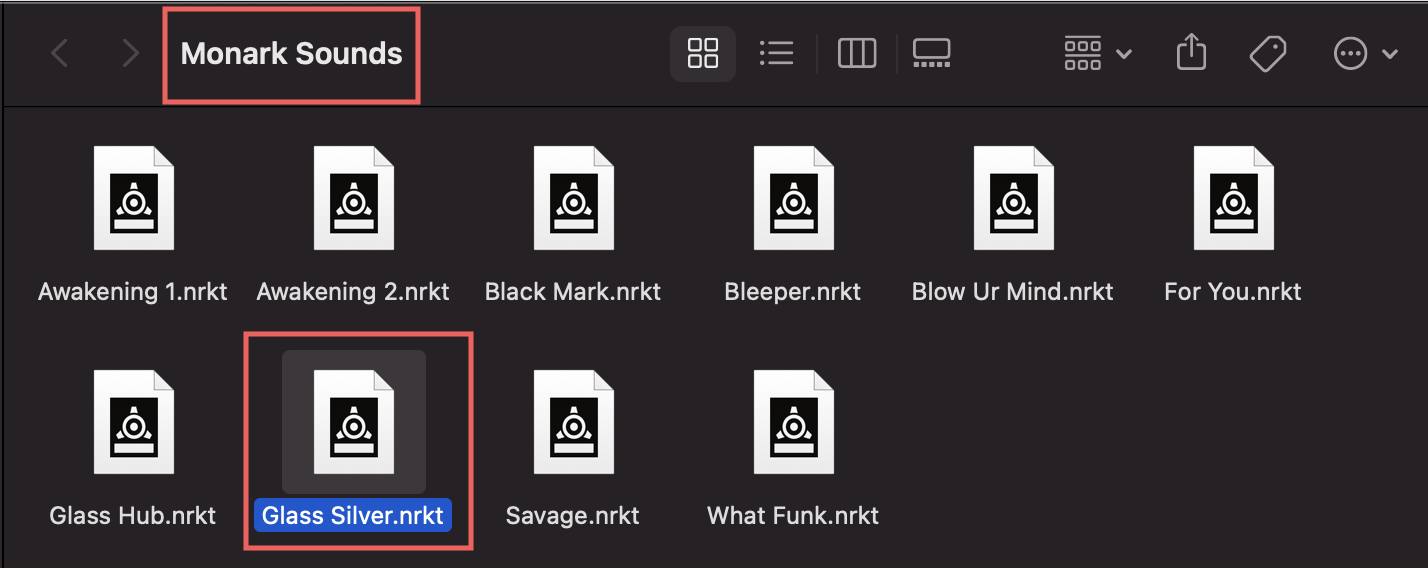
- Right-click on the preset you tried to load and select Find In Finder (macOS) or Find in Explorer (Windows). In this example, we did this on the preset called Glass Silver, as shown below.
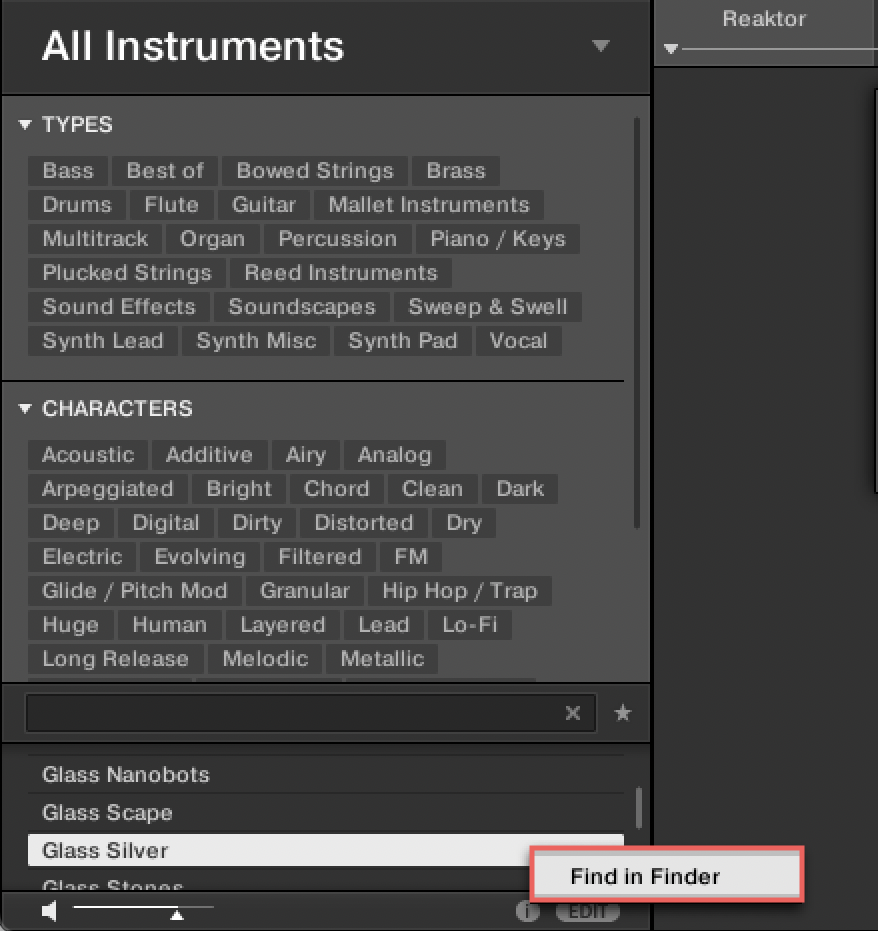
- The folder containing the preset should open. The name of the folder tells us which product is required to load this preset. In this case, it is Monark.
- Close Komplete Kontrol and launch Native Access 2, then navigate to Library > Available. If the product is present and ready for installation, click the Install button to install it.
If you are using Native Access 1, you can find the product in the Not Installed tab: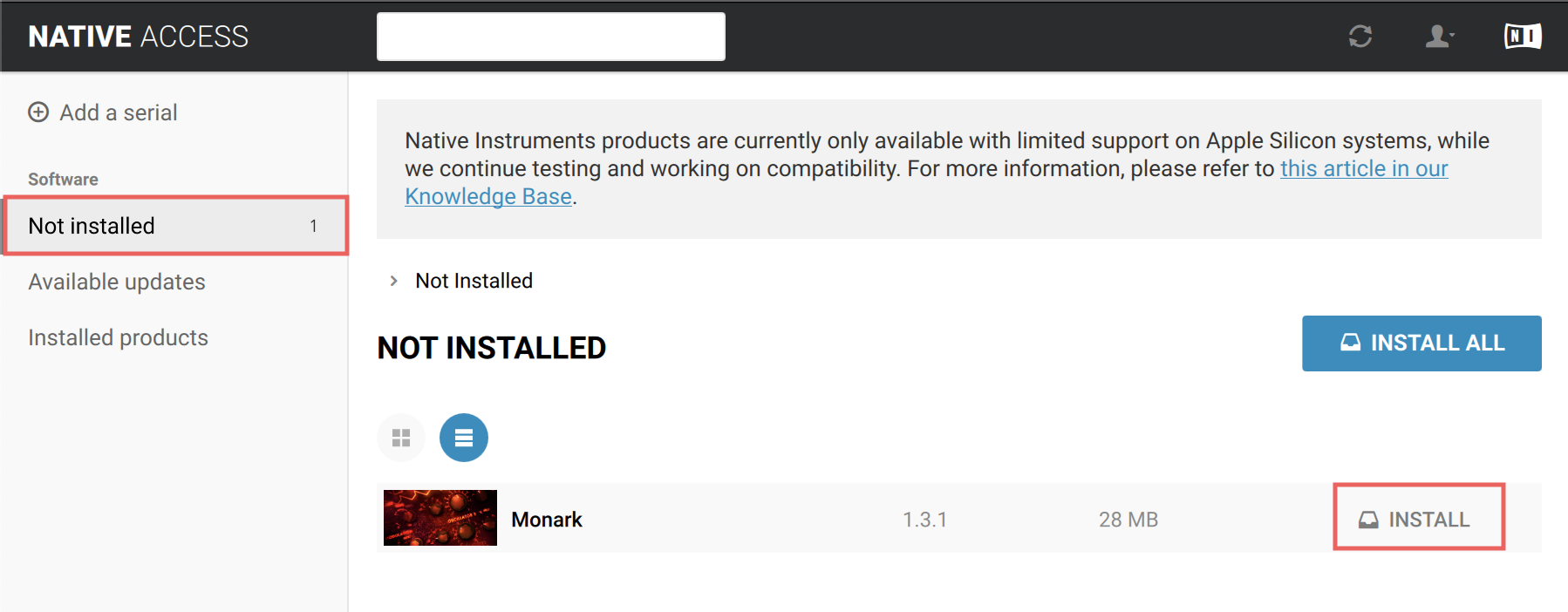
- Relaunch Komplete Kontrol in standalone mode so that it can rebuild its database. Once done, try reloading the preset.
Note: If the necessary product is not available in the Not Installed tab, you may not be logged into the correct account. Check which account you are logged into by clicking the User icon in the top right corner of the Native Access window.
The Name of the Missing Ensemble Appears in the Error Message
Ensemble location known
If you know the new location of the Ensemble, click the LOCATE ENSEMBLE button and navigate to the new location. The preset should work after it's been relocated.
Ensemble location unknown
If you don't know the new location, click the IGNORE button, close Komplete Kontrol and follow these steps:
- Open Native Access 2 and find your product in Library > Installed.
- Click the Repair button and choose Reinstall:
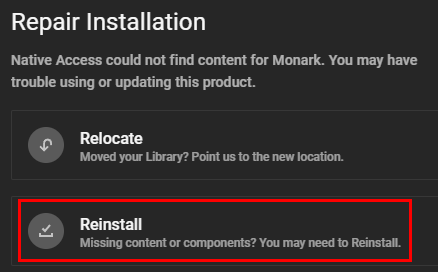
If you are using Native Access 1, open the Installed Products tab, click the REPAIR button, and select REINSTALL: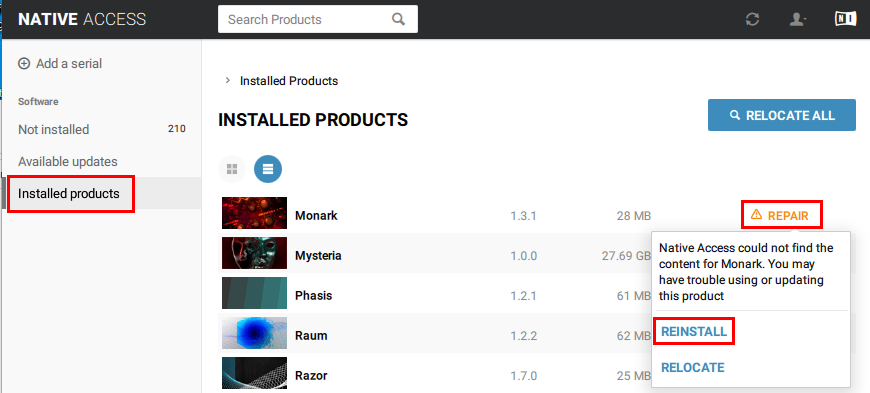
- Close Native Access and relaunch Komplete Kontrol in standalone mode so that it can rebuild its database. Once done, try reloading the previously affected preset.
Was this article helpful?
That’s Great!
Thank you for your feedback
Sorry! We couldn't be helpful
Thank you for your feedback
Feedback sent
We appreciate your effort and will try to fix the article