This article will explain how to establish a TouchOSC connection via a local network for use with Reaktor.
TABLE OF CONTENTS
macOS
Create a Local Network
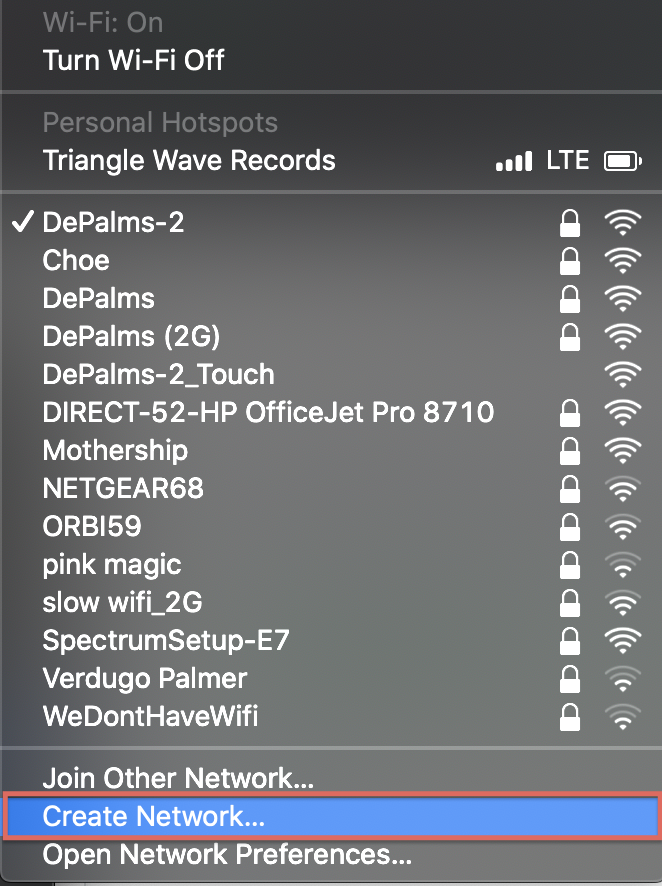
- Click on the network icon from the Menu bar in the top right of the screen.

- Select Create Network from the drop-down menu.
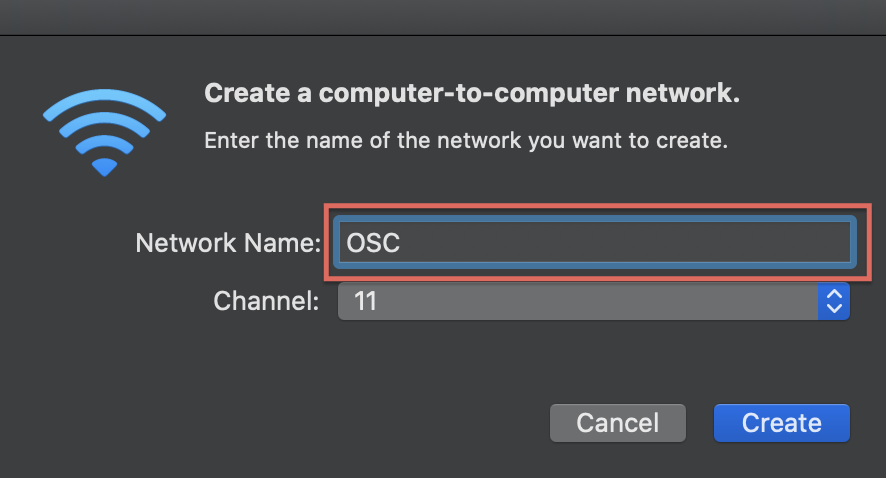
- Choose a Network Name. In this example the name is OSC.
Join the Network with your iPad
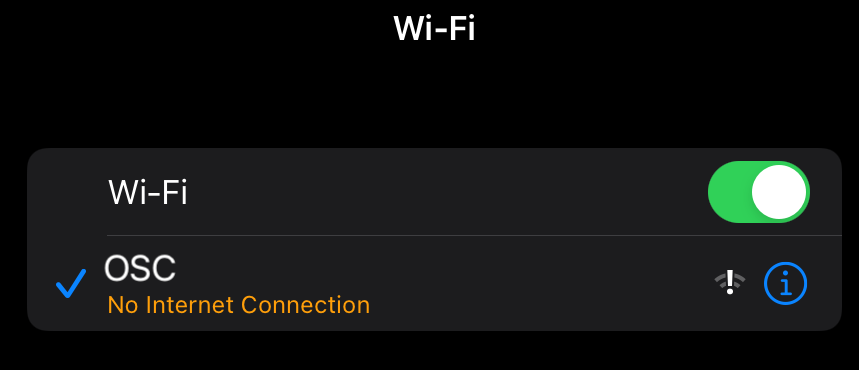
- On your iPad go to Settings >Wi-Fi and look for your network name. Click on it to join it.
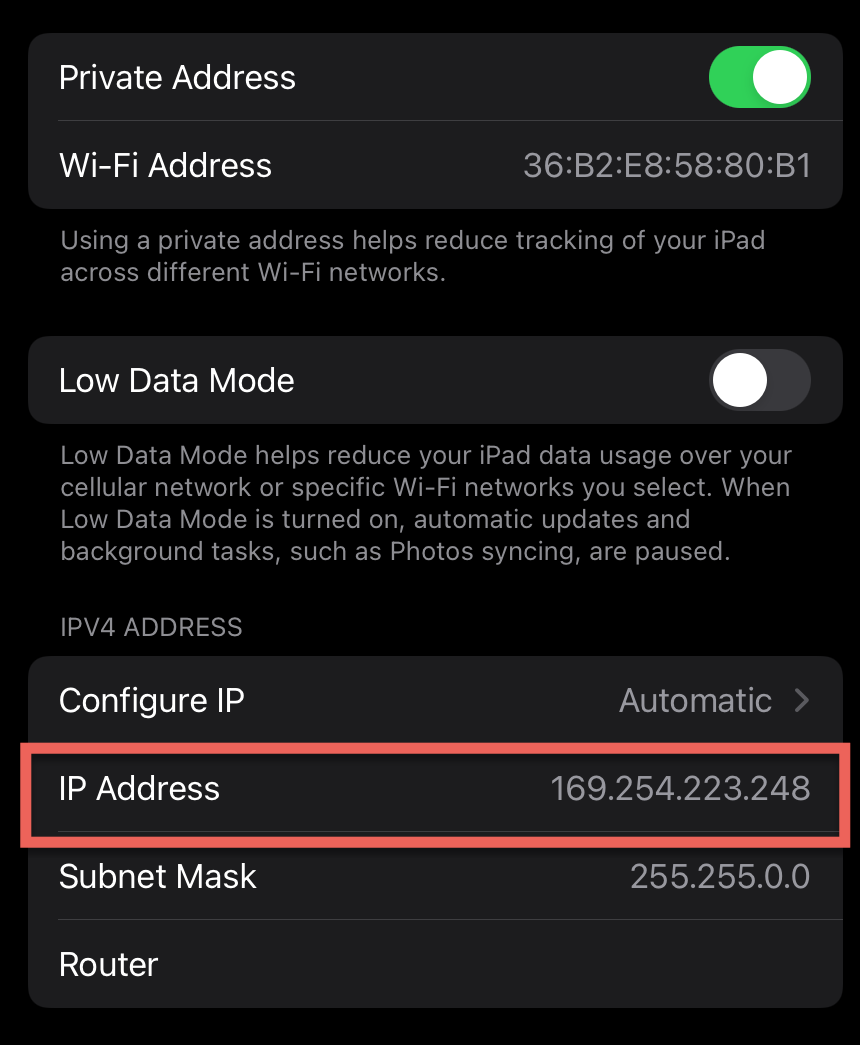
- Tap on the information icon to see its properties. After a few seconds, the IP address should appear. Make a note of the 12 digit number, which should begin with 169.254... You will need to enter this number later in this tutorial.
Reaktor OSC Settings
- Launch Reaktor and click on File > OSC settings. Make sure the box next to OSC Activate is checked and that Receive on Port is set to 10000.
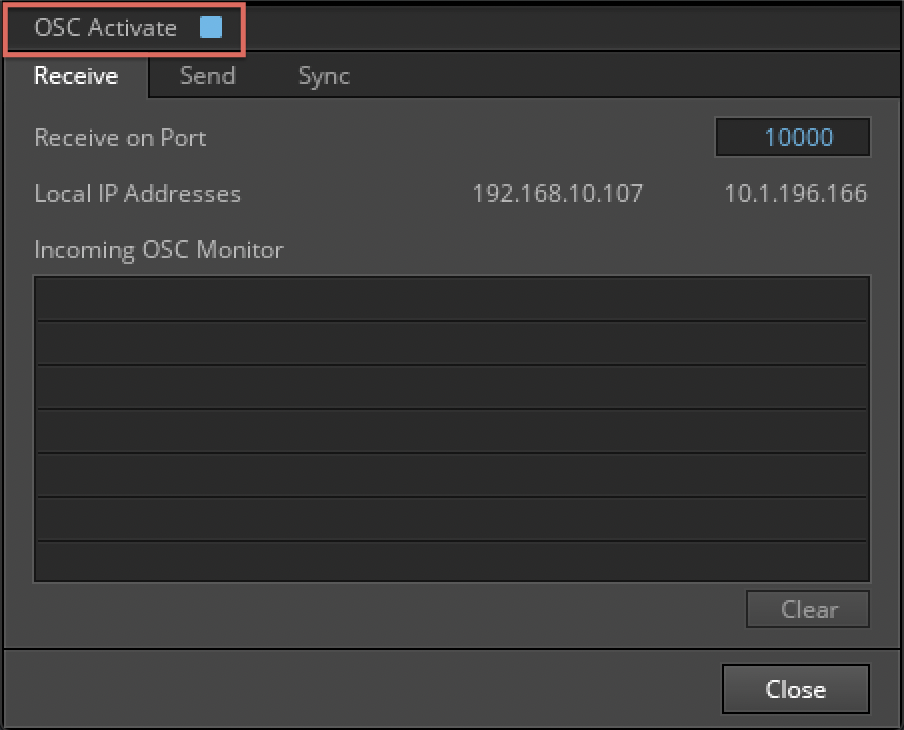
- Click on the Send tab.
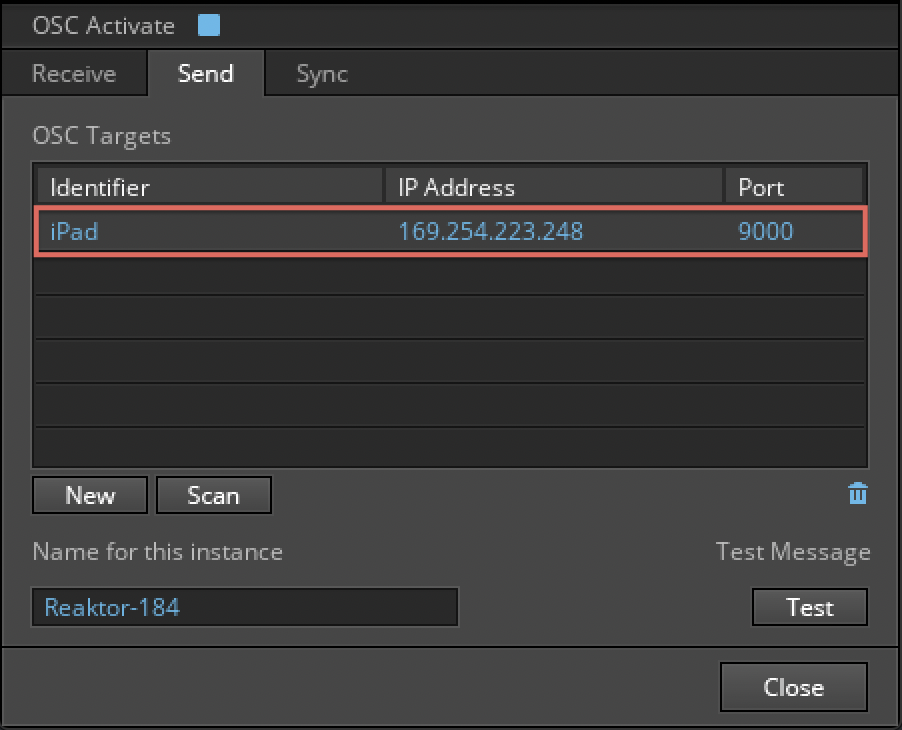
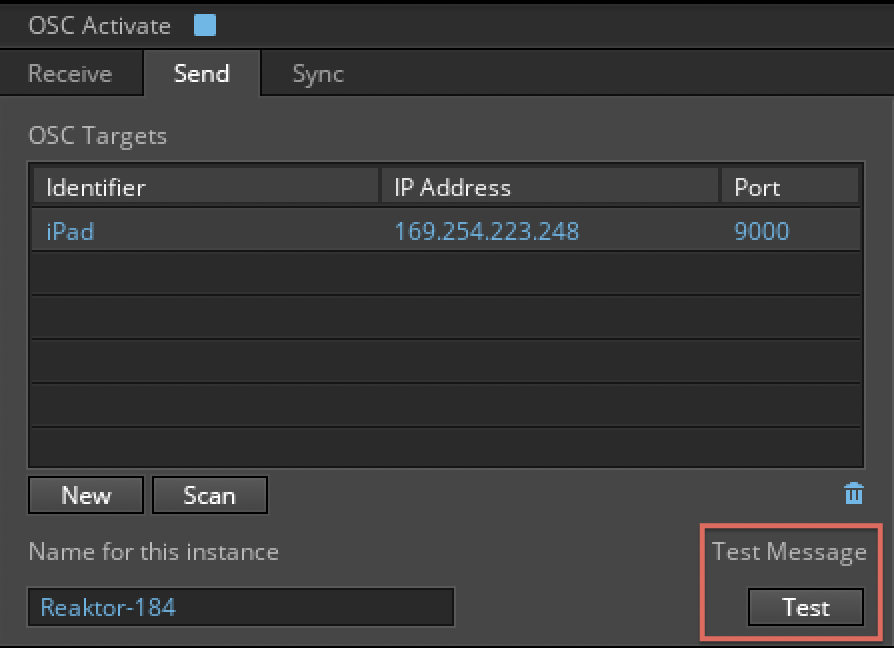
- Create a new OSC Target by clicking on New. In the Identifier field, rename the newly created default entry to iPad. Under IP Address, enter the number you made a note of earlier on in the tutorial. Set the Port to 9000.
Setting up TouchOSC on your iPad
- Open TouchOSC on your iPad. In the preferences, go to Connections > OSC and check that OSC is enabled.

- Under Host, enter your local network name (here it is OSC.local). Set the Port (outgoing) to 10000 and Port (incoming) to 9000.
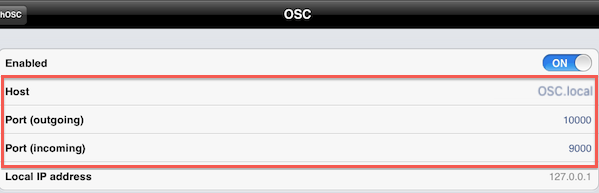
- In the TouchOSC preferences, load any layout. In this example, we will load Beatmachine.
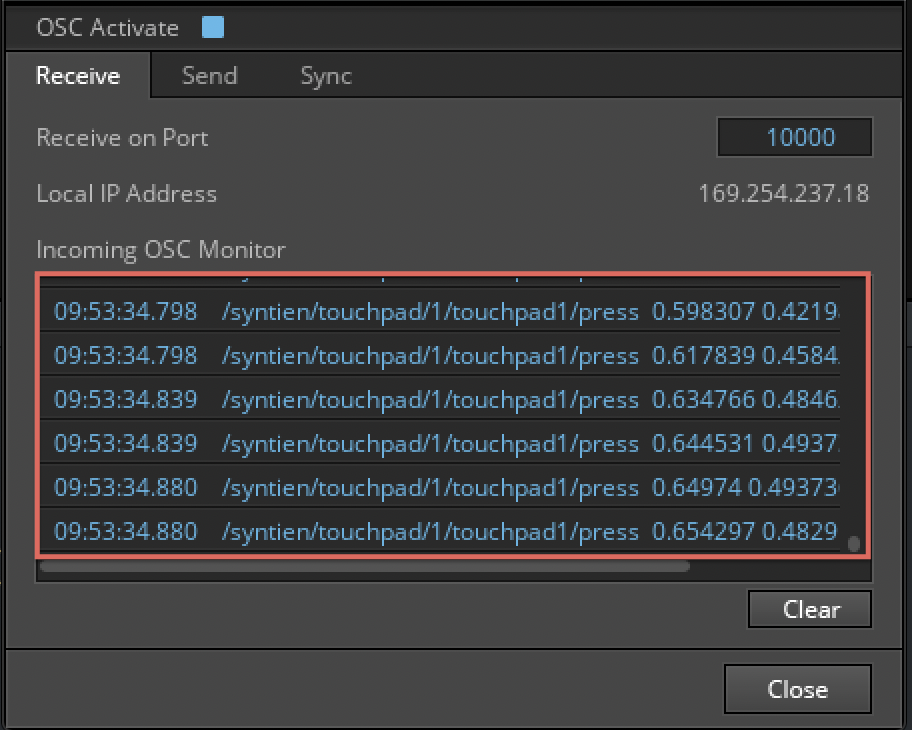
- Go back to the ReaktorOSC Settings window and click on the Receive tab. Move a slider on the Beatmachine layout. Some incoming messages should become visible in the Incoming OSC Monitor area.
Note: If no messages appear in the Incoming OSC Monitor, check if your iPad is properly connected to your local network. In the TouchOSC Connections menu, make sure Host name and Port (outgoing) are set up correctly.
- Select the Send tab. Click on the Test button to verify that TouchOSC can receive messages from Reaktor.
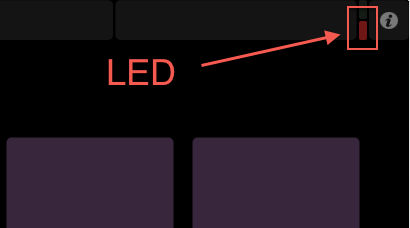
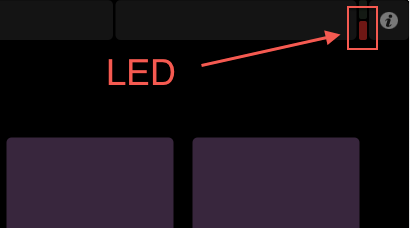
- In the TouchOSC application, an LED will blink to signal that TouchOSC is receiving messages from Reaktor.
You are now set up to use Reaktor with TouchOSC.
Windows
Create a Local Network
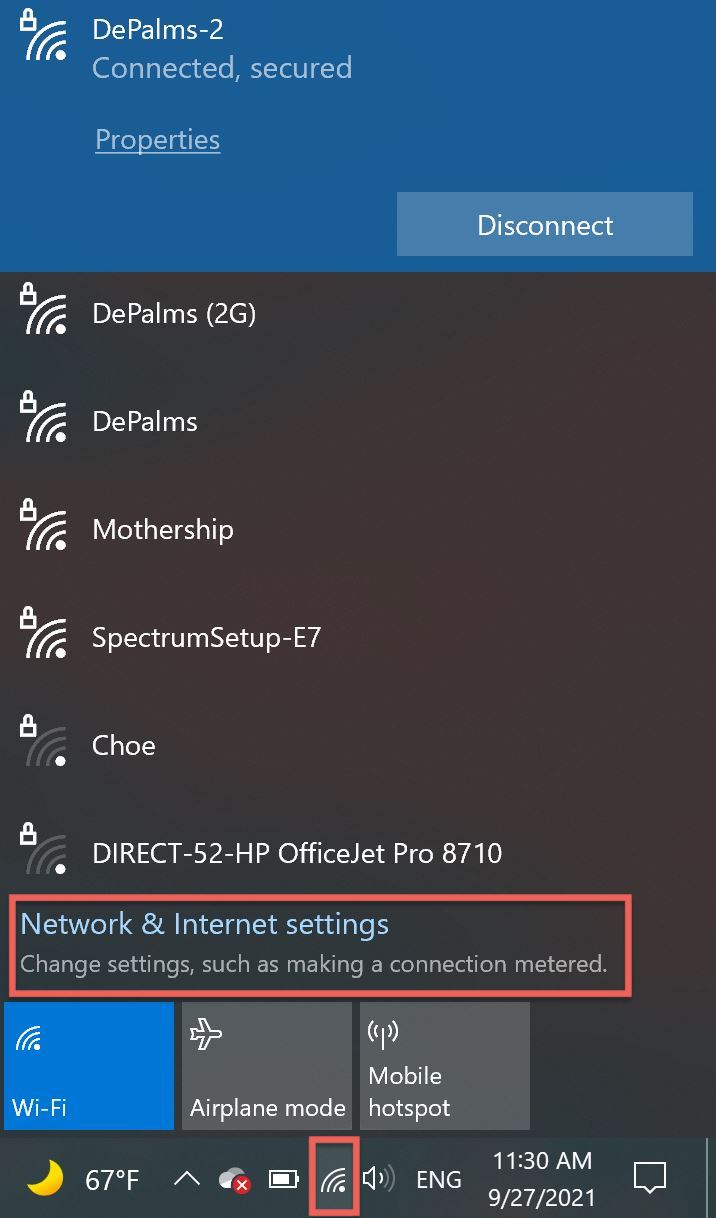
- Click on the network icon located at the bottom right of the Windows taskbar and select Network & Internet settings.
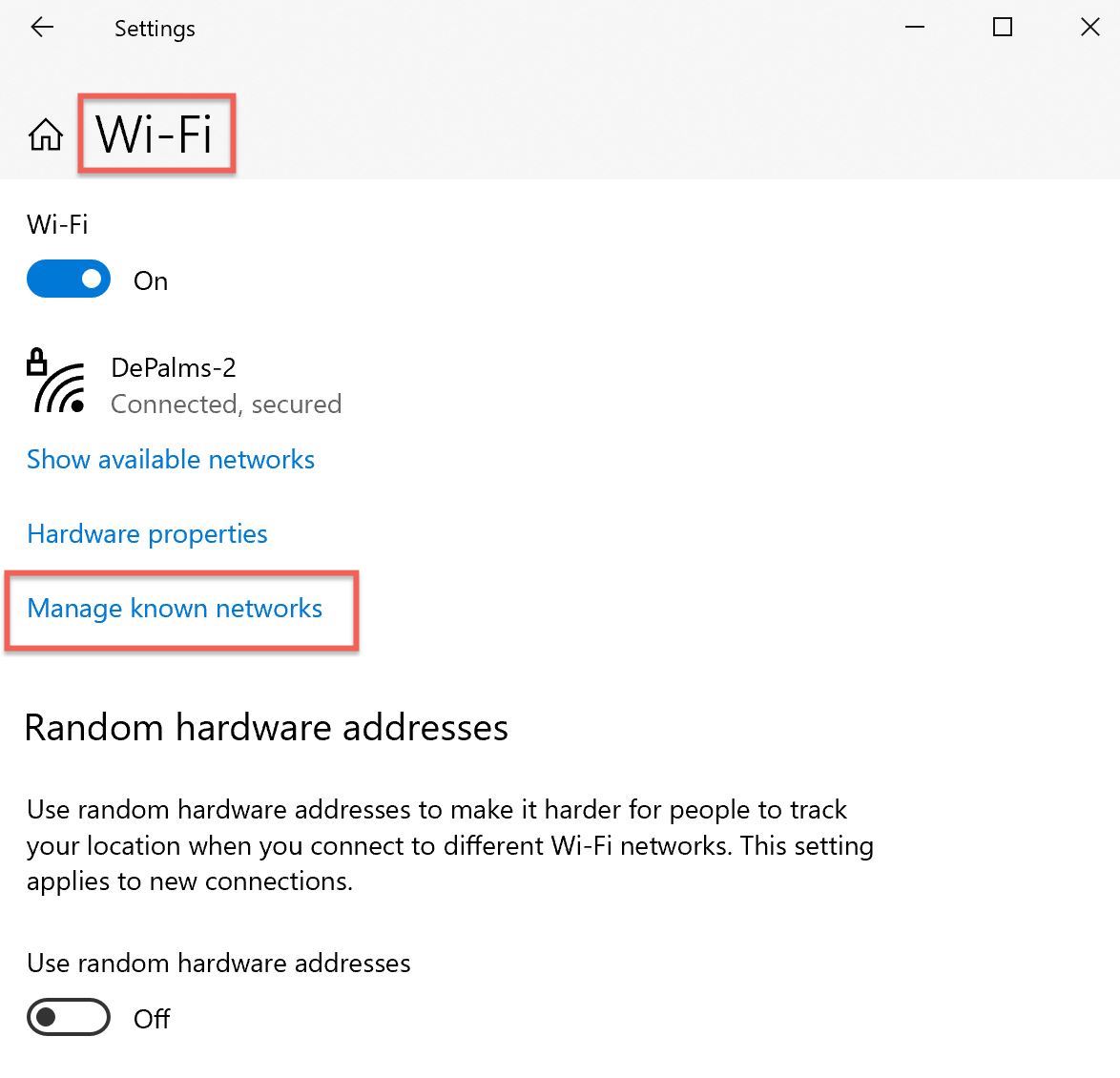
- Click to open the Wi-Fi tab and select Manage known networks.
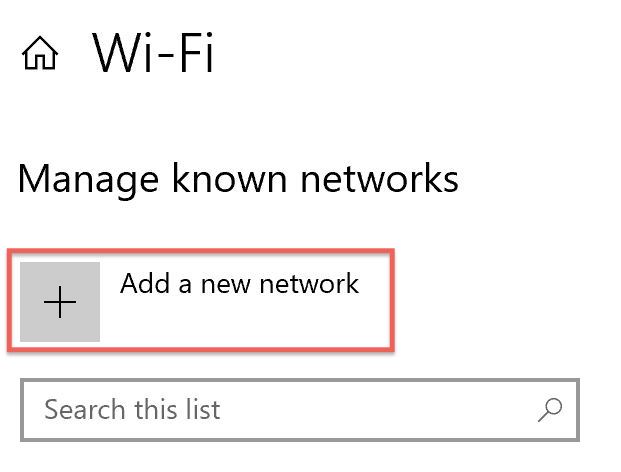
- Click on Add a new network.
- Name your network and choose a security type – WEP or WPA2 are recommended. In this example, we are naming our network OSC and are choosing the WEP security type so that we can choose a password and make the server private. Tick the Connect automatically and Connect even if this network is not broadcasting boxes.
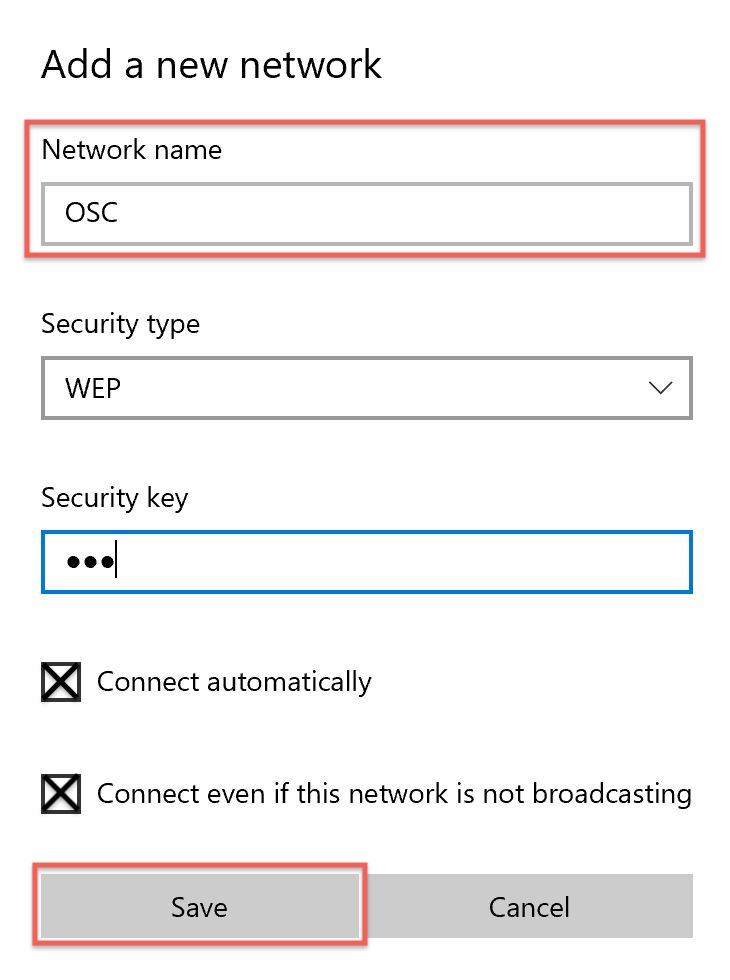
- Click Save to confirm your choices.
Join the Network with your iPad
- On your iPad go to Settings > Wi-Fi and look for your network name. Click on it to join it.
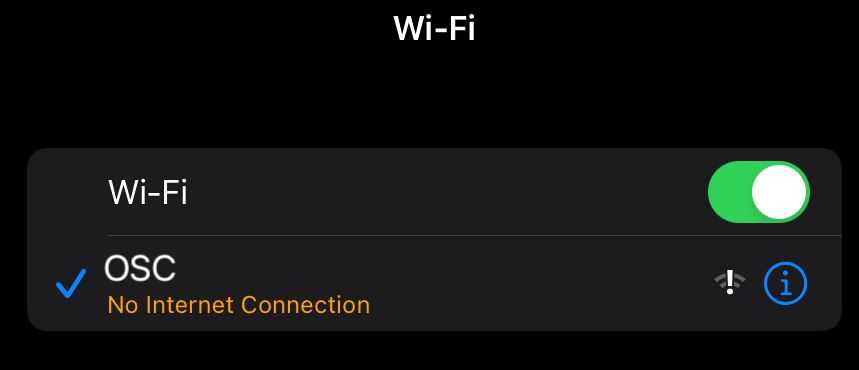
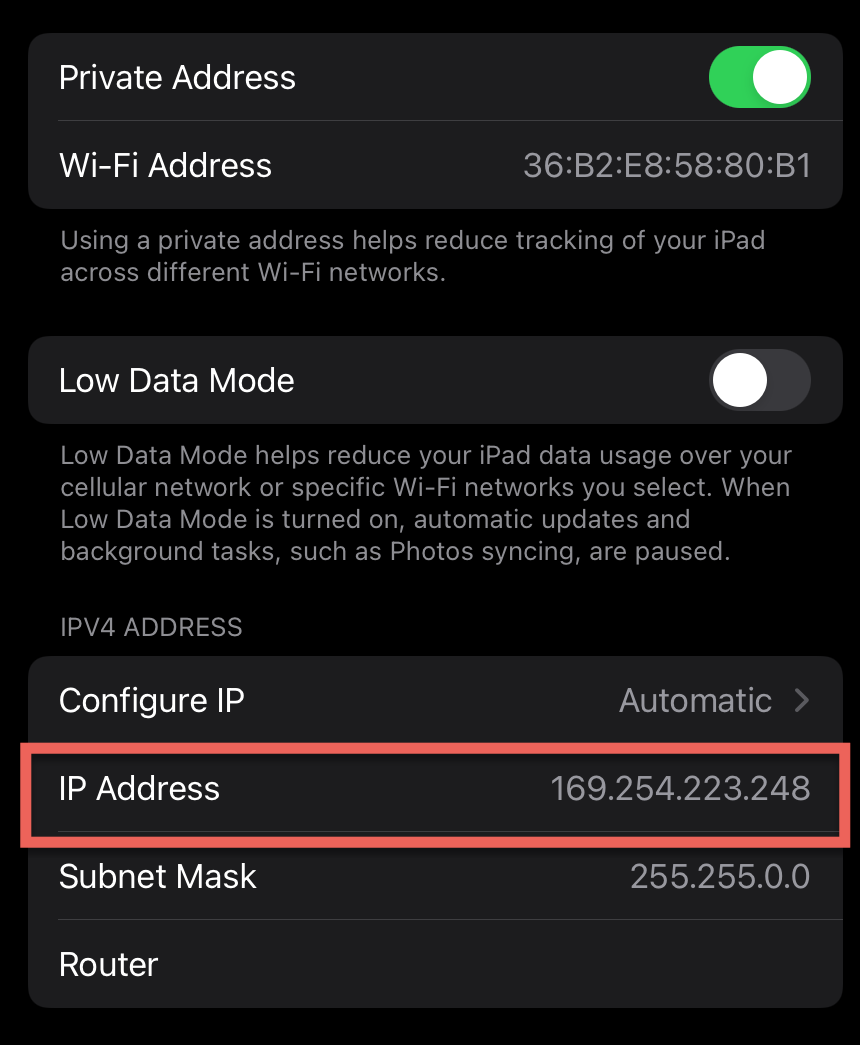
- Tap on the name of the server to see its properties. After a few seconds, the IP Address should appear. Make a note of the 12-digit number, which should begin with 169.254... You will need to enter this number later in this tutorial.
Reaktor OSC Settings
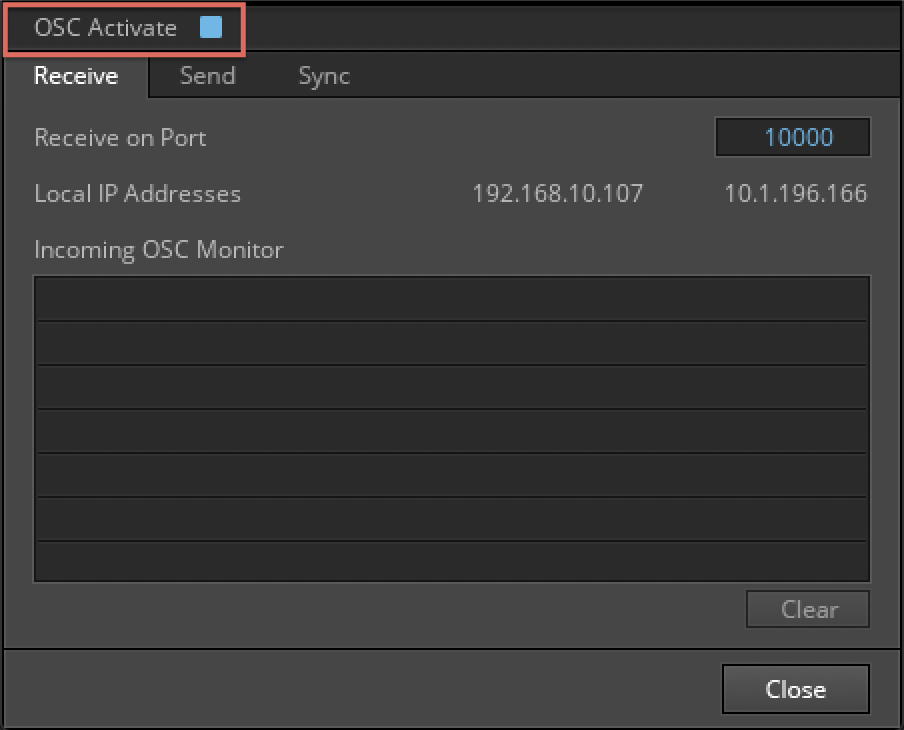
- Open Reaktor. Click on File>OSC settings. Make sure the box next to OSC Activate is checked and that Receive on Port is set to 10000.
- Click on the Send tab.
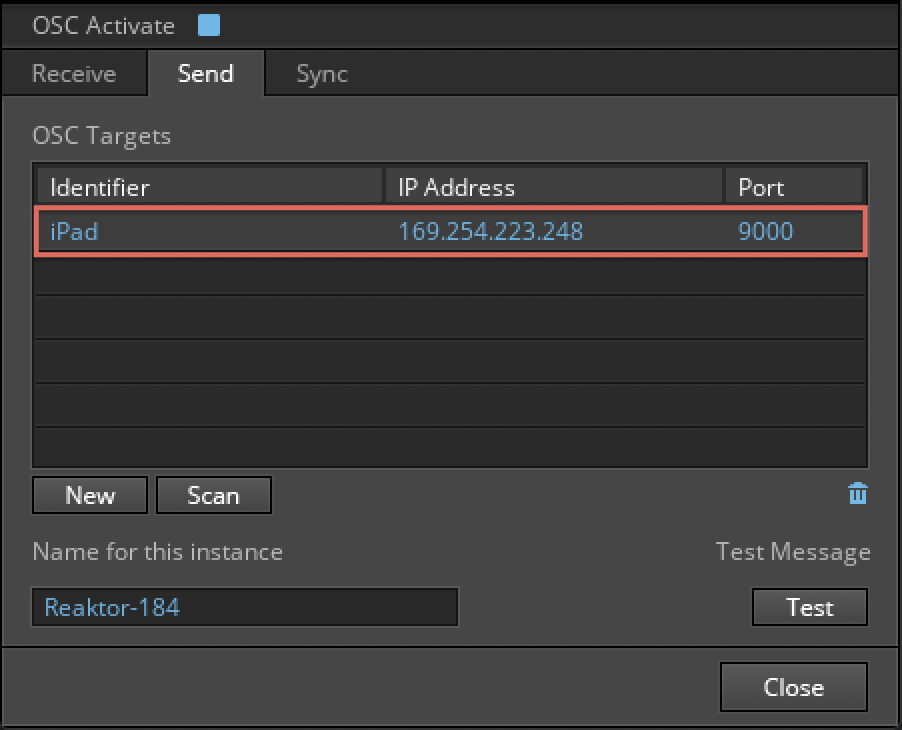
- Create a new OSC Target by clicking on New. In the Identifier column, rename the newly created default entry to iPad. Under IP Address enter the number you made a note of earlier on in the tutorial. Set the Port to 9000.
Setting up TouchOSC on your iPad
- Open TouchOSC on your iPad. In the preferences, go to Connections > OSC and check that OSC is enabled.

- Under Host, enter your local network name.
- In the TouchOSC preferences load any layout. In this example, we will load Beatmachine.
- Go back to the Reaktor OSC Settings window and click on the Receive tab. Move a slider on the Beatmachine layout. Some incoming messages should become visible in the Incoming OSC Monitor area.
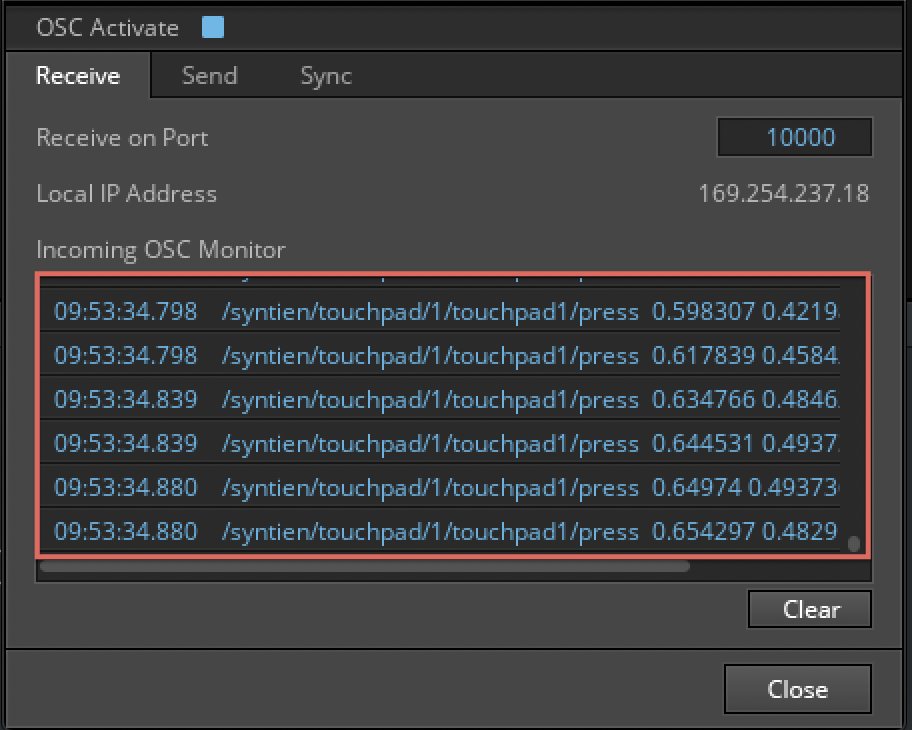
Note: If no messages appear in the Incoming OSC Monitor, check if your iPad is properly connected to your local network. In the TouchOSC Connections menu make sure Host name and Port (outgoing) are set up correctly. - Select the Send tab. Click on the Test button to verify that TouchOSC can receive messages from Reaktor.
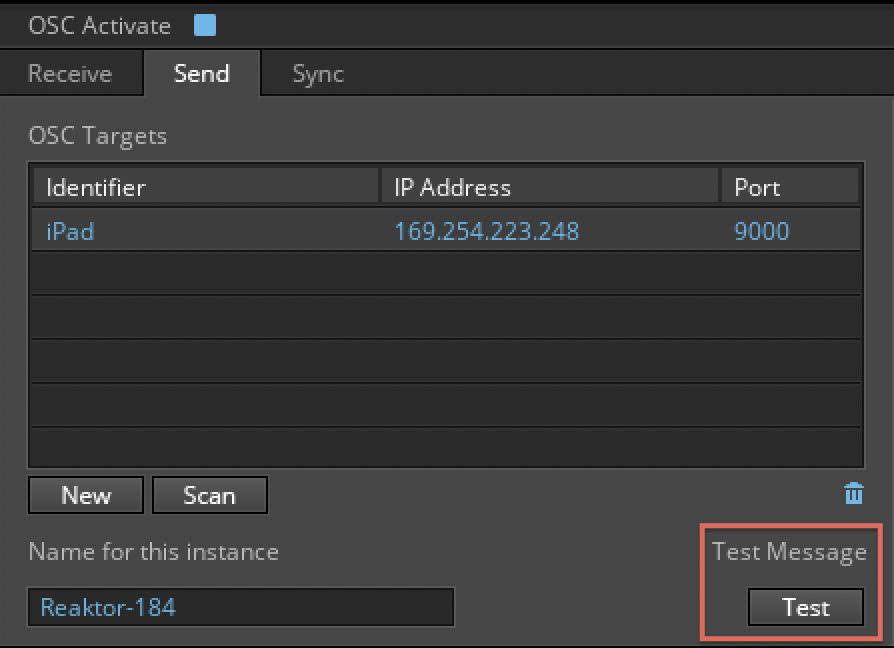
- In the TouchOSC software, an LED will blink to signal that TouchOSC is receiving messages from Reaktor.
You are now set up to use Reaktor with TouchOSC.
Was this article helpful?
That’s Great!
Thank you for your feedback
Sorry! We couldn't be helpful
Thank you for your feedback
Feedback sent
We appreciate your effort and will try to fix the article