How to Resolve Performance Issues with Guitar Rig
TABLE OF CONTENTS
- Symptom
- Solutions
- Check for Updates
- Graphics Card (GPU) Support
- Energy Saver / Power Settings / Power Plans
- Optimizing the Guitar Rig 6 Window (GUI)
- Additional Guitar Rig 6 Settings
- Antivirus and Security Software Exceptions
Symptom
Guitar Rig is using a lot of CPU resulting in freezes and audio glitches during playback.
Solutions
Click to expand the sections below to follow the recommended solutions.
Check for Updates
Make sure that Guitar Rig 6 is updated to its latest version. You can check the Updates section of Native Access for any available updates.
Also, check that your Mac or Windows computer has all of the latest updates installed. This can be done from the System Preferences (macOS) or Start > Settings > Update & Security > Windows Update (Windows).
Graphics Card (GPU) Support
The Guitar Rig 6 Product Information specifies that certain criteria must be met regarding your system Graphics Card Adapter (a.k.a. "GPU"). Please see the details below to ensure that these graphical requirements are met.
Note: Please check this article for general information on the Graphics Card (GPU).
OpenGL / DirectX Support
Make sure your computer's Graphics Card supports OpenGL 2.1 (or higher), or DirectX 9 (or 11). Please contact the manufacturer of your computer's Graphics Card / Adapter for more info on its compatibility with OpenGL or DirectX.Latest Graphics Card (GPU) Driver
Make sure that the latest driver has been installed for your Graphics Card (GPU). The latest drivers are available on the website of your computer's manufacturer, or through an online search of your Graphics Card (GPU) model.Disable Graphics Card Switching (Macbook Pro Only)
If you are using a Macbook Pro that has both a high-performance as well as a dedicated graphics card, we recommend setting the graphics mode to high-performance before using Guitar Rig. You can open the Power / Battery (a.k.a "Energy Saver") section of the macOS System Preferences, and deactivate (un-check) the Automatic graphics switching option from the Power Adapter section.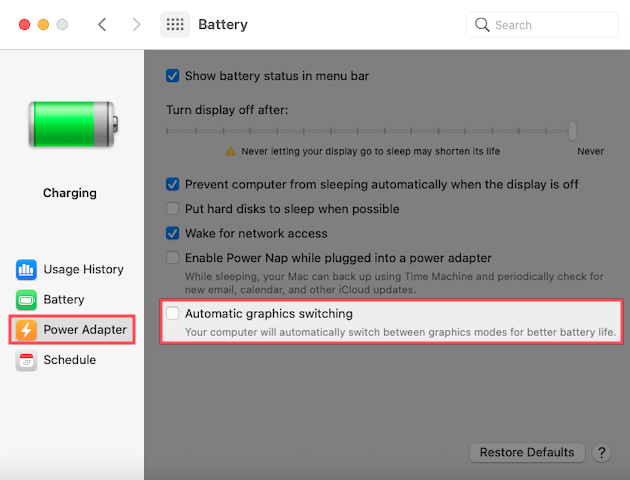
Energy Saver / Power Settings / Power Plans
Your computer setup provides several options to optimize its power consumption during use. For real-time audio applications such as Guitar Rig, these energy options should be disabled.
Note: For best results, it's recommended to follow all steps in the articles linked below.
- On macOS, please see this article for Energy Saver Settings.
- On Windows, please see this article for Energy Options and Power Plan Settings.
Optimizing the Guitar Rig 6 Window (GUI)
Guitar Rig 6 GUI Window Size
In some cases, Guitar Rig 6 performance issues can improve when the software GUI is set to 75%. Click the percentage number at the top of the software interface to select 75%. There is also an option to set a default window size.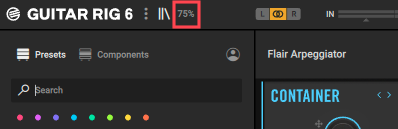
Close the Guitar Rig 6 GUI During DAW Playback
We have found that many Guitar Rig 6 performance issues are improved when the plug-in window is closed during DAW playback. Our developers are aware of this issue and are working on a solution.
Additional Guitar Rig 6 Settings
Guitar Rig 5 and earlier versions featured an optional "HI-Q Mode" that could be disabled. Guitar Rig 6 runs in "HI-Q Mode" by default. There is currently no option to disable the High-Quality Mode in Guitar Rig 6.
There is an option in Guitar Rig 6 to use the new ICM amps in Mono mode by default. This option can improve the overall performance and can be enabled in the Guitar Rig 6 Preferences.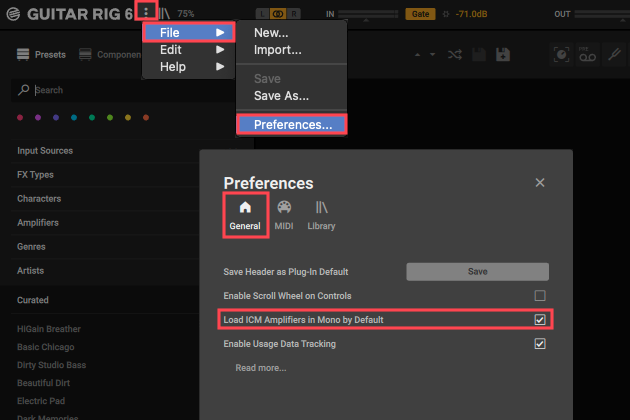
Antivirus and Security Software Exceptions
In some cases, antivirus software may interfere with the use of Guitar Rig and other music production software. You can temporarily disable your antivirus or security software, or try adding your Guitar Rig and DAW folders to the antivirus exception list.
Note: Please check the documentation for your antivirus software or contact the manufacturer if further assistance with its configuration is needed.
Once you have made these adjustments to your antivirus software, reopen Guitar Rig to check that the issue has been resolved.
Was this article helpful?
That’s Great!
Thank you for your feedback
Sorry! We couldn't be helpful
Thank you for your feedback
Feedback sent
We appreciate your effort and will try to fix the article