Controlling Guitar Rig with Automation in Logic Pro
In this article, we will explain how to control the Guitar Rig plug-in using Host Automation in Logic Pro.
The Guitar Rig FX plug-in can be inserted in Logic Pro on both Audio and Instrument tracks.
Configuring your Audio or Instrument Track
In this example, we load Guitar Rig on a Logic Pro Audio Track with an external instrument (e.g. electric guitar). The same instructions also apply to an Instrument Track.
- Launch Logic Pro and create 1 new Audio Track.
- If connecting a Mono instrument like an electric guitar or bass, select a single Audio Input from the drop menu (e.g. Input 1) and click Create.
- If connecting a Stereo instrument like a Keyboard or Drum Machine, select an Audio Input pair from the drop menu (e.g. Input 1 + 2) and click Create.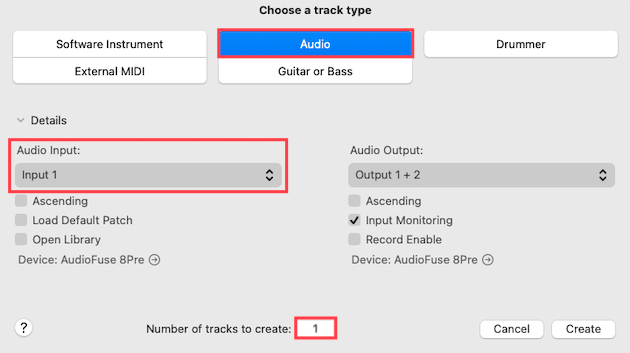
Note: If using a software instrument, click the Software Instrument tab seen above, then click Create.
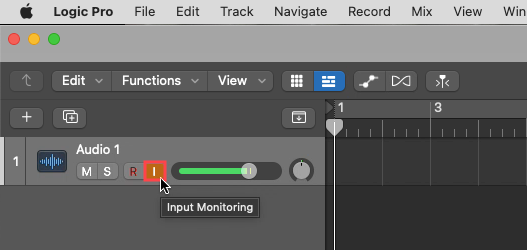
- Connect your instrument to your audio interface and ensure that the track's Input Monitoring tab is active and that you can hear the instrument's dry signal in Logic Pro.
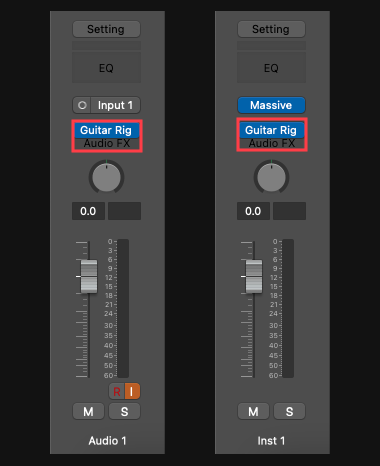
- Insert Guitar Rig as an Audio FX plug-in on the Audio (or Instrument) track.
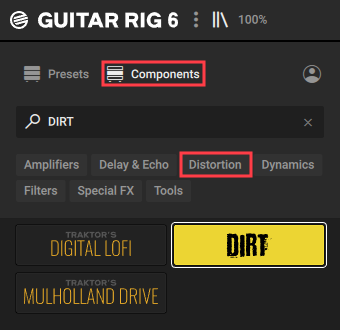
- In the Guitar Rig Browser, choose an Amp, Effect Rack, or preset. In this example, we will load the DIRT effect from the Components > Distortion category.
Track Automation in Logic Pro
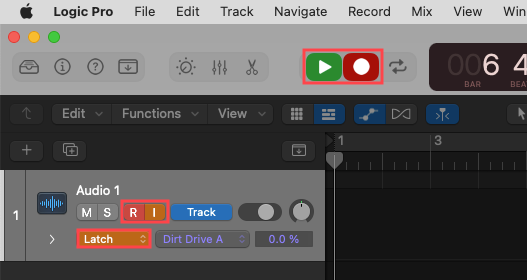
- Activate Track Automation in Logic Pro and set the Automation Mode to Latch.
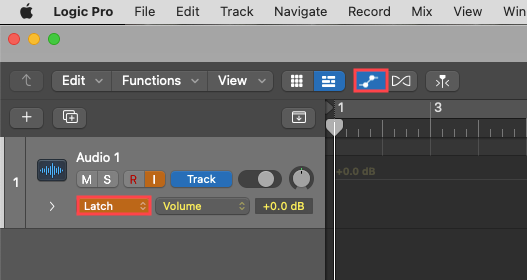
- In the Logic Pro taskbar, go to:
Logic Pro > Control Surfaces > Controller Assignments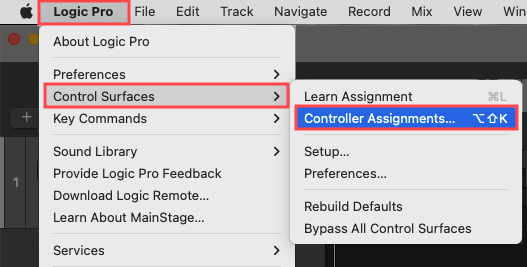
- Click Learn in the Logic Pro Controller Assignments window.
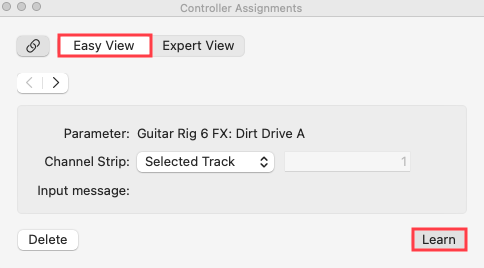
- While in Learn Mode, move a Guitar Rig parameter that you intend to automate.
- Now move the knob/pedal on your MIDI controller to assign the selected Guitar Rig parameter.
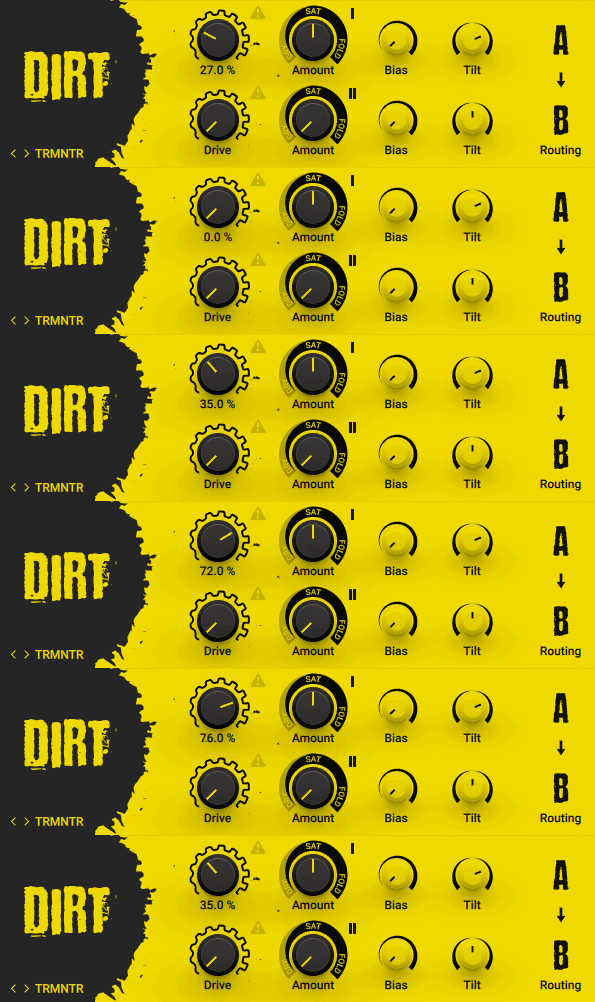
- Disable the Learn Mode on the Logic Pro Controller Assignments window by clicking the Learn tab again.
- Record-Arm the track (R button) and press Record to capture your instrument's performance and the Guitar Rig automation.
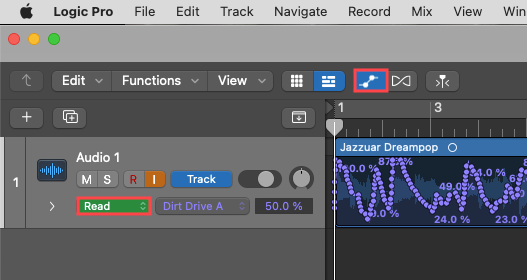
- Set the Logic Pro Track Automation Mode to Read when you want to listen back to your recording with the automation.
Was this article helpful?
That’s Great!
Thank you for your feedback
Sorry! We couldn't be helpful
Thank you for your feedback
Feedback sent
We appreciate your effort and will try to fix the article