Using a Native Instruments audio interface as system audio output
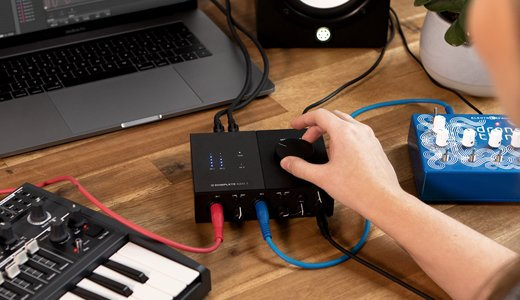
This article explains how to set up your Native Instruments audio interface as the standard audio output device for your computer.
Audio Interface Setup on macOS:
Defining your Audio Interface as System Output
- Make sure your Native Instruments audio interface is connected and recognized.
- Click on the Apple symbol on the top left corner of your computer screen and choose System Preferences.
- Open the Sound menu and select the Output tab.
- Select the entry with the name of your audio interface in the Select a device for sound output menu box. In the example below, we are defining the Traktor Audio 10, which is currently connected to the system.
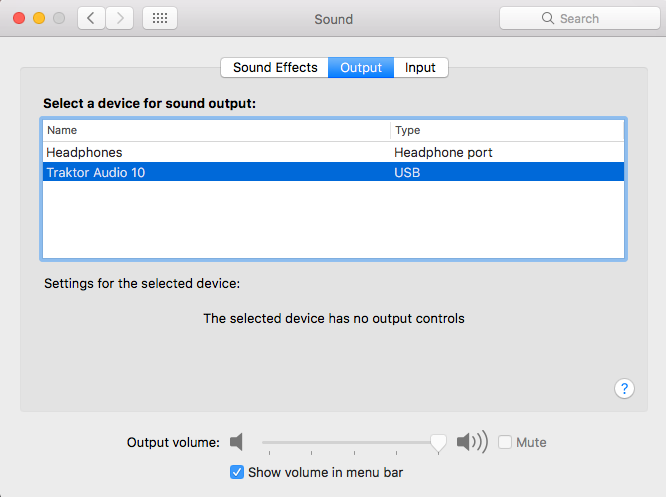
Now your Mac operating system will output its system audio via a default stereo output channel of your NI audio interface.
Note: When you select an audio device other than Built-in in the Output tab, the volume bar on the top menu of your Mac is unavailable, as indicated by the message The selected device has no output controls. This is normal, as volume is now being controlled by your Native Instruments audio interface.
Output Routing
You can route specific output channels of your audio interface to stream the system audio signal, as explained below.
- Open a Finder window and go to Applications > Utilities > Audio MIDI Setup
- Make sure the Audio window is enabled by selecting Window > Show Audio Devices (OS X 10.9 or lower: Window > Show Audio Window) from the menu bar.
- In the Audio Devices menu, select the name of your soundcard on the left column and then click on the Output tab. Finally, click on Configure Speakers...
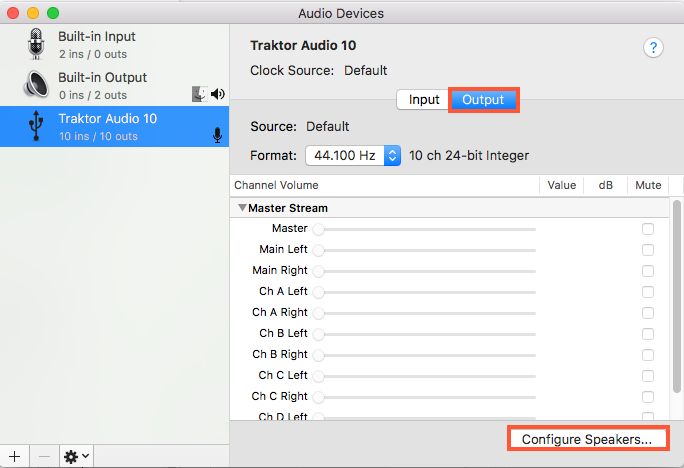
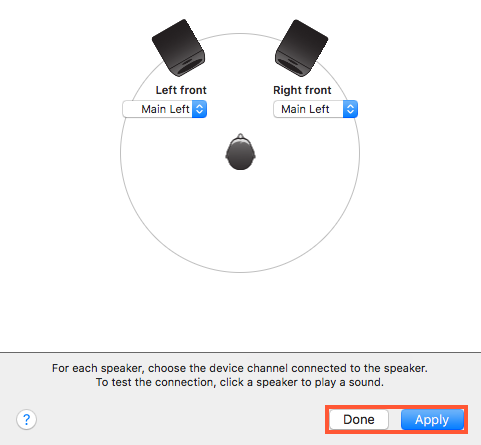
In the speaker setup menu, you can route the system audio output to an individual channel pair (left and right) of your NI audio interface. The configuration menu will vary depending on the model of your audio interface.
Defining the Output Channel
- Click on the drop-down field below the Left front and Right front to select the left and right output channels for your system output. In the below example, we are selecting Main Left and Main Right for the Traktor Audio 10 audio interface.
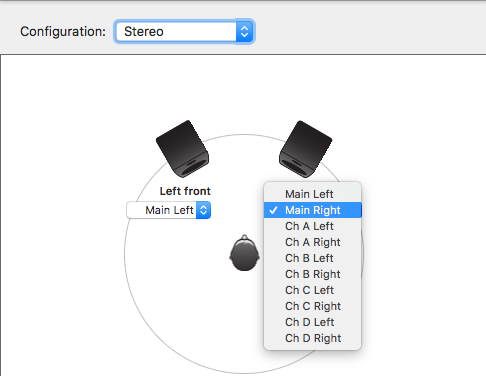
- Click Apply and then Done to save the output routing configuration.
Headphone Output Routing
The list below shows the channels used by the headphone output of each NI audio interface. Select these channels in Configure Speakers... as described above in order to monitor your audio signal through your headphones.
| Devices | Headphone Output | Remarks | |
| All Traktor Kontrol Interface- Controllers | Out 3 + 4 | Traktor Kontrol Interface - Controllers are Traktor controllers equipped with an audio interface (Master and Cue output) - e.g. Traktor Kontrol S8 / S4 / S2 / Z2 / Z1. | |
| Traktor Audio 2 Audio 2 DJ | Any out 1 / 2 or 3 / 4 | If 1 / 2 is selected as Main Output, headphones have to be set to 3 / 4 and vice versa. | |
| Traktor Audio 6 / 10 | Out 1 + 2 | Shares the same output as MAIN 1/2 (Master output). | |
| Komplete Audio 6 Audio Kontrol 1 | Any out 1 / 2 or 3 / 4 | If you set the headphone switch to 1 / 2, the master output is routed to the headphone output - no additional settings required. | |
| Maschine MK3 | Out 3 + 4 | ||
| Audio 4 DJ | Out 3 + 4 | ||
| Audio 8 DJ | Out 7 + 8 |
Audio Interface Setup on Windows:
Output Selection in Windows 10
- Click on the Windows symbol in the bottom left corner of your screen, type in 'sound settings' and press ENTER.
- In the Sound / Output section, choose your output device from the drop-down menu. In our example, we select Output 1/2 of the Komplete Audio 6 MK2:
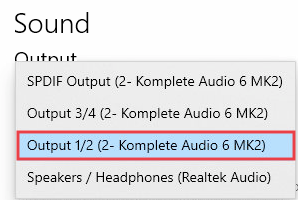
Note: If your sound card has multiple channels, they will appear separately in the output device list. Select the output channel you want to use as system output.
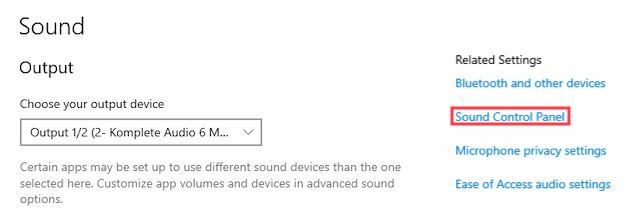
- Click Sound Control Panel on the right:
- In the Sound > Playback tab, select your interface's output channel you want to use as system output. In our example we are choosing Output 1/2 of the Komplete Audio 6 MK2:
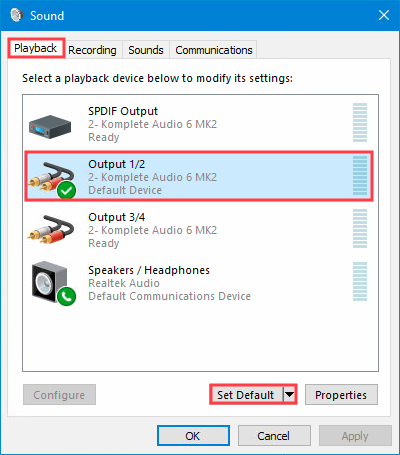
- Click Set Default in order to set the selected output as your default system audio output.
- Click Apply to confirm your settings and close the window with OK.
Headphone Routing
The list below shows the channels used by the headphone output of each NI audio interface. Select these channels in the Windows sound settings as described above in order to monitor the audio signal through headphones.
| Devices | Headphone Output | Comments | |
| All Traktor Kontrol Interface- Controllers | Out 3 + 4 | Traktor Kontrol Interface - Controllers are Traktor controllers equipped with an audio interface (Master and Cue output) - e.g. Traktor Kontrol S8 / S4 / S2 / Z2 / Z1. | |
| Traktor Audio 2 Audio 2 DJ | Any out 1 / 2 or 3 / 4 | If 1 / 2 is selected as Main Output, headphones have to be set to 3 / 4 and vice versa. | |
| Traktor Audio 6 / 10 | Out 1 + 2 | Shares the same output as MAIN 1/2 (Master output). | |
| Komplete Audio 6 Audio Kontrol 1 | Any out 1 / 2 or 3 / 4 | If you set the headphone switch to 1 / 2, the master output is routed to the headphone output - no additional settings required. | |
| Maschine MK3 | Out 3 + 4 | ||
| Audio 4 DJ | Out 3 + 4 | ||
| Audio 8 DJ | Out 7 + 8 |
Was this article helpful?
That’s Great!
Thank you for your feedback
Sorry! We couldn't be helpful
Thank you for your feedback
Feedback sent
We appreciate your effort and will try to fix the article