If you experience audio distortion, crackling, or dropouts with a KOMPLETE AUDIO MK2 interface on Windows, this is usually caused by driver, system, or power settings.
TABLE OF CONTENTS
If you’re having audio issues, try the following:
Optimizing Audio Settings
Incorrect audio configuration can cause playback issues. Make sure your interface and DAW settings are properly configured.
Install the ASIO Driver
Use the Komplete Audio ASIO driver for best performance. Reinstall it if issues persist.
LatencyMon
Use tools like LatencyMon to identify driver or system processes causing audio dropouts.
Verify the USB Devices
Since Komplete Audio interfaces are bus-powered, there are some cases where the audio interface may not be receiving enough power from the USB port. Likewise, if several devices are connected to the same internal USB root hub (e.g. via self-powered USB Hub), then the total demand of these devices may be greater than the amount of shared power that is available.
Try connecting your Komplete Audio interface directly to your computer. Be sure to check using all USB ports available on the computer, as those mounted directly on the motherboard are better suited for your Komplete Audio interface.
Power Settings
Standard consumer-grade computers are generally engineered for the purpose of saving as much energy as possible. However, this is often at the cost of the computer’s overall performance, making it more likely to experience audio dropouts. The following should be tried to rule out unexpected problems that may arise from energy-saving settings.
Click to expand the following sections, to learn more about Power Settings.
Power Plan Settings
- Click the Windows start button and type 'Power plan'. Click on the search result 'Edit power plan'.
- Set both Turn off the display and Put the computer to sleep to Never.
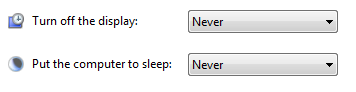
- Then click Change advanced power settings. In the Power Options window make sure to adjust the following settings:
Note: Depending on your system, it may not be possible to configure all of the following.
- Hard disk > Turn off hard disk after > Setting (Minutes) = Never
- Sleep > Sleep after > Setting (Minutes) = Never
- USB settings > USB selective suspend setting > Setting = Disabled
- Display > Turn off display after > Setting (Minutes) = Never
- Processor power management > Minimum processor state > Setting = 100%
- Processor power management > Maximum processor state > Setting = 100%
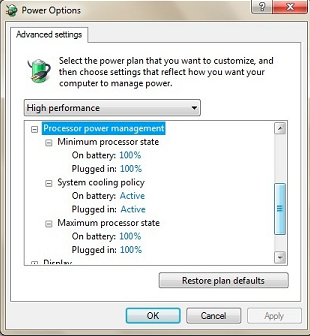 Click Apply and OK to save the settings.
Important Note: Many laptop manufacturers install a proprietary application that takes over the control of the energy settings of the CPU and other computer components. As a result, the energy settings made in the Windows energy options do not become effective. Deactivate any such application and test if the settings described in this section then solve the performance issues you experience.
Disable Fast Startup
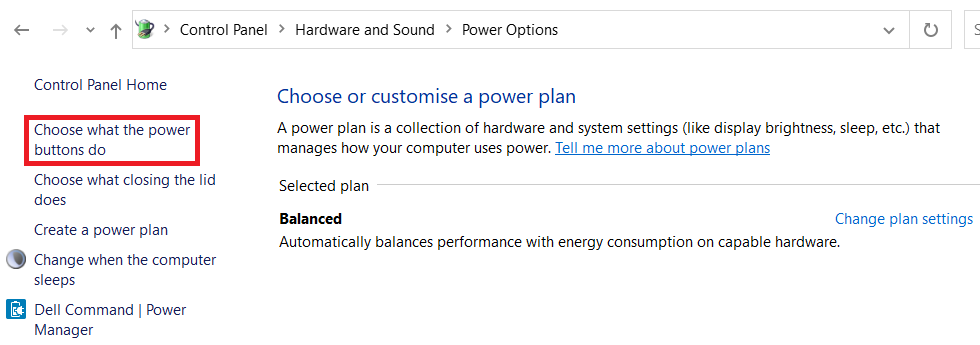
- Click the Windows start button and type 'Choose a power plan'. Click on the search result to open the 'Power options'.
- Click Choose what the power buttons do.
Click Change settings that are currently unavailable.
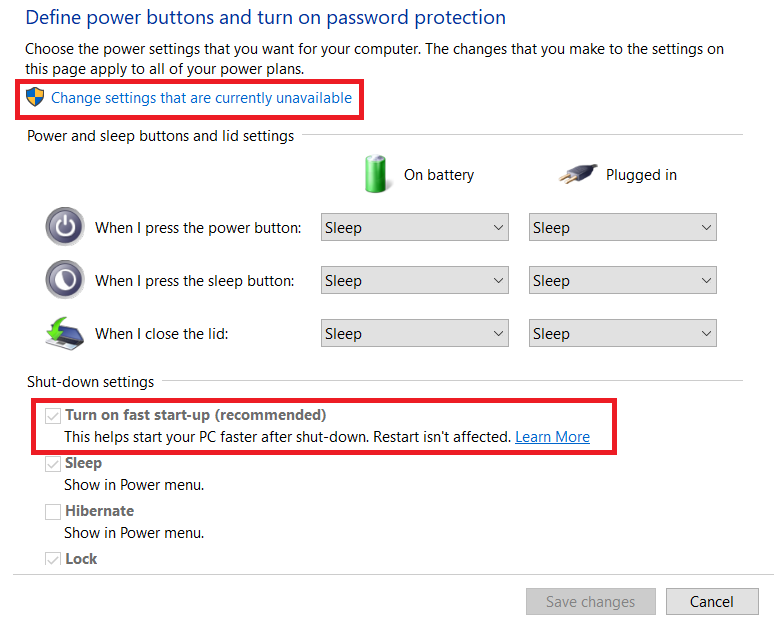
- Click Turn on fast startup (recommended) so that there is no checkmark in the box.
Click Save changes.
Was this article helpful?
That’s Great!
Thank you for your feedback
Sorry! We couldn't be helpful
Thank you for your feedback
Feedback sent
We appreciate your effort and will try to fix the article