Optimizing the Settings for Your Native Instruments Audio Interface
This is a basic guide on optimizing audio settings for your Native Instruments audio interface.
TABLE OF CONTENTS
Adjusting the Audio Settings
The Audio Preferences in your DAW will always have certain features in common. Namely, the possibility to configure an Audio Driver, Device, Sample Rate, and Buffer. In this example, we configure a Komplete Audio 6 MK2 with the Maschine Preferences.
Note: This setup is similar when using other NI Audio Interface devices.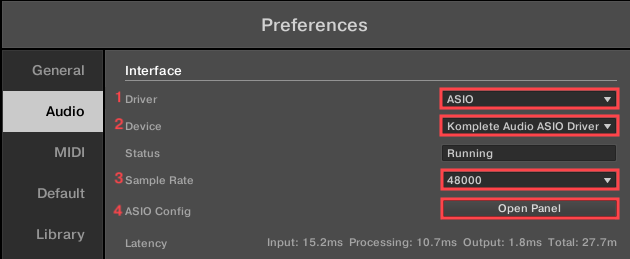
Driver
This regulates communication between the computer OS and the Komplete Audio device. On a Mac, the only choice of Driver is CoreAudio. On Windows, the ASIO driver is recommended. If you do not have the option to choose ASIO, please follow the instructions to install your Komplete Audio ASIO driver in this article.
Device
Here is where you choose the specific audio interface you're using. On a Mac, the choice is Komplete Audio 1, 2, or 6, depending on which device you have connected. On Windows, a Komplete Audio device is listed as Komplete Audio ASIO Driver.
3. Sample Rate
The Sample Rate field defines the audio quality during recording and playback. The higher the sample rate, the better the sound quality. A sample rate of 44100 Hz equals CD Quality. A sample rate of 48000 Hz is common for use with pro audio equipment. Choosing a higher sample rate can further enhance the sound quality, but this also places a higher workload on the computer.
4. Buffer Size / ASIO Config
The Buffer Size field defines the amount of time an audio application has to process the audio signal. In this example with Maschine on Windows (see previous screenshot), you will find an option labeled Open Panel. There you can adjust the application's Buffer Size. On a Mac, you can directly adjust the Buffer Size as shown in the screenshot below: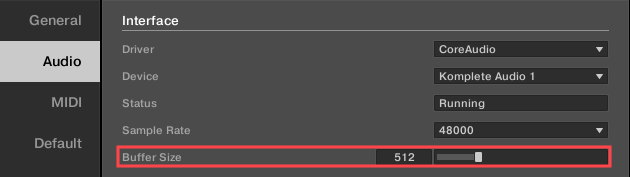
The default Buffer Size is 512 samples.
Click to expand the section below, to learn more about optimizing this setting.
Buffer Size and Latency
Since music is performed in real-time, music applications should never fall short of the calculations required to play and record your performance. For this reason, they use a buffer that provides the computer with sufficient time to finish all calculations. This introduces a short delay between recording and playback, called latency.
We recommend using one of the following values: 128, 256, 512, or 1024. Lower values may be chosen on purpose-built computers for audio production. To reduce latency while recording, we recommend using a lower buffer size of 128. If mixing with a lot of plug-ins, you will want to give your computer more processing time. Thus, a buffer size of 1024 is more suitable. If you want to set an in-between number suitable for most recording and mixing duties, 256 or 512 will suffice.
The buffer size can be set in the audio preferences of your music application (as shown in the screenshots above). When setting the buffer size, the aim is to find the lowest possible value that still provides clean audio playback and recording. This way, the latency can be kept at a minimum which will make it easier to play software instruments and create tight recordings.
If the sound coming from your audio interface is distorted or skips, go back to the Buffer Size and try a higher value. If the audio playback is clean, you can even try a lower value. You may have to increase the buffer size when you start adding a lot of effects and instruments to your songs.
CPU Load and Audio Playback
The higher the load on your computer, the more negatively it will affect audio playback. Settings such as Sample-rate and Buffer Size as described above will help set up your audio interface with the audio application for best performance. However, your computer will also be performing other tasks not related to audio which will also increase the CPU load. The articles linked below describe how to optimize your computer for use with audio applications in more detail.
Was this article helpful?
That’s Great!
Thank you for your feedback
Sorry! We couldn't be helpful
Thank you for your feedback
Feedback sent
We appreciate your effort and will try to fix the article