The LOAD indicator in TRAKTOR's Header shows how much of the available audio buffer is currently used to process audio data. This is not identical with the CPU usage of the computer. The shown value corresponds to the time needed to process all audio data in TRAKTOR in real-time. The overall graph represents the size of the whole audio buffer.
If the LOAD meter goes into the red, this means that the computer is not able to process all audio data within the assigned timeframe, i.e. audio buffer. This might cause issues with the audio playback, like drop-outs and crackles.
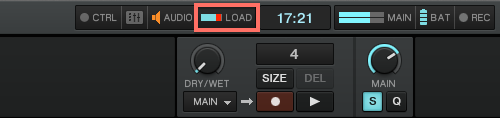
In this case, it is recommended to increase the size of the audio buffer. This way the computer will be given more time to complete all audio calculations with the available processing power. You can set the size of the audio buffer (or latency) here:
- Mac: TRAKTOR Preferences > Audio Setup > Latency
- PC: Your audio interface's ASIO settings, for example the Control Panel for your Native Instruments audio interface.
It is recommended to keep the LOAD as low as possible, but you can safely operate TRAKTOR with a load of around 50% - as long as the red portion of the meter is not reached. Note that TRAKTOR constantly processes many of its functions in advance even when they are not currently active. This is required to provide instant real-time control for all parameters.
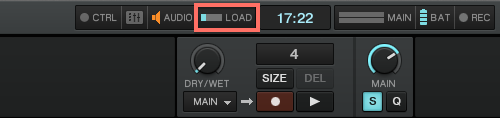
If the LOAD meter is clipping even at higher audio buffer (or latency) settings, please check if your computer fulfills the TRAKTOR system requirements.
Was this article helpful?
That’s Great!
Thank you for your feedback
Sorry! We couldn't be helpful
Thank you for your feedback
Feedback sent
We appreciate your effort and will try to fix the article