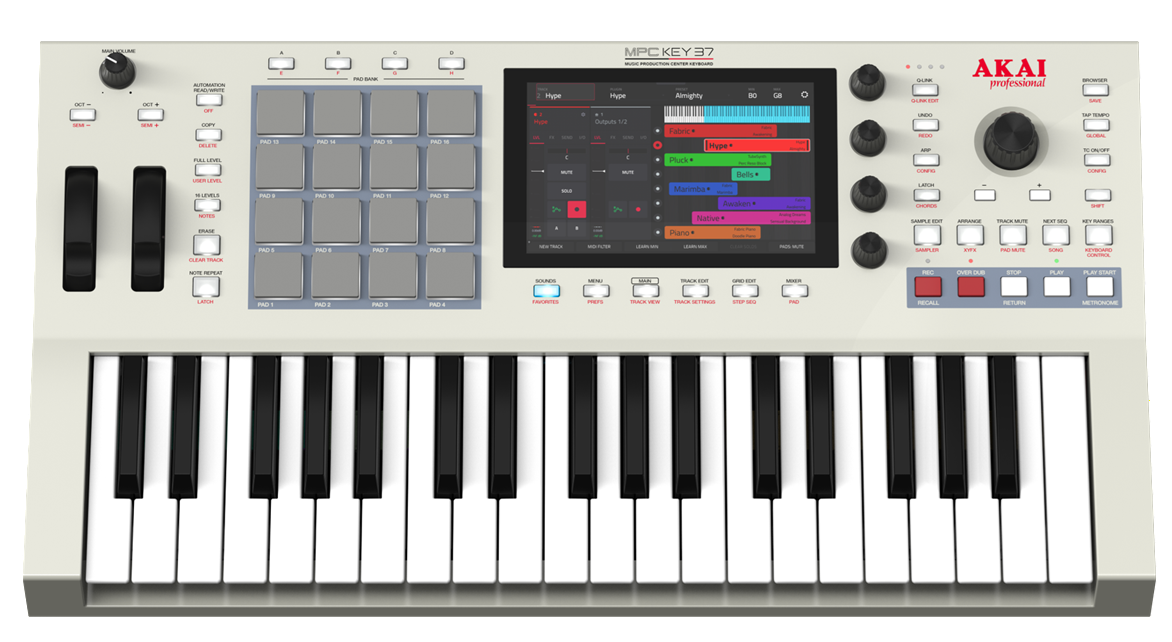
TABLE OF CONTENTS
- I'm having trouble registering my MPC Key 37 G2
- Why isn't my MPC Key 37 G2 recognized by my computer?
- Day 1 Firmware Update
- Why is my MPC Key 37 G2 lagging or freezing?
- Why does my MPC Key 37 G2 display "Looking For Computer"?
- How do I record over USB into my MPC Key 37 G2's Sampler?
- Troubleshooting the USB-C hardware settings
- What Operating Systems are compatible with the MPC Key 37 G2?
- Are the new MPC Key 37 G2 features available on MPC 3.9 Desktop?
- How do I bus out my tracks from MPC Key 37 G2 into a DAW?
- How do I access the Pro Pack Features?
- How do I access and edit Q-Links from the new Pull-Down Menu?
- How can I layer drum samples together?
- How do I make a kit that takes advantage of articulations without MPCe™ pads?
- Will my MIDI controller work with the MPC Key 37 G2 standalone?
- How do I use the new Time Signature feature for MPC 3.9 sequences?
- How do I use the new Time Signature feature for MPC 3.9 clips?
- How do time signatures work when being put together in MPC 3.9?
- I can't use MPC 3.9 Plugin in my DAW
I'm having trouble registering my MPC Key 37 G2
When registering your MPC Key 37 G2, please ensure that you provide the complete 15-digit serial number, including any letters that may be present. Input the date and location of your purchase and you should be good to go! Please see the guide below for reference, if you have trouble.
If you experience repeated error messages, be sure to note down exactly which error message you're receiving and reach out to our support team here.
Why isn't my MPC Key 37 G2 recognized by my computer?
The most important thing to verify when troubleshooting connectivity issues with your computer is the driver and firmware version currently installed on your system. The firmware version on your device must match the software versions currently installed on your computer. You can find your MPC Firmware and Drivers bundled into your inMusic Software Center located in your Akai Pro account.
If you have confirmed that your MPC software and firmware versions are the same and that your drivers are installed correctly, there are still troubleshooting steps that can be performed! At its core, the MPC's controller mode is a MIDI controller. We have several troubleshooting guides for MIDI controllers, which are linked below:
We highly suggest installing the driver before you attempt any connection to your computer.
Day 1 Firmware Update
The MPC Key 37 G2 requires a Firmware Update when you first get the device. The purpose of this is to install the most stable and feature-rich version of MPC OS so that you can get started making music with the best features and zero issues! This can be performed by simply connecting your MPC to WiFi and following the prompts on startup!
The MPC Key 37 G2 Firmware Updater can also be accessed through the inMusic Software Center, which can be found in your inMusic Profile account.
Prior to launching this firmware installer, it is important to confirm that your device drivers are current. Once that is confirmed, proceed to download the MPC firmware updater and choose the install option from the window below.
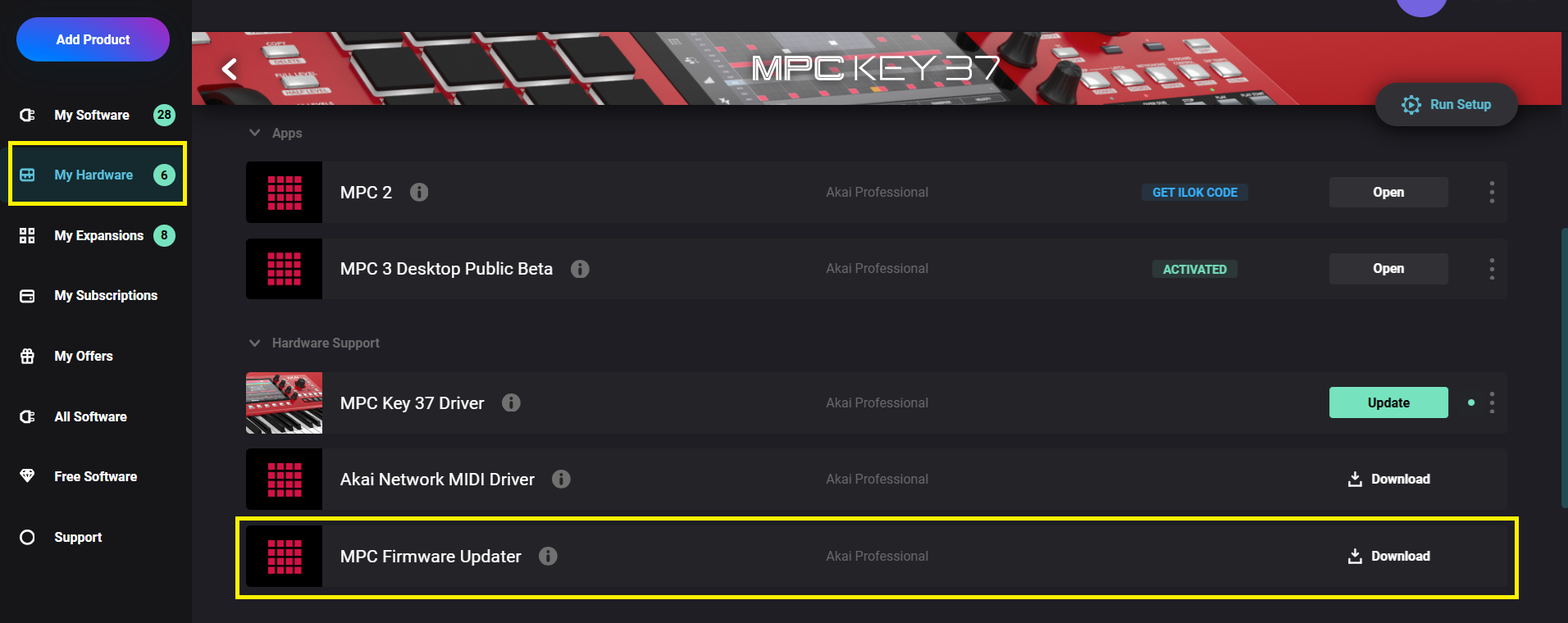
After installation, run the firmware updater program and connect your MPC and computer. It is important to note that only firmware updaters obtained via the MPC Key 37 Gen 2 software installer should be utilized for updating your device. Please ensure to adhere to these instructions for every release of MPC Key 37 Gen 2 firmware version.
For more in-depth Firmware Update Instructions, click here.
Why is my MPC Key 37 G2 lagging or freezing?
The MPC Key 37 Gen 2 features an all new internal hardware which is equal to 4x the power of the previous MPC Key 37 (Gen 1).
Key Specs:
- Up to 16 stereo audio tracks
- Up to 32 plugin programs
- 64GB Increased internal storage, and 4GB of RAM.
With this in mind, it is very important to understand the difference between storage and RAM when working on the MPC, as this will affect the performance.
- RAM is the dynamic memory used by the MPC to physically hold your currently active project.
- Storage is non-volatile memory used by the MPC to physically store projects, samples and other user data
Some of the new plugins and instruments on the MPC Key 37 G2 are very system intensive, as they are some of the most powerful and complex tools ever included with an MPC. It is important when creating on the MPC Key 37 Gen 2 in standalone mode to keep an eye on your System Resources, which can give you insight into how or why your unit is slowing down during use.
Should you encounter lag or freezing on your unit, we recommend navigating to the System Resources panel of your MPC by tapping the system resource bars available from the Main Mode menu.
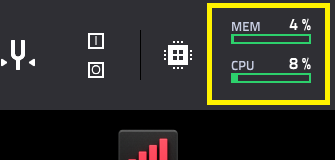
This will bring up a screen resembling the one below:
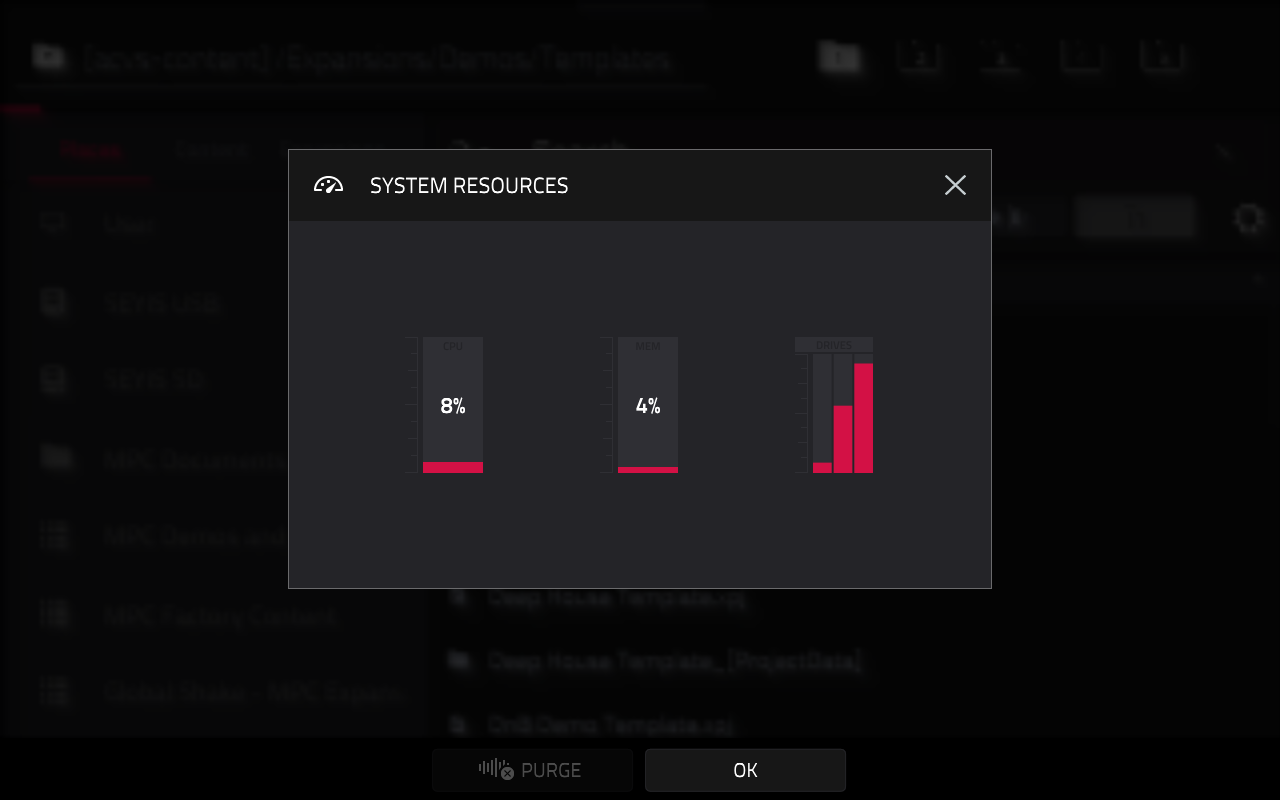
The indicators in this window show current usage statistics:
- CPU: The CPU indicator shows the current CPU as a percentage. If this indicator shows that you are nearing full capacity, you may begin to experience some freezing. Try disabling any unnecessary plugins or effects when not using those tracks!
- RAM Usage: The Mem indicator shows your MPC hardware’s current RAM usage.
- Drives: The Drives indicator shows the available storage space on any detected external storage devices or the internal drive of the MPC.
If these resources all check out, there may be something else causing your unit to experience lag. Refer to the guide below for a more in-depth look into why your device may be freezing!
Akai Pro MPC Series | Low Memory : Akai Professional
Why does my MPC Key 37 G2 display "Looking For Computer"?
- The MPC Desktop software is on the same version as your MPC One's firmware version.
- The MPC Key 37 driver has been installed.
- The MPC Desktop software is running.
- You are connecting to the computer via the MPC's USB-C port.
If you have confirmed all of three of the above and the MPC still says looking for computer, please refer to
the 'MPC Key 37 Gen 2 isn't recognized by my computer' section above.
How do I record over USB into my MPC Key 37 G2's Sampler?
To set up the Sampler before recording:
1. Make sure to reduce the volume levels of your audio source and speakers, headphones, and/or monitors before you make any connections to avoid “pops” or feedback.
2. Connect your computer via the USB-C port.
3. Set the Input ___ menu in the upper-left corner to the input(s) where you connected your source as USB Input 1,2.
4. Return to the Sampler Mode Screen, and when you play audio from your source, you should now see the level in the meter. Make sure it does not exceed the maximum level (the meter should not be “peaking” constantly).
5. Set the recording controls as desired.
6. Tap the Arm button to record-arm the Sampler.
For more on recording via USB-C, please see our video guide here:
Troubleshooting the USB-C hardware settings
Please note the following important details when connecting a USB-C device to the MPC Key 37 G2.
The MPC Key 37 G2 has a dedicated USB menu to configure how it will treat connected USB-C devices. This can be found in Menu > Preferences > Hardware > USB
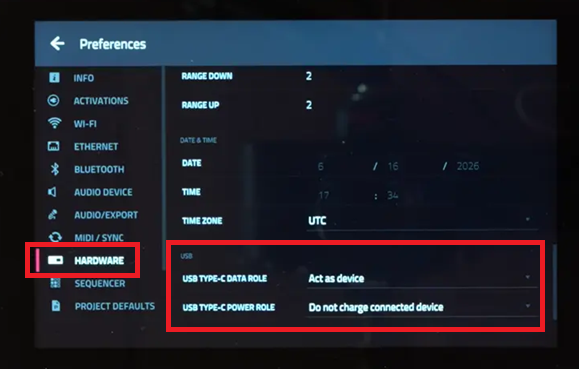
USB Type-C Power Role
USB Type-C Data Role
- Act as Device: The MPC standalone MIDI ports and audio device are forwarded to and usable on the connected device.
- Act as Host: The MPC can host and manage features of a connected device, such as its MIDI ports, file storage, or audio device.
Important Notes:
- When a USB-C device is connected to the MPC's USB-C port, you will be able to select the above USB-C power/data role options.
- If a USB-C cable alone is connected to the MPC's USB port, you will not be able to select the above USB-C power/data role options.
- If nothing is connected to the MPC's USB-C port, you will not be able to select the above USB-C power/data role options.
- If you are using a smartphone, ensure it is set to Act as Device
If you continue to experience issues - this may be due to the following reasons:
- The USB-C cable you are using is a charging only cable, Ensure you are using a cable that supports data transfer.
- The USB-C cable is faulty/damaged - try with a good/known working cable instead.
What Operating Systems are compatible with the MPC Key 37 G2?
All controller mode functions with the MPC Key 37 Gen 2 will require the following:
- Windows 10 or 11.
- Mac OS 14, 15 and 26
In addition, MPC 3.6 will be the minimum MPC software that can be used with MPC Key 37 Gen 2, which carries the same requirements.
Are the new MPC Key 37 G2 features available on MPC 3.9 Desktop?
Yes, every feature that you can control on the MPC Key 37 Gen 2 will also be available within MPC 3.9 for a seamless transition between your projects on the full DAW setup for an uninterrupted workflow.
How do I bus out my tracks from MPC Key 37 G2 into a DAW?
When selected as a DAW's Audio interface, MPC Key 37 Gen 2 will show a range of stereo outputs that will correspond to the inputs on your computer. Select the input that matches the MPC Key 37 Gen 2's output, and you will be able to record from it.
Please note, these 24 outputs are digital for track separation, and cannot be split via the audio outputs for monitoring purposes within the MPC Key 37 Gen 2. For audio track splitting for use with a mixing board for up to 32 tracks, please see external interfaces in the user guide.
Note: Increasing the number of simultaneous inputs and outputs will also increase CPU overhead.
How do I access the Pro Pack Features?
The Pro Pack is not bundled with the MPC Key 37 G2, however - it is available at a 50% discount
The MPC Pro Pack features four premium AIR Music Tech plugins and a suite of advanced performance and production tools, this pack takes your MPC to the next level. From MPC Clip Launching, Advanced CV Playground, Advanced Q-Links, and Super Warp Algorithm to AIR Fabric Select, AIR Visual EQ4, AIR Reverb Pro, and AIR Utility, this is the most powerful MPC add-on yet.
How do I access and edit Q-Links from the new Pull-Down Menu?
Q-Link controls can quickly be mapped and edited using the new Pull Down menu function from any of the MPC modes, and navigating to page 2 using the right arrow.
Tap the Current Control field to select the type of control you want to create an assignment for. In the above screenshot, we are editing Q-Link 1.
Tap the Learn button to activate MIDI learning. Once activated, the Q-Link Bank LED on your MPC Key 37 Gen 2 will blink.
Navigate to the mode that displays the parameter you would like to learn, and then adjust that parameter. The screen
will show a message, "Learned [parameter] to [macro control]." To lock in the assignment, tap the Learn button again.
Tap the Momentary button to turn momentary behaviour on or off. When on, moving the knob will adjust its parameter, but the parameter will immediately return to its original position (when you turned Momentary on) when you release the knob.
When off, moving the knob will adjust its parameter, and the parameter will remain at its new setting when you release the knob.
Tap the arrow next to the Momentary to adjust additional settings for when the macro control is released:
To revert the macro parameter(s) to their minimum value on release, check the Go to Minimum box.
To revert to the last value state before the macro was changed on release, check the Go to Previous box.
How can I layer drum samples together?
Drum layers can be layered using the sample edit screen, using the new layers column underneath the waveform:
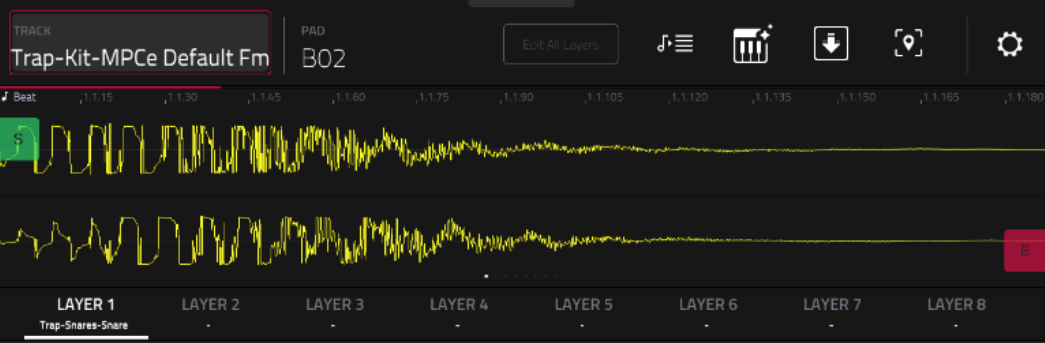
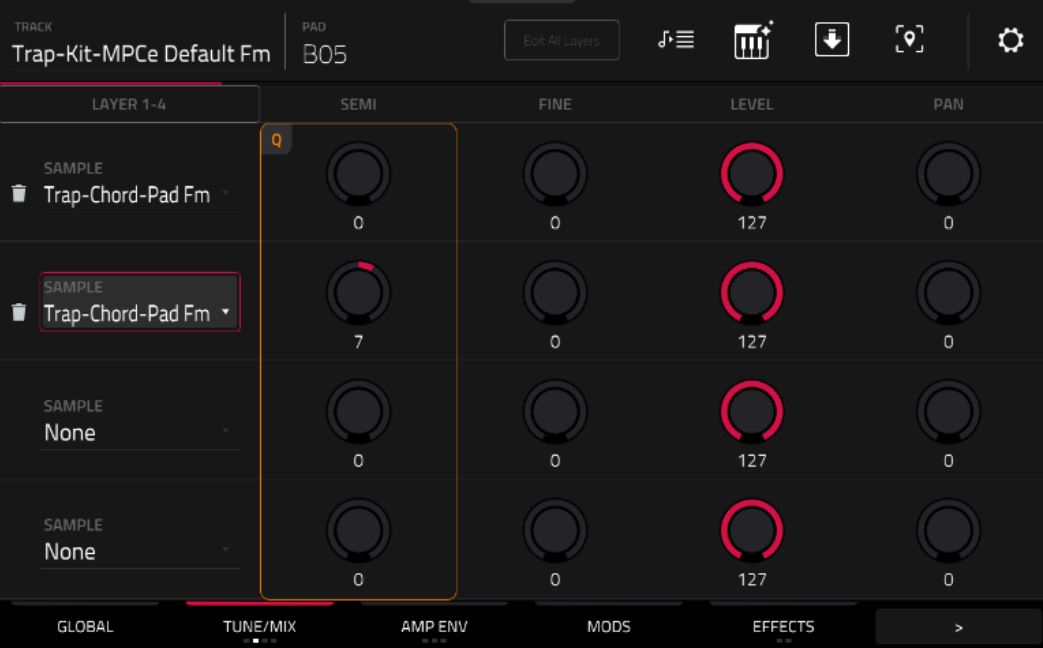
These layers can be edited to have multiple samples applied per pad and how they express together. Tapping the sample button again at the bottom of the screen will allow you to edit different parameters in terms of the way they act when triggered:
Gen
For example, on the TUNE/MIX screen, you can adjust the levels of each layer to adjust how each layer will sound in harmony with each other. For more information on creating new MPCe™ kits and layering sounds, please see our YouTube guide here: YouTube.
How do I make a kit that takes advantage of articulations without MPCe™ pads?
To take advantage of the MPC articulations, go into the Menu>Track Edit, then double-tap the effects tab at the bottom of the screen to adjust how the MPC pads will articulate when pressed, and make sure to turn on the MPCe™ button to the right of the word Articulations before selecting what articulation you would like to use(by default, None will be selected when you make your first kit Double tap the word None to change this).
The corresponding numbers will not apply for the MPC Key 37 G2, as the pad will play the articulation attached to the 1, or bottom left quadrant.
For more information, please see the following video from our MPC Academy series:
Will my MIDI controller work with the MPC Key 37 G2 standalone?
Midi controllers can be connected to the MPC over the USB-A, USB-C and Midi DIN ports. Please note that all controllers must be Class Compliant, and it is advised to use a power supply or powered hub.
How do I use the new Time Signature feature for MPC 3.9 sequences?
From the Main Screen, tap the Time Signature fields to the right of your BPM to adjust the time signature of the project.

The numerator (top/first number) indicates the number of beats per bar (1–16).
The denominator (bottom/second number) indicates the note value of each beat (4, 8, 16, 32). Time signatures can be set individually per sequence.
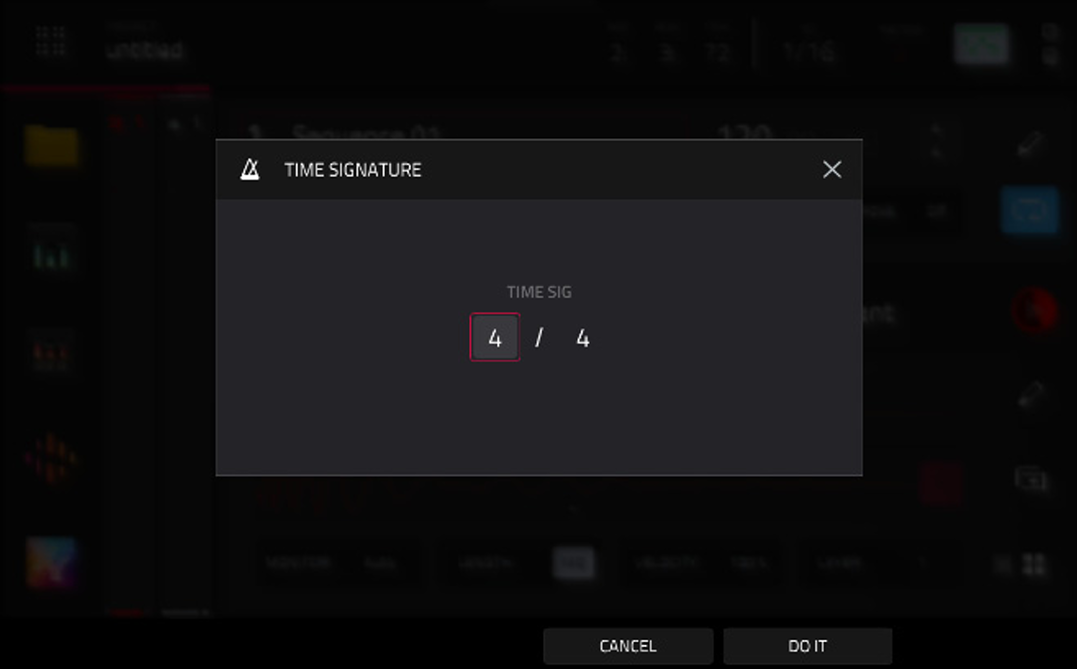
Tap Do It to apply the Time Signature change.
Tap Cancel, the X, or anywhere outside the window to close it.
How do I use the new Time Signature feature for MPC 3.9 clips?
- Scroll to an empty clip slot
- Open the Create Clip overlay
- Set your desired time signature
- Select Create Clip
Editing a Clip’s Time Signature
- Open the Clip Editor
- In the toolbar, adjust the Time Signature field
How do time signatures work when being put together in MPC 3.9?
- Each sequence or clip can only have one time signature
- When chaining sequences in Song Mode and using Convert Song to Sequence, time signature changes are converted into bar/beat/pulse positions rather than preserved as multiple time signatures
- Importing a MIDI file into a sequence or clip should import its time signature.
I can't use MPC 3.9 Plugin in my DAW
- Please make sure during the desktop installation process that you checked off all plugin types.
- Please check with the developer of your DAW that either VST3 or AU plug-ins are supported.
- At launch, AAX is not included with MPC 3.9.
MPCe™ is a trademark of inMusic Brands. Patent Pending.
Was this article helpful?
That’s Great!
Thank you for your feedback
Sorry! We couldn't be helpful
Thank you for your feedback
Feedback sent
We appreciate your effort and will try to fix the article