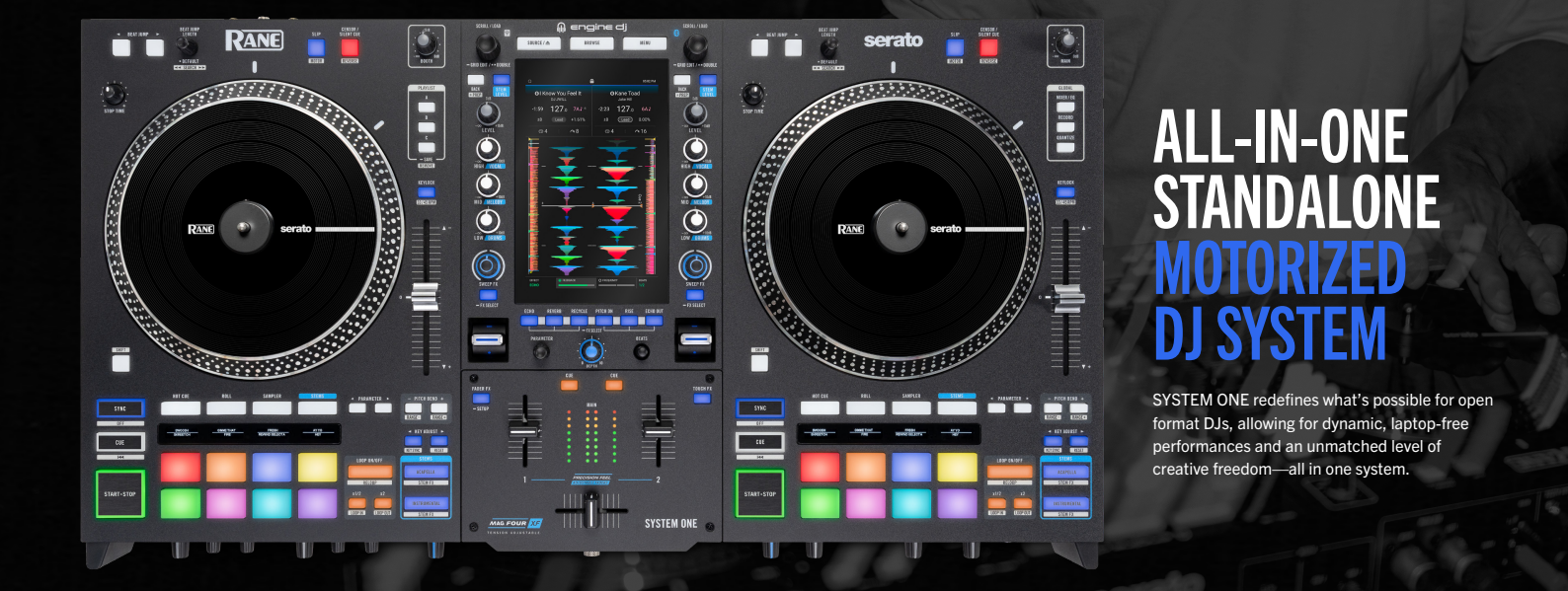
Introducing the RANE SYSTEM ONE - the world’s first all-in-one standalone DJ system with motorized platters, fusing the legacy feel of turntables with the freedom of modern, laptop-free standalone DJ technology.
The first RANE product with Engine DJ on board, open format DJs can now experience the trusted performance of RANE hardware while seamlessly mixing between standalone media, music streaming services, and DJ software like Serato DJ Pro and Algoriddim d. With a slew of FX options including Fader FX, Sweep FX, Touch FX, and Main FX and multiple ways to DJ with Stems, SYSTEM ONE was designed to unlock new levels of creativity while fueling DJs’ passion for the artform.
TABLE OF CONTENTS
Getting Started
What is included in the box with the RANE SYSTEM ONE?
- SYSTEM ONE
- IEC Power Cable - region specific
- (2) Black felt slipmats
- (4) Washers
- Locking USB C to C Cable
- DeoxIT Fader Lube
- Serato Pitch 'n Time Download Card with Serial Number
- RANE DJ sticker sheet
- Display/Vinyl cleaning cloth
- Quickstart Guide
- Safety & Warranty Manual
What DJ software is supported with the RANE SYSTEM ONE?
Upon launch, the RANE SYSTEM ONE will be compatible with Engine DJ.
Support for Serato DJ Pro is available using Engine DJ 4.6.0 or higher and Serato DJ Pro 4.0.3 and higher.
Support for Algoriddim djay Pro is available using Engine DJ 5.2.0 and djay Pro 5.6.9.
Support for Virtual DJ is anticipated in a future update.
How do you install the platters on the RANE SYSTEM ONE?
To install the platters, remove the RANE SYSTEM ONE base unit from the box and open each of the two smaller boxes containing the platter assemblies.
With your RANE SYSTEM ONE on a flat, stable surface, align the pins located on the underside of the platter with the holes on the top of the motor assembly. Firmly press the platter downward to install. You may hear a click sound when the platter locks into position. Check to make sure the rotation is uniform and there is no excessive wobble.
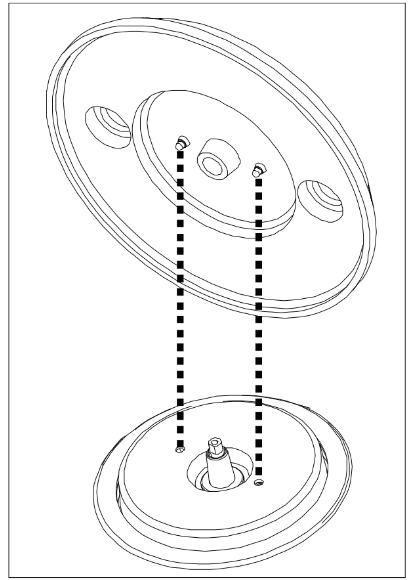
Once the platter has been installed, place the slipmat onto the platter, followed by the Control Disc. To secure the Control Disc to the spindle, pinch the top of the spindle and gently rotate the Control Disc until you hear it click into place.
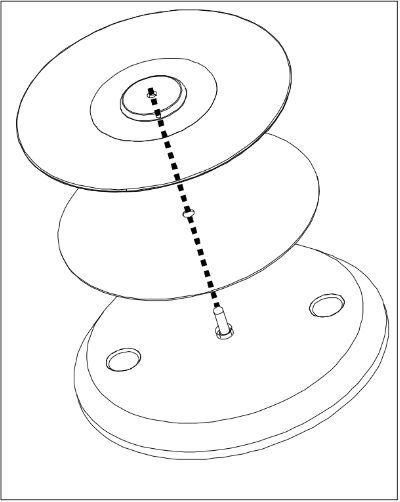
If you would like to adjust the slip friction of the disc, consider placing 1-2 of the included washers over each spindle, underneath the slipmat. The more you elevate the Control Disc with the washers, the more backspin you will get.
Do I need to download anything in order to get started?
To begin, it is essential to download the Engine Desktop software for either Mac or Windows. We advise downloading it to the same computer that you utilize with Serato, as this will facilitate the import of your library and crates, allowing Engine to export them as playlists to removable storage devices for use with the SYSTEM ONE.
How do I import music from Serato and export to a drive for use with SYSTEM ONE?
Transferring music to your Rane SYSTEM ONE is super easy! In the following video, Jake from Rane demonstrates just how effortless it is to use Engine DJ!
After the installation of the Engine Desktop software on your Mac or Windows computer, you are now able to import your Serato library. Importing your library will not result in duplicate tracks, alleviating any concerns regarding a massive decrease to your overall storage space on your computer or any external drives. This procedure simply directs Engine Desktop towards your Serato library and the data available for import.
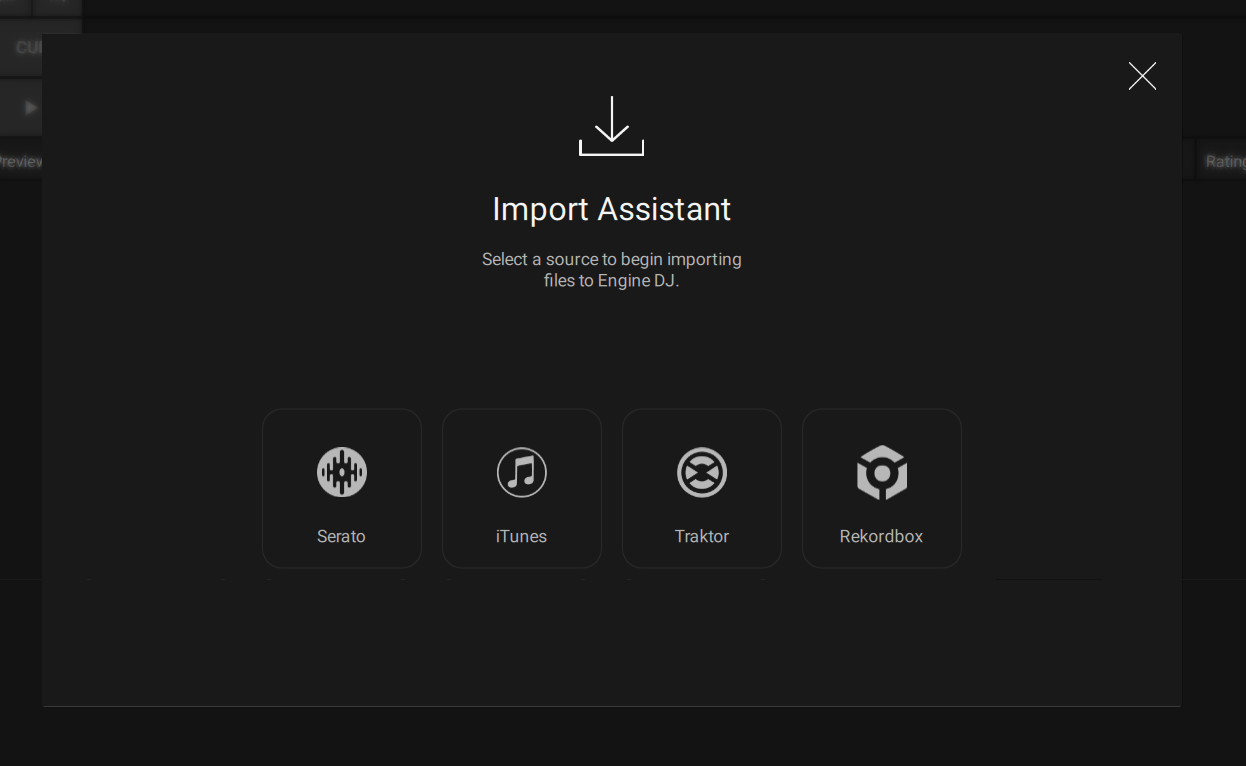
Open the Engine Desktop software and click on IMPORT.
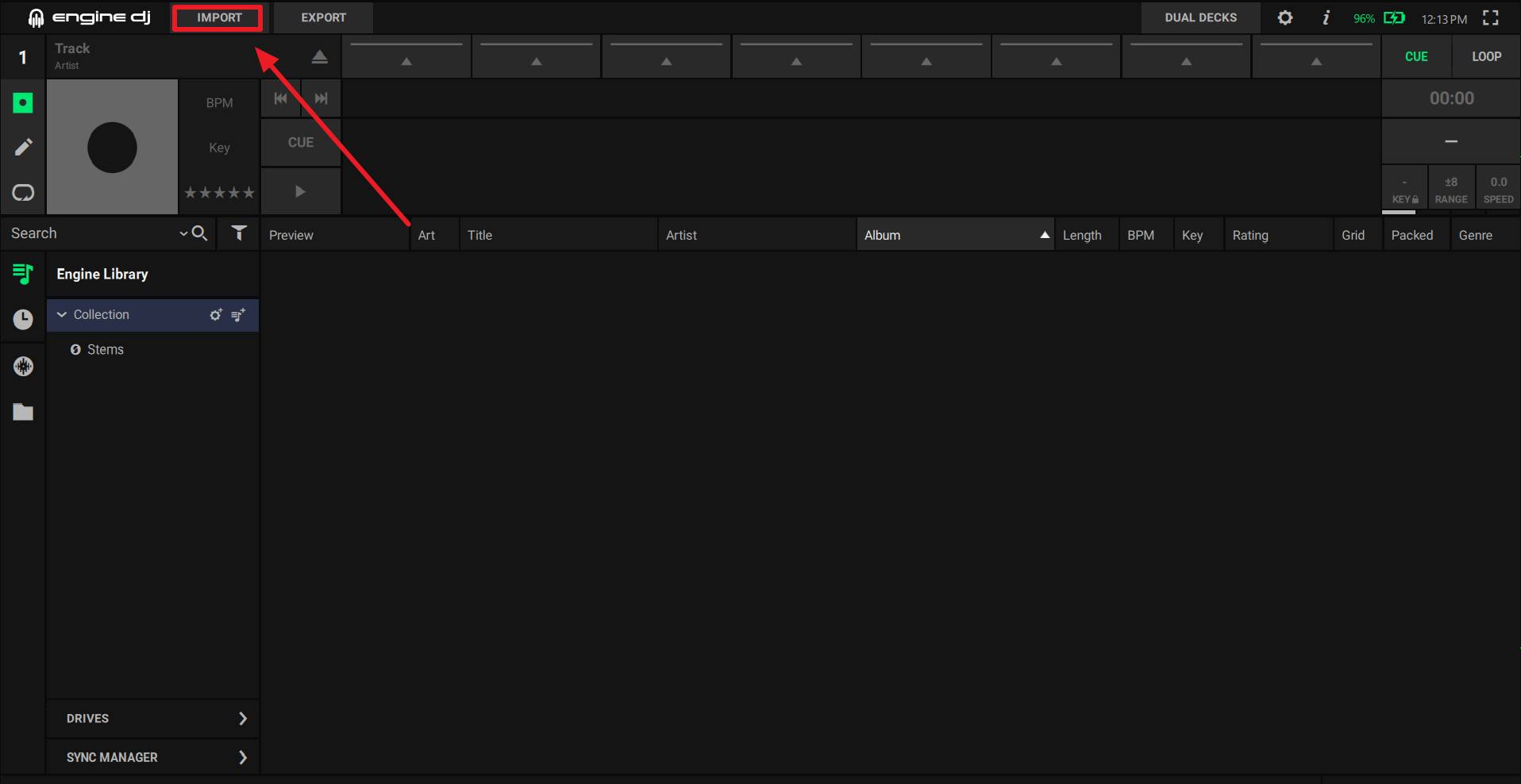
From here, you have the option to utilize the Import Assistant to import your libraries from Serato, iTunes, Traktor, or Rekordbox. We will proceed with a demonstration utilizing the Serato library, as it has been the preferred software for Rane DJs.
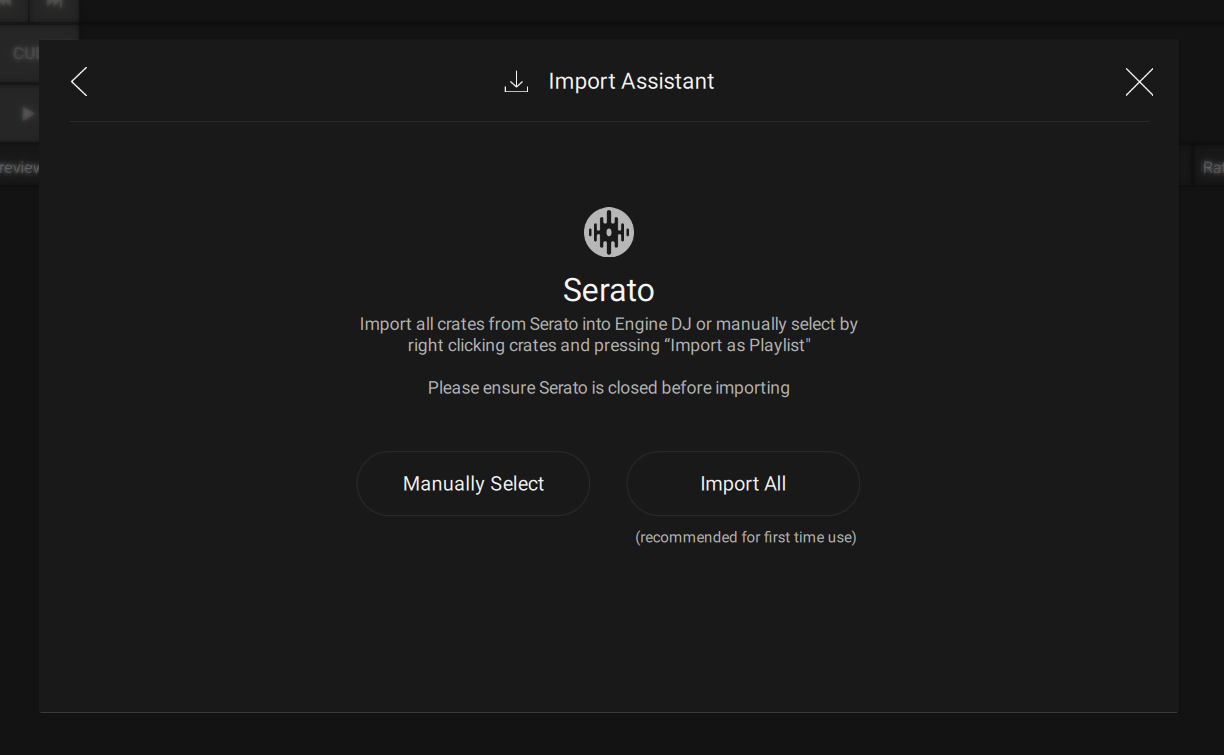
You will then be presented with options to manually select the Serato crates you wish to import or you can choose to import all crates. We recommend choosing Import All.
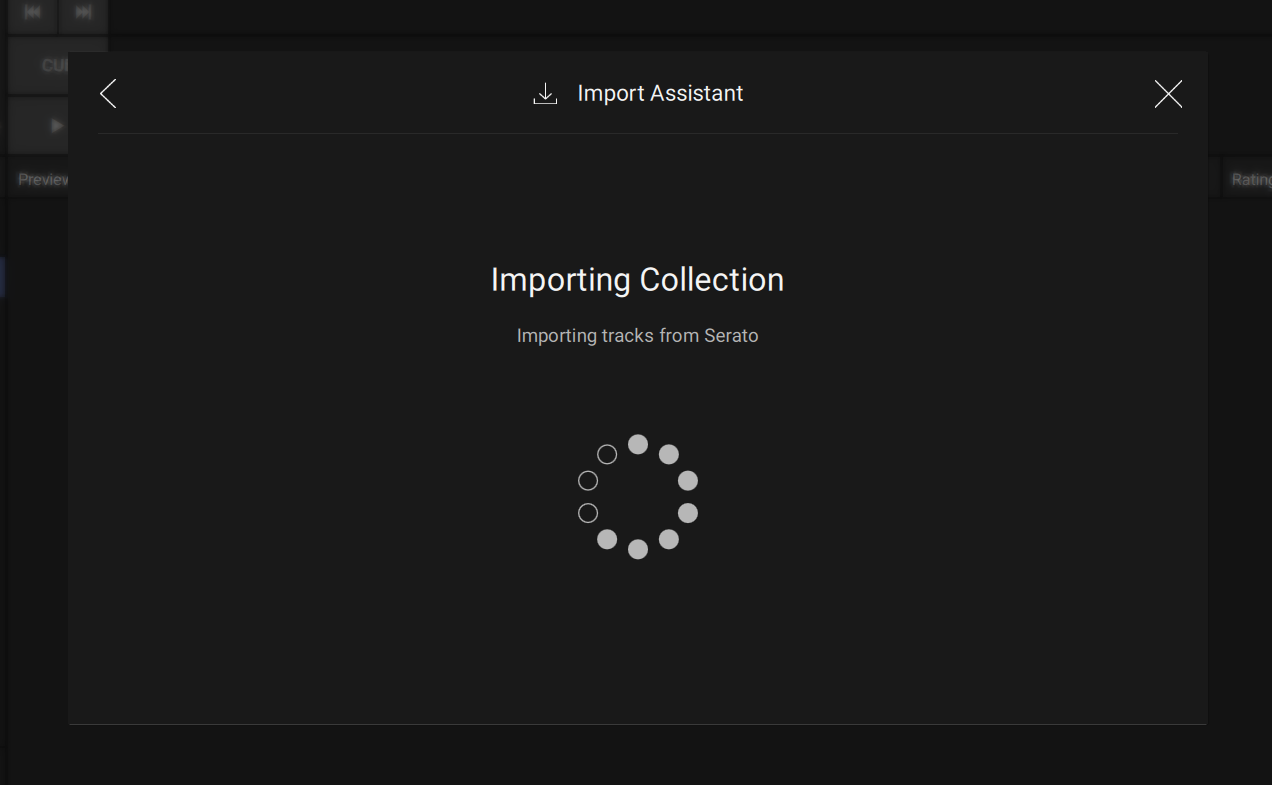
Your Serato crates will then be imported directly into your Engine Collection. Please note that this process may require some time, depending on the size of your library and drive; therefore, we recommend your computer is connected to a power source as a precaution.
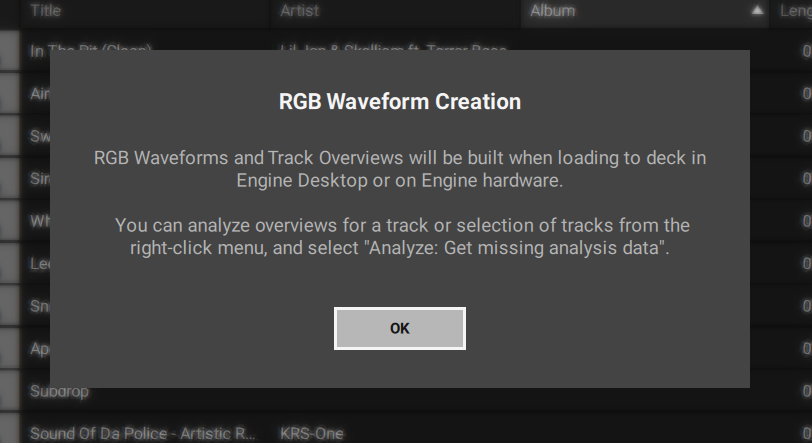
Engine Desktop is also capable of generating RGB Waveforms*. RGB Waveforms and Track Overviews will be built when loading to a deck in Engine Desktop or loading to a deck on the SYSTEM ONE.
You can analyze overviews for a track or selection of tracks from the right-click menu and select, "Analyze: Get missing analysis data".
You are now ready to export your Serato crates as Engine Playlists. We recommend utilizing a dedicated drive for the SYSTEM ONE. The best practice is to maintain your source drive as the primary location for your music and to acquire an alternate drive specifically for use with the SYSTEM ONE. This approach also establishes a backup drive scenario, should you need to recover any lost data in the future.
The RANE SYSTEM ONE is equipped with three (3) USB A ports, one (1) USB C port, an SD card slot, and a 2.5" SATA bay for connecting your storage devices. The supported drive formats are FAT32 and exFAT(recommended). It is advisable to utilize only high-quality, reputable brand USB 3.0 or Class U1 or U3 SD cards as source drives, particularly when cloud services are enabled.
Once you have connected a formatted FAT32 or exFAT storage device, click on EXPORT.
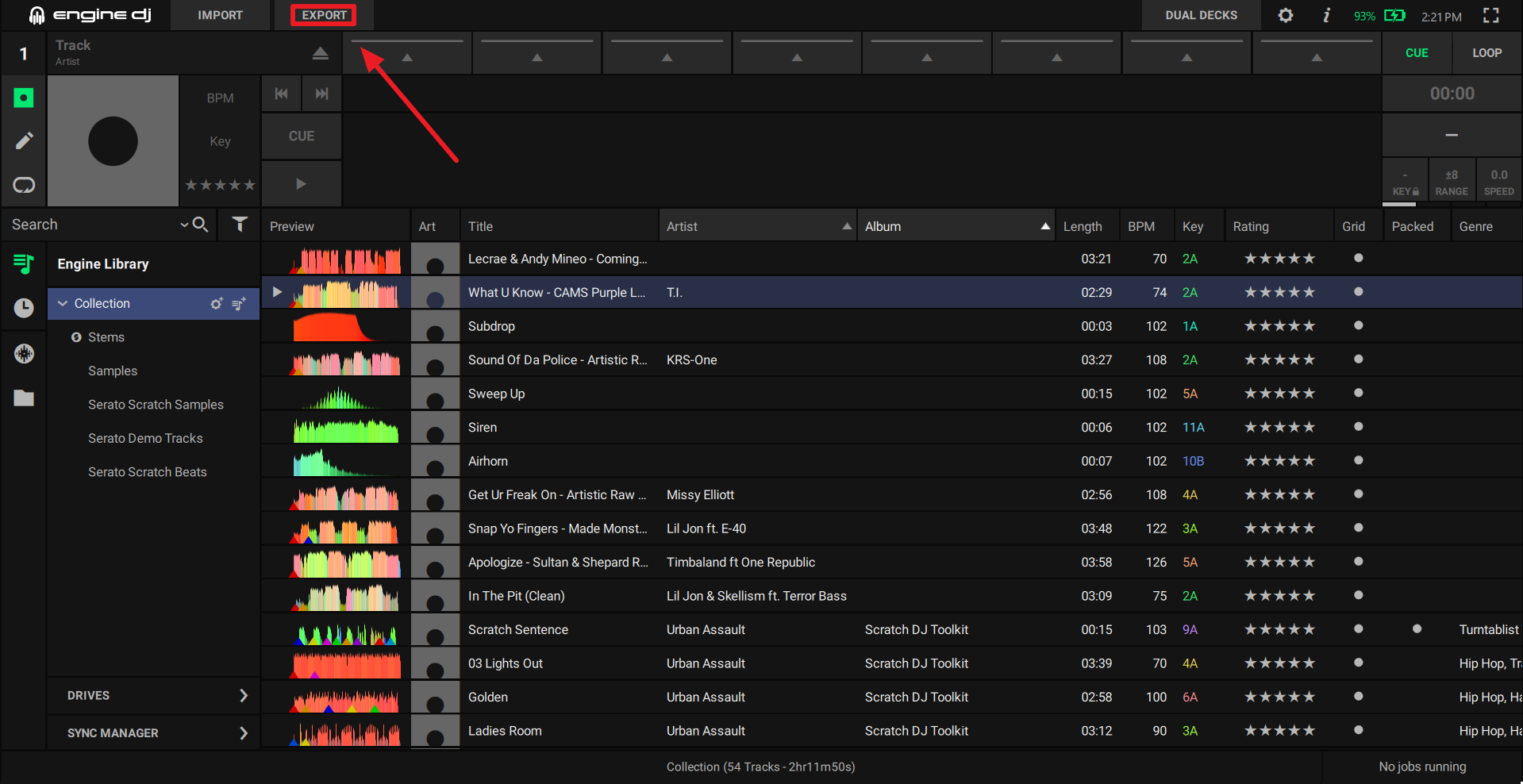
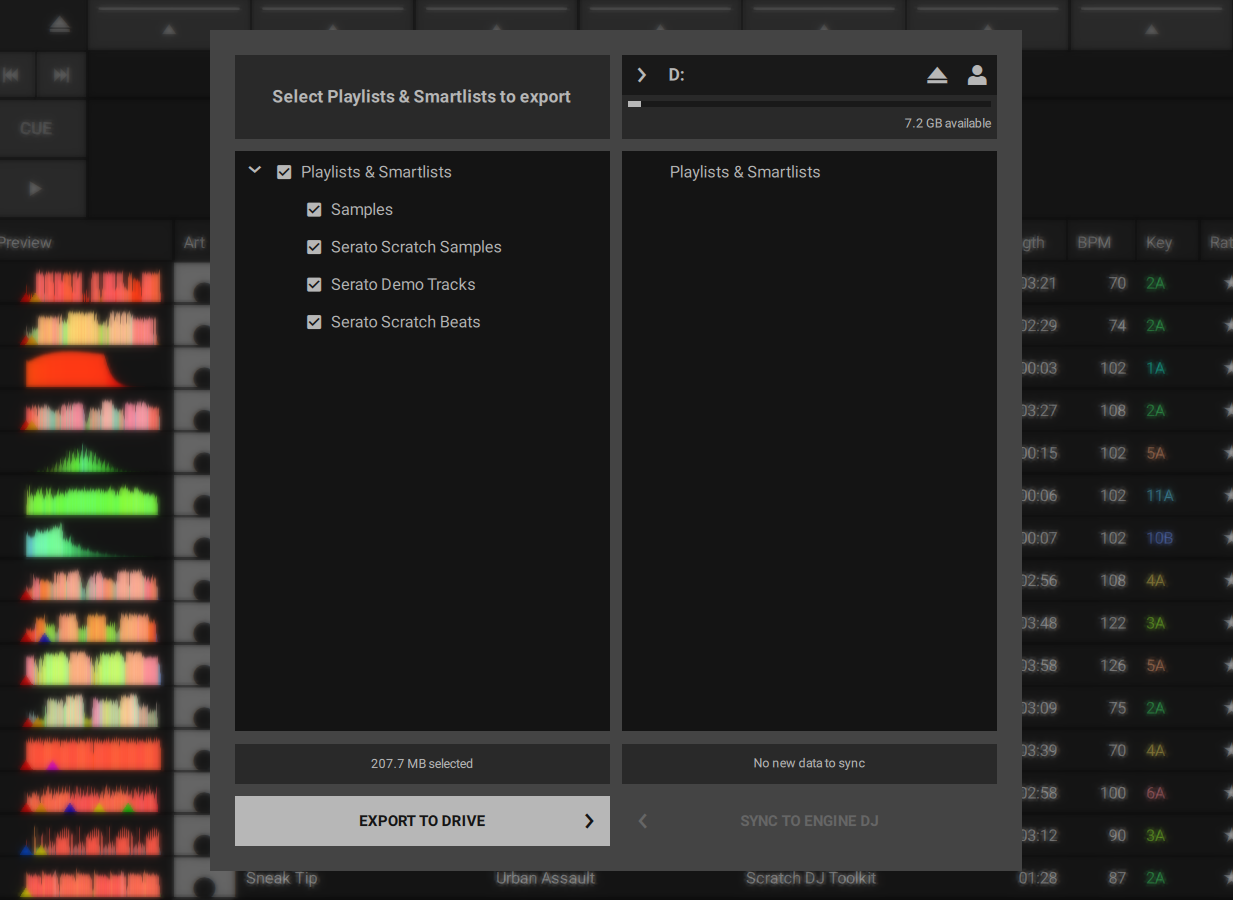
From here, you can use the SYNC MANAGER to export your playlists to your SYSTEM ONE storage device. Choose individual playlists or select all, then click on EXPORT TO DRIVE.
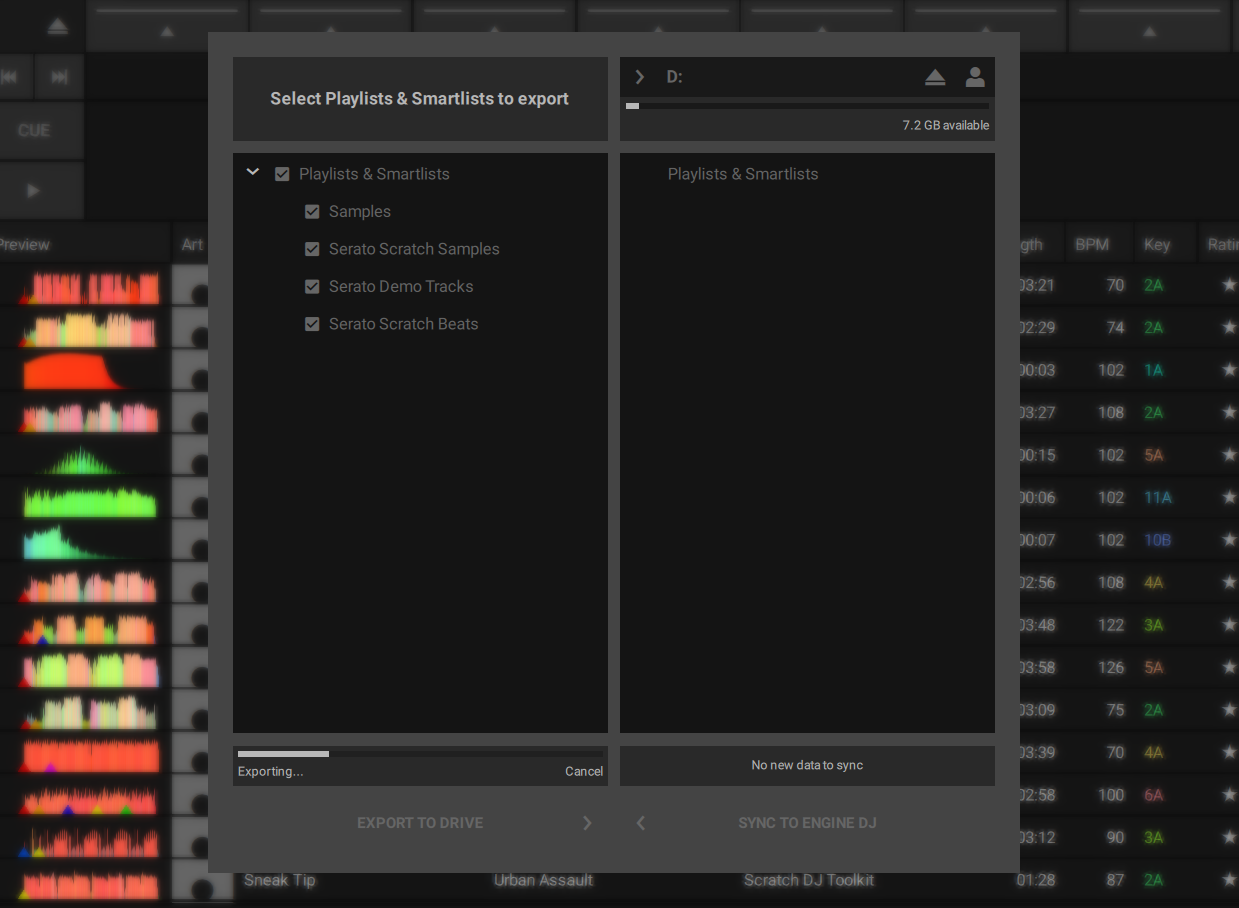
You will then see a progress bar indicating the export status of your Playlists. Export times will vary depending on the size of your library, file format, speed of your storage device, etc. so plan to do this when you have ample time available. Some users opt to let their library analyze files or perform large exports while they are away from their computer. We suggest this method for users with extensive libraries.
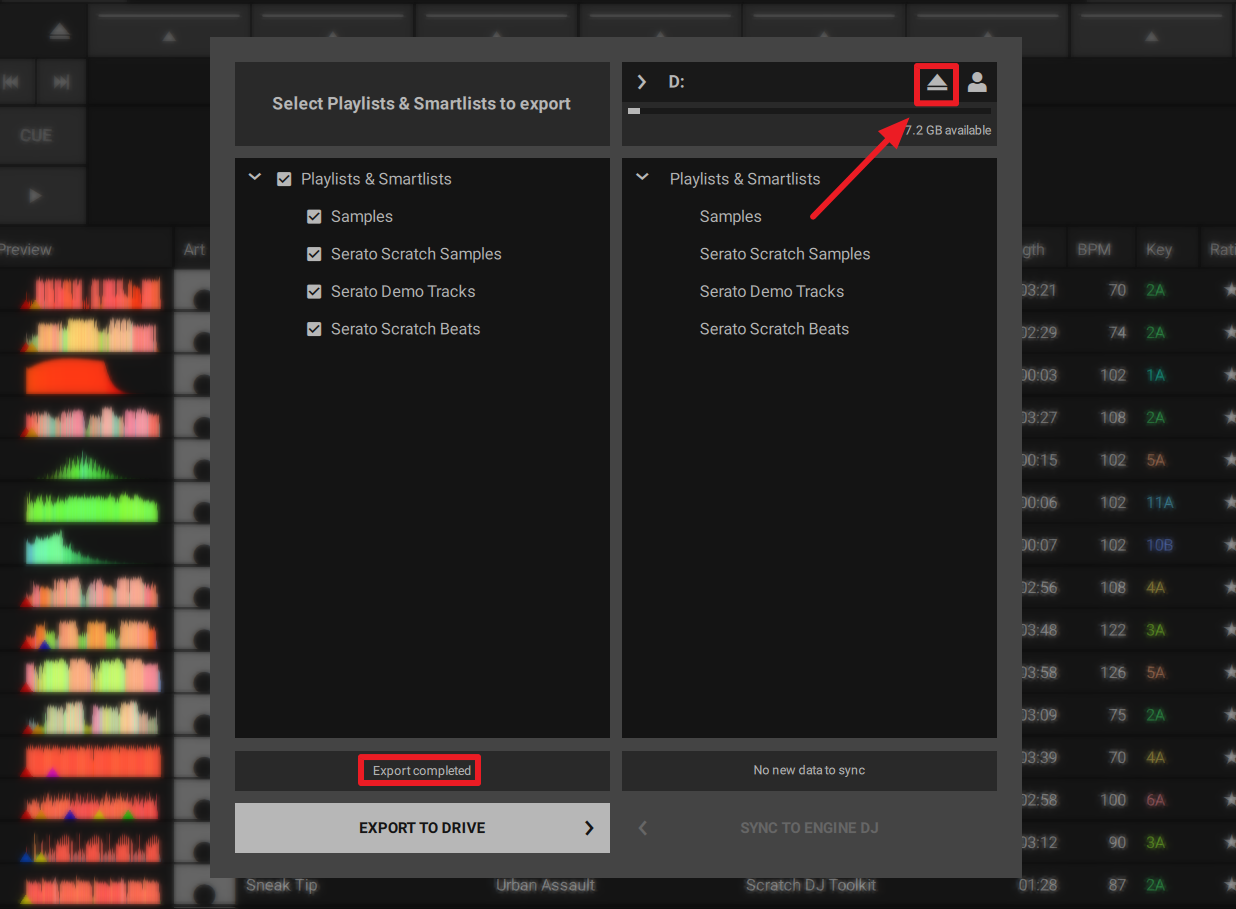
Once finished, the SYNC MANAGER window will show Export completed. You can now safely remove your storage device using the Eject button.
Your RANE SYSTEM ONE will also require a day one Engine DJ update upon initial setup.
- Power On SYSTEM ONE.
- During startup, log in to your preferred network from the Wi-Fi connection screen.
- Once connected, follow the on-screen prompts to update to Engine DJ 4.5.0. Engine OS updates for USB/SD and Mac or Windows can also be downloaded from the official Engine DJ website.
- Once the update is complete, your SYSTEM ONE will restart.
- Upon restart, log in or create a new Engine DJ Profile by scanning the QR code on the SYSTEM ONE with a phone or tablet. | Engine DJ Profiles Walkthrough
- Once logged in, SYSTEM ONE will be linked to your profile, providing you with single sign-on access to supported streaming services, and more!
How do you install an external drive into the SATA Bay on the RANE SYSTEM ONE?
To create more internal storage space on SYSTEM ONE, you can purchase a SATA (Serial ATA) drive and install it yourself.
SYSTEM ONE can support nearly any standard 2.5” SATA drive on the market. A solid-state drive (SSD) is highly recommended for the best performance, especially when using Stems, but you can also use a hard-disk drive (HDD). Make sure it uses a 2.5” (63.5 mm) form factor and uses (or can use) the exFAT or FAT32 file systems.
Note: Alternatively, you could install an mSATA (mini-SATA) drive, but make sure you also purchase an adapter that enables it to fit into a typical 2.5” SATA interface.
At the base of the device, you'll notice a panel area secured by 4 screws that you can remove to access the SATA Bay, allowing you to connect an SSD for storing your music files while using the device in standalone mode.
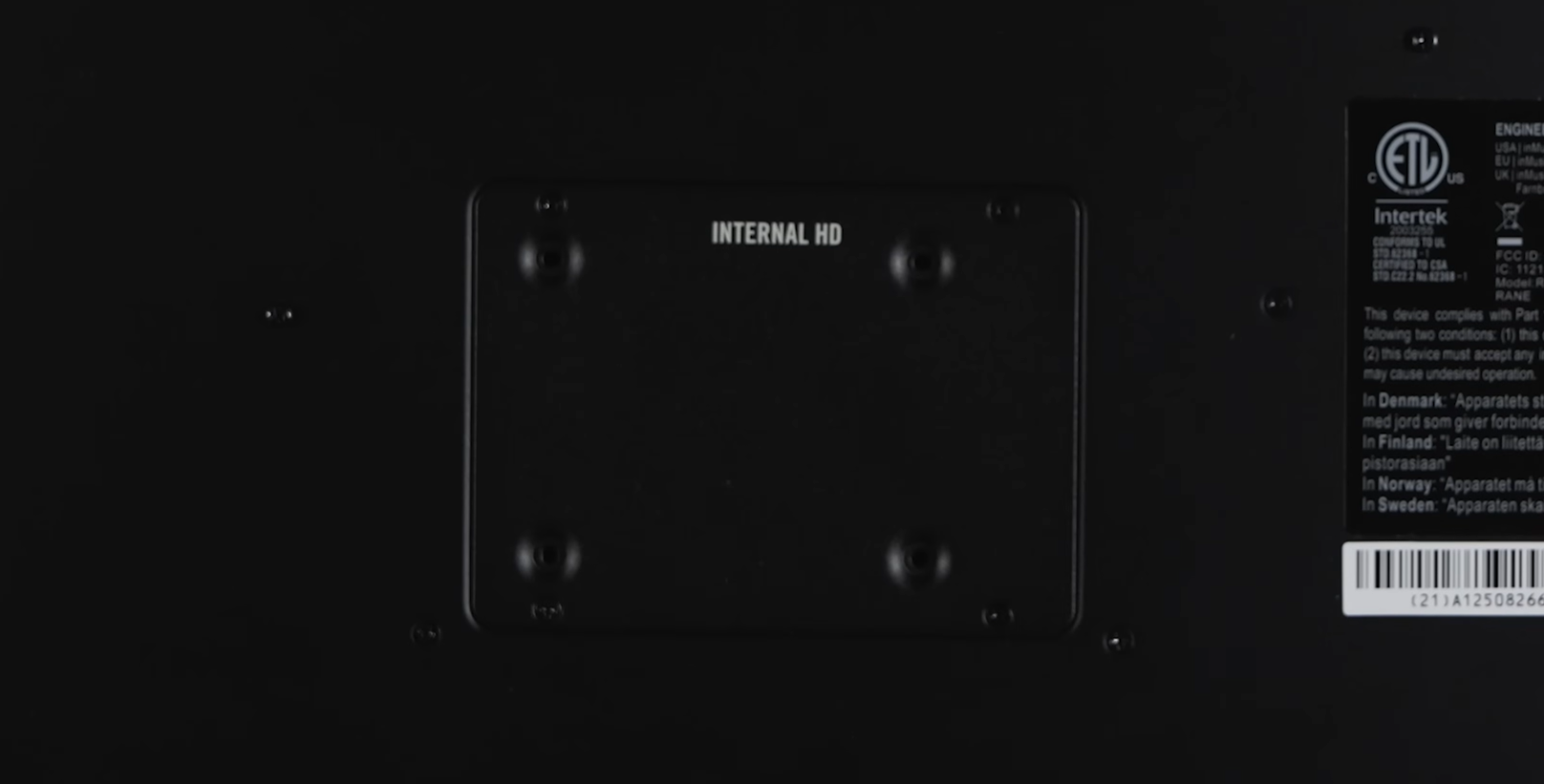
1. Make sure SYSTEM ONE is powered off and unplugged, and place it upside-down on a soft, flat surface.
2. Locate the Internal HD panel in the center of the bottom panel of SYSTEM ONE. Use a Phillips-head screwdriver to remove the screws (don’t lose them!), and remove the drive panel.
3. Gently pull out the red SATA connector and cable from inside your SYSTEM ONE. Be careful not to disturb anything inside handle just the SATA connector and cable.
4. Connect your SATA drive to the SATA connector. Make sure the connection is secure.
5. Use four 3x5 mm mounting screws (included with SYSTEM ONE or with your SATA drive) to secure the SATA drive to the drive panel. Do not overtighten the screws, but make sure the drive is secure and does not shake.
6. Place the drive panel back onto the bottom panel of SYSTEM ONE, and use the original screws to secure it in place.
Engine Stems
Do I need to purchase an Engine Stems license to use SYSTEM ONE?
No, the Rane SYSTEM ONE unlocks Engine Stems without having to purchase a license. You simply need to render the stems in Engine Desktop before hand.
How do I create stems in Engine Desktop?
Drag and drop tracks or playlists into the Stems Playlist, or right click on a track(or group of tracks) and select Create Stems.
Engine Lighting
Can I control my DMX lights using the Rane SYSTEM ONE?
Yes, Engine Lighting is available on all Engine DJ hardware. As long as you have an active SoundSwitch license and supported DMX interface like the DMX Micro or Control One, the Rane SYSTEM ONE can control your lights directly from the touch display.
How do I connect my DMX lights to the Rane SYSTEM ONE?
Connect your DMX interface to the Rane SYSTEM ONE using one of the USB ports located on the rear of the unit.
For users new to Engine Lighting, see our official getting started article linked below.
Rane SYSTEM ONE | Introduction to Engine Lighting
Deck Features
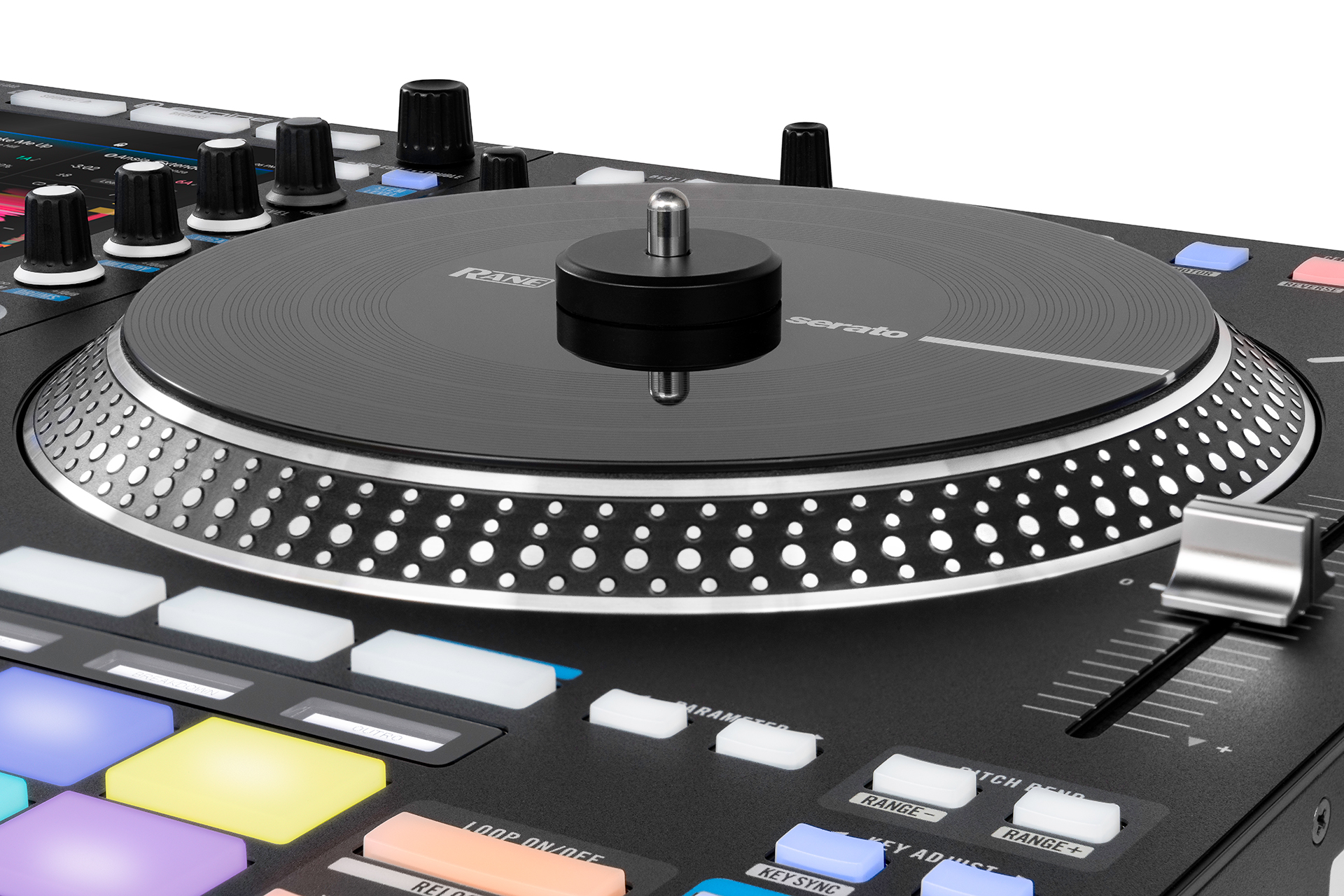
What hardware controls are there for Engine Stems?
The RANE SYSTEM ONE is capable of activating Engine Stems through the following methods.
- Stems Pad Mode with Stem FX
- Acapella/Instrumental buttons with Stem
- Stem Level EQ
How do I navigate playlists and load tracks?
Use the SCROLL/LOAD knobs to navigate through your playlists and various lists.
1. Press the SOURCE button and select a media drive, streaming source or Serato as your music source.
2. Use the touchscreen or turn the SCROLL/LOAD encoders to browser your library.
3. Swipe the track in the list to the respective deck, or push the SCROLL/LOAD encoders to load a track to a deck.
4. Press the START/STOP button to start playback.
You can press and hold Shift and then press these knobs to eject the selected track from the deck. Also if you quickly double-press these knobs to instant double the track from the opposing deck on the current deck.
What Pad Modes are available on the RANE SYSTEM ONE?
The RANE SYSTEM ONE features the following pad modes:
- Hot Cue
- Roll
- Sampler
- Stems
- Saved Loop
- Slicer
What are Playlists Banks?
Playlists can be quickly saved and recalled directly from the SYSTEM ONE using the Playlist Bank buttons.
On the left side of the device, you'll find the Playlist Bank A, B, and C buttons. To save a playlist to one of the buttons, press and hold while viewing a playlist of your choosing. You can choose an Engine playlist with local tracks or a playlist from one of the streaming After saving a playlist, you can use these buttons to access Library View with the saved playlist already selected.
Mixer Features
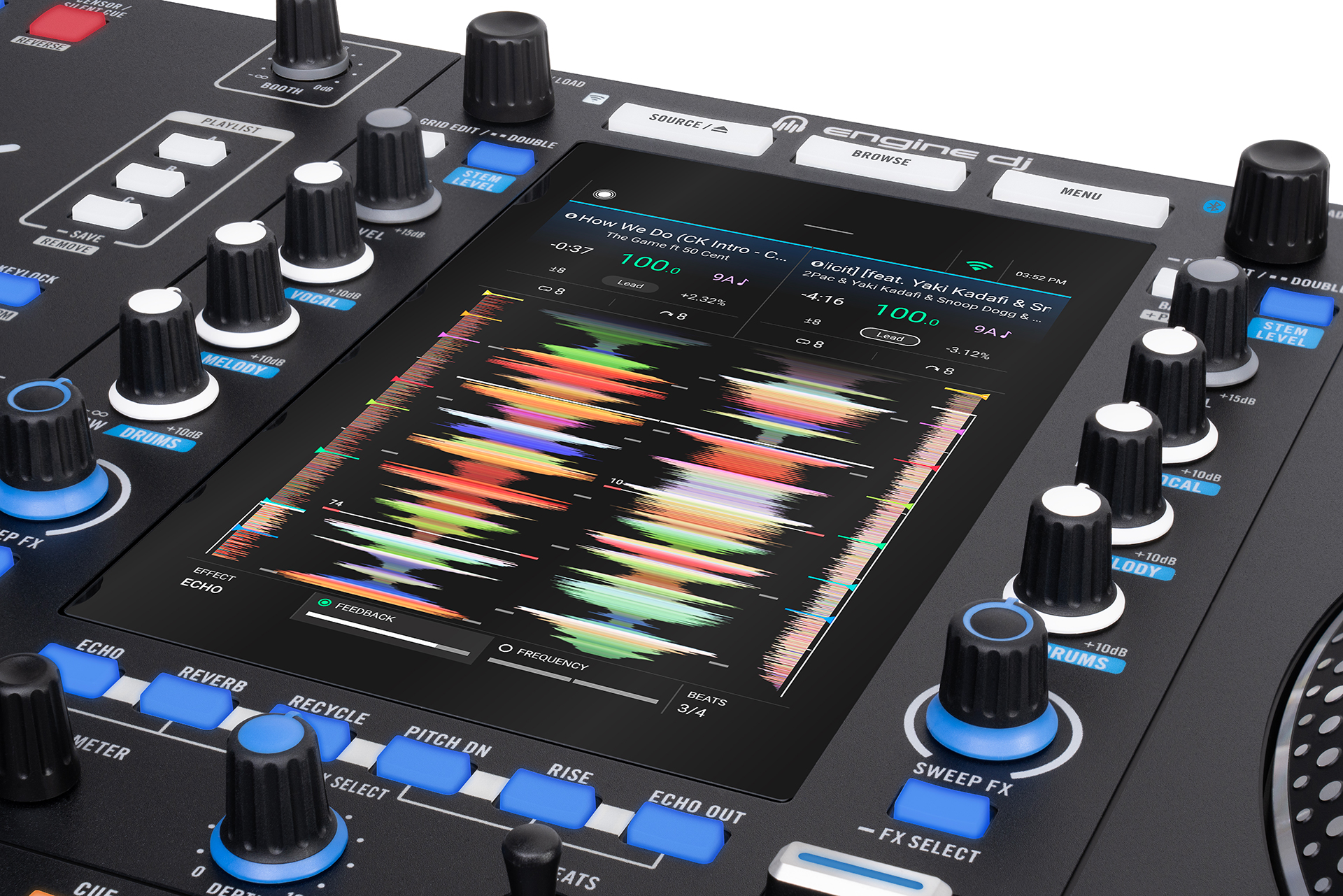
Is the crossfader user-replaceable? Can the tension be adjusted?
Yes! The MAG FOUR crossfader is user replaceable. The RANE SYSTEM ONE features an external Crossfader Tension Adjust knob on the front panel of the unit. The fader plate of the RANE SYSTEM ONE can also be removed so the MAG FOUR crossfader tension can be adjusted directly on the fader. Crossfader curve and reverse controls are also adjusted on the front panel of the SYSTEM ONE.
Are there any adjustments for the channel faders?
The RANE SYSTEM ONE mixer section features our PRECISION FEEL FADERS. These adjustable tension faders utilize the same dual rail mechanical system of the MAG FOUR, providing DJs with ultra-smooth, reliable, and consistent response when playing. The fader plate of the RANE SYSTEM ONE can be removed so the PRECISION FEEL FADER tension can be adjusted directly on the faders. The faders can be further customized on the front panel of the SYSTEM ONE, giving you the ability to reverse the fader and adjust the curve.
The channel faders contour is either to fast or to slow how can this be adjusted?
On the device's front panel, you will find the Contour Knob and Channel Reverse Switches, which enable you to modify how the channel faders behave.
- Logarithmic Curve: Turning the knob to the left increases the volume sharply near the top of the channel fader’s range, allowing for finer control at lower levels.
- Linear Curve: Placing the knob in the center position increases volume evenly as the channel fader is moved upward, providing a consistent response throughout.
- Exponential Curve: Turning the knob to the right increases the volume rapidly from the bottom of the channel fader’s range, ideal for quick transitions or cutting effects
Source Menu
The Source menu allows you to select connected media devices, streaming services, Dropbox, or computer input for DJ software such as Serato DJ(support coming early 2026) for use with SYSTEM ONE hardware.
When the Source menu is open, all connected hardware media sources will be shown in the top part of the display. Available streaming and cloud service partners at the bottom of the display.
Microphone settings
In this tab, you can adjust settings for the microphone audio.
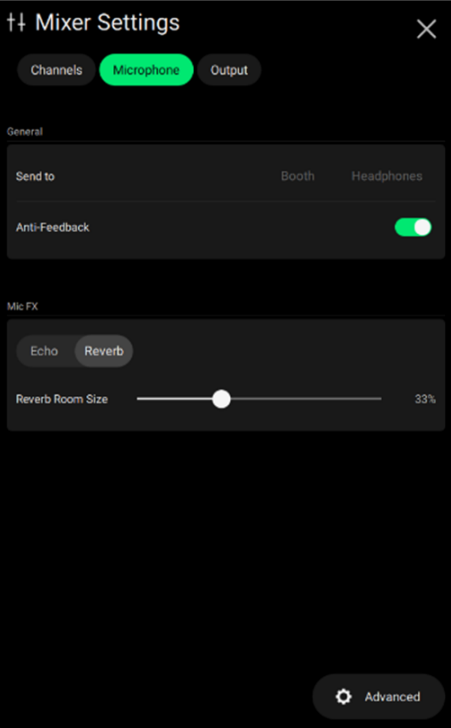
- Send To: This setting allows you to route the microphone to the Booth and/or Headphones outputs. Tap to select each one.
- Anti-Feedback: Enable this option to apply anti-feedback processing to the microphone audio.
- Mic FX: This setting allows you to enable either an Echo or Reverb effect to the microphone.
When Echo is selected:
- Echo Feedback controls the amount of echo signal fed back into the delay line.
- Echo Speed controls the rate of echo delays.
When Reverb is selected:
- Reverb Room Size adjusts the length of the reverb tail.
Press the Advanced button at the bottom of the screen to open the Settings menu for more device Mic / Aux settings.
Output EQ
In this tab, you can apply and adjust EQ curves for the Main and Booth outputs.
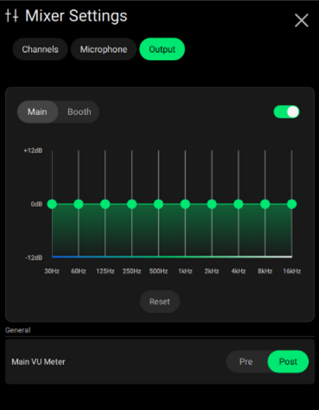
Use the Main VU Meter setting to determine whether SYSTEM ONE’s Main Level Meters display the audio signal level Pre fader level or Post fader level.
Rear Panel I|O

What types of Media Connections does the RANE SYSTEM ONE have?
USB1/3/4 (USB Type-A) and 2 (Type-C) ports support media devices, keyboards and SoundSwitch Lighting interfaces/controllers.
The SD Card slot accepts SD Media devices.
The TO COMPUTER (Locking Type-C) port is used to connect SYSTEM ONE to a computer. Use the attached locking thumbscrew to securely fasten the cable to SYSTEM ONE.
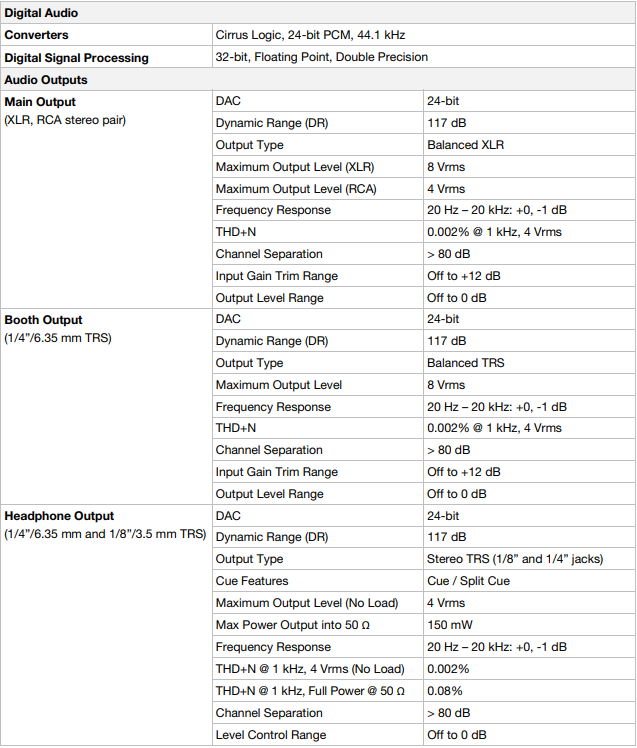
Outputs
Main Outputs (RCA, unbalanced): Use standard RCA cables to connect these outputs to loudspeakers or an amplifier system. Use the Main knob on the top panel to control the volume level.
Main Outputs (XLR, balanced): Use standard XLR cables to connect these outputs to loudspeakers or an amplifier system. Use the Main knob on the top panel to control the volume level.
Booth Outputs (1/4” / 6.35 mm): Use standard RCA cables to connect these outputs to booth monitors or a booth amplifier system. Use the Booth knob on the top panel to control the volume level.
Stereo/Mono: Use this switch to set the channel configuration of the Main Outputs: Stereo (binaural audio using separate left and right channels) or Mono (summed monaural audio through both left and right channels).
Inputs
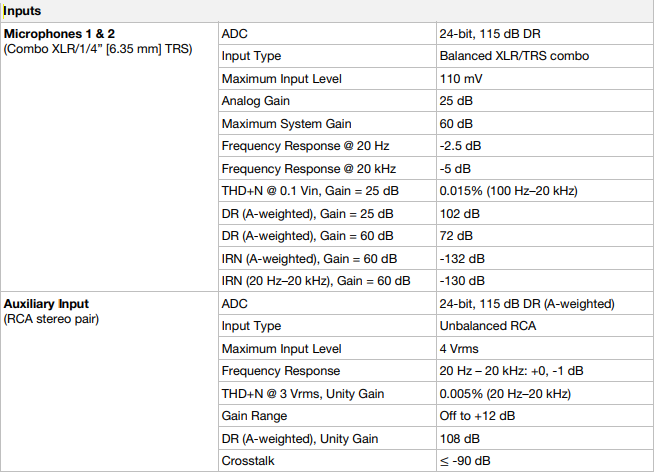
Mic Inputs 1–2 (XLR or 1/4” / 6.35 mm): Use standard XLR or 1/4” (6.35 mm) cables (not included) to connect standard dynamic microphones to these inputs. Use the Mic 1 and Mic 2 Level knobs on the front panel to control the volume level.
Aux Inputs (RCA, unbalanced): Use standard RCA cables to connect these line-level inputs to an external audio source. Use the Aux Level knob on the front panel to control the volume level.
Bluetooth
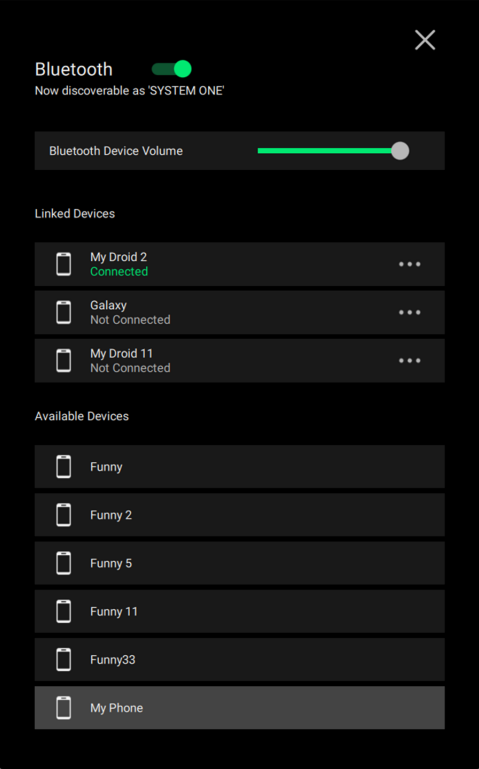
To enable Bluetooth, tap the Bluetooth switch at the top of the page. Once enabled, a list of available devices will appear on the display. You can also enable Bluetooth from the Device menu in the Settings.
To link to an available device:
- First, make sure your Bluetooth device is powered on, in range, and available for pairing. You should see the name of your device in the Available Devices list if it is ready to pair.
- Select your device from the list of Available Devices. The first time you connect a device, you will be prompted with a passcode to confirm on both SYSTEM ONE and the Bluetooth device. Alternatively, for audio input devices such as smartphones or tablets, navigate to the Bluetooth Settings screen on your device. Then, locate SYSTEM ONE and select it.
- Once successfully linked, your device will appear in the Linked Devices list. You can then easily reconnect to this device at any time. SYSTEM ONE will automatically determine whether your device is used as an input or output. If your device supports both, a dialog will display to ask you to select one type. You can change this at any time using the three-dots icon.
Was this article helpful?
That’s Great!
Thank you for your feedback
Sorry! We couldn't be helpful
Thank you for your feedback
Feedback sent
We appreciate your effort and will try to fix the article