This guide will cover the steps to troubleshoot the Pro Pack on your MPC/Force Standalone hardware.
TABLE OF CONTENTS
- Overview
- I Can See The Pro Pack, But The Activation Button Is Missing
- Clip Workflow Features Are Missing In Main Menu
- MPC Project contains an unsupported number of clip rows
Overview
The Pro Pack is the ultimate add-on designed to take Gen 1 MPC/Force to the next level. To ensure the features work correctly - the Pro Pack needs to be activated. After doing so - the MPC/Force will also need to be restarted for the features to be applied to the system.
Should you encounter any issues after doing this, please refer to the dedicated troubleshooting guide below.
I Can See The Pro Pack, But The Activation Button Is Missing
Please note that the Pro Pack will always be visible in the activations menu. However - if you have not purchased a licence, the activation buttons will not be present.
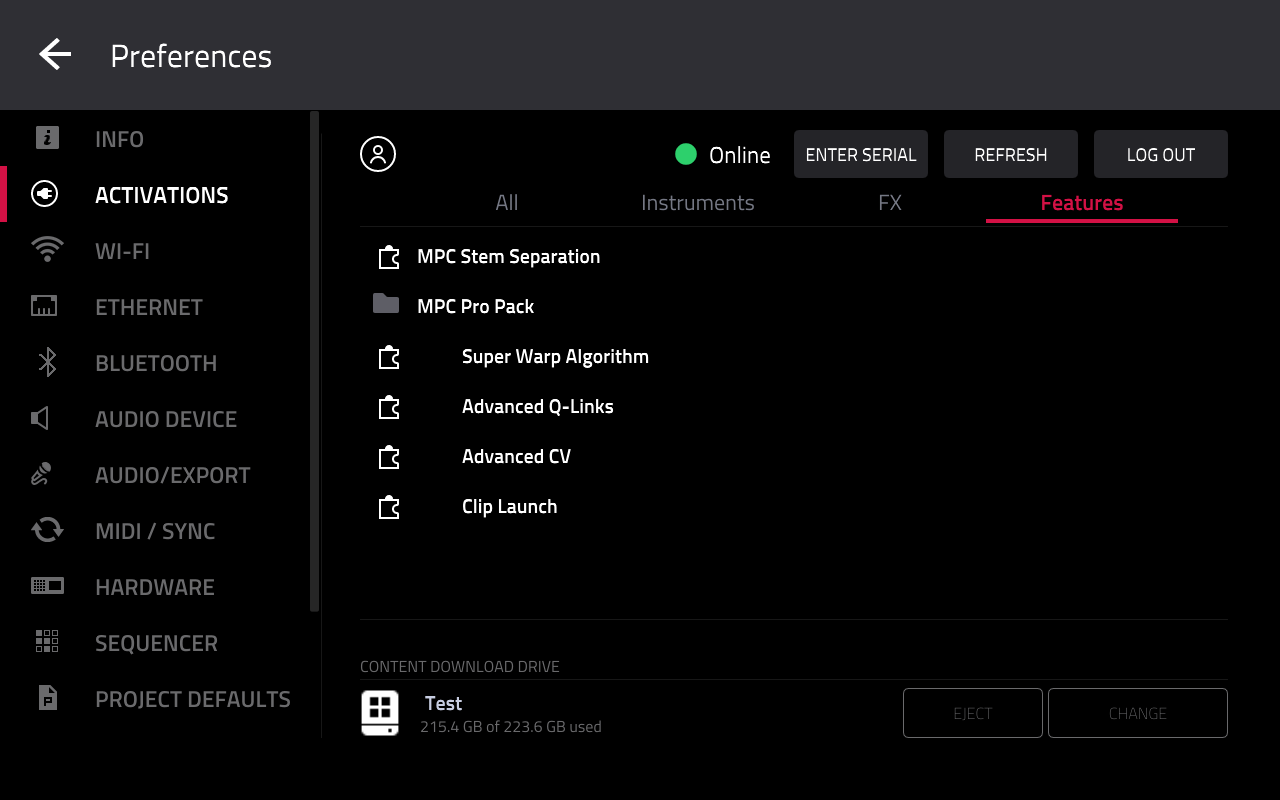
If you notice that you are unable to activate the Pro Pack, refer to the solutions below:
Scenario 1: The Pro Pack has not been purchased. In this case, the activation buttons will not appear.
Solution 1: Purchase the Pro Pack HERE
Scenario 2: The Pro Pack has been purchased on the wrong inMusic Profile email address.
Solution 2: Contact our support team to assist with the transfer HERE
Scenario 3: You are logged into an inMusic account that does not have the Pro Pack licence.
Solution 3: Log out (Menu > Preferences > Activations > Log Out). Then, log in using the correct inMusic Profile account.
Clip Workflow Features Are Missing In Main Menu
If you notice that the clip workflow features are missing in the main menu, this suggest that your MPC has not been restarted after the Pro Pack was activated - this will preventing the Clip Workflow features from appearing on the MPC. This behaviour can also occur if the Pro Pack has been deactivated at any point.
Scenario 1 - Fix: Pro Pack is already activated
1. Navigate to: MENU > PREFERENCES > ACTIVATIONS
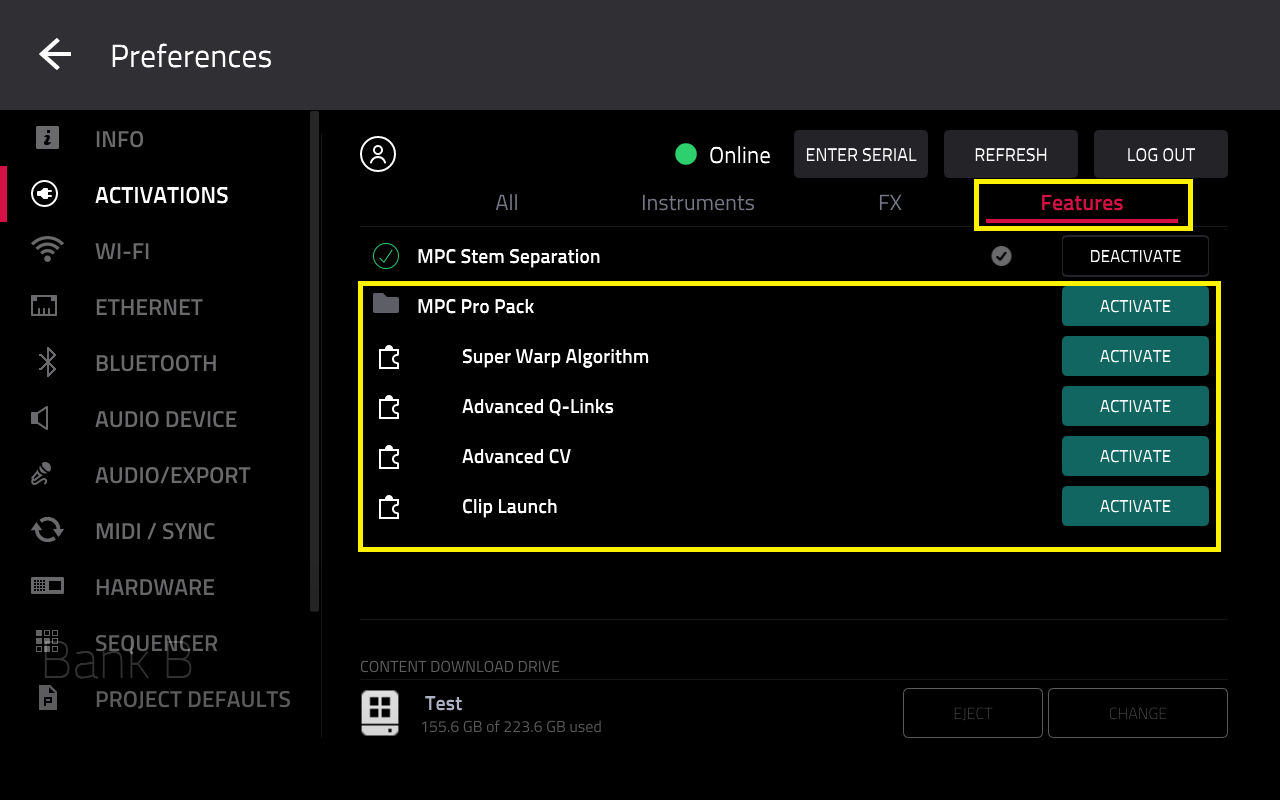
2. If the Pro Pack is already activated, this will be represented with a black 'DEACTIVATE' icon.

3. Please tap DEACTIVATE
All features should have a blue 'ACTIVATE' button like so:
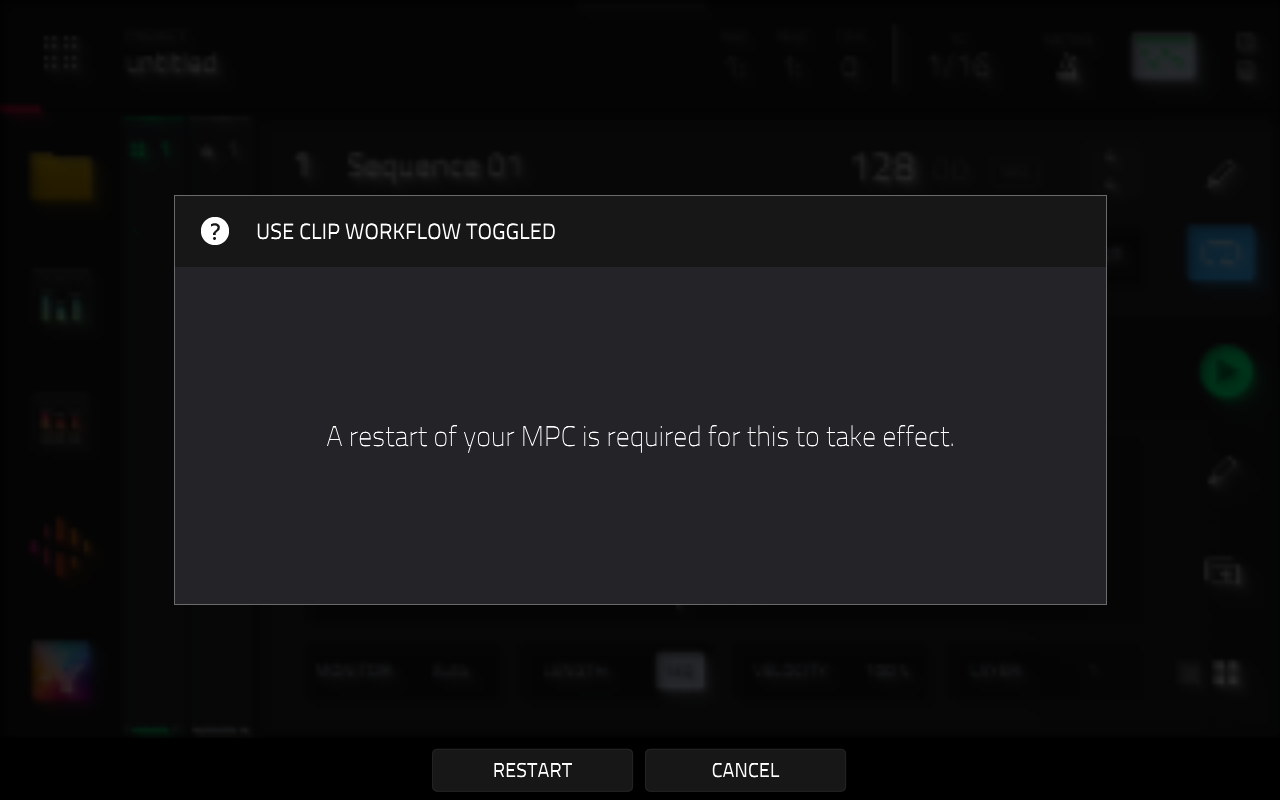
3. Once the Pro Pack has been deactivated, the MPC will prompt you to restart, tap RESTART
4. Once the MPC has restarted, go back to MENU > PREFERENCES > ACTIVATIONS and ACTIVATE the Pro Pack.
All features should have a checkmark and say 'DEACTIVATE' like so:
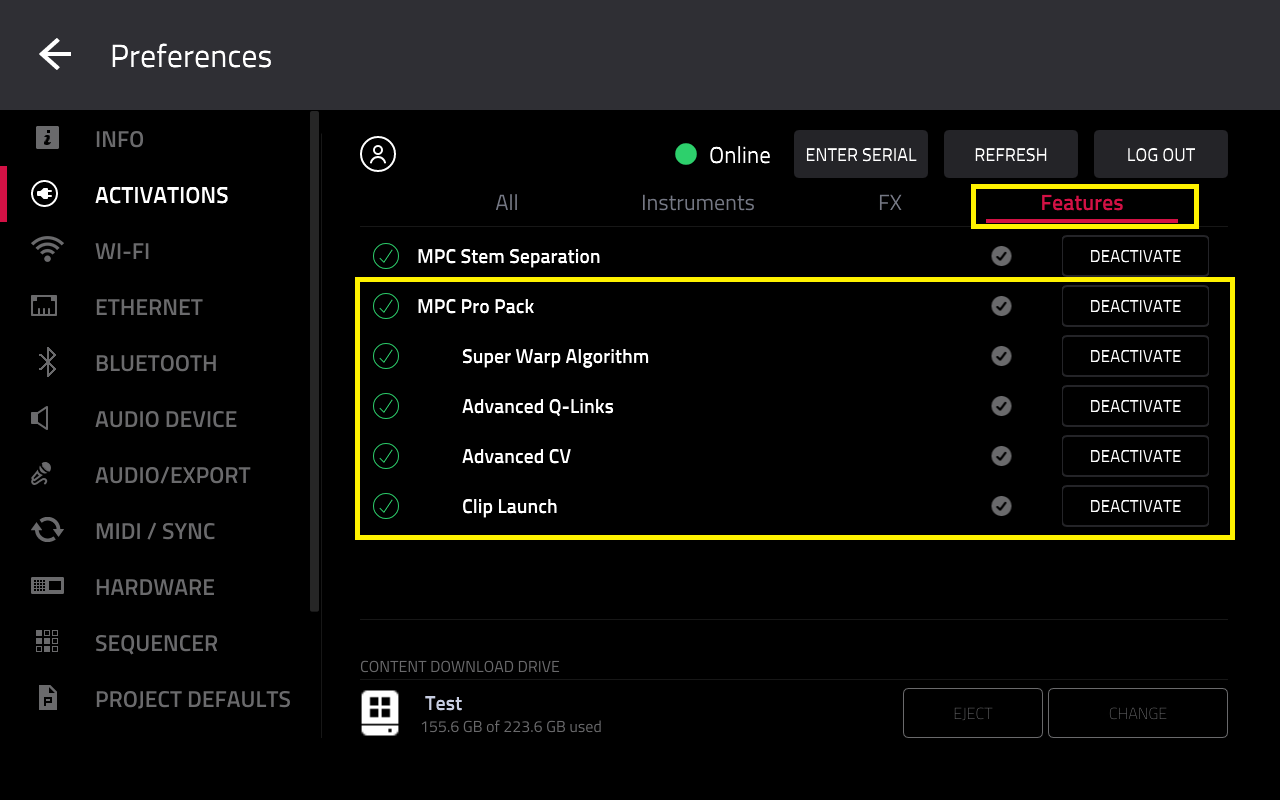
5. Once done, return to the Main Menu. The Clip Workflow features will be applied and be available as normal.
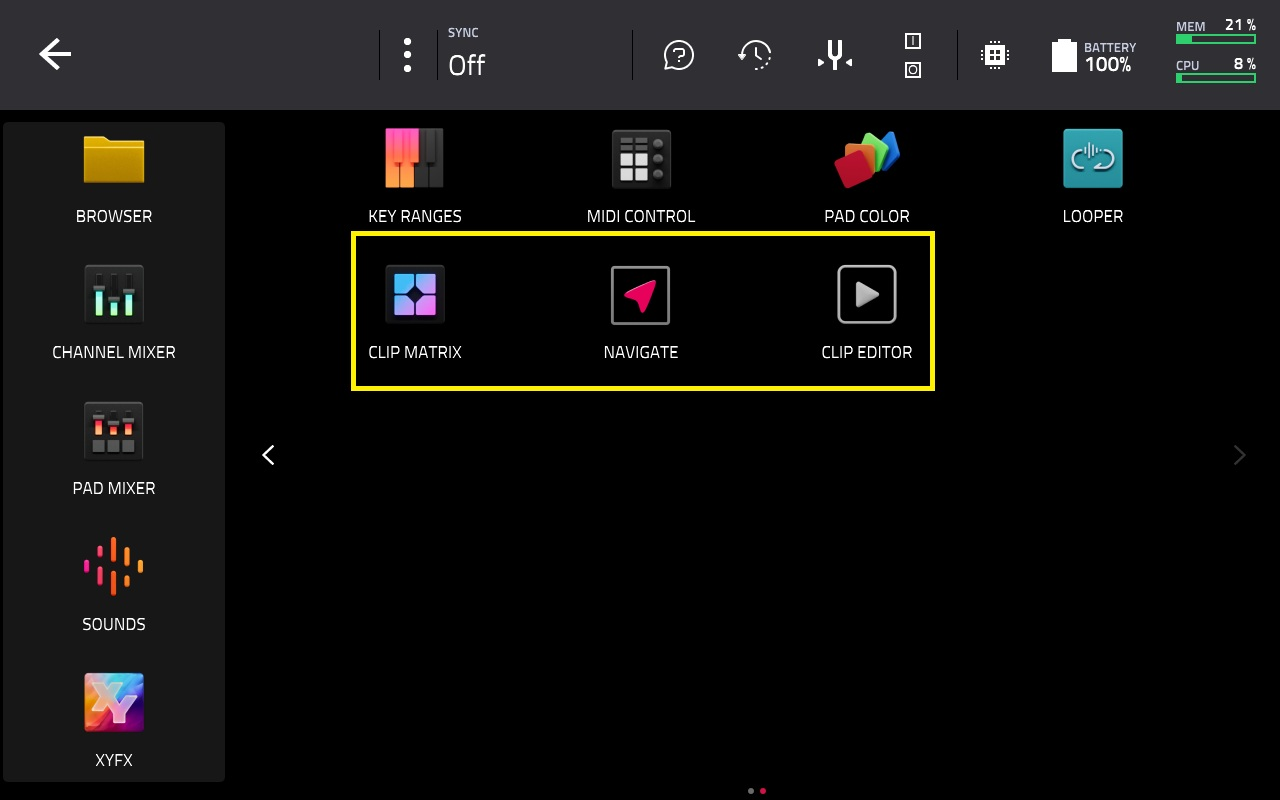
Scenario 2 - Fix: Pro Pack is deactivated
1. Navigate to: MENU > PREFERENCES > ACTIVATIONS
2. If the Pro Pack is deactivated, this will be represented with a blue 'ACTIVATE' icon.

3. Please tap ACTIVATE
All features should have a checkmark and say 'DEACTIVATE' like so:
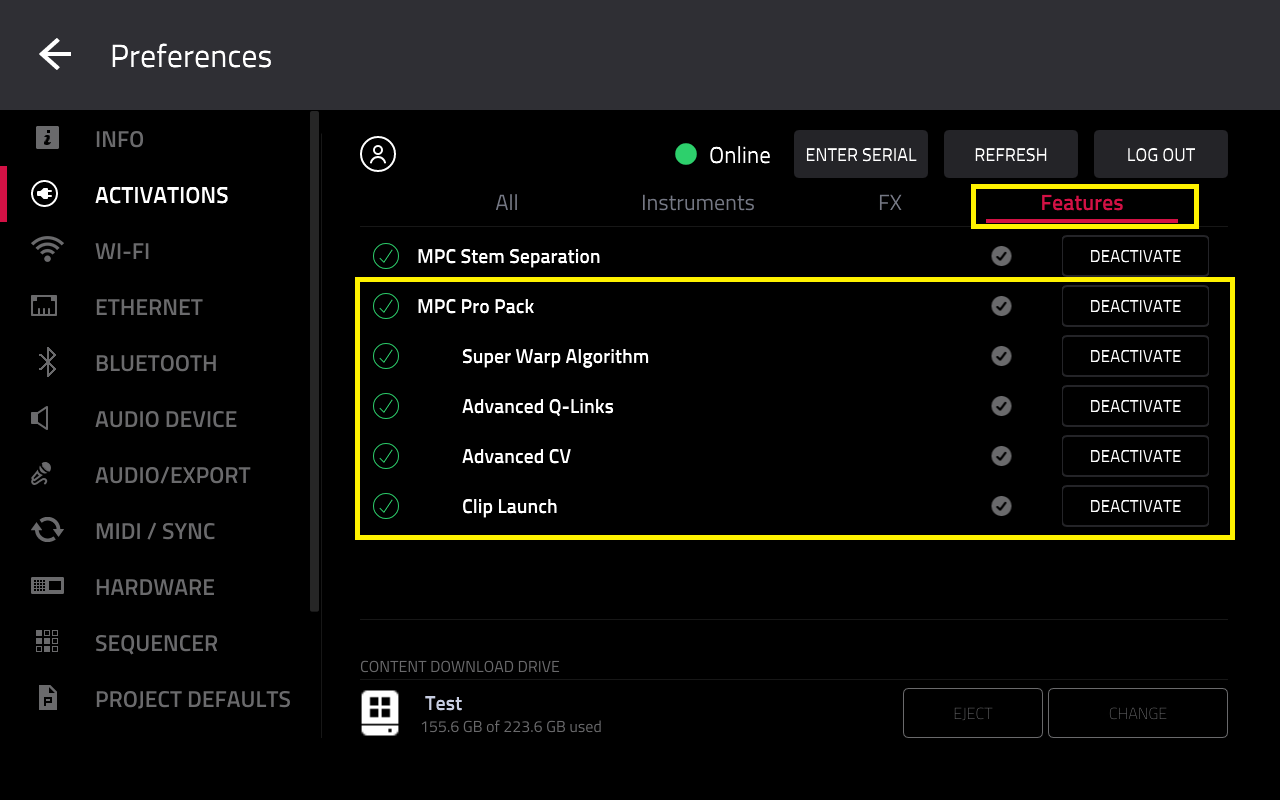
4. The MPC will prompt you to restart, tap RESTART.
5. Once the MPC has restarted, go back to MENU > PREFERENCES > ACTIVATIONS and ACTIVATE the Pro Pack.
All features should have a checkmark and say 'DEACTIVATE' like so:
6. Once done, return to the Main Menu. The Clip Workflow features will be applied and be available as normal.
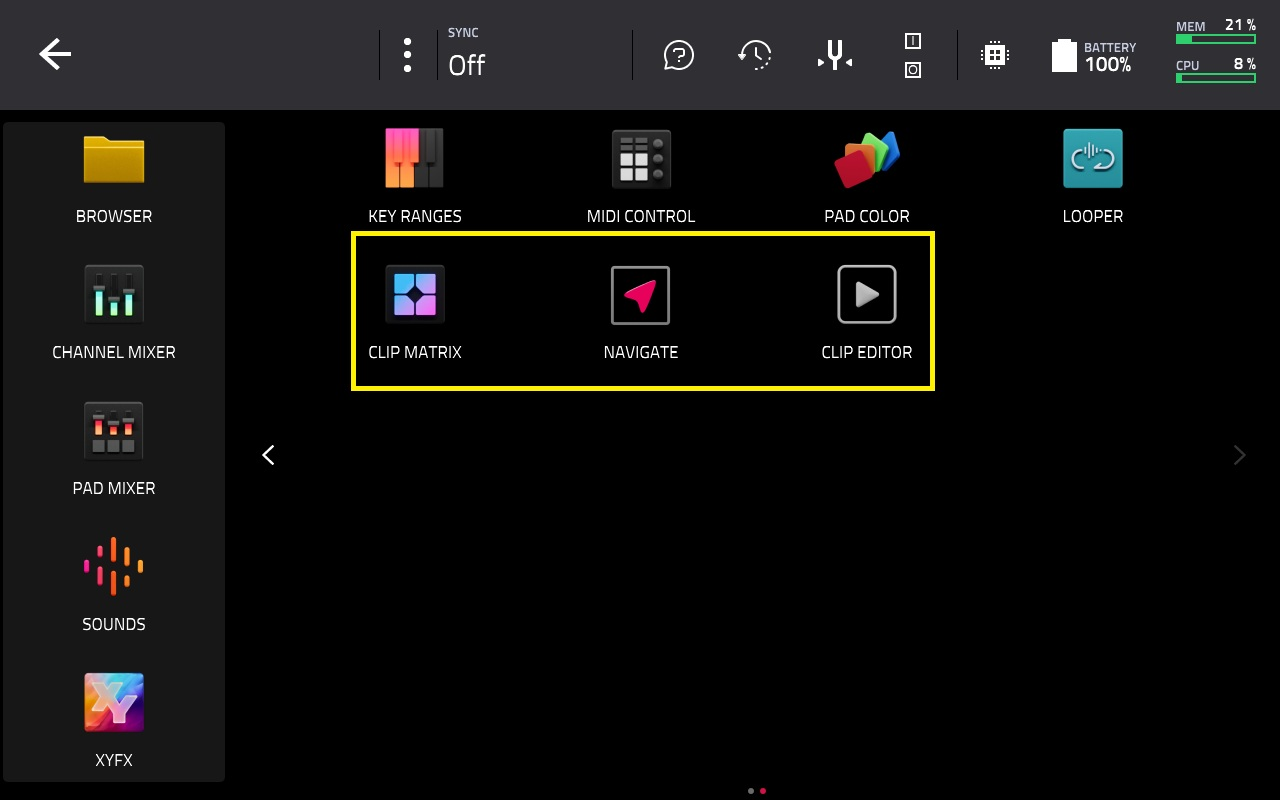
MPC Project contains an unsupported number of clip rows
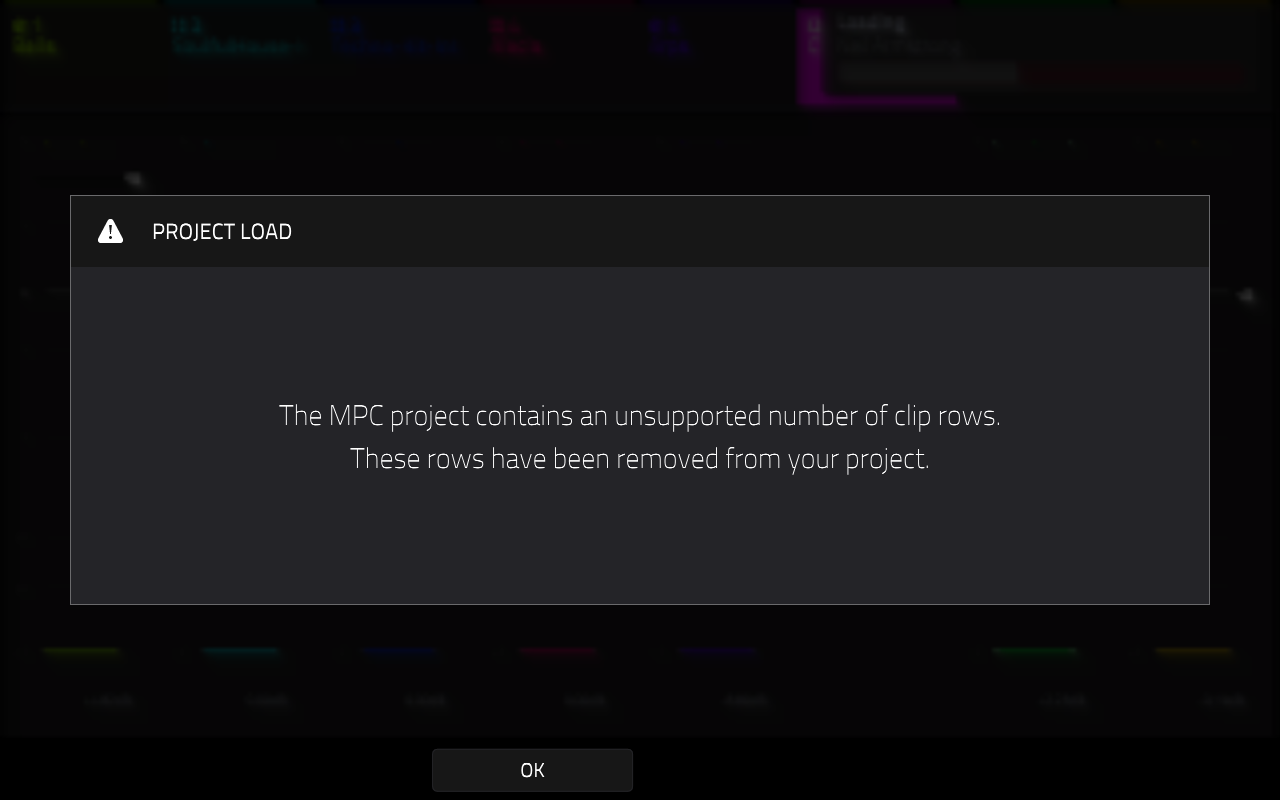
This message indicates that the Pro Pack is currently deactivated. Due to this, the MPC is unable to recall the clip rows in the project you are attempting to open.
1. To resolve this, navigate to MENU > PREFERENCES > ACTIVATIONS and ACTIVATE the Pro Pack
All features should have a checkmark and say 'DEACTIVATE' like so:
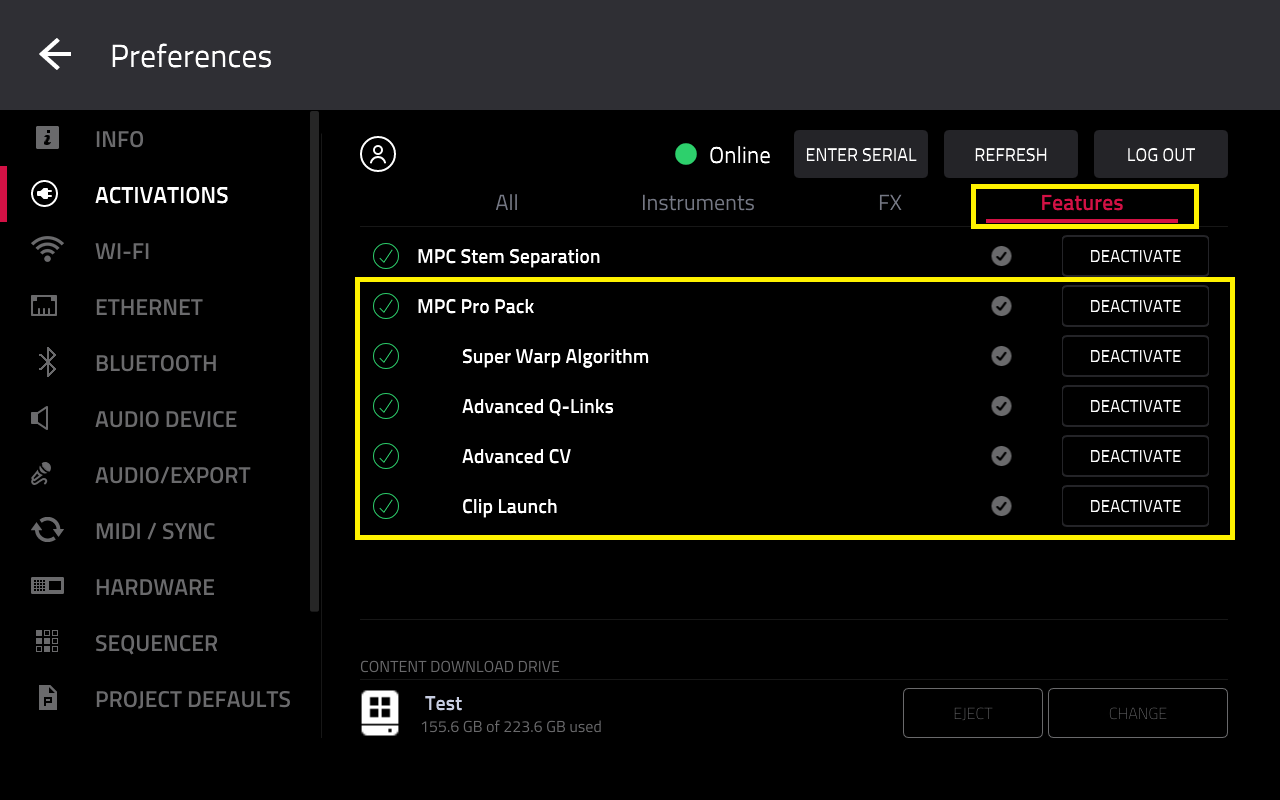
2. The MPC will prompt you to restart, tap RESTART.
3. Once the MPC has restarted, go back and ACTIVATE the Pro Pack.
All features should have a checkmark and say 'DEACTIVATE':
4. Once done, return to the Main Menu. The Clip Workflow features will be applied and be available as normal.
You can then reload your project.
Was this article helpful?
That’s Great!
Thank you for your feedback
Sorry! We couldn't be helpful
Thank you for your feedback
Feedback sent
We appreciate your effort and will try to fix the article