Akai Pro MPC Series | Saving & Loading Drum and Keygroups in MPC Desktop & Standalone

This article will cover the steps to save and load drum/keygroups from MPC 3 desktop software and MPC 3 standalone.
The transition from MPC2 to MPC3 introduces significant architectural changes, most notably the unification of tracks and programs into a single track container. With this change, projects and associated files will not load/save with identical behaviour.
TABLE OF CONTENTS
- Important Notes
- MPC 3 Standalone - Saving drum or keygroup tracks
- MPC 3 Desktop - Saving drum or keygroup tracks
- MPC 3 Desktop - Loading drum or keygroup tracks
- Loading drum or keygroups tracks from MPC 3 Desktop to MPC 3 Standalone
Important Notes
- MPC 2 (Desktop/Standalone) - Drum & keygroups are saved as .xpm files
- MPC 3 (Standalone) - Drum & keygroups are saved as .xpm files
- MPC 3 (Desktop) - Drum programs are saved as .xtd files. Keygroups are saved as .xty files. Both formats are saved with an accompanying TrackData folder
MPC 3 Standalone - Saving drum or keygroup tracks
This chapter covers the steps to save a drum or keygroup that is already active in your MPC standalone project.
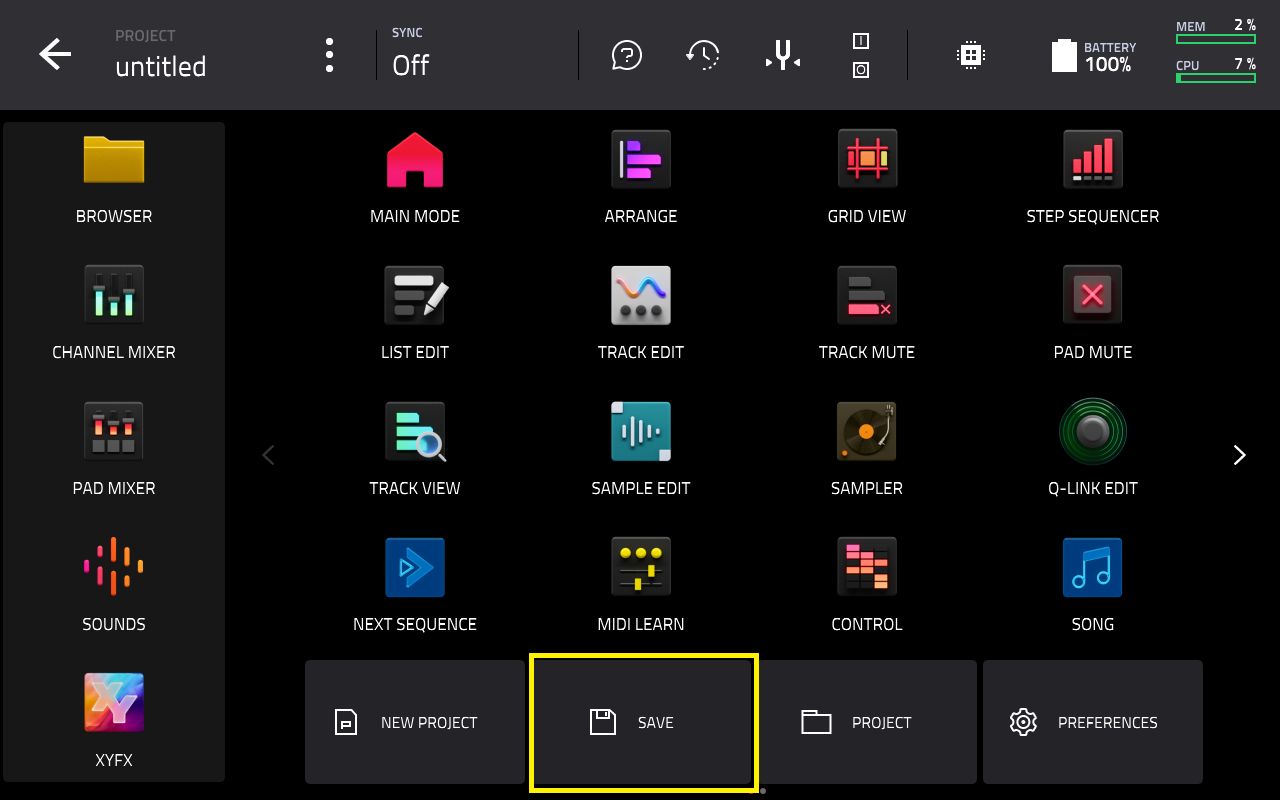
1. Go to Menu > Save
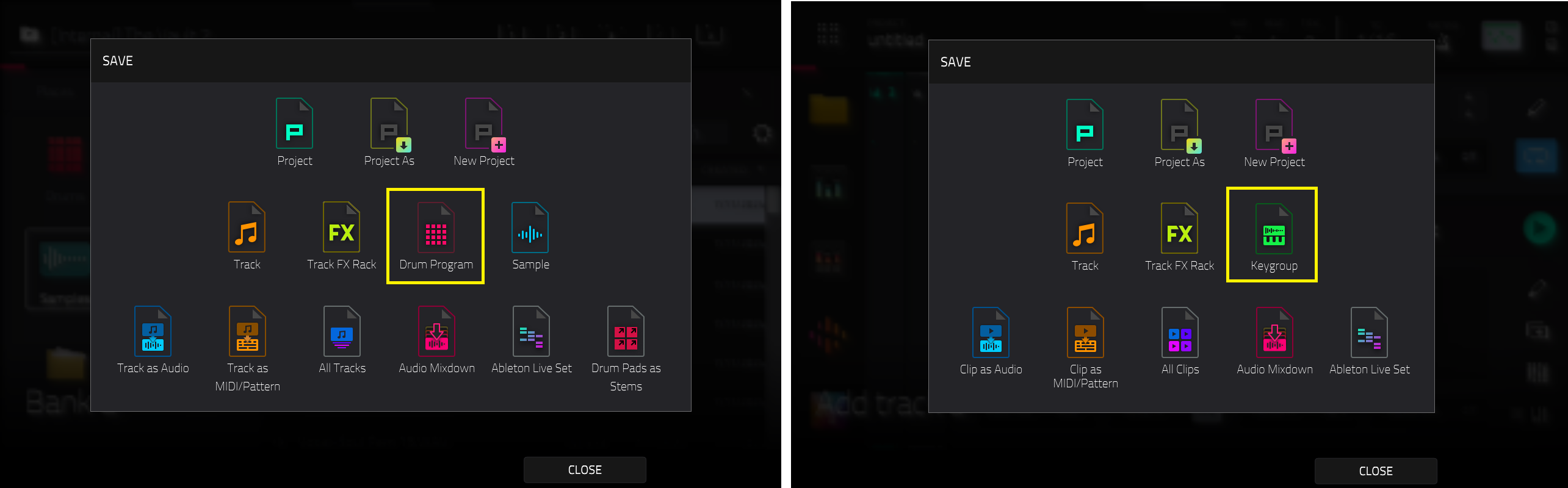
2. The save options available will be dependent on the active track in your project.
If you have a drum track active, select Drum Program
If you have a keygroup track active, select Keygroup
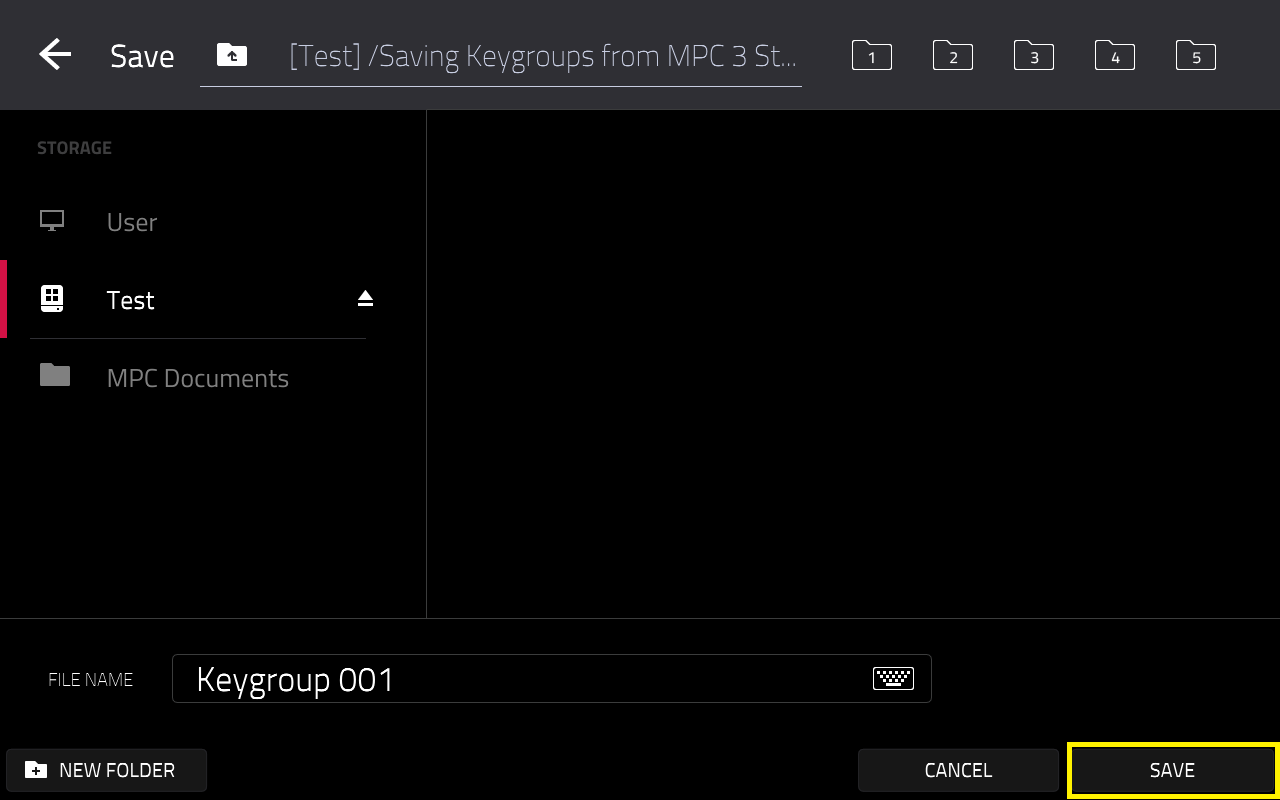
3. Select the destination you want to save the file
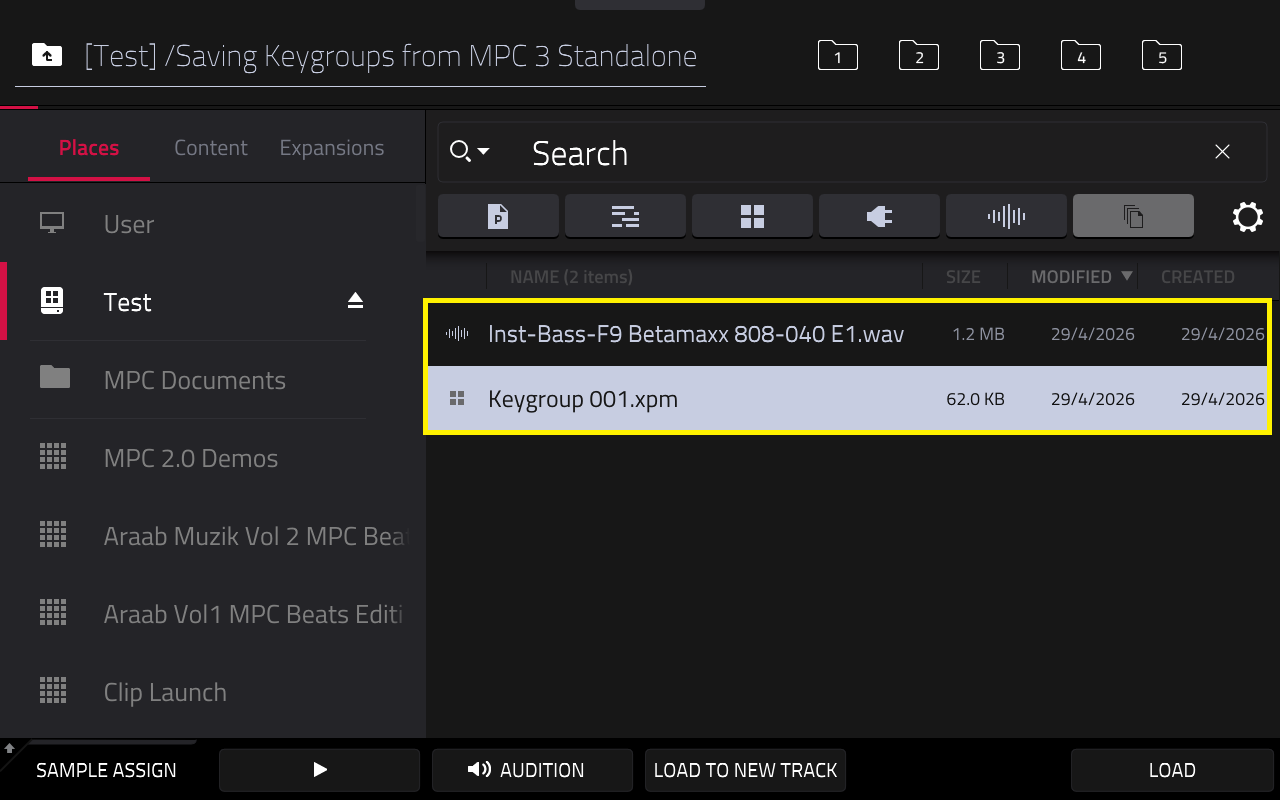
4. The drum or keygroup will be saved as an .xpm file along with the associated sample(s)
MPC 3 Desktop - Saving drum or keygroup tracks
This chapter covers the steps to save a drum or keygroup track from MPC 3 desktop.
1. Go to Menu > File > Save Current Track...
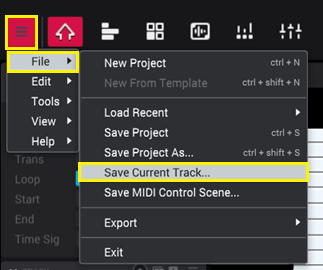
2. Select your save destination, then click SAVE
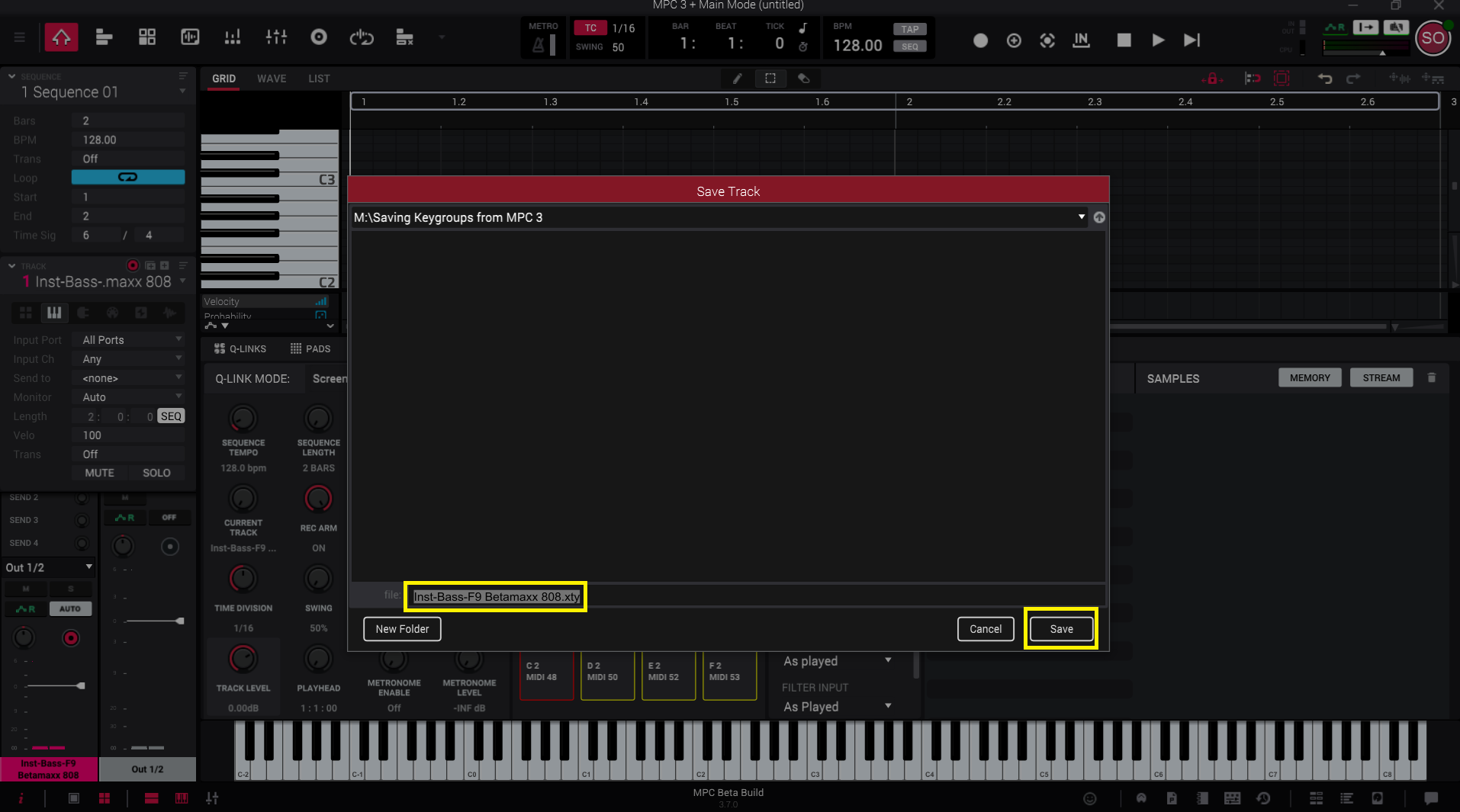
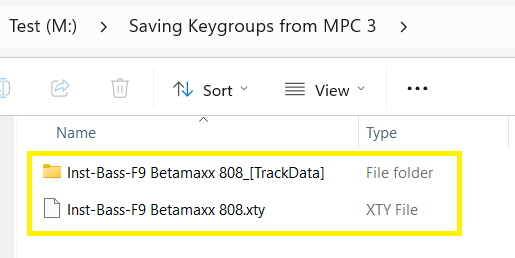
3. Drum programs will be saved as .xtd. Keygroups will be saved as .xty.
Both formats are saved with an accompanying TrackData folder containing the original sample(s)
MPC 3 Desktop - Loading drum or keygroup tracks
This chapter covers the steps to load a drum or keygroup track into MPC 3 desktop.
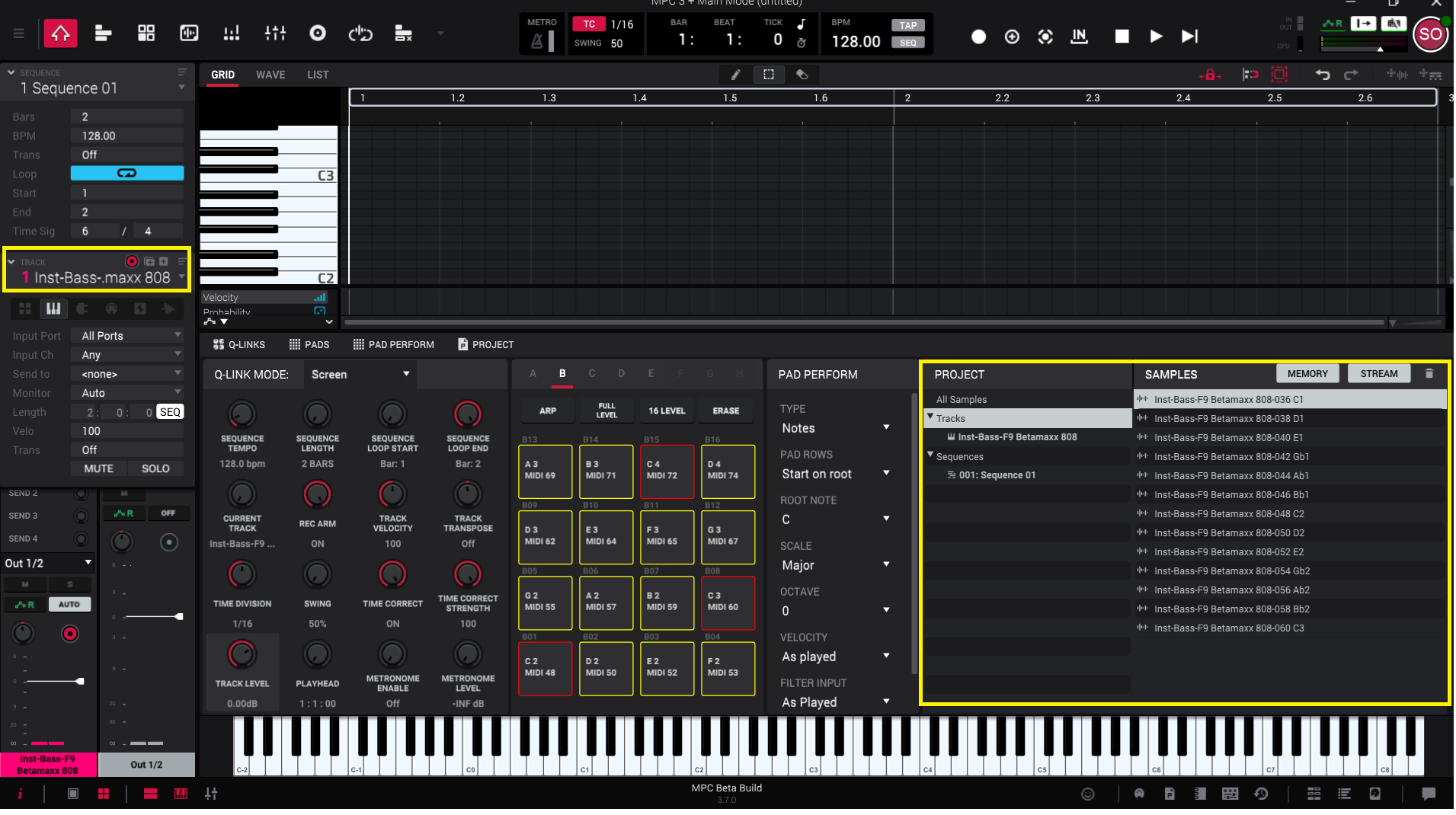
1. Drag the .xty/.xtd file back into the grid/piano roll in MPC 3 desktop
2. The track will repopulate with the associated samples
Loading drum or keygroups tracks from MPC 3 Desktop to MPC 3 Standalone
This chapter covers the steps to load a drum or keygroup into your MPC (standalone) that have been saved from MPC 3 desktop.
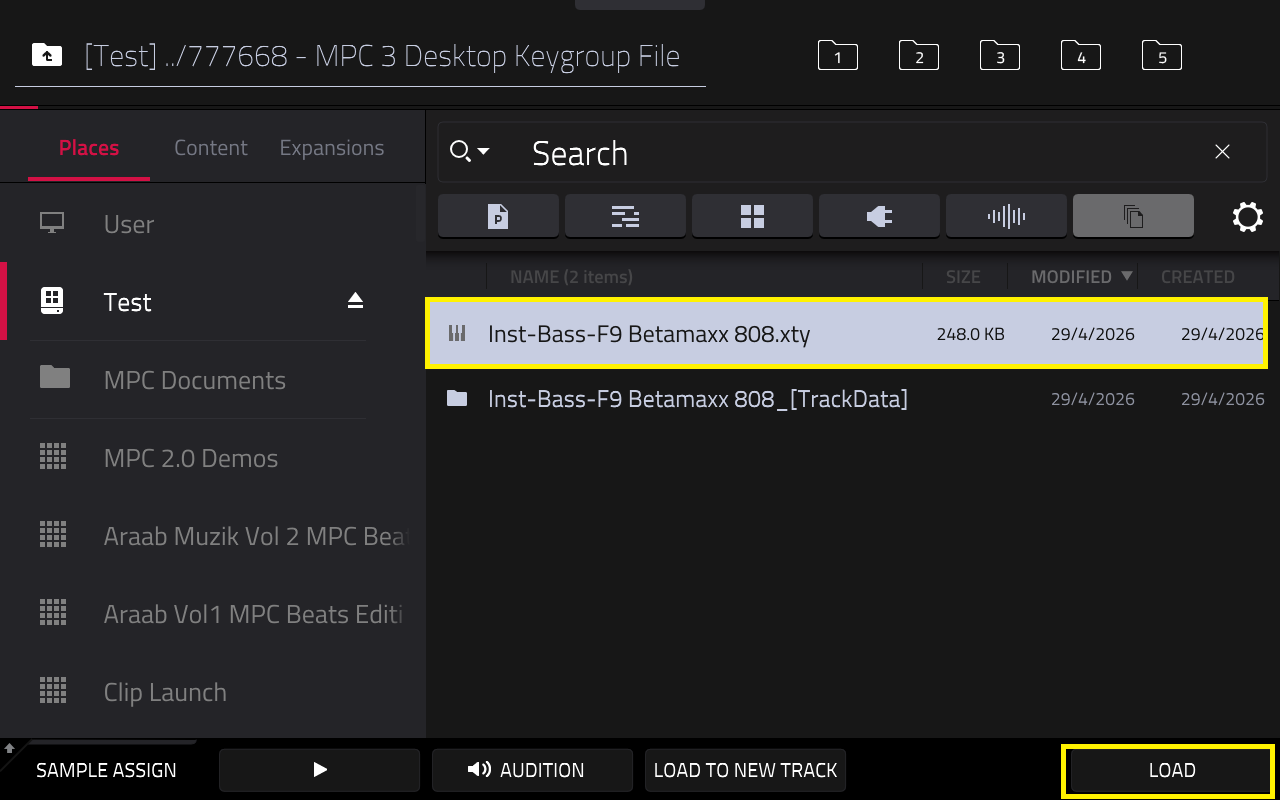
Note: As covered previously, drum & keygroups that are saved from MPC 3 desktop will be in an .xty/.xtd format with an accompanying TrackData folder
1. Copy the .xty/.xtd and TrackData folder to the drive you use with your MPC
2. In standalone mode, locate the .xty file in the browser and select LOAD
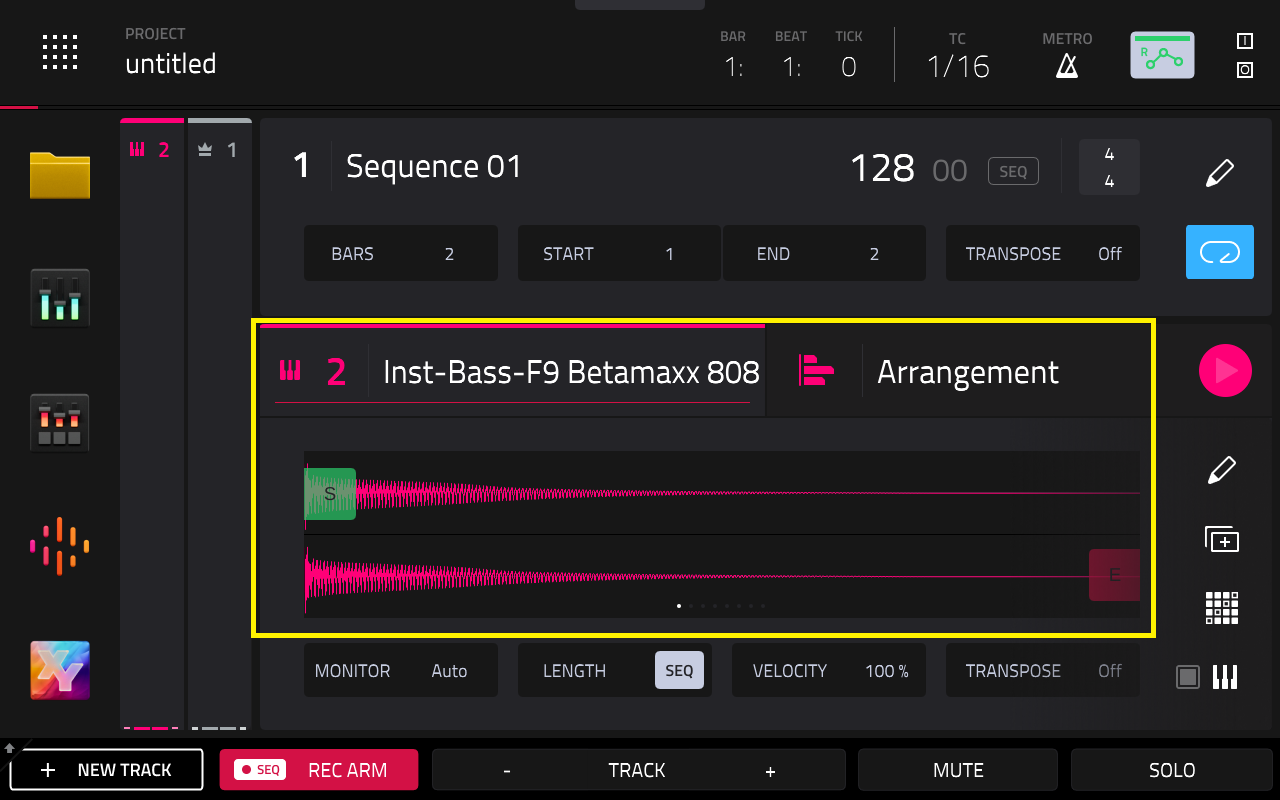
3. The keygroup will load and ready to use as normal
Was this article helpful?
That’s Great!
Thank you for your feedback
Sorry! We couldn't be helpful
Thank you for your feedback
Feedback sent
We appreciate your effort and will try to fix the article