TABLE OF CONTENTS
- How do I create Stems in Engine DJ?
- How do I stop a track from rendering for Stems?
- How do I remove Stems from my source drive?
- Known Limitations:
- FAQ
- Can I play back Stems while creating Stems for another track?
- Can I play back Stems immediately on the device after rendering?
- Where are the Stem files saved to?
- How can I see which tracks are currently being processed for Stems?
- How can I check available storage on my internal SSD before rendering Stems?
- What happens when I export playlists with Stems?
- I want to render all my Stems on an external drive to free up space on my computer. What’s the best way to manage my library?
- Why are some of my rendered tracks or stems missing after exporting a drive from Engine DJ Desktop?
- How can I back up the internal SATA drive in my RANE SYSTEM ONE?
- How do I keep my computer’s collection in sync if I create Stems on my RANE SYSTEM ONE?
- I want to manage my collection across two drives and render Stems wherever I need. How can I avoid losing my Stem files?
- File Types
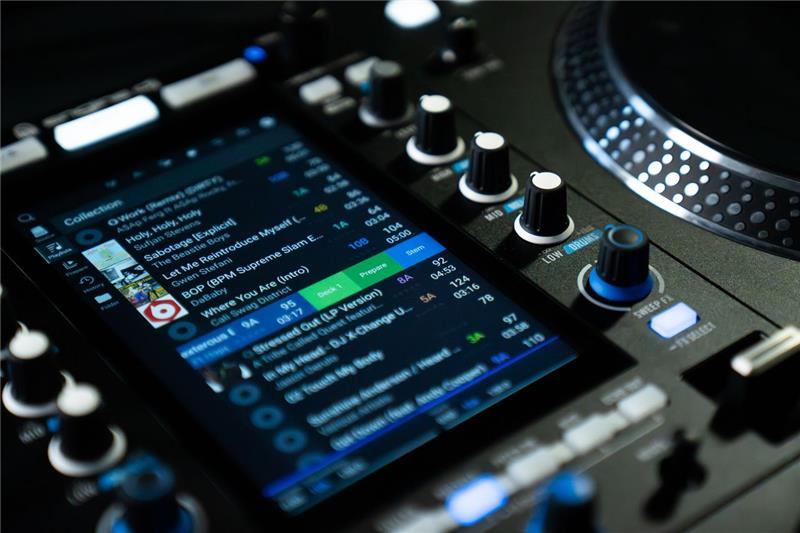
The RANE SYSTEM ONE now supports on-device stem rendering. Tracks can have stems created in the background, during normal playback. Once complete, all stem functions become available allowing separation of Vocal, Melody, Bass, and Drum elements for stemmed tracks. Any tracks where stems have been created will be stored on disk so they’re instantly available for future use.
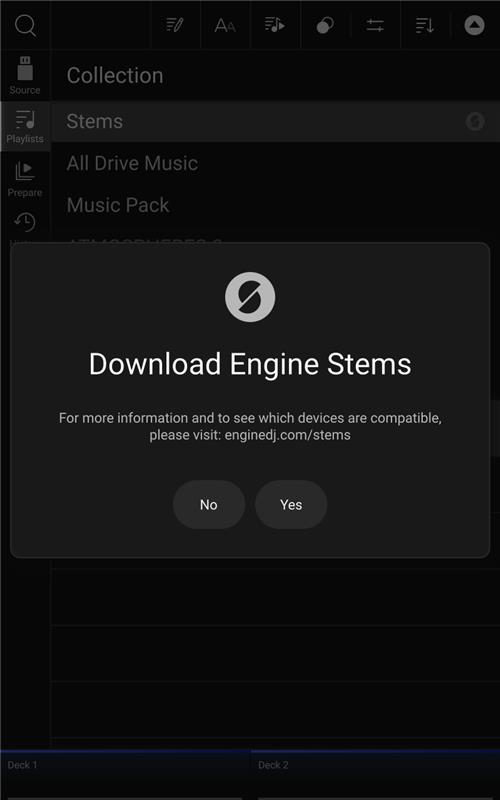
How do I create Stems in Engine DJ?
There are multiple ways to add tracks for stem creation:
Single Track
- In the track list, half-swipe a track to the left to reveal the Stem button
- Tap it to add the track to the Stems render queue
Multiple Tracks
- Enable Library Edit Mode in the track list
- Select multiple tracks
- Drag and drop them into the Stems list
Entire Playlist
- Enable Library Edit Mode
- Drag and drop the full playlist into the Stems list
How do I stop a track from rendering for Stems?
When tracks are actively rendering or queued for Stems, a Stop button will appear in the top toolbar while viewing the Stems list.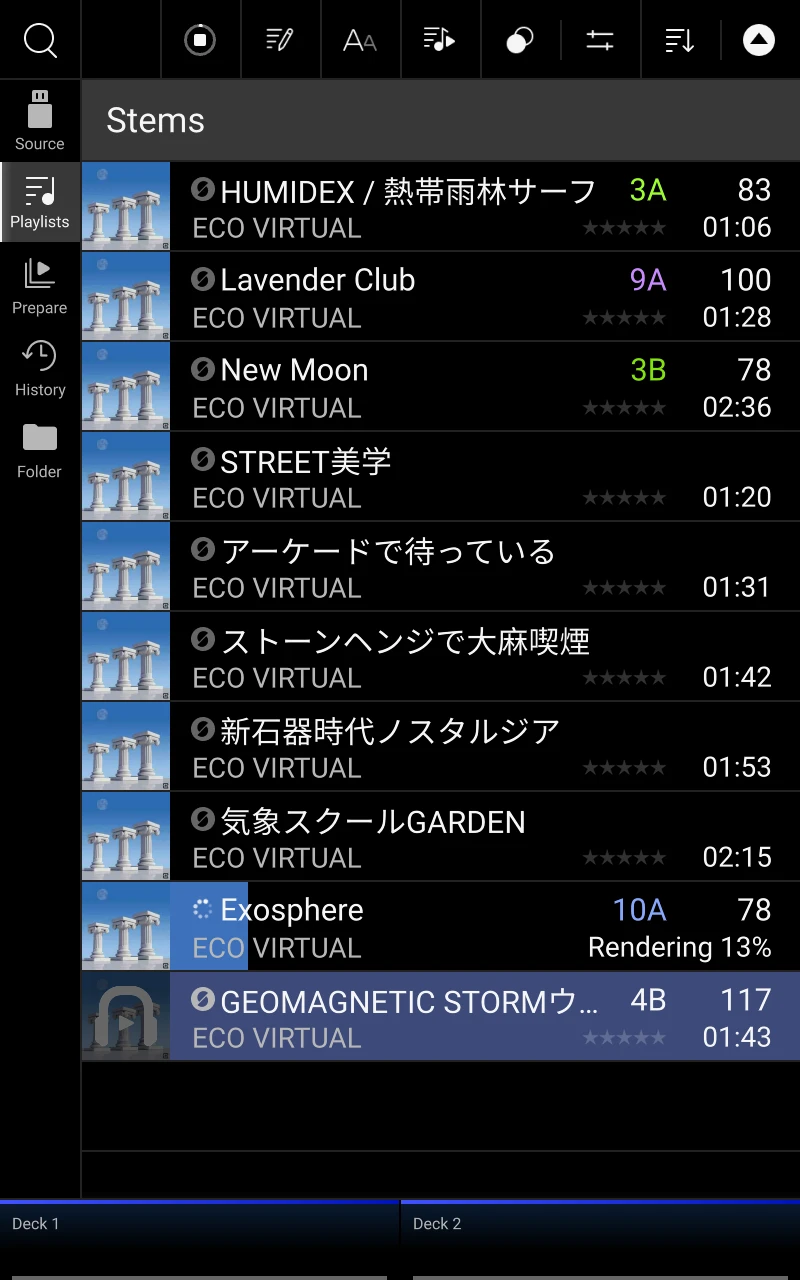
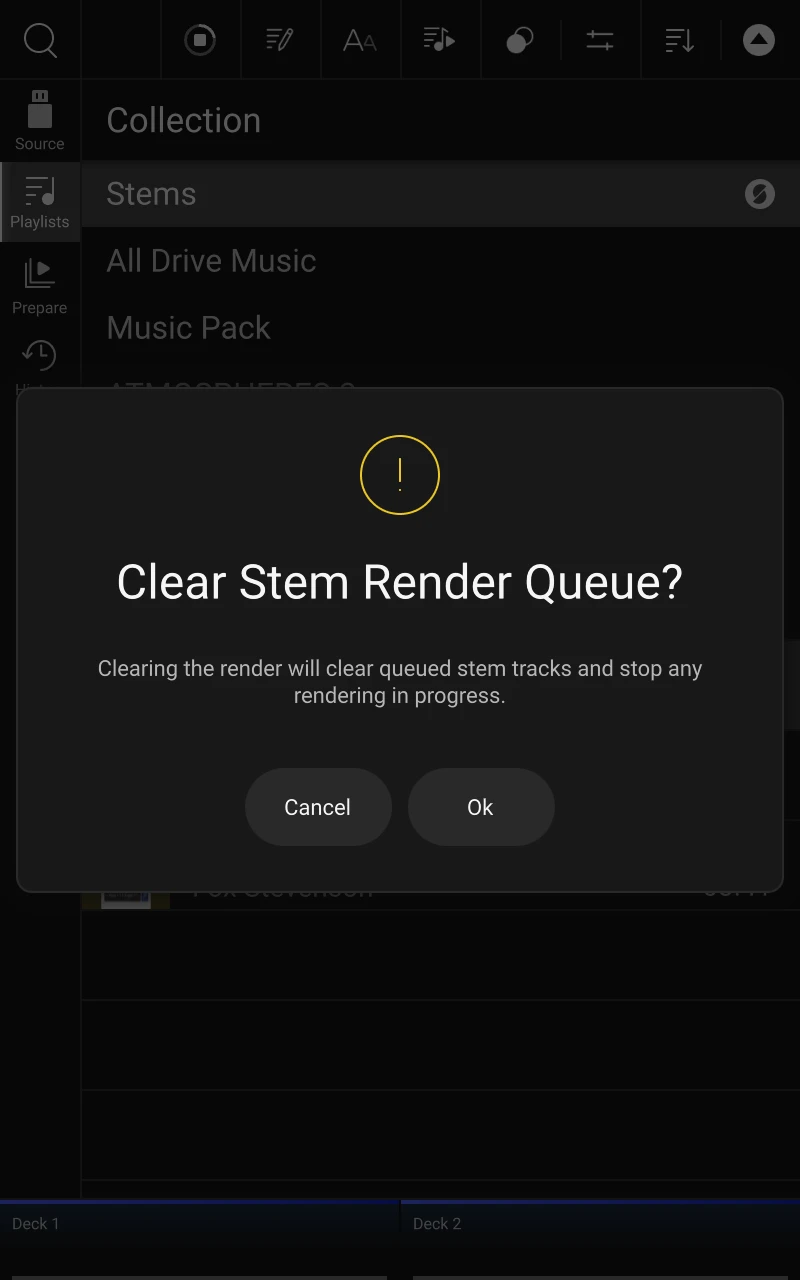
Selecting this button will cancel the current process and clear all rendering and queued tracks.
How do I remove Stems from my source drive?
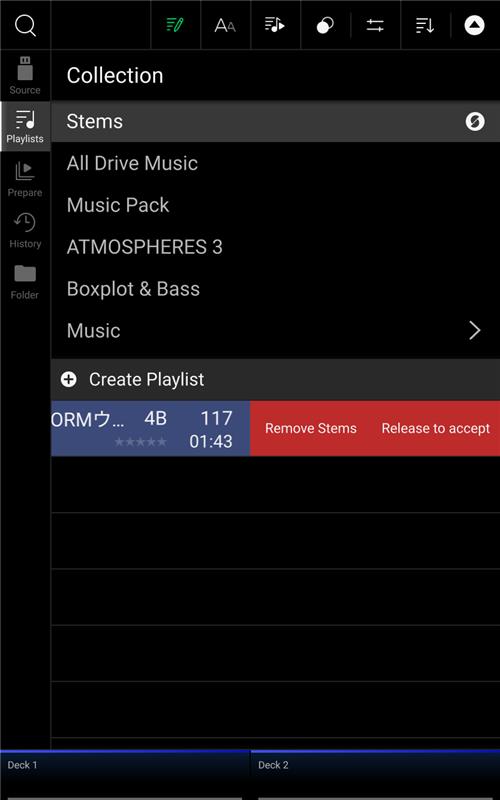
To remove Stems, enter Track Edit Mode while in the Stems list and select the desired track. Swipe left to reveal the Remove Stems button, then select it to delete the associated Stem files from the source drive.
This action will also remove the track from the Stems list.
Known Limitations:
- The creation time of the stems is dependent on the performance of the destination drive. For best results, we recommend using an SSD, a high-speed SD card, or a USB drive.
- On-device, Stems are rendered one track at a time. Additional tracks will be placed in a queue.
- At this time, Stems created on Engine OS hardware cannot currently be synced back to Engine DJ desktop.
- Existing Stems created on the device may be overwritten when exporting new music to a drive via Sync Manager if Export Stems is enabled.
- At this time, Stems created on Engine OS hardware cannot currently be synced back to Engine DJ desktop.
- Tracks from streaming providers cannot be added to the Stems list.
- Some file types are not supported for Stems creation (see below for a full list).
FAQ
Can I play back Stems while creating Stems for another track?
- Yes, you can play stems tracks whilst rendering another stem track on the device.
Can I play back Stems immediately on the device after rendering?
- Yes, stems performance pads will be immediately ready for use in your live performance. If you are rendering a track that is currently loaded to deck, once rendering has completed, stem functions are instantly available.
Where are the Stem files saved to?
- Stems files will be written to the currently selected Source drive. If there is not enough space on the drive, a dialog warning is shown.
How can I see which tracks are currently being processed for Stems?
In Library View, select the Stems playlist, then set the list sort filter to Stems. You can also adjust the sort order as needed.
- Tracks currently rendering will display a progress bar
- Queued tracks are indicated by a grey Stems icon next to the track title
- Tracks with completed Stems will show a solid Stems icon
How can I check available storage on my internal SSD before rendering Stems?
If there is insufficient space on the drive when attempting to render Stems, a warning dialog will be displayed. You can check available storage using Device Storage Mode on SYSTEM ONE.
What happens when I export playlists with Stems?
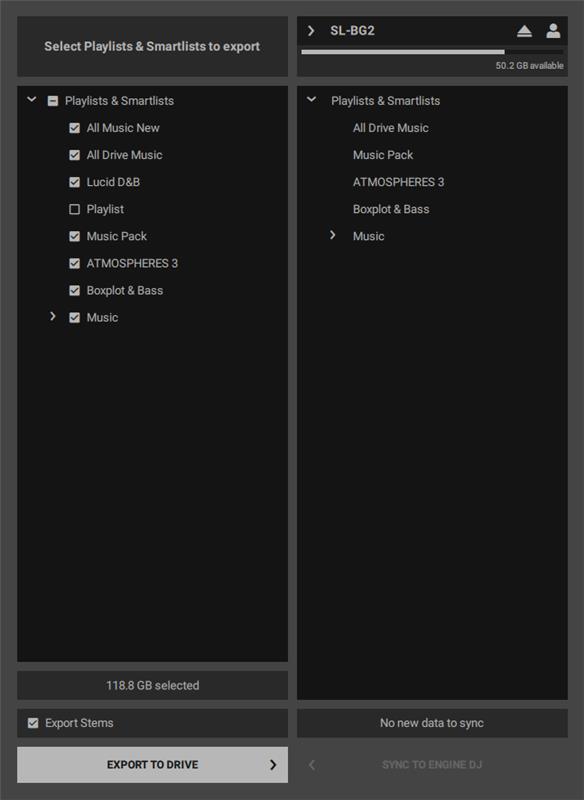
When exporting playlists from Engine DJ Desktop, the Stems stored on your computer become the source of truth only if you choose to export them.
If “Export Stems” is enabled:
- Engine DJ Desktop will remove any existing Stems on the drive that were created on the hardware
- These will be replaced with the Stems stored in Engine DJ Desktop for the selected playlists
- If a track has Stems on the drive but not in Engine DJ Desktop, those Stems will be removed
This may result in Stems appearing “missing” after export if they were originally created on hardware and not on your computer.
If “Export Stems” is disabled:
- Existing Stems on the drive are preserved
- Stems stored in Engine DJ Desktop are not exported
This means newly created Desktop Stems will not appear on the hardware.
I want to render all my Stems on an external drive to free up space on my computer. What’s the best way to manage my library?
To move your Stems to an external drive, use Engine DJ Desktop Sync Manager to export your Stems to the drive. Once the transfer is complete, you can remove the Stems from your desktop library to free up space.
Important:
To preserve Stems on the drive, make sure to disable “Export Stems” in Sync Manager during future exports. If enabled, this setting may overwrite existing Stems on the drive.
Alternative method:
When transferring music via drag-and-drop, Engine DJ Desktop will export Stems created on the desktop while preserving any Stems previously generated on the hardware. This allows you to maintain a combined library of Stems from both sources without overwriting existing data.
Note:
Dragging tracks or playlists from a drive back into Engine DJ Desktop will only import the original audio files. Stems created on the drive are not transferred back to the desktop library.
Additionally, SoundSwitch files are not included when using the drag-and-drop method and are only exported when using Sync Manager.
Why are some of my rendered tracks or stems missing after exporting a drive from Engine DJ Desktop?
Tracks previously rendered for Stems on Engine DJ hardware may no longer have Stems available after exporting to the same drive using Engine DJ Desktop.
This typically occurs when Stems exist in multiple locations—some created on hardware and others in Engine DJ Desktop. The Export Stems setting in Sync Manager determines which version is retained during export.
If enabled, Desktop Stems will replace existing Stems on the drive. If disabled, existing Stems on the drive will be preserved.
How can I back up the internal SATA drive in my RANE SYSTEM ONE?
To back up your internal SATA drive, enter Device Storage Mode on your hardware, then open Engine DJ Desktop and navigate to Settings.
From there, use the Library Backup function to create a snapshot of your current database and collection. This backup can be stored and restored at any time as needed.
How do I keep my computer’s collection in sync if I create Stems on my RANE SYSTEM ONE?
Currently, Stem files cannot be transferred between RANE SYSTEM ONE hardware and Engine DJ Desktop.
To avoid losing Stems stored on your drive, make sure to disable the “Export Stems” option in Sync Manager when exporting. If enabled, this setting may overwrite existing Stems on the drive.
I want to manage my collection across two drives and render Stems wherever I need. How can I avoid losing my Stem files?
It is currently not possible to transfer Stems created on RANE SYSTEM ONE between source drives using Sync Manager.
To avoid losing Stem files, we recommend using Engine DJ Desktop as your primary collection and Stems management tool when working across multiple drives. This ensures consistency and helps prevent Stems from being overwritten or removed during exports.
Best practice to avoid missing Stems
For the most consistent results:
- Render Stems in one place (either Desktop or hardware), not both
- Or, if you use both, make sure all desired Stems exist in Engine DJ Desktop before exporting with Export Stems enabled
Note
- A future Engine DJ update will add support for exporting Stems from Engine DJ Desktop through Sync Manager while preserving Stems rendered directly on the hardware.
File Types
Unsupported track and file types
If any listed tracks enter the rendering list, a dialog explains why rendering fails due to an unsupported file type or format.
The following types of tracks are unable to be rendered as stems:
- Tracks from any Streaming Providers
- Tracks from any Engine Remote Library
- Tracks from Dropbox
- Mono tracks
- Unsupported sample rates
- Unsupported file types
- Missing tracks (red)
- Corrupt Tracks
Supported File Types
- MP3 32 kbit/s - 320 kbit/s + VBR
- M4A / AAC
- MP4
- OGG Vorbis
- WAV 16-32 bit, 44.1k - 192k
- AIFF 16-32 bit, 44.1k - 192k
- FLAC
- ALAC
If you require further assistance, please open a support ticket.
Was this article helpful?
That’s Great!
Thank you for your feedback
Sorry! We couldn't be helpful
Thank you for your feedback
Feedback sent
We appreciate your effort and will try to fix the article