Native Access | What information is collected in the Native Access support file?
TABLE OF CONTENTS
- How to create a support file in Native Access
- Sending the support file to NI Support
- What to do if the support file cannot be attached to the ticket / e-mail
In this article, we will explain how to create a support file with Native Access and send it back to your support agent.
The support file collects information about your computer including machine information, product information, settings, and logs. Having more context around the issue you are facing helps your support agent guide you more effectively to a resolution. In particular, we collect the following:
- Product installation logs
- Installed products, including name and version
- Native Instruments logs
- Setting and configuration files, including product settings (product info XML and licenses)
Some of the above log data and technical information may qualify as “personal data” under applicable privacy laws. By submitting your support file, you acknowledge that Native Instruments may process such data for the purpose of troubleshooting, bug fixing and product improvement, so that our products better meet your needs and expectations. For more information on the processing of your personal data and your data protection rights, please refer to our Privacy Policy.
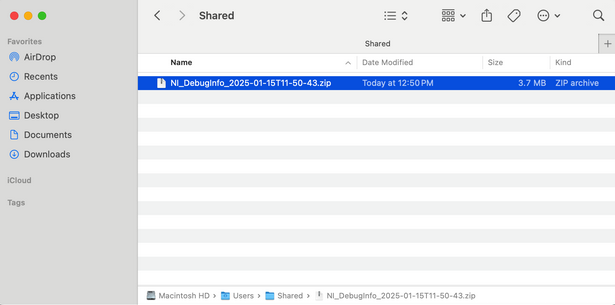
Note: the support file is a compressed zip file. You may open it to review its content before you send it to us.
How to create a support file in Native Access
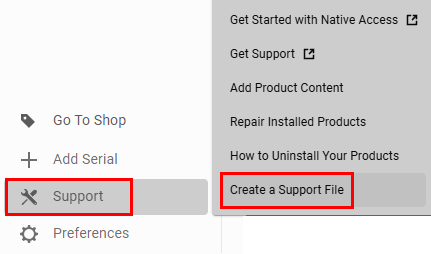
- Start Native Access and open Support > Create a Support File
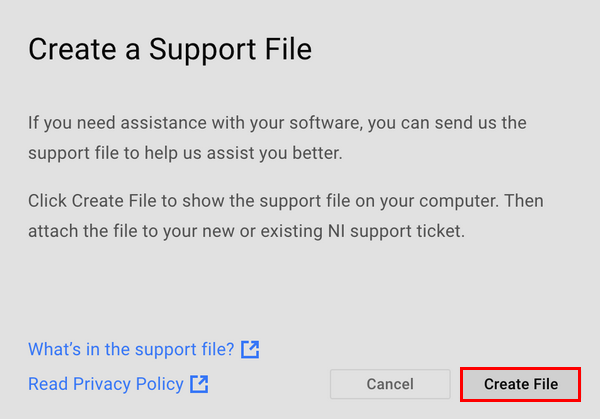
- Click Create File:
- Your file browser opens and shows the created support file on your computer:
Sending the support file to NI Support
You can attach the support file when contacting us. You will be informed during the process.
If you already have a support ticket, please simply attach the support file to your email reply.
What to do if the support file cannot be attached to the ticket / e-mail
This can happen if the support file is too large, or if it's blocked by your e-mail security settings.
- You can upload the Zip file to a cloud-based service such as AirBridge, DropBox, or Google Drive (or similar). Then respond to your NI Support Ticket with the download link to your support file.
- If sharing through the cloud, be sure the file can be downloaded by anyone with the link.
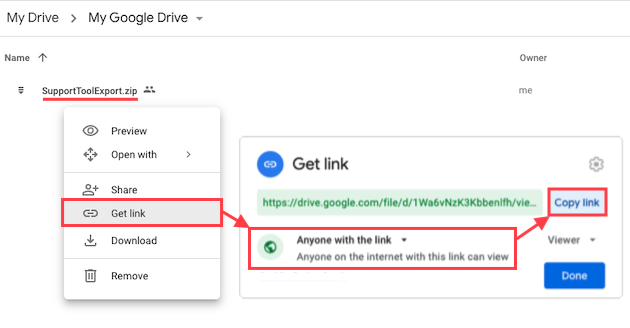
- Copy the link and paste it into your e-mail / ticket response.
Was this article helpful?
That’s Great!
Thank you for your feedback
Sorry! We couldn't be helpful
Thank you for your feedback
Feedback sent
We appreciate your effort and will try to fix the article