Symptom
When launching Native Access, the program freezes while displaying Loading Products:
Solutions
1. In many cases, simply closing all apps and restarting your computer will fix the issue.
2. This problem is often caused by software that interferes with the connection of Native Access to the Internet, e.g.:
- VPN / Proxy software
- Network Security software
- Antivirus software
If you are running any such products, temporarily disable them and open Native Access again.
3. If the issue persists, please select your operating system for further troubleshooting:
macOS
First, clear the Native Access cache:
- Click Go in the Finder menu bar while holding down the option / alt key on the computer keyboard. Choose the Library entry that appears in the drop-down menu.
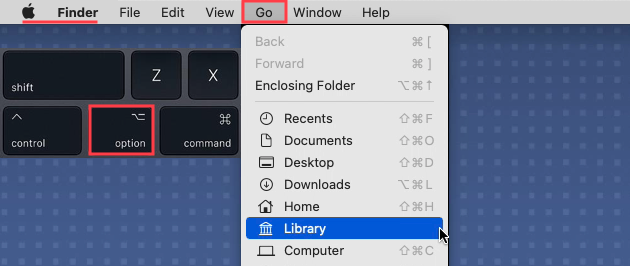
- In the user Library folder, navigate to the following location:
Library > Application Support > Native Instruments - Delete the folders "Native Access" and "NTK".
Next, delete the User plist files of Native Access and the NTKDaemon:
- Open the user Library again as shown above.
- In the user Library folder, navigate to the following location:
Library > Preferences - Delete the following files:
- com.native-instruments.Native Access.plist
- com.native-instruments.NTKDaemon.plist - Restart your computer.
Now you can start Native Access again.
Windows
First, delete the User Registry entries of Native Access and the NTKDaemon:
- Click the Windows Start button, type regedit and press Enter to open the Registry Editor.
- In the Registry Editor, navigate to this location in the folder tree:
HKEY_CURRENT_USER > Software > Native Instruments - Delete the folder Native Access.
- Now, navigate to:
HKEY_LOCAL_MACHINE > Software > Native Instruments - Delete the folder NTKDaemon.
Next, please clear the Native Access cache:
- Click the Windows Start button, type %localappdata% and press Enter.
- This will open the following folder location:
C: > Users > *Your User Name* > AppData > Local - From there, open the folder Native Instruments.
- Delete the folders NTK and Native Access.
- Restart your Computer.
Now you can start Native Access again.
Was this article helpful?
That’s Great!
Thank you for your feedback
Sorry! We couldn't be helpful
Thank you for your feedback
Feedback sent
We appreciate your effort and will try to fix the article