If Native Access does not install, fails to launch, or opens as a blank window on Windows, follow the steps below to resolve startup and installation issues.
TABLE OF CONTENTS
Symptom
The issue may present itself in one of the following ways:
- Native Access does not install or freezes during the installation process.
- When starting Native Access, it appears in the taskbar but the application does not open.
- Native Access appears as a blank, white screen.
If Native Access is stuck with the message "Searching for the latest update", please check this article instead.
If you are having issues installing a product from Native Access, check this list of error messages to find the solution to the problem you are experiencing.
Cause
This issue can be caused by a corrupt system or inadequate configuration.
Solution
Try the following troubleshooting steps. After each step, try opening Native Access to check if the problem was resolved.
Antivirus / Firewall / VPN Settings
The problem could be occurring due to Firewall, VPN, security or antivirus software blocking Native Access from operating properly. Please temporarily disable these and your security software or antivirus programs during the startup of the application and the installation process.
Run the System File Integrity Checker
The steps provided on this page from Microsoft explain how to use this tool.
Run DISM
If Windows updates are failing to install correctly, this can affect the installation of other programs. This tool from Microsoft will fix Windows updates errors.
Install the latest Microsoft Visual C++
Ensure you have the latest supported Visual C++ redistributable packages for Visual Studio 2015, 2017 and 2019 installed. Install both the x86:vc_redist.x86.exe and x64:vc_redist.x64.exe available from the Microsoft support site.
Windows Updates
Make sure you have the latest Windows Updates installed. This article from Microsoft explains how to do this.
Graphics Card Updates
Please ensure that you have the latest graphics card drivers installed. To check what graphics card your system has, follow these steps:
- Click the Windows Start button.
- Type 'dxdiag', and then click on the option that appears.
- The DirectX Diagnostic Tool will open. Click the Display tab in the top left.
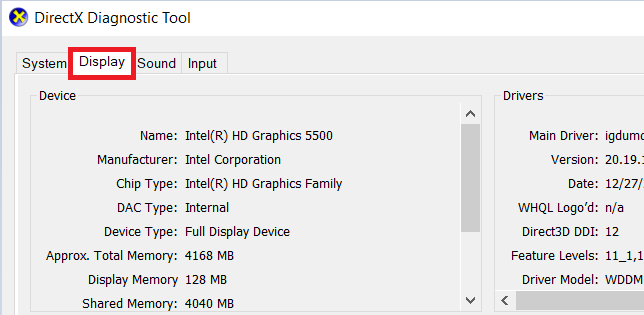
- Here you will see the name and model of your graphics card.
With this information, go to the graphics card manufacturer's website to check for updates for that device.
Resolution and Multiple Display Monitors
If you have two monitor displays connected, please try temporarily unplugging one of them and then attempt running Native Access again. Also, set a normal scaling for the resolution of your monitor. A scaling set too high will prevent the application from opening. You find this setting in:
Windows Settings > System > Display > Scale & layout.
Was this article helpful?
That’s Great!
Thank you for your feedback
Sorry! We couldn't be helpful
Thank you for your feedback
Feedback sent
We appreciate your effort and will try to fix the article