System Error: "The code execution cannot proceed because mia.lib was not found"
Symptom
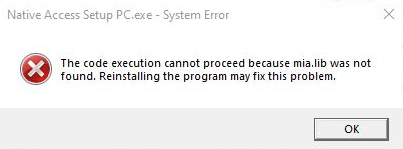
When trying to update, install or uninstall a Native Instruments product (including Native Access), you receive the following error message:
The code execution cannot proceed because mia.lib was not found.
Cause
The error message indicates that your Windows Installer Database (MSI) is corrupted, preventing both the installation and uninstallation process from completing.
Solution
NI Uninstall RegTool
As a first step, uninstall the affected product with the "NI UninstallRegTool". Please follow the steps in this article:
If you cannot find the product in the RegTool or the issue persists, please read on:
Microsoft Install and Uninstall Troubleshooter
The next step requires using a dedicated Microsoft tool designed to fix corrupted installation records. This tool is only “officially” available for Windows 10, but it also runs on Windows 11 and has worked flawlessly there so far.
You can download the troubleshooter here:
Now follow these steps:
- Start the downloaded file.
- Select Uninstalling.
- Select the product that is causing issues, e.g. 'Native Access'. The troubleshooter will forcibly remove the corrupted registry keys and installer residue from your system.
- After the tool has finished, restart your computer.
- Try the procedure again that failed before (installing / uninstalling / updating). If Native Access was the problem, please install it again from here: https://www.native-instruments.com/specials/native-access/
The installation, uninstallation, and updating of NI products should now work again.
If the issue persists:
Updating AppData and ProgramData
- Browse to this folder: C:\Users\*user.name*\AppData\Local\Temp
Note: Displaying Hidden Files and Folders (Windows) - Press 'ctrl + A' to select all files and folders.
- Press 'del' (delete) on your keyboard to delete all files.
(You may receive an error message stating that some files cannot be deleted. This is normal and occurs when files are currently open. Simply click “Cancel” in this dialog box.) - Now browse to this folder: C:\ProgramData
Note: Displaying Hidden Files and Folders (Windows) - Right-click in the free area, select New from the context menu, then select Folder to create a new empty folder. Name it Backup.
- Select ALL folders that have this format: {49AC4825-549F-4C80-8CAE-EE6D550095B1}
- Cut all these folders in C:\ProgramData and paste them into C:\ProgramData\Backup.
- At this point, retry you installation / uninstallation / update, it should work now.
- Move all that folders from C:\ProgramData\Backup back into C:\ProgramData.
(If you receive an error message stating that one of these folders already exists, click “Cancel” (i.e., do not overwrite the newer folder). - Finally, you may delete the folder C:\ProgramData\Backup, but this step is optional.
Was this article helpful?
That’s Great!
Thank you for your feedback
Sorry! We couldn't be helpful
Thank you for your feedback
Feedback sent
We appreciate your effort and will try to fix the article